Table of Contents
The simplest current way to make a custom iPhone ringtone is GarageBand on the iPhone. If you already manage local audio with iTunes on Windows, you can also trim a song, convert it to AAC, rename the copy from M4A to M4R, and transfer it to the device. Use only audio you have the right to edit.
Current method: create the ringtone in GarageBand
- Save an unprotected audio file in the Files app, or make sure an eligible unprotected song is downloaded locally in Music.
- Install GarageBand. Touch and hold its icon, then choose Create New Audio Recording.
- Open Tracks view, tap the Loop Browser, and import the audio from Files or Music.
- Drag the audio into the timeline and trim the section you want. Apple's ringtone export accepts a maximum of 30 seconds; GarageBand can shorten a longer project automatically.
- Return to My Songs, touch and hold the project, then tap Share > Ringtone.
- Name it, tap Export, and choose Standard Ringtone, Standard Text Tone, or Assign to contact.
Apple's custom ringtone guide documents this supported workflow. Protected or streaming-only Apple Music tracks cannot be imported; use a DRM-free file stored locally.
Legacy Windows method: make an M4R file in iTunes
The following screenshots use iTunes 12.7. Menu labels can differ in another release. Start with an audio file already stored on the PC—not a protected subscription download.
Trim and convert the audio
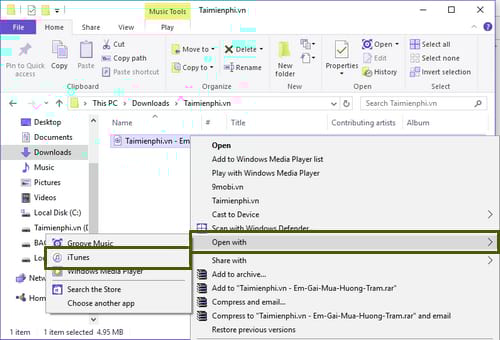
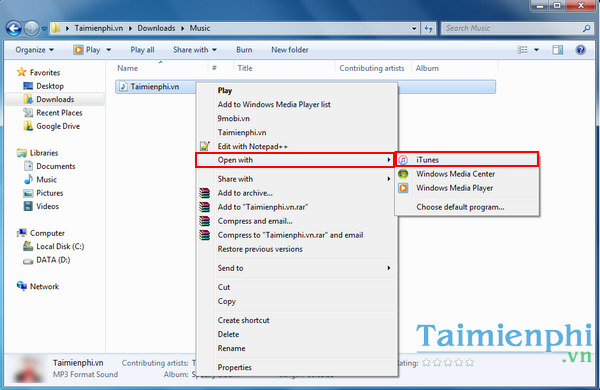
- Open the audio file with iTunes and find it under Songs.
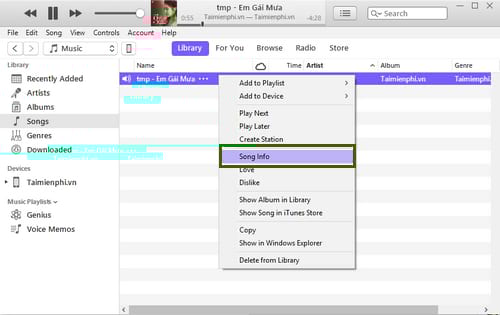
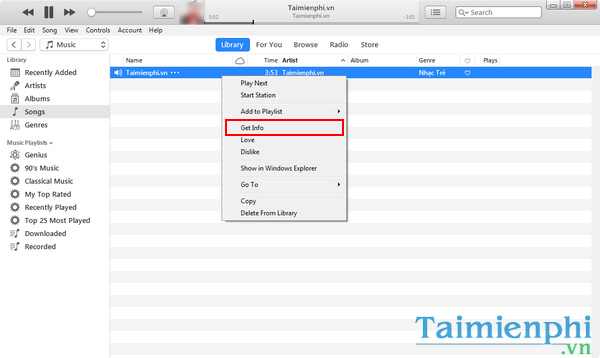
- Right-click the track and choose Song Info.
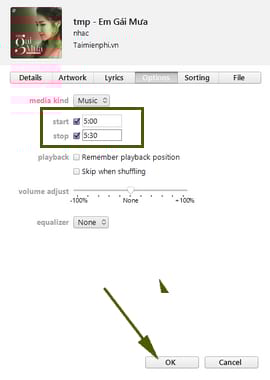
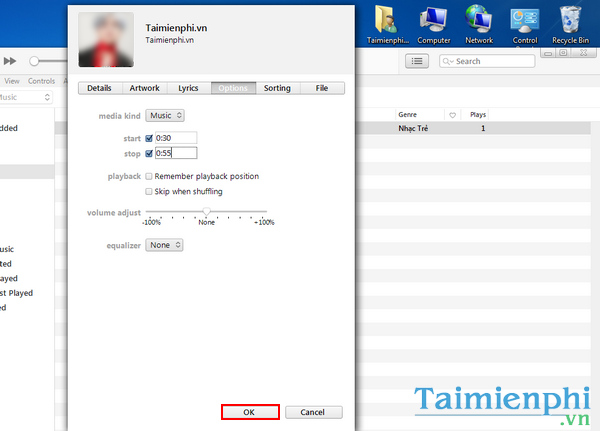
- On Options, set the start and stop times for the ringtone clip, then click OK.
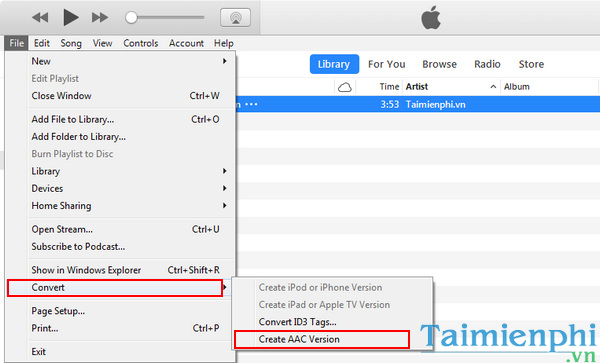
- Select the track and choose File > Convert > Create AAC Version. If that command is missing, open Edit > Preferences > General > Import Settings and set the encoder to AAC.
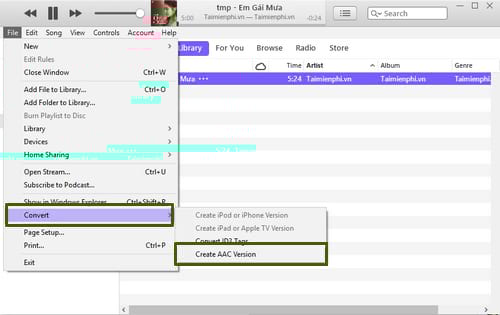
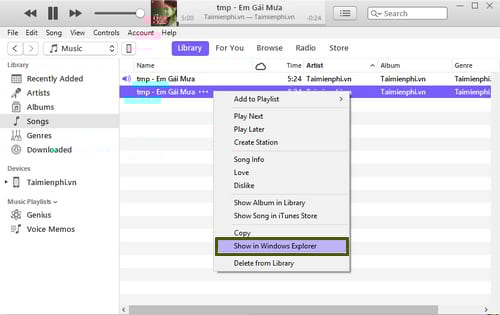
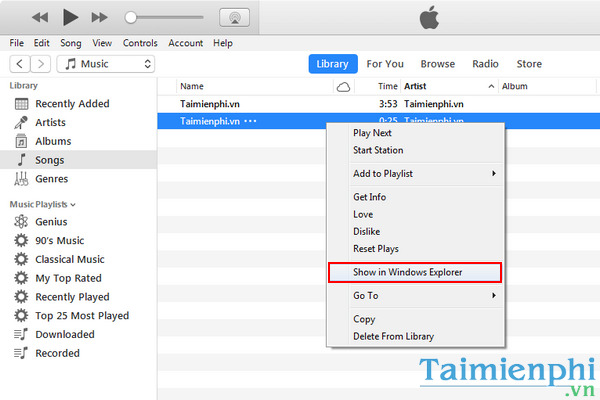
- Right-click the short copy and choose Show in Windows Explorer.
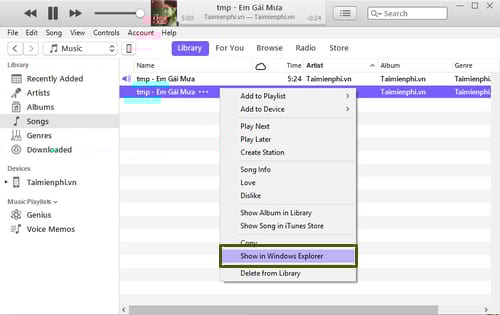
Rename M4A to M4R
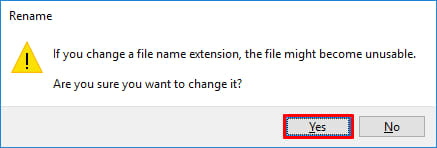
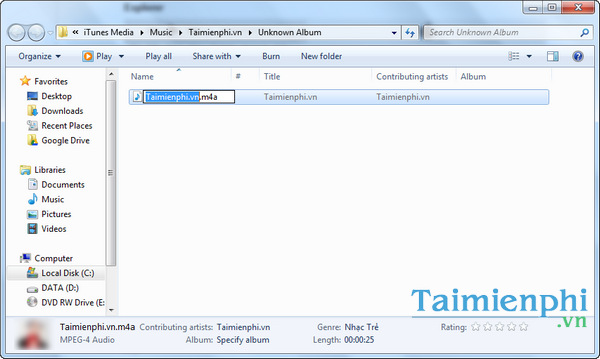
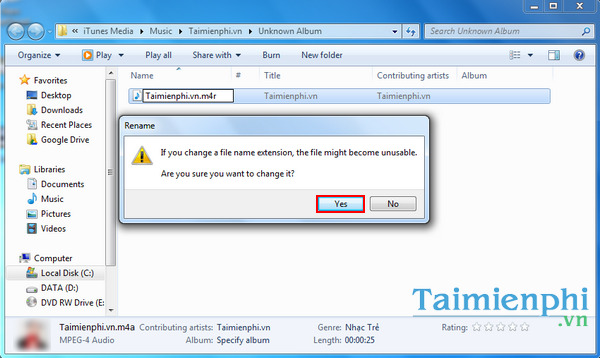
Enable file-name extensions in File Explorer, then change only the short copy's extension from .m4a to .m4r.
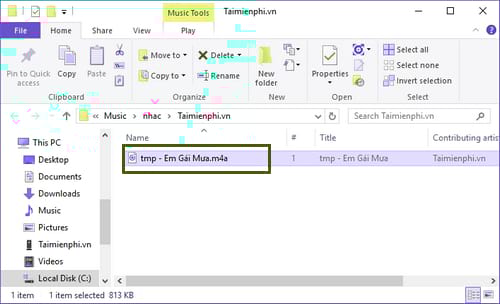
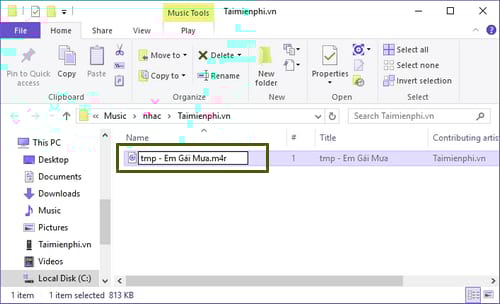
Confirm the extension change when Windows warns that the file may become unusable.
Add the tone to the iPhone
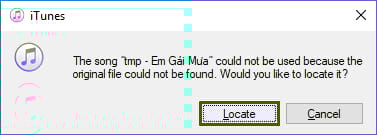
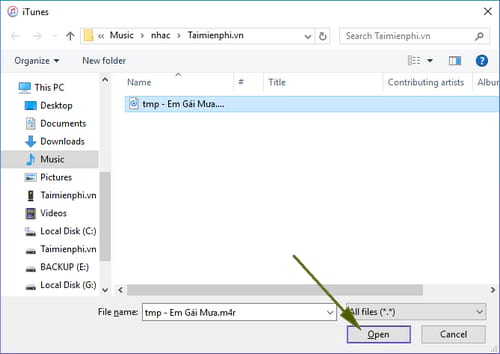
If iTunes still points to the renamed AAC copy, remove only that short library entry and keep the file, then locate the M4R version when prompted.
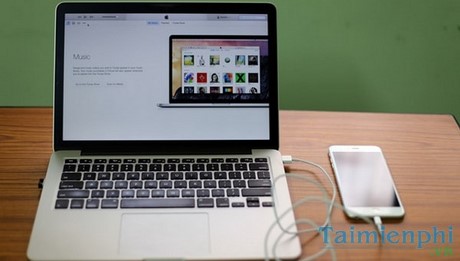
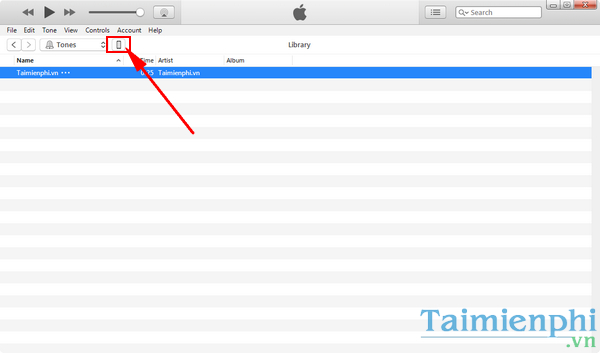
- Connect and unlock the iPhone, approve the trust prompt, and select the device icon.
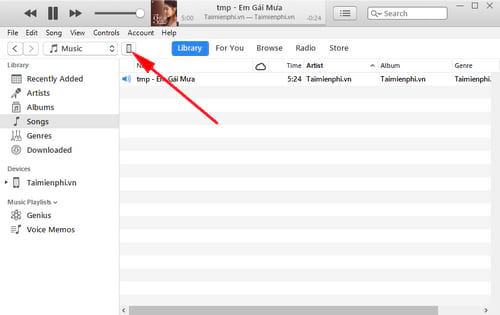
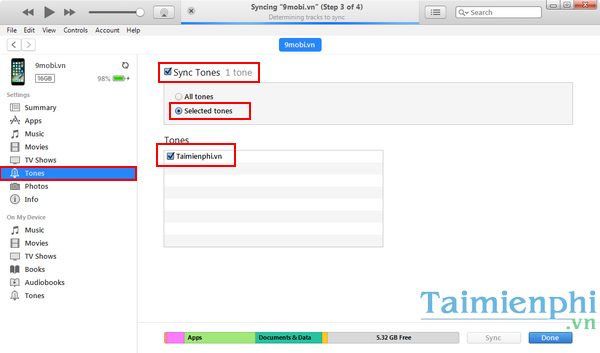
- Drag the M4R file onto the device's Tones area or the device name under On My Device.
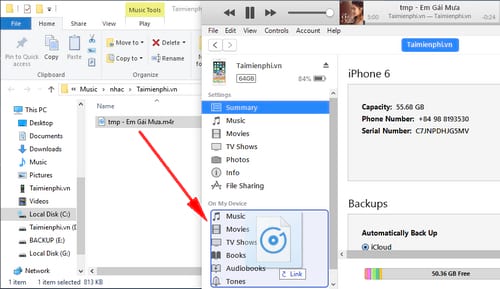
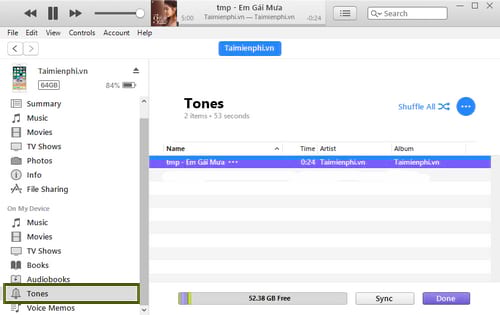
The ringtone should then appear under Tones.
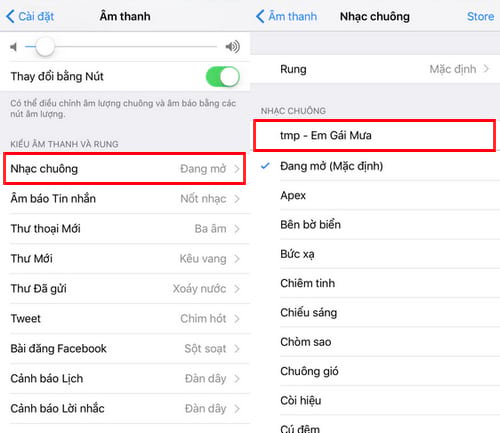
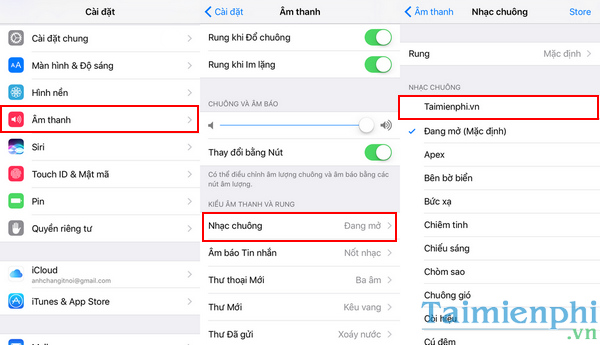
- On the iPhone, open Settings > Sounds & Haptics > Ringtone and select the new tone. For messages, choose Text Tone instead.
Older iTunes interface reference
The next screenshots show the same trim, AAC conversion, M4R rename, and tone-sync process in an older iTunes interface. Use them only if your menus resemble these screens.
Show the older screenshots
If the ringtone does not appear
- Confirm that Windows did not create a hidden double extension such as tone.m4r.m4a.
- Keep the clip short and use an AAC-based M4R file.
- Unlock and trust the iPhone before dragging the file.
- If the Tones section is missing or iTunes will not accept the file, use GarageBand instead.
For more sound options, see free ringtone download sites. If the iTunes layout is unfamiliar, start with the iTunes beginner guide.
Related Articles
 How to Fix the Error Does Not Appear Item Tones Ringtone on iTunes6 minutes read
 How to Fix m4r File Error Creating iPhone Ringtone with iTunes5 minutes read
 How to Create Super Fast iPhone Ringtones with iTunes on macOS4 minutes read
 How to Create Iphone Ringtones with Itunes5 minutes read
 Set a Message Ringtone, Call for Each Person on iPhone5 minutes read
 Fixing the Issue of Not Seeing the Tones Ringtone Option in iTunes When Creating iPhone5 minutes read
Reader Comments 0
Sign in with email or Google to join the discussion.