Table of Contents
On current Windows systems, import a personal video into the Apple TV app, then sync it to the iPhone or iPad with Apple Devices. On a Mac, import it into Apple TV and sync through Finder. If the video is intended for a third-party player, file sharing is often simpler than adding it to the TV library.

Before transferring the video
- Check that the iPhone or iPad has enough free storage.
- Use a reliable USB or USB-C cable and tap Trust when the device asks about the computer.
- Test the video on the computer first and keep the original file.
- If the Apple TV app rejects the file, use file sharing with a player that supports the format or convert a copy to a compatible format.
Windows: use Apple TV and Apple Devices
1. Add the video to Apple TV
- Install or update Apple TV and Apple Devices from Microsoft Store.
- Open Apple TV and select the Sidebar Actions button.
- Choose Add Files to Library or Add Folder to Library.
- Select the personal video. It should appear under the library's Home Videos area.
2. Sync the video to the device
- Connect the iPhone or iPad and open Apple Devices.
- Select the device in the sidebar, then choose Movies.
- Select Sync movies onto [device].
- Choose all movies or the specific video, then click Apply or Sync.
- Wait for completion and eject the device before unplugging it.
Apple's current movie syncing instructions for Windows confirm that the Apple TV app is required for this workflow.
Mac: use Apple TV and Finder
- Open Apple TV and choose File > Import. Select the video.
- Connect the iPhone or iPad and select it in the Finder sidebar.
- Open the Movies tab and enable movie syncing.
- Select the imported video and click Apply.
If the content is already stored in iCloud Photos and belongs in the Photos library, allow it to sync through Photos instead of maintaining a second Finder movie sync.
Alternative: transfer the file to a video app
Use this method when a third-party player on the iPhone supports the file format:
- In Apple Devices on Windows, select the connected device and open Files. On Mac, select the device in Finder and open Files.
- Select the destination app from the list of apps that support file sharing.
- Drag the video into that app's documents area and wait for the copy to finish.
The video appears inside the chosen app, not automatically in Apple's Photos or TV library. This overview of iOS file-management apps can help when you need a file-oriented workflow.
Legacy iTunes method
The screenshots below show an older iTunes interface. Use these steps only on a Windows PC or an old Mac that still runs that version; current Windows users should prefer Apple TV and Apple Devices.
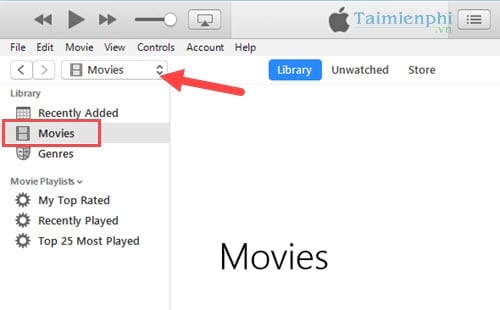
1. Open the Movies library
Choose Movies from the media selector.
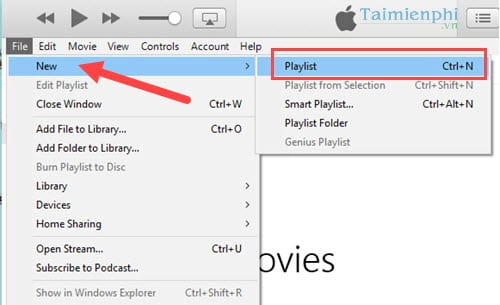
2. Create an optional playlist
A playlist is not required for a single transfer, but the old interface allowed File > New > Playlist for organizing personal videos.
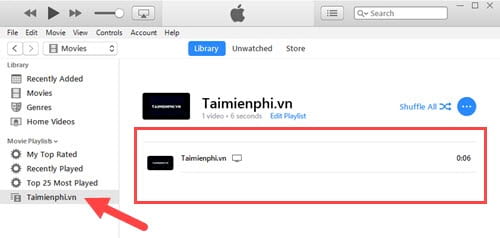
3. Import the video
Drag a supported video into the Movies library or choose File > Add File to Library. MP4 is a container, not a guarantee of compatibility; the codecs inside the file must also be supported.
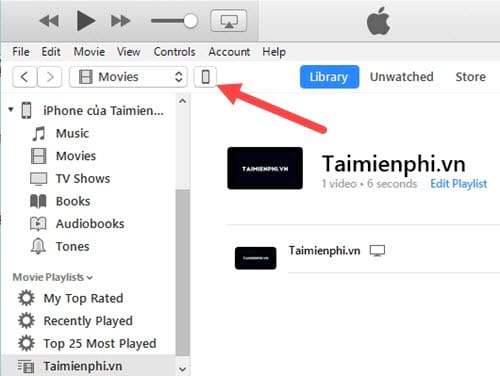
4. Select the connected device
Connect and unlock the iPhone or iPad, tap Trust if prompted, then click the device icon in iTunes.
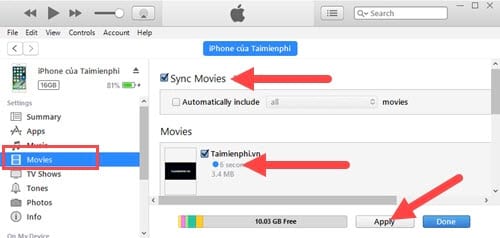
5. Sync selected movies
Open Movies, enable Sync Movies, select the video, and click Apply. Review the sync summary first because changing a library selection can remove previously synced items from that category.
If the video does not appear
- Confirm that the file was imported into Apple TV rather than only placed in a folder.
- Make sure the device is unlocked, trusted, and visible in Apple Devices or Finder.
- Try file sharing with a compatible player if the codec is not accepted by Apple TV.
- Shorten an unusually large test file or convert a copy before repeating a full transfer.
- Check whether a new sync configuration removed content previously supplied by another library.
For broader legacy guidance, see how to use iTunes for beginners.
Related Articles
 How to Convert Videos from Computer to iPhone with Itunes5 minutes read
 How to Copy Videos, Movies, and Music to iPhone and iPad Using iTunes on a PC11 minutes read
 How to Simply Copy Files from Computer to iPhone / iPad6 minutes read
 How to Transfer Photos/videos from iPhone to Computer Without iTunes Explained8 minutes read
 How to Copy, Transfer, and Move Music from Your PC to Your iPhone or iPad Using iTunes4 minutes read
 How to Use ITunes for Beginners5 minutes read
Reader Comments 0
Sign in with email or Google to join the discussion.