Table of Contents
Chrome update error 7: 0x80040905 on Windows usually means the Google updater could not complete its work. Start with a computer restart and Chrome's built-in update check; if the error returns, verify system support, network access, updater processes, and the installation itself.
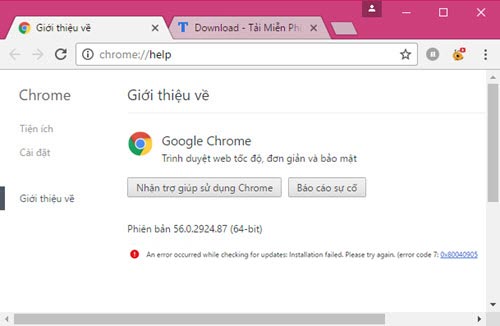
1. Record the exact error and Chrome version
- Open Chrome menu > Help > About Google Chrome.
- Wait for the update check to finish.
- Record the full code and version number. Similar-looking update errors can have different causes.
- Select Relaunch if an update has already downloaded.
Chrome may need every desktop window closed before it can replace files. Save web-form drafts and finish downloads first; our Chrome restart guide explains how to preserve tabs.
2. Restart Windows and try again
A pending installer or locked update file can clear after a normal Windows restart. Do not simply close the laptop lid. Choose Start > Power > Restart, open Chrome after signing in, and return to About Google Chrome.
3. Check whether the operating system is supported
A current Chrome release requires a supported operating system. Google's requirements can change, so use the current list in Chrome's official update troubleshooting page. An update will not succeed indefinitely on an operating system for which Chrome support has ended; upgrade the OS or use a vendor-supported browser instead of downloading an old Chrome build.
4. Check the connection, firewall, and proxy
- Confirm that normal websites load and the computer's date and time are correct.
- Disconnect an unreliable VPN or proxy temporarily if organizational policy allows it.
- Make sure security software is not blocking Google's update endpoints, including tools.google.com and dl.google.com.
- On a work or school computer, check chrome://policy or contact the administrator. Managed policies may control updates.
Do not disable antivirus or firewall protection globally. Create only the narrow updater exception documented by the security-product vendor or ask an administrator to do it. If websites also fail, diagnose the connection with our guide to Chrome “This site can't be reached” errors.
5. End a stuck updater process carefully
The original workaround ended older processes such as GoogleUpdate.exe. Current installations may use a Google Updater executable instead. Only end a process whose publisher and file location identify it as Google software; do not terminate similarly named unknown files.
- Close all Chrome windows.
- Press Ctrl+Shift+Esc to open Task Manager.
- Select Details. Look for a Google updater process that is idle or stuck.
- Right-click it, inspect its file location or properties if necessary, then choose End task.
- Restart Windows and try About Google Chrome again.
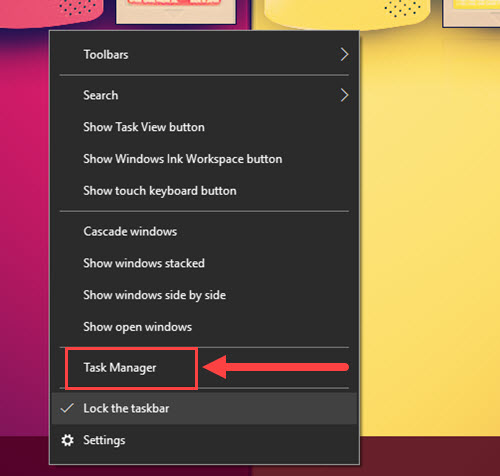
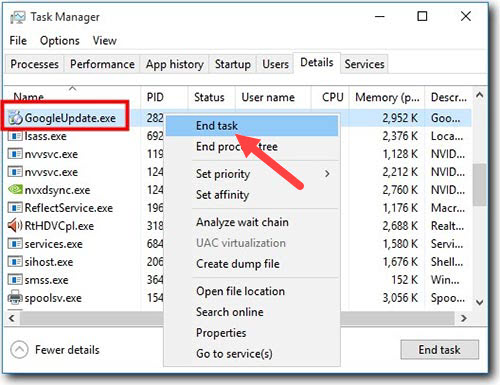
The screenshot shows legacy updater names and may not match a current installation. Ending the process is a one-time recovery step, not a substitute for a working update service.
6. Check Chrome again
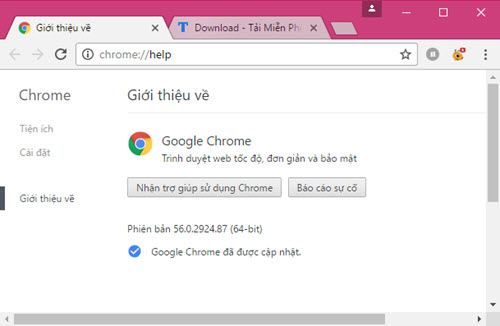
Open Chrome, return to Help > About Google Chrome, and allow several minutes for the check. If it finishes, relaunch Chrome and revisit the page to confirm that the displayed version no longer reports an update failure.
7. Reinstall Chrome from Google
If update files are missing or damaged, Google recommends reinstalling:
- Make sure important bookmarks and passwords are synced or exported. Do not assume all local profile data is backed up.
- Download a new installer from the official Chrome website. If the normal installer fails, use the official standalone installer referenced by Google Support.
- Uninstall Chrome through Windows Settings > Apps > Installed apps. Preserve browsing data when prompted if you intend to reuse the local profile.
- Restart Windows, run the new installer, and check About Google Chrome.
Avoid third-party download portals and registry-cleaning tools. They do not repair Google's service and can add unrelated software or remove useful profile data.
If the error remains
Collect the error code, Chrome version, Windows version, whether the device is managed, and the security software in use. An administrator may need to repair Google Updater permissions or deployment policy. On a personal computer, persistent failures after an official reinstall can point to damaged Windows installer components, malware, or a security product blocking the updater.
Related Articles
 How to Fix Google Chrome Code 7 Update Error 0x800409053 minutes read
 How to Turn Off Google Chrome Updates Completely6 minutes read
 Chrome Will Also Display an Error Code, Similar to Windows 'Blue3 minutes read
 Warning: Chrome 79 for Android Has Data Deletion Errors, Users3 minutes read
 Fix the Abrupt Flash Player Error on Google Chrome4 minutes read
 How to Fix the Error Can Not Save, Download Photos from4 minutes read
Reader Comments 0
Sign in with email or Google to join the discussion.