Table of Contents
You do not need to install or enable HTML5 in a current version of Firefox. HTML5 is part of the browser and is what sites such as YouTube use for video and audio. Adobe Flash is not an alternative: Firefox ended Flash support after version 84, and there is no supported setting or plug-in that turns it back on.

If HTML5 video does not play in Firefox
- Update Firefox. Open the menu, choose Help > About Firefox, allow the update to finish, and restart.
- Reload the page. Use Ctrl+Shift+R on Windows/Linux or Command+Shift+R on macOS to request fresh page files.
- Check sound and autoplay. Confirm the tab is not muted, Firefox is audible in the system volume mixer, and the site's permissions allow the playback behavior you need.
- Test Troubleshoot Mode. Open Menu > Help > Troubleshoot Mode. If playback works there, an extension, theme, or hardware-acceleration setting is likely involved.
- Try another video and another website. One failed file may use a codec or protection method that the system cannot decode.
Check codec and operating-system support
Firefox can play open formats such as WebM directly. Some formats—including common MP4 video and AAC audio combinations—may depend on media components supplied by the operating system. Install supported operating-system updates rather than downloading a random “HTML5 codec pack” from an advertisement.
- On editions of Windows that omit media components, install the appropriate Microsoft Media Feature Pack through Windows Optional Features.
- On Linux, use the distribution's supported multimedia packages and repositories.
- On managed computers, ask the administrator whether media codecs or streaming sites are restricted.
Mozilla maintains a current list of audio and video formats supported by Firefox.
Enable DRM only for protected streaming services
Netflix and some other licensed services use Encrypted Media Extensions and a content-decryption module. If ordinary videos work but protected streams do not:
- Open Settings > General.
- Find Digital Rights Management (DRM) Content.
- Enable Play DRM-controlled content.
- Open Add-ons and themes > Plugins and verify that the Widevine Content Decryption Module is allowed.
DRM is not required for every HTML5 video. Mozilla's DRM playback guide explains the supported setting and troubleshooting process.
What happened to the old about:config instructions?
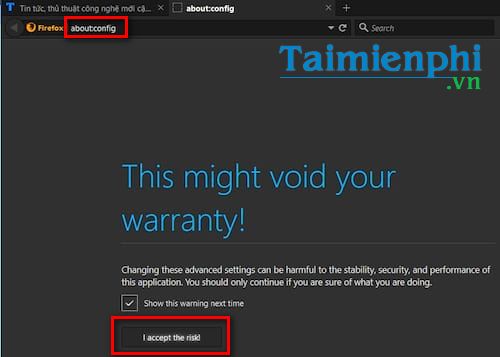
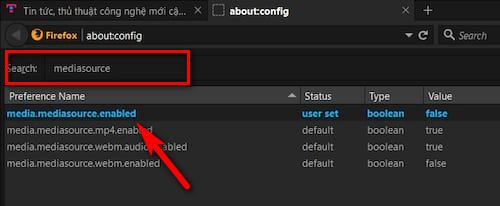
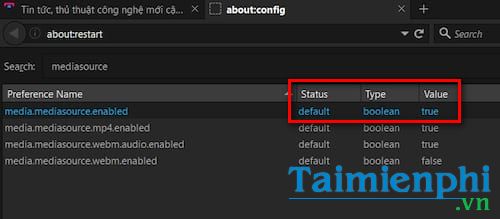
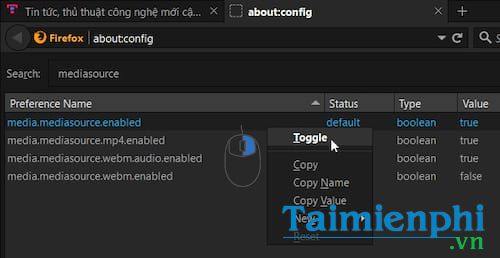
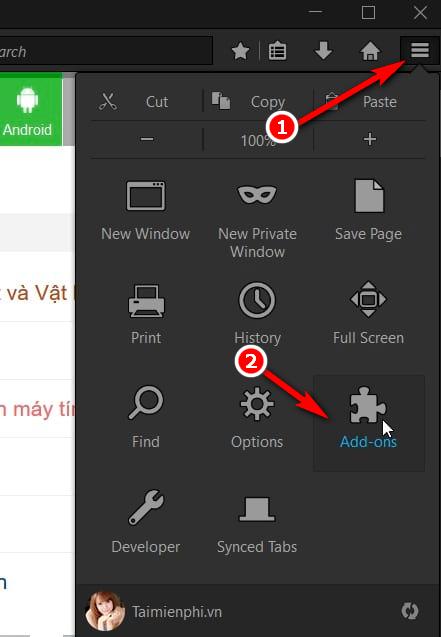
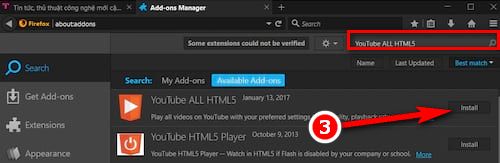
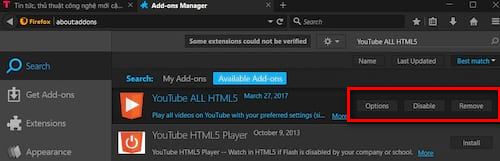
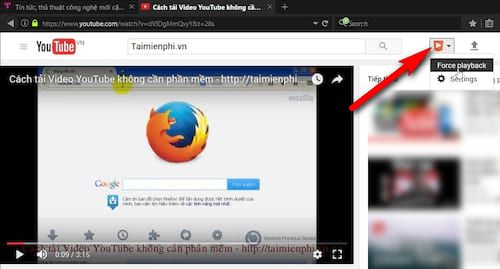
The original version of this guide told readers to change media.mediasource.enabled, restart Firefox through a developer toolbar, and install a “YouTube ALL HTML5” extension. Those steps belong to an older Firefox and YouTube transition period. Media Source Extensions and HTML5 playback are now standard browser capabilities, the old restart command interface is gone, and YouTube does not require that extension.
Do not flip advanced preferences simply because an old screenshot shows a value of false. Customized about:config values can make playback less reliable and remain in the profile after an update. Use the reset button beside a modified media preference to return it to its default value.
The following screenshots are retained as historical references only:

What to do with a site that still requires Flash
Mozilla states that Firefox ended Flash support at the end of 2020, and switching to another current browser will not restore the plug-in. Do not install an old Firefox build or a file claiming to be a new Flash Player; unsupported browser and plug-in software creates avoidable security risk.
- Ask the site owner for an HTML5 version or an exported video/document.
- For a public archived animation or game, consider a maintained Flash emulator such as Ruffle, but use it only from its official source and understand that compatibility is incomplete.
- Organizations with a required legacy application should isolate it and follow a vendor-supported migration plan rather than exposing an obsolete browser to the open web.
Mozilla's Flash end-of-support notice confirms that Firefox has no setting to re-enable the plug-in.
For website owners
If your own page fails in Firefox, validate the HTML <video> or <audio> markup, provide suitable fallback formats, use the correct MIME types, and test the server's range-request and cross-origin headers. Our introduction to embedding video with HTML5 explains the page-authoring side, while the guide to refreshing cached page assets can help during testing.
Related Articles
 How to Install Adobe Flash Player on Your Computer5 minutes read
 How to Check the Adobe Flash Player Version in the Browser3 minutes read
 How to Install Adobe Flash Player on CentOS 84 minutes read
 Journey from the Face of the Internet to the Stepchild Is Forgotten11 minutes read
 Disable Adobe Flash on Edge Browser: Disable Adobe Flash Player3 minutes read
 How to Update Adobe Flash Player: Complete Guide8 minutes read
Reader Comments 0
Sign in with email or Google to join the discussion.