Table of Contents
VirtualBox and VMware Workstation both run guest operating systems in virtual machines on a Windows or Linux PC. VirtualBox is a strong choice for an open-source, cross-platform workflow; VMware Workstation is often attractive when you prefer its interface, guest integration, and VMware ecosystem. The better option depends on your host system, guest OS, hardware, and licensing requirements.
Product-name note: The original comparison referred to VMware Workstation Player. VMware now directs desktop users to the broader Workstation product. VMware announced that Workstation became free for commercial, educational, and personal users, but licensing can change; check VMware's current announcement and terms before deployment.
Quick recommendation
- Choose VirtualBox if you want an open-source base package, support across Windows, Linux, and macOS hosts, or straightforward access to common VM formats and settings.
- Choose VMware Workstation if you prefer its Windows/Linux desktop workflow, want to stay within the VMware ecosystem, or find its guest integration better for your workload.
- Test both if 3D graphics, USB devices, nested virtualization, or a specialized guest OS is important. Compatibility varies more by workload than marketing claims suggest.
Licensing and cost
Do not rely on the original article's old free-versus-paid distinction. VirtualBox's base package and Extension Pack use different licenses, so organizations should read the VirtualBox licensing FAQ. VMware's desktop licensing has also changed over time. Recheck both vendors' current terms before business or large-scale use.
Creating and managing a VM
Both products provide a wizard for creating a VM, selecting a guest type, allocating memory and processors, creating a virtual disk, and attaching an installation ISO.
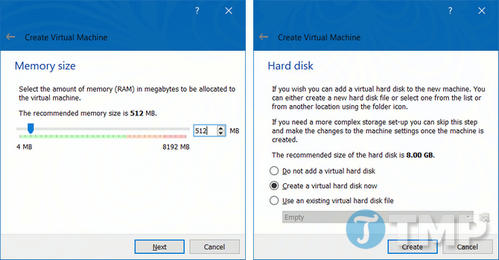
VirtualBox exposes many configuration choices directly. Its defaults are usually enough for a first VM, but you can adjust storage controllers, networking, display, shared folders, and snapshots later.
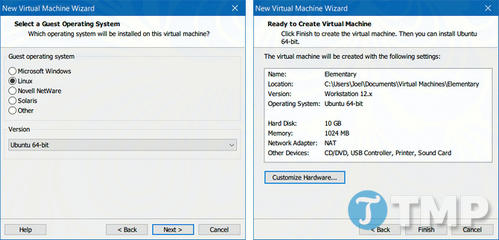
VMware Workstation also guides you through guest installation and hardware allocation. Its interface may feel more streamlined, but neither product removes the need to reserve enough resources for the host operating system.
Performance
There is no reliable universal winner. CPU virtualization, disk type and location, available RAM, graphics acceleration, guest tools, host drivers, and the guest OS all affect results. The original article's claim that VirtualBox performance steadily declined after Oracle acquired it is not supported and should not guide a decision.
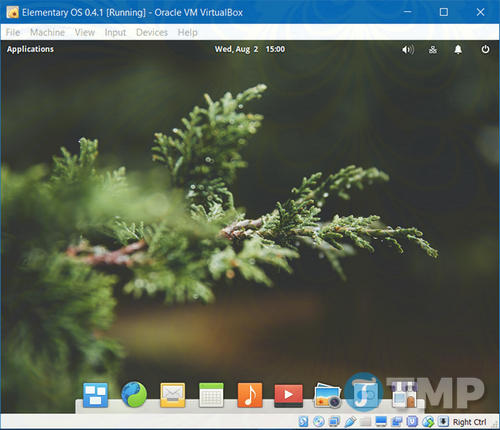
Compare the applications using the same guest image, CPU count, memory, virtual-disk location, and workload. Keep the host responsive and install the appropriate guest additions or tools before judging performance.
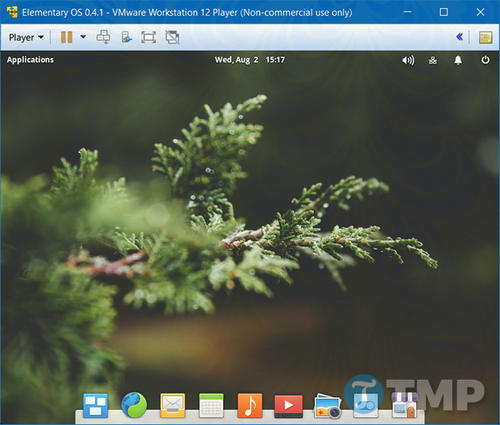
Features to compare
- Snapshots and clones: Both current product families provide ways to preserve or duplicate VM state, though exact controls and limitations vary by release.
- Shared folders and clipboard: Both can exchange data with a guest after their integration tools are installed.
- Networking: Both support common NAT, bridged, and host-only patterns.
- USB and advanced devices: Support depends on the host, guest, product version, and—in VirtualBox's case—whether separately licensed extension features are needed.
- Portability: Moving a VM is easiest when source and destination use the same product. OVF/OVA can help, but imported hardware settings may still require adjustment.
Which should you choose?
For occasional OS testing, either product can work well. Choose based on whether your required guest, networking mode, device passthrough, and license are supported. For a broader platform comparison, read VirtualBox vs VMware vs Hyper-V. To see the setup flow in both desktop products, use the guide to creating a Windows virtual machine with VMware and VirtualBox.
Related Articles
 How to Create a Windows 10 Virtual Machine with Vmware Player and12 minutes read
 How to Run macOS on Windows 10 Using VMware Workstation Player: Step-by-Step11 minutes read
 Fix the Error of Not Running Vmware Virtual Machine, Virtualbox4 minutes read
 Virtualbox and Vmware: Which Virtual Machine Software Is Better?8 minutes read
 How to Transfer Files Between Virtual Machines and PCs on VMware8 minutes read
 Compare Virtualbox, Vmware and Hyper-v11 minutes read
Reader Comments 0
Sign in with email or Google to join the discussion.