Table of Contents
Important note:
An agent template is a customizable starting point, not a production-ready solution. It can provide sample instructions, topics, tools, connections, or knowledge patterns for a scenario. Unlike a managed agent whose core is maintained by Microsoft, an agent created from a template becomes your custom agent and your organization owns its configuration, testing, updates, and support.
Choose a template from the use case, not the name
- Write the users, decisions, allowed tasks, prohibited tasks, and escalation path before opening the catalog.
- Inventory the authoritative data and systems the agent needs, including owners and access rules.
- Check template language, region, preview status, billing, connection, and channel requirements.
- Prefer the smallest template that matches the workflow; extra actions and knowledge increase the permission and testing surface.
Create the custom agent
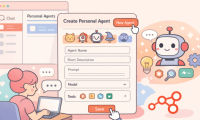
- On the Copilot Studio Agents page, select a template under Start with an agent template.
- Set a descriptive internal name, purpose, instructions, icon, and primary language.
- Review every connection. Edit or reauthenticate it with an approved least-privilege account rather than accepting a maker's broad personal connection.
- Replace sample knowledge with current, authoritative sources your users are permitted to access.
- Select Create, then inspect the generated instructions, topics, tools, authentication, knowledge, and fallback behavior.
Microsoft's current template guide documents the creation flow and states that organizations are responsible for safety, legal, regulatory, and suitability assessment. The template catalog can change, so treat the table below as a snapshot and confirm the options shown in your environment.
Test before publishing
- Expected requests with known correct answers and source citations.
- Ambiguous, incomplete, conflicting, and out-of-scope requests.
- Users with normal, restricted, and no access to connected data.
- Expired connections, missing records, connector timeouts, and tool failures.
- Prompt injection or untrusted instructions inside documents and websites.
- High-impact actions that require confirmation, human review, or refusal.
- Analytics, logging, retention, support ownership, and a rollback path.
Publish first to a limited test group, record the agent version and accepted evaluation results, and re-test after changing instructions, knowledge, tools, connections, or orchestration.
For scenario examples, see TipsMake's IT Helpdesk template, Citizen Services template, and Financial Insights template.
You are responsible for evaluating all safety and legal implications of using the template agent and customizing it to suit your business.
Organizations must assess specific legal and regulatory requirements when using template agents, as they may not be suitable for all industries, scenarios, or use cases. Furthermore, AI services should not be used in ways prohibited by applicable terms of service and related codes of conduct.
The following table lists the agent templates currently available on the agent page in Copilot Studio:
| Name | Home |
|---|---|
| Citizen Services | Custom Agent |
| Financial Insights | Custom Agent |
| IT Helpdesk | Custom Agent |
| Safe Travels | Custom Agent |
| Voice | Custom Agent |
| Weather | Custom Agent |
| Website Q&A | Custom Agent |
| Sustainability Insights | Custom Agent |
| Benefits | Microsoft 365 Copilot agent |
To create a custom agent from a pre-made agent template in Copilot Studio:
1. On the Agents page, under Start with an agent template, select the agent template you want to use.
2. On the agent configuration page, enter a name and, if necessary, a description and instructions for your new agent.
3. To change the icon representing your agent, select Change icon, choose an icon, and then select Save.
4. If necessary, confirm the agent's data connection:
a. If you need to set up or change a data connection, select the three dots (⋮) next to the data connection, and then select Edit.
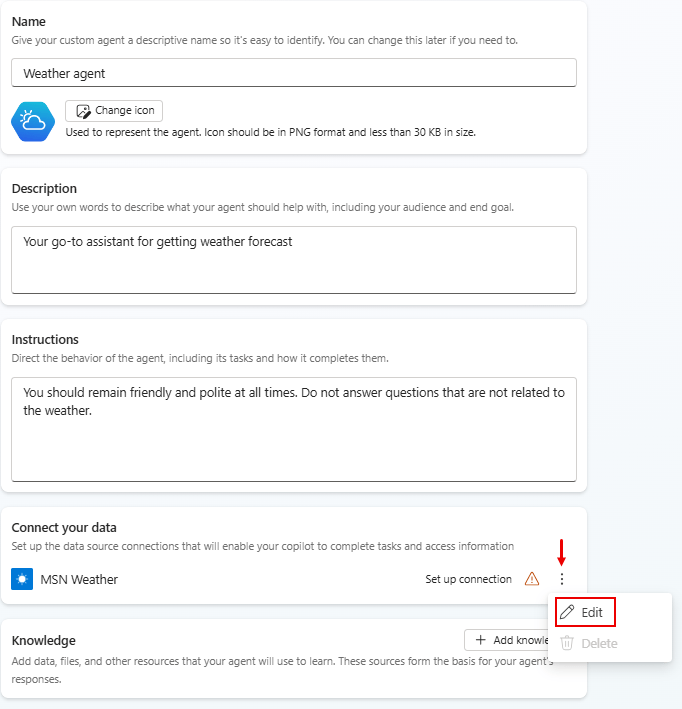
b. On the Connection setup page, if you are satisfied with the listed connection, select Confirm or log in, if required.
5. On the agent configuration page, select your primary language.
6. Optionally, to add a knowledge source, select Add knowledge, choose the knowledge source type, configure the knowledge source, and then select Add to agent.
7. After completing the new agent configuration on the agent configuration page, select Create at the top of the page.
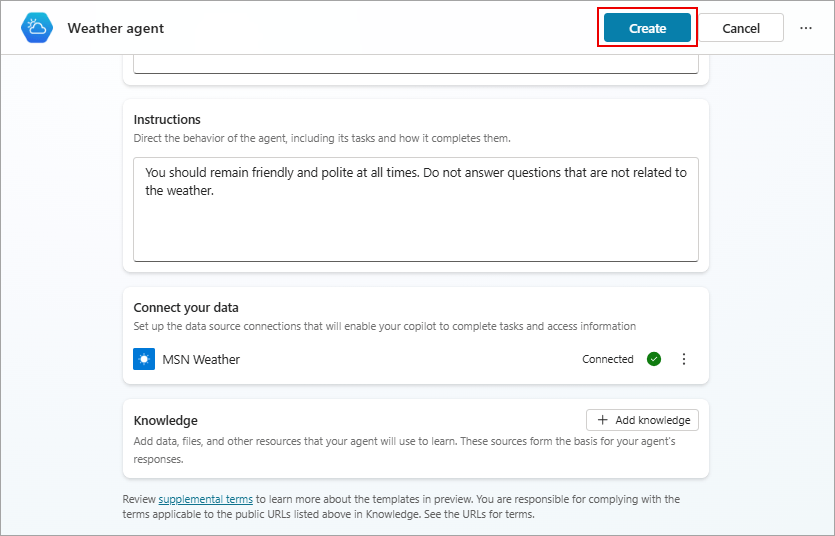
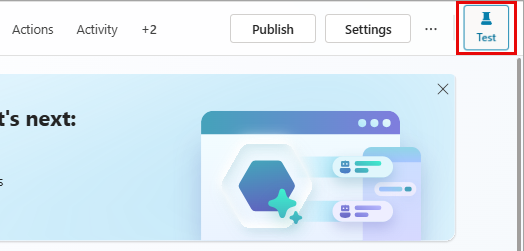
8. To test the new agent, select Test at the top of the page, then check the response. Continue to fine-tune the agent as desired on the Overview page.
9.Publish at the top of the page.
Note: Agent operations such as publishing and configuring authentication may take a few extra minutes before the agent is ready for use.




Reader Comments 0
Sign in with email or Google to join the discussion.