Table of Contents
Knowledge sources ground a Microsoft Copilot Studio agent in approved websites, files, SharePoint content, Dataverse data, and connected enterprise systems. They can be configured at the agent level or attached to a generative answers node for a particular topic.
The source list, limits, billing, and preview features vary by Copilot Studio experience and tenant. This guide summarizes the standard-harness behavior documented by Microsoft in August 2026; use the options displayed in your environment as the final authority.
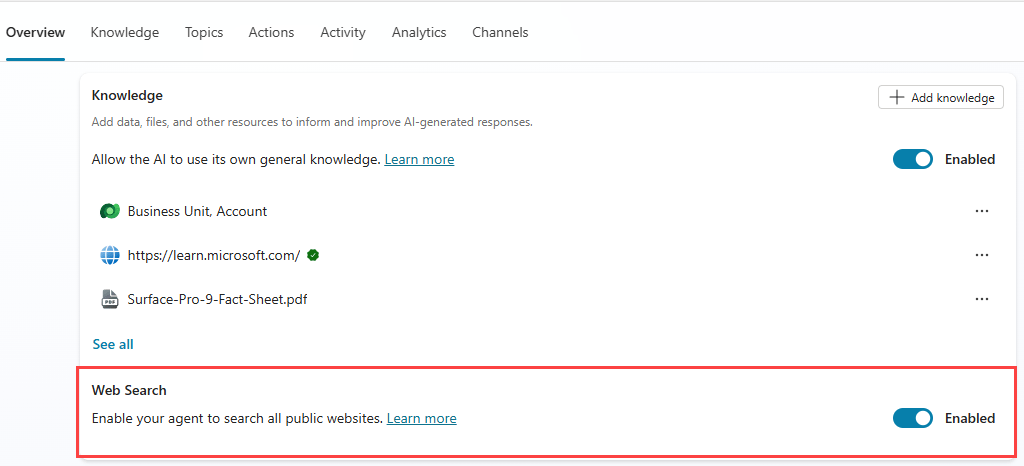
Where knowledge can be added
| Scope | Where | When to use it |
|---|---|---|
| Agent level | Overview or Knowledge page | The source should support many conversations and topics |
| Topic level | Properties of a generative answers node | The source should be searched only for a defined intent or workflow |
| Creation time | Agent-creation prompts | Quickly seed a new agent with a public website or SharePoint source |
A newly created agent normally includes a Conversational boosting system topic with a generative answers node. Agent-level sources become available to that grounding flow. Review the generated configuration instead of assuming it is ready for production.
Supported knowledge source types
| Source | How it is used | Authentication | Good fit |
|---|---|---|---|
| Public website | Bing searches within the provided website scope | None | Public documentation and help content |
| Uploaded documents | Searches file content stored for the agent | None for end users | Controlled manuals, policies, and reference files |
| SharePoint | Uses Microsoft Graph search for configured SharePoint locations | User's Microsoft Entra ID | Permission-trimmed internal documents and lists |
| Dataverse | Retrieves from selected business tables | User's Microsoft Entra ID | Structured operational records |
| Enterprise data through connectors | Searches indexed or connected external systems | User identity and source-system permissions | ServiceNow, Salesforce, Confluence, databases, and other supported systems |
| Azure AI Search | Connects to an existing enterprise search index | Configured connection | Large, deliberately indexed document collections |

Real-time Power Platform knowledge connectors remain preview features in Microsoft's current documentation. Their runtime calls use the requesting user's authentication token and respect the source system's access controls, but preview status, data policy, connection security, and tenant licensing still require review.
Limits in classic and generative orchestration
Classic orchestration
In the Conversational boosting system topic, current documented limits include:
| Knowledge type | Classic limit |
|---|---|
| Azure OpenAI Service connections | 5 |
| Bing Custom Search configuration IDs | 2 |
| Custom data sources | 3 |
| Dataverse | 2 sources, with up to 15 tables each |
| SharePoint | 4 URLs |
| Uploaded files | Limited by applicable storage rather than a count in this table |
| Public website | 4 URLs |
Classic orchestration can use custom data. A generative answers node can also be placed inside a specific topic so retrieval occurs for that intent rather than only as fallback behavior.
Generative orchestration
Generative mode supports up to 25 configured public websites and 25 SharePoint URLs in the documented knowledge-source table. Dataverse and enterprise connector entries are described as unlimited at this orchestration level, subject to their individual configuration and licensing constraints.
When an agent has more than 25 distinct knowledge sources, Copilot Studio uses an internal model to select sources based on their descriptions. Uploaded files do not count toward that 25-source selection limit. This makes unique, specific names and descriptions essential.
Generative orchestration does not directly support custom data or Bing Custom Search as knowledge sources. Microsoft directs makers who need those sources to embed them in a topic's generative answers node using the classic data option.
Write descriptions that improve source selection
A source description should state its content, audience, region, time scope, and exclusions. For example:
Approved North America consumer return policy for online and store purchases. Use for eligibility, deadlines, proof of purchase, and refund method. Do not use for wholesale accounts or warranty claims.
Avoid duplicate sources and descriptions such as “Company files.” If two sources disagree, identify the authoritative owner and remove or archive the obsolete one.
Allow ungrounded responses
The Allow ungrounded responses setting applies when generative orchestration is enabled.
- On: the agent may answer from the model's general knowledge even when it does not use a knowledge source or tool.
- Off: a response is blocked for a turn that used no knowledge source or tool, and fallback behavior can run instead.
Turning the setting off does not guarantee that every statement comes exclusively from a source. The model can still combine general knowledge with retrieved information. Microsoft also notes that a grounded response must include an in-text citation; a correct but uncited answer can be withheld intermittently.
To improve citation consistency, instruct the agent to cite sources, avoid rigid formats that remove citation markers, and test follow-up questions. A follow-up such as “Does that include sale items?” may be blocked if the agent tries to answer only from conversation history rather than calling the source again.
Use information from the web
Use information from the web, also shown as Web Search on the Overview page, lets a generatively orchestrated agent search public pages indexed by Bing. It is broader than adding a specific public website source.
Enable it only when the agent is expected to answer current general-web questions. For policy, support, legal, or regulated use cases, a curated source set is usually easier to govern. Web results can change, conflict, or include low-quality material.
Tenant graph grounding with semantic search
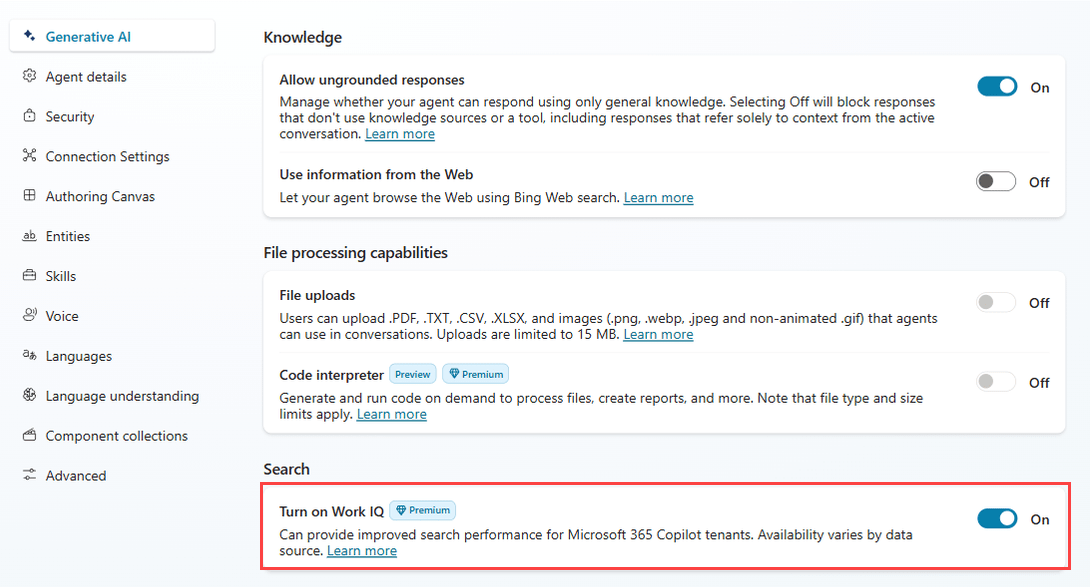
The setting formerly described in some interfaces and articles as “Work IQ” is documented by Microsoft as Tenant graph grounding with semantic search. It requires generative orchestration, Microsoft authentication, a tenant with the required Microsoft 365 Copilot licensing, and a configured semantic index. Additional Copilot Credit costs can apply.
Microsoft says this can improve SharePoint and connector retrieval, sometimes with slightly higher latency. It supports SharePoint and connector files up to 200 MB in the described configuration; PDF, PPTX, and DOCX sources can have a separate 512 MB limit. Excel cell content has semantic-indexing limitations, so Microsoft recommends code interpreter when the agent must analyze spreadsheet content.
Authentication and permission trimming
SharePoint, Dataverse, and enterprise connector sources require appropriate user authentication. When configured for the agent user's Microsoft Entra ID, retrieval should surface only content that user can access.
Verify this with real accounts:
- Create test users with different source-system permissions.
- Ask the same questions from each account.
- Inspect citations, quoted details, and follow-up answers.
- Confirm a user cannot infer the existence or content of restricted records.
- Repeat after changing SharePoint membership, Dataverse roles, or connector permissions.
Do not rely on the maker's successful test alone; makers often have broader access than the intended audience.
Official sources
In classic orchestration, a highly trusted source can be marked as an Official source from its menu on the Knowledge page. Responses that use it receive a distinctive indication.
This feature is currently incompatible with generative orchestration. Turning generative orchestration off simply to use the label changes other retrieval behavior, so test the complete agent rather than treating the designation as an isolated switch.
Content moderation
Moderation can be configured at the agent, topic, and prompt-tool levels. Topic-level settings take precedence at runtime; if none is set, the agent-level Generative AI setting applies. The default documented level is High.
Lowering moderation may increase the number of responses but can also admit more harmful content. Choose the level from the agent's actual audience and risk assessment, then test adversarial prompts and unsafe source passages.
Test a knowledge configuration
| Test | What to verify |
|---|---|
| Direct fact | The answer matches the source and cites the correct passage |
| Conflicting sources | The intended authoritative source wins or the conflict is disclosed |
| Permission boundary | Restricted users receive no protected content |
| Follow-up question | The agent retrieves again when grounding is required |
| Out-of-scope request | The agent declines, falls back, or routes correctly |
| Freshness | Updated content becomes retrievable within the expected interval |
| Citation rendering | Links appear correctly in every published channel |
| Prompt injection | Instructions embedded in source content do not override agent policy |
Citations returned from a knowledge source cannot currently be passed directly as inputs to other tools or actions. Customized answer rendering may also require custom citation handling, and Microsoft Teams imposes channel-specific citation limits.
Maintenance checklist
- Assign an owner and review date to every source.
- Remove superseded files and duplicate website scopes.
- Keep descriptions distinct enough for generative selection.
- Review preview status, licensing, and billing before production use.
- Test retrieval analytics, grounded-answer rate, and source use.
- Re-run permission and citation tests after every configuration change.
For the current limits and settings, use Microsoft's Knowledge sources summary. The Add knowledge to an agent guide covers configuration steps and suggested sources.
Related Articles
 Add Public Website Knowledge in Copilot Studio8 minutes read
 Upload Files as Knowledge in Microsoft Copilot Studio12 minutes read
 Add unstructured data as a knowledge source for the Copilot13 minutes read
 Create and Deploy Agents in Microsoft Copilot Studio9 minutes read
 Add Copilot Connectors to Copilot Studio Agents8 minutes read
 Overview of Copilot Studio11 minutes read
Reader Comments 0
Sign in with email or Google to join the discussion.