Table of Contents
What the Financial Insights template does
An agent built from the Financial Insights agent template allows users to build their own agent within Copilot Studio, and is designed for financial services professionals.
The Financial Insights template gives finance teams a starting structure for searching approved documents, regulatory filings, and news sources in Copilot Studio. It should support research—not make investment, lending, accounting, or compliance decisions on its own. Every material answer needs traceable sources and an appropriate human reviewer.
Plan the agent before adding data
- Define the audience and decision boundary: specify who may use the agent, what questions it can answer, and which requests must be escalated.
- Approve each source: record the owner, jurisdiction, publication date, update cadence, permissions, and retention rules for internal documents, filing sites, and news feeds.
- Separate facts from analysis: require the response to identify the source and period, distinguish reported figures from generated interpretation, and state when evidence is missing.
- Protect confidential information: test permissions with accounts from different roles and confirm that the agent never broadens access beyond the underlying source.
- Design review gates: calculations, summaries used in client work, and regulatory or investment conclusions should be checked against the original document.
Test with a finance-specific evaluation set
Include duplicated company names, restated figures, different currencies and units, table footnotes, multiple reporting periods, scanned PDFs, stale news, conflicting sources, and questions with no supported answer. A useful test records whether the response cites the correct document and page or section, preserves units and signs, distinguishes fiscal periods, and declines to guess.
Microsoft's current Financial Insights template documentation describes the optional financial document analysis skill as preview functionality and limits the English-only template to internal organizational use. Microsoft also states in its agent-template guidance that each organization is responsible for assessing legal, safety, and regulatory implications.
For related setup patterns, see TipsMake's guides to the IT Helpdesk agent template and Sustainability Insights agent template.
Note: Managed agents and template agents are currently only available in English and should only be used internally within your organization.
Appropriate research use cases
- It provides agent creators with a strong starting point when building a financial agency.
- Stay up-to-date with the latest legal filings, news, and research insights.
Prerequisites and governance decisions
- Identify the information sources you want to use for news, regulatory financial reporting websites, and your organization's financial documents.
- To utilize the Financial Document Analysis for Agents (preview) skill solution for your organization's financial documents, you should refer to the What the Financial Insights template does of Financial Document Analysis for Agents Skills.
Note: Activate the API key access in the Financial Document Analysis skill for agents (preview) as detailed in the documentation.
Create the agent from the template
- Log in to Copilot Studio and select Create.
- Select Financial Insights.
- On the agent creation page, update the agent name and description if necessary.
Add your sources of information
1. Add sources of information on financial reports and related news (public websites).
- For the question "Check regulatory filings," an agent built from the Financial Insights agent template will reference the SEC filings website as its source: https://www.sec.gov/. You can replace this source with another relevant website if needed.
- For Financial news questions, please add your preferred news website.
Note: For best results, you should add a financial news website as a source of knowledge.
2. Select Create.
Configure the repository-query topic
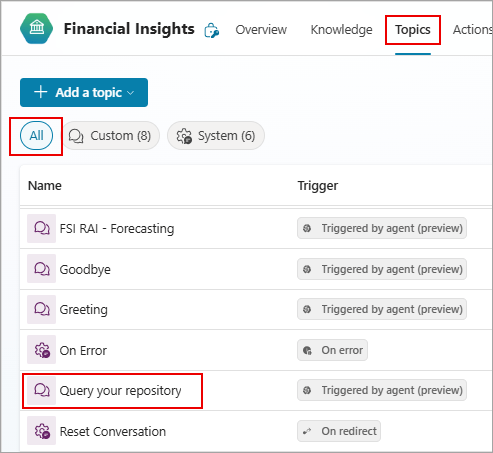
1. After creating the agent, select Topics at the top of the page, select All, and then select Query your repository.
2. Go to the Check financial news node and select Edit in Data sources.
- Turn on Search only selected sources.
- Select the financial news source you have added.
- Select Save.
3. Go to the Check regulatory filings node and select Edit.
- Turn on Search only selected sources.
- Choose a source of legal documentation knowledge.
- Select Save.
If you want to use the financial document analysis skills for agents (preview) for the Azure Marketplace solution (recommended for better performance), follow these steps.
Note: You can also add other document-based knowledge sources available in Copilot Studio.
1. In the Create generative answers properties pane, expand Classic data.
- Scroll down to Azure OpenAI Services on your Data, select Add Connection, and then select Manage Connections in Power Apps.
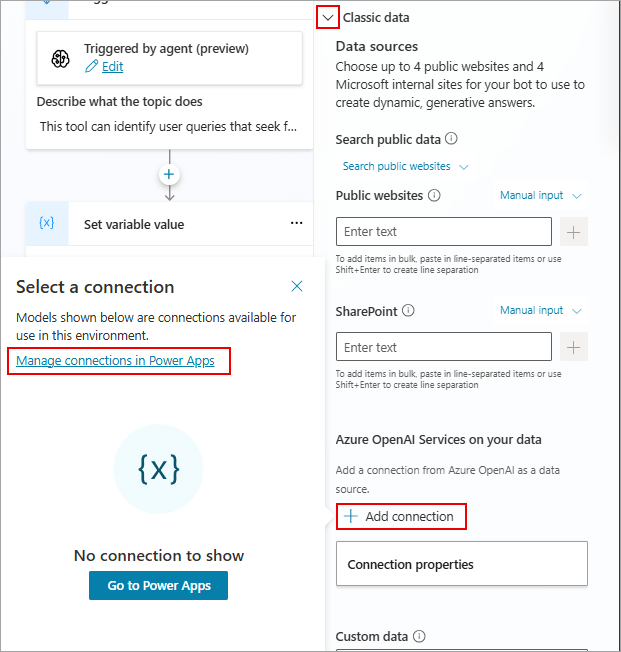
A new browser tab will open, displaying Connections in Power Apps (which may require login).
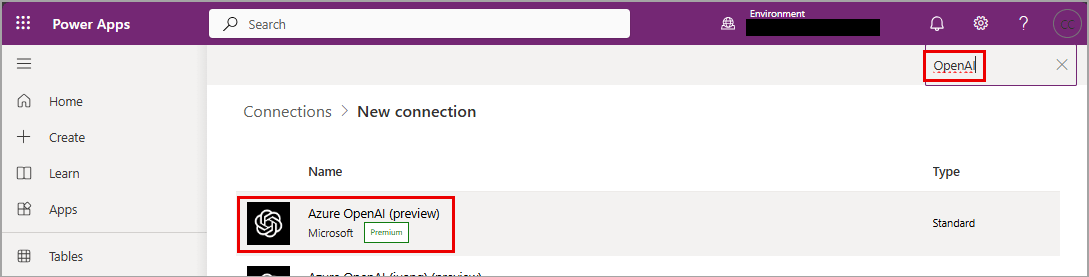
- Select Create a connection.
- In the search field at the top of the page, type "OpenAI", and then select Azure OpenAI (preview).
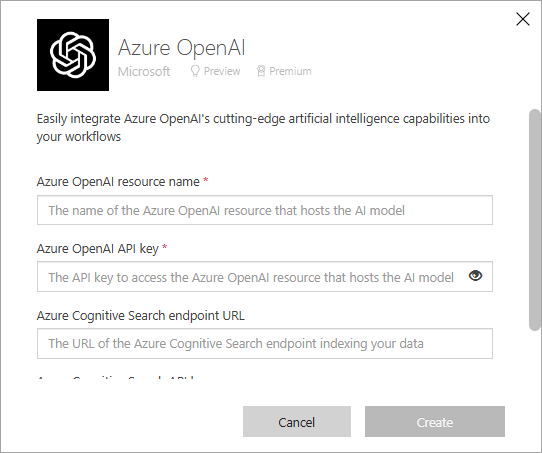
- Complete the connection properties for your Azure OpenAI Deployment.
-
- Enter the name of your Azure OpenAI resource.
- Paste the Azure OpenAI API key for your Azure OpenAI resource.
- Paste the URL of the Azure Cognitive Search endpoint containing your index.
- Add the AI Search API key. Copy the Primary admin key. You can obtain the AI Search API key from the Azure portal for your Azure OpenAI resource.
- Select Create.
Now you can go back to Copilot Studio and select your new Azure OpenAI connection.
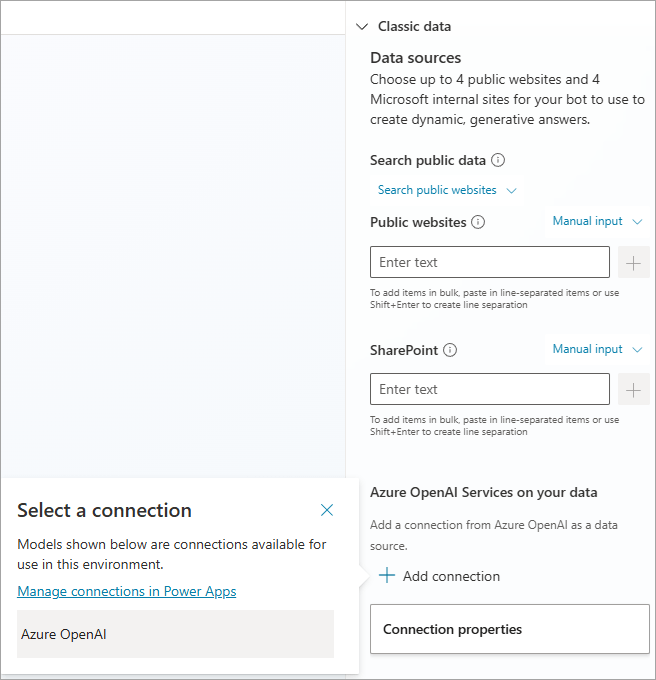
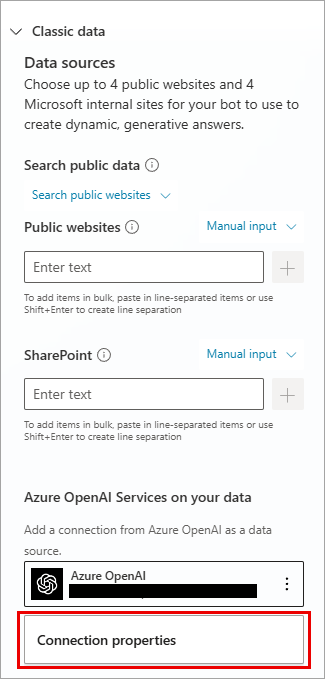
2. Select Connection properties.
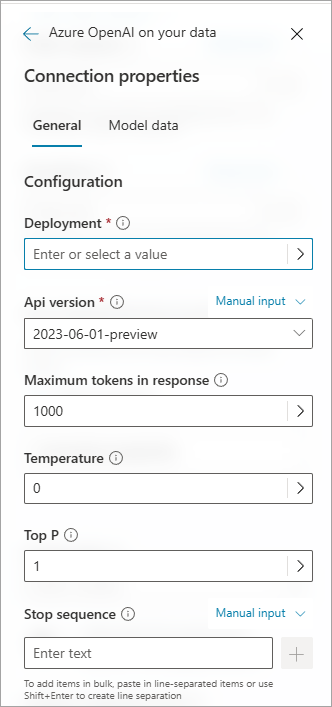
3. In the General tab, enter your connection configuration properties.
4. On the Model Data tab, in the Data sources section, select Add.
- Enter the name of the Azure AI Search index created by your financial document analysis skills for agents deployed on Azure Marketplace.
- Enter "simple" for the Query Type.
- Enter "true" for Limitations and required human review responses to your data content.
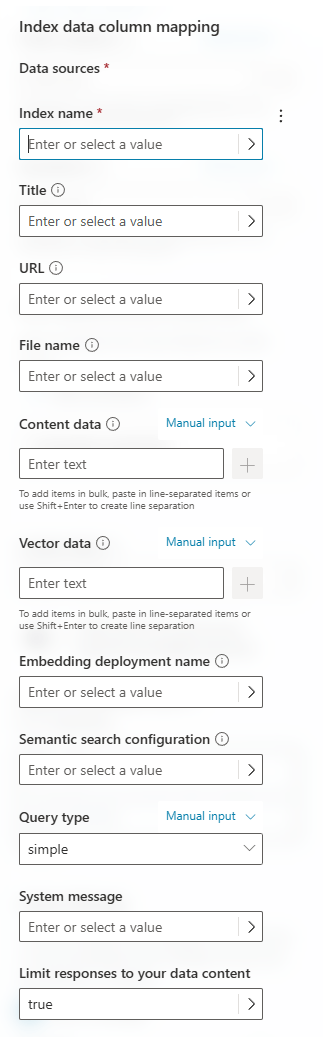
- Close the Properties tab and select Save.
Test, review, and publish the agent
- Check your agent in Copilot Studio.
- Publish your agent when it's ready.
- Connect your agent to the Microsoft Teams channel and test it.
Limitations and required human review
- The agent does not provide financial advice or financial forecasts. The answers provided are based on configured financial knowledge sources or general financial knowledge and do not reflect the views of Microsoft.
- The agent is designed to answer one question at a time, so you should ask multiple separate questions.
- Although the agent is designed to prevent the output of harmful content, it can still sometimes make mistakes.
- The agent uses Generative AI technology, which can make mistakes. A warning is added to the output, reminding users to check for accuracy before making financial decisions. You can edit this warning as needed to align with your organization's policies, but this article does not recommend removing it.
- This tool relies on the use of artificial intelligence (AI) services, and its output may not be accurate. Customers are responsible for conducting proper due diligence on AI-generated content before making any financial decisions.
- This tool is not intended for personal or financial use.
Related Articles
 Template Agent Sustainability Insights7 minutes read
 Template Agent IT Helpdesk5 minutes read
 Template Agent Safe Travels4 minutes read
 Template Agent Citizen Services6 minutes read
 Create a Custom Agent from the Agent Template4 minutes read
 Comparing Excel Agent Mode and Claude Excel Add-in: Which10 minutes read
Reader Comments 0
Sign in with email or Google to join the discussion.