Table of Contents
Copilot Studio 's activity tracking feature provides a visual map of the agent's input, decision, and output sequence within an activity, allowing you to identify problems and opportunities for improvement.
An activity map is created for each activity. An activity begins when an agent initiates a conversation or an external event triggers the agent. The map represents each activity using a node.
There are two forms of activity tracking:
- Real-time activity map showing agent performance during testing.
- Historical activity maps and records from previous operations.
Note:
This feature is only available for agents that have enabled the generation scheduling feature.
Only your interactions with the agent and instances where the agent uses your login information for authentication will be displayed. The agent must use Microsoft's built-in authentication to identify your interactions.
Real-time activity map during testing
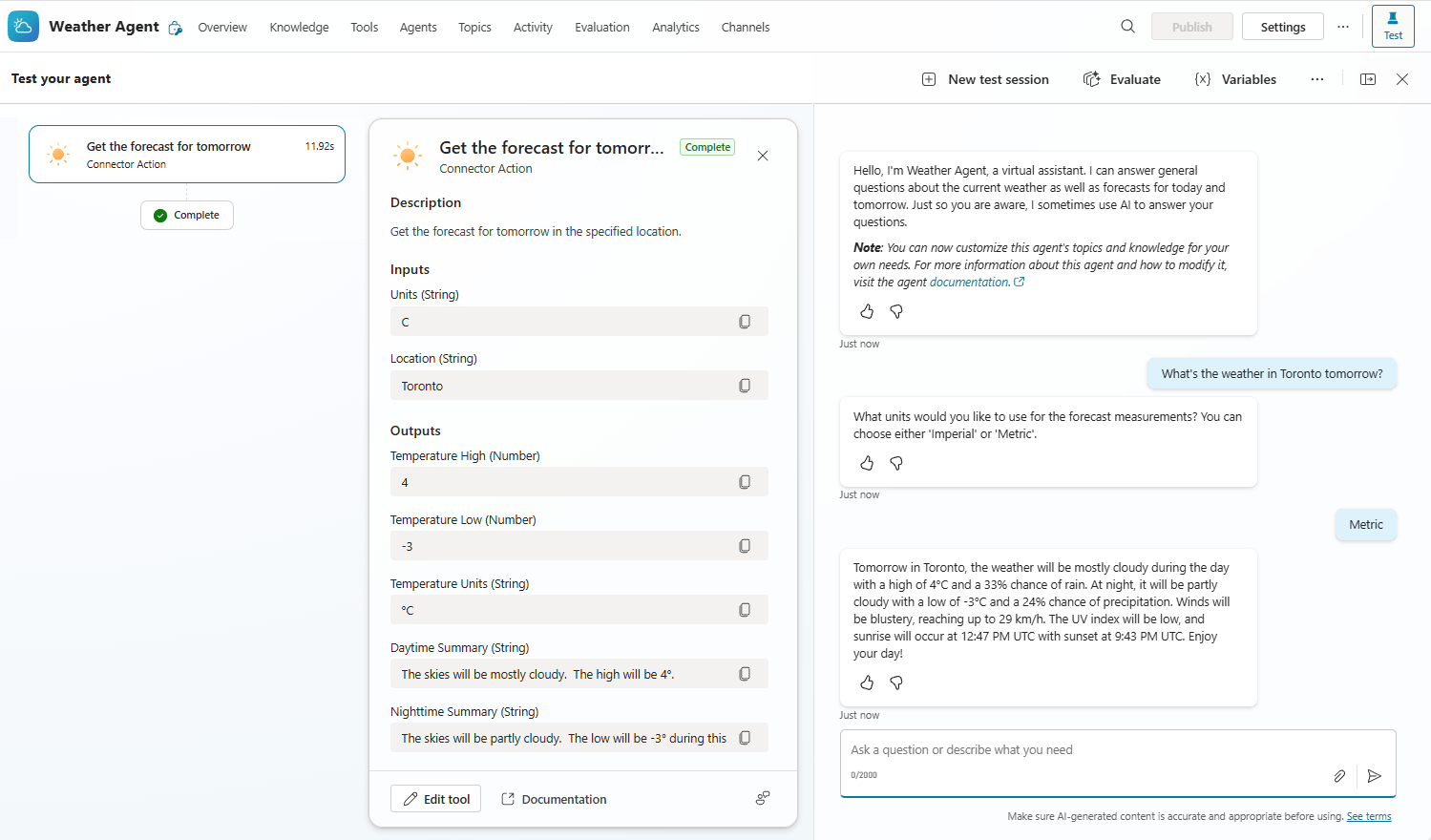
When you ask your agent a question in the Test your agent dashboard, the activity map displays a visual representation of the plan the agent has created. The activity map highlights errors, such as missing or invalid input or output parameters for actions, and shows the execution time of each step. You can also verify that the information your agent is sending or receiving is correct.
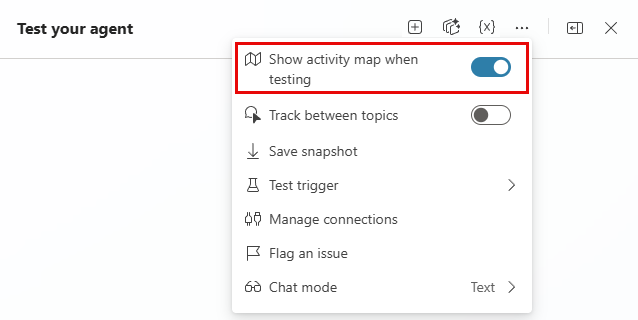
To have the activity map automatically appear when you send queries to your agent in the Test your agent table, select the three dots (…) and then turn on Show activity map when testing.
Here, the user asked, "What will the weather be like in Toronto, Canada tomorrow?" You can see the action the agent chose to respond to, as well as the inputs and outputs.
Check the event trigger
When you test an event trigger, the test chat will display the trigger's payload as a message. Only you can see this message in Copilot Studio for testing purposes. Your agent users cannot see it. Use the payload messages to understand when and what information and instructions the trigger sends to your agent.
Follow along between topics
When testing your agent, you can track between topics. When you enable tracking, the activity map will show the nodes within the topic as they are executed when a topic is triggered as part of a plan. You can track the conversation flow.
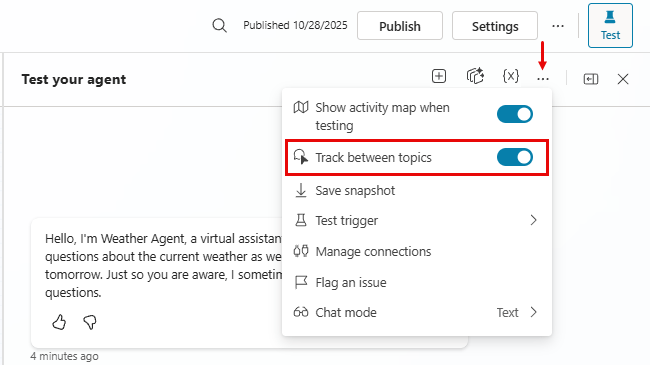
Note: Coordination activities generated within a topic will not appear in the activity map.
View the variables
You can view the variables used by the agent during testing. These variables can be system-wide variables, environment variables, system variables, or custom variables that the agent has access to.
To view the variables:
- Open your agent. The Overview page will appear.
- Select Test to open the Test your agent window.
- In the Test your agent panel, start a conversation with your agent by entering a query or prompt.
- To view the variables in the test, select Test > Variables. The Variables panel will open, displaying the variables used in the test.
Observe the agent's thought process during the test conversation
The Chain of Thought (CoT) feature provides detailed information about the agent's reasoning process during testing. It shows the intermediate steps, considerations, and decisions the agent makes when processing input and producing output. This feature is useful for understanding complex interactions and debugging agent behavior.
Note: The Chain of Thought feature is only available for certain models such as GPT-5 Reasoning, Claude Sonnet, and Claude Opus.
To observe the agent's thought process or reasoning during the experiment, follow these steps:
- Open your agent. The Overview page will appear.
- Select Test to open the Test your agent window.
- In the Test your agent panel, start a conversation with the agent by entering a question or prompt.
- Before the agent responds, the reasoning process will appear in the Test your agent table, displaying the thought process for the agent's response.
History of operation
Whenever the agent starts an activity, including tests you create in Copilot Studio, the Activity page records that activity in real time. Access the Activity page to:
- Review the interactions and decisions your agent made during an activity.
- Identify instances where the agent's behavior doesn't align with your goals.
- View the time it takes the agent to complete each task.
- Find the details of the error.
The agent's activity history is available for:
- Interactions in the Copilot Studio test chat
- Agents are published on Microsoft Teams and Microsoft 365 Copilot channels.
- The agents are published to the SharePoint channel.
- Activities begin with an automatic trigger.
Note:
You must have a Microsoft Exchange license and an inbox to view the agent's activity history. The data is stored using Microsoft 365 services, which Azure's data terms and commitments do not manage. Instead, this feature is provided by Microsoft 365 services and stored in a location associated with your Exchange inbox. Microsoft 365's data storage terms and commitments govern historical activity data.
Administrators should use the Power Platform admin center to prevent Microsoft 365 from caching data. Disabling this setting will stop future data caching on Microsoft 365. Existing data stored in Microsoft 365 will be deleted or discarded according to the data retention policy established for Microsoft 365.
Review the following information on the Activity page:
- A list of activities and their details.
- The conversational process unfolds step-by-step within an activity.
List of activities
An activity is a unit of interaction by an agent that includes conversing with the user, registering and responding to events, or a combination of these activities.
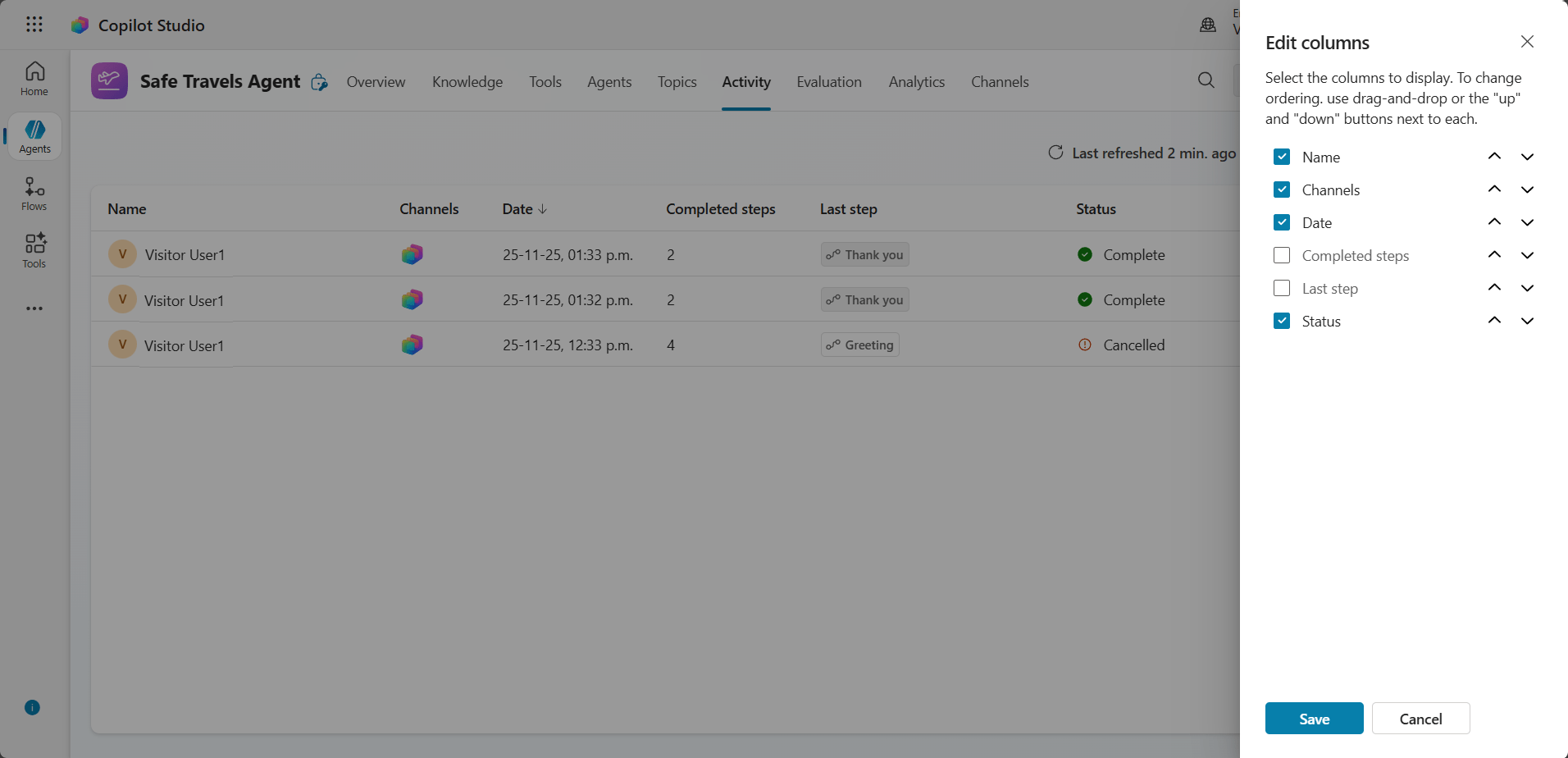
In the list of activities, you can see:
- Name: The name of the user interacting with the agent. If the activity is not user-related, such as when the agent performs actions without human prompting, the user will be displayed as Automated.
- Channels: Channels are where interactions take place. Activities occurring within the Test your agent dashboard will have a Copilot Studio icon.
- Date: The date the activity's first interaction began.
- Completed steps: The number of steps the agent completed during operation.
- Last step: The final step completed in the operation.
- Status: The status of the activity (successful, failed, in progress).
Customize Activity table view
You can customize the Activity board view to focus on the information that is most relevant to you.
To customize the view of the Activity table:
- Access the agent's Activity page. A list of activities will appear.
- Select Edit columns. The Edit columns dialog box will appear with a list of available columns.
- In the Edit columns table:
- Select the checkbox next to the column names you want to display.
- Uncheck the checkboxes next to the column names you want to hide.
- Drag and drop the columns to your desired location, or use the up and down arrows.
- Select Save to confirm and update the Activity table view.
View the conversation in an activity
On the Activity page, you can view the conversation within an activity as a visual activity map, or both the conversation transcript and the visual activity map. By default, the Transcript + Map view is displayed.
1. To view a conversation within an activity, select an activity.
- To see the transcript and map working together, select View and then click Transcript + Map view.
- To view only the active map, select View and then click Map view.
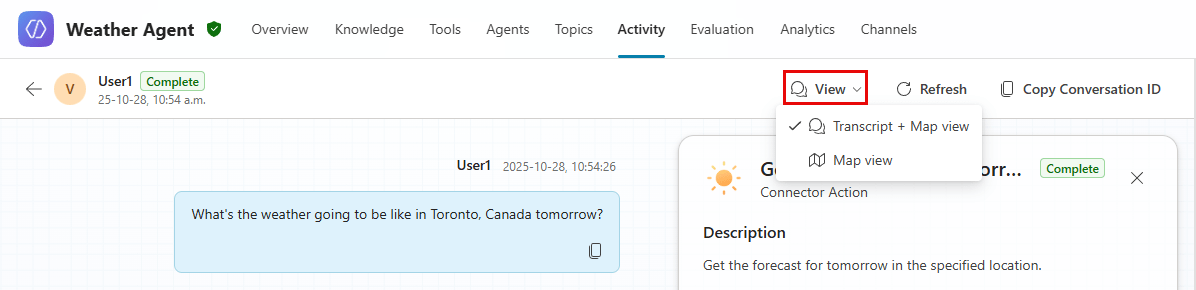
2. To return to the list of activities, select the Back icon.
The Transcript + Map view displays the conversation that takes place with the agent during an activity, along with a visual activity map. The transcript captures user input, trigger payloads, and agent responses. Use the transcript to see how your agent responds to user conversations. You can also view the trigger payload messages your agent receives from event triggers.
Observe the agent's thought process
The Chain of Thought (CoT) feature provides detailed information about the agent's reasoning process within an operation. It shows the intermediate steps, considerations, and decisions made by the agent when processing input and producing output. This feature is useful for understanding complex interactions and debugging agent behavior. You can only view the agent's thought process for a specific operation in Map view.
Note: The Chain of Thought feature is only available for certain models such as GPT-5 Reasoning, Claude Sonnet, and Claude Opus.
To see the agent's thought process or reasoning for a specific action:
- In the Activity tab, select the activity you want to review. By default, the Transcript + Map view will be displayed.
- Below the activity map, select the Reasoning arrow. The agent's thought process will appear.
Pinning or unpinning works
On the Activity page, you can pin important activities to the top of your activity list for easy access or unpin them when they are no longer needed.
- To pin an activity, hover over it and select the Pin icon next to its name.
- To unpin an activity, hover over the pinned activity and select the Unpin icon next to its name.
View all agent activity in the activity map
A map view is a visual representation of the input, decision, and response flow that occurs within an activity. Each activity your agent, user, or trigger performs has a node. When viewing the activity map, select a node to see details about the inputs, decisions, and outputs for that activity.
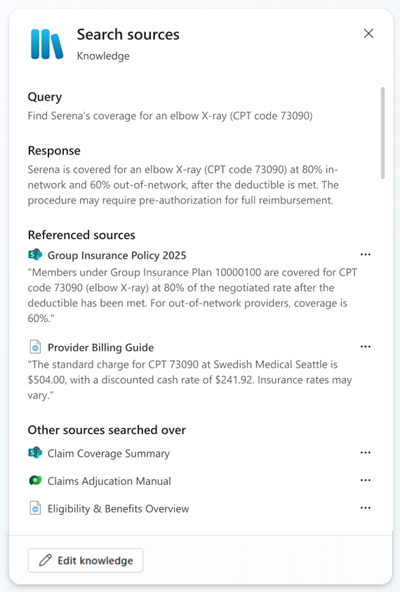
The following image is an example of what you see when you select a Knowledge node. It shows:
- The query that the agent used to search for knowledge sources. This query may differ from a user-written query or input data provided by a trigger.
- The response generated by the agent was based on knowledge sources.
- The sources that the agent referenced.
- Other sources that the agent searched but did not use to generate a response. The agent searched these sources but did not find information relevant to the query.
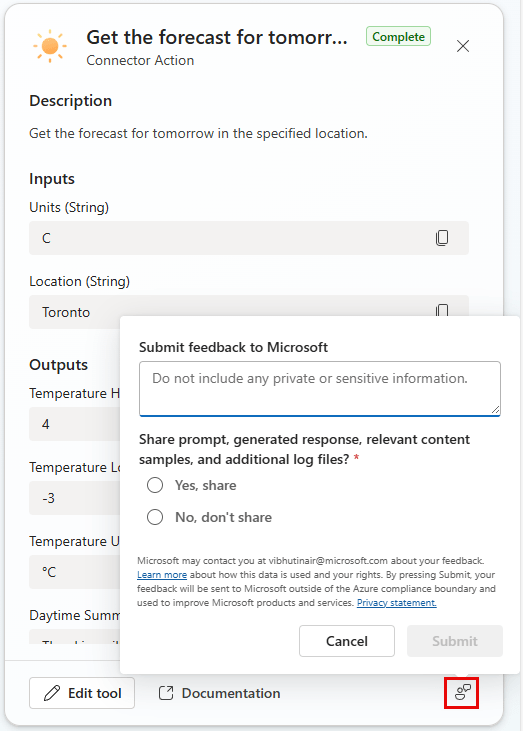
In this example, you can see the details of an action node for "Get the forecast tomorrow" displaying the inputs and outputs:
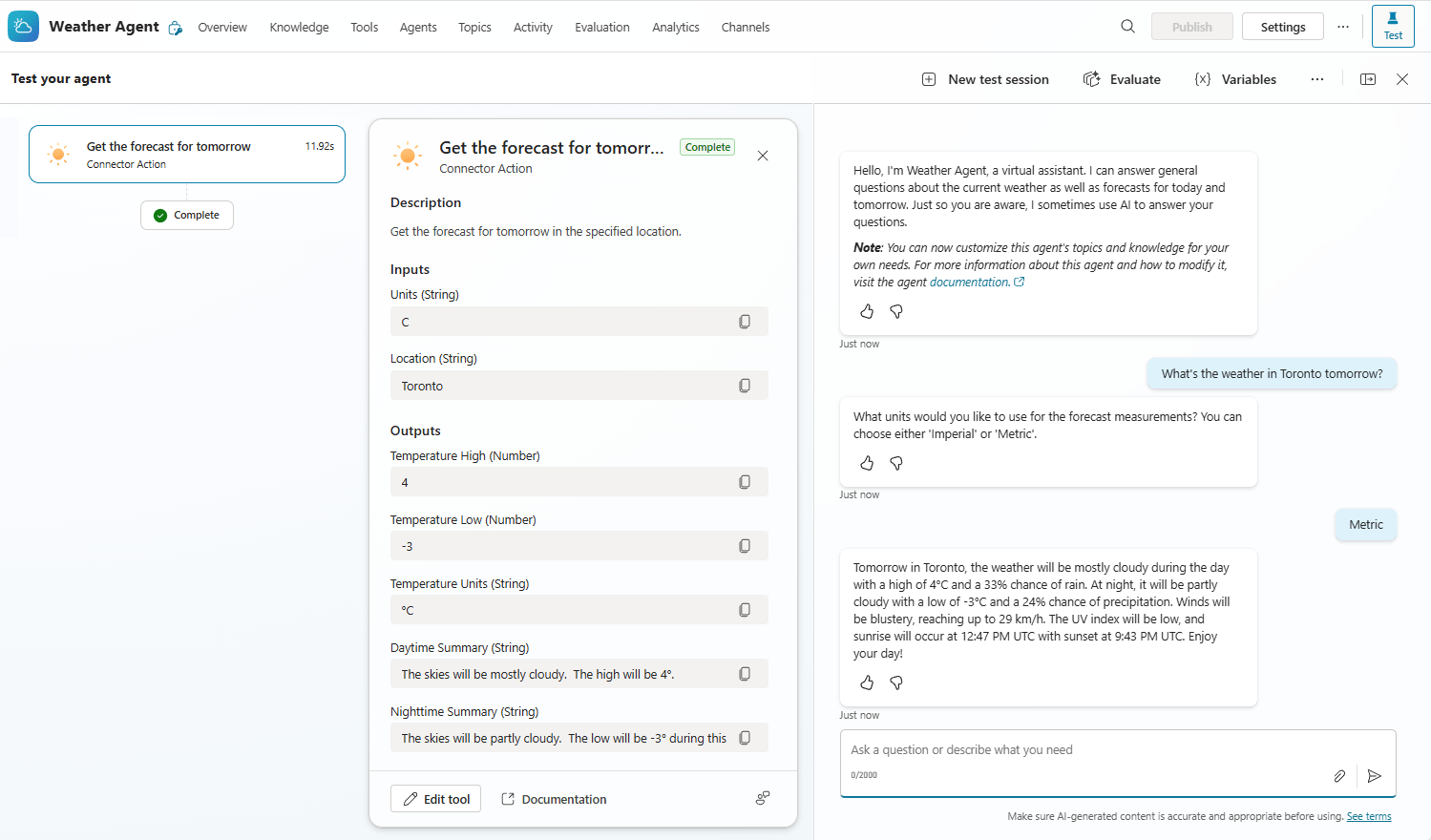
Select Edit to view and change the configuration related to the selected activity.
Rationale
Rationale provides an explanation of how an agent decides to call a particular tool. The AI generates the rationale on demand, based on the agent's metadata and activity. Rationale is displayed to knowledge sources or connectors with a Completed status. Select Show rationale to display the rationale.
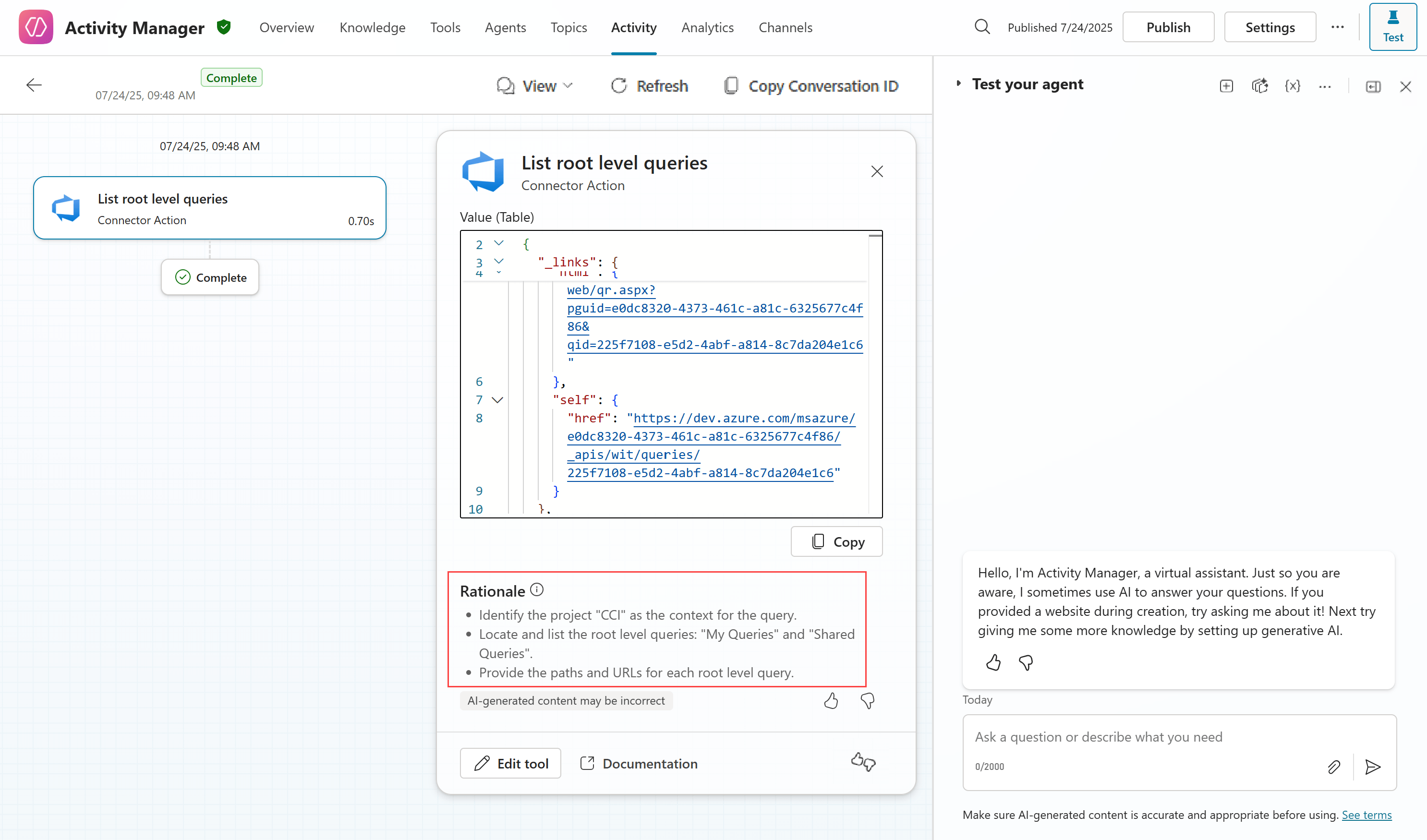
When examining agent behavior, use Rationale to better understand why the agent chooses to call a particular tool or fill in parameters. It helps you troubleshoot agent behavior. However, because the AI generates the reason, it may not be entirely accurate. Use your best judgment when considering the provided reason.
Agent status
The following table provides information about the different states an agent may encounter during its operation:
| Status | Condition |
|---|---|
| Upgrade | The session has just begun. |
| In progress | At least one of the identified steps remains incomplete and is still in progress. |
| Input required | The agent is waiting for user input to continue the conversation. This step requires human participation. |
| Author required | The agent is waiting for user authentication to continue the conversation. This step requires user participation. |
| Document | No error. The last message was not a Manage Connections dialog box. The conversation is complete when the step-by-step plan defined by the conversation initiator is in the Complete state. A conversation can switch between the Complete and Incomplete states. |
| Cancelled | Cancel all remaining dynamic plans and empty the conversation stack. |
| Failed | One or more errors have occurred. |
| Rejected | The agent declined the conversation and was not the one who initiated it. |
Send feedback
If you have suggestions on how to improve agent quality, please submit your feedback using the Feedback icon in the Activity tab.
Related Articles
 Overview of Copilot Studio11 minutes read
 Should You Choose Microsoft 365 Copilot or Copilot Studio to Build Your Agent?9 minutes read
 Check the Copilot Studio Agent7 minutes read
 Upload Files as Knowledge in Microsoft Copilot Studio12 minutes read
 Add Copilot Connectors to Copilot Studio Agents8 minutes read
 Copilot Studio Knowledge Sources: Complete Guide10 minutes read
Reader Comments 0
Sign in with email or Google to join the discussion.