Table of Contents
CopyTrans Manager can add local music from a Windows PC to an iPhone, iPad, or iPod without syncing the entire iTunes library. Connect and trust the device, drag the supported audio files into CopyTrans Manager, click Update, and verify the songs on the device before disconnecting it.

Before you start
- Make a current backup of the device.
- Download CopyTrans Manager only from its official product page.
- Use audio files you own or have permission to copy.
- Install the current Apple device drivers if Windows cannot detect the iPhone.
CopyTrans Manager focuses on music, videos, ringtones, podcasts, books, and playlists. Photos and contacts are handled by other products in the CopyTrans suite, so the original claim that Manager itself backs up all those categories was too broad.
Add music to the iPhone
- Install and open CopyTrans Manager.
- Unlock the iPhone and connect it with a data-capable USB cable. Tap Trust and enter the passcode if prompted.
- Wait while the existing media library loads.
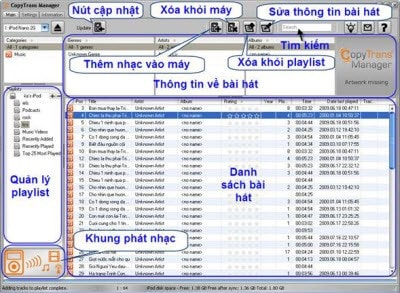
- Drag songs from File Explorer into the track list, or use the app's Add command.
- Review the queued changes. Select Update to write them to the device.
- Wait for completion, confirm the tracks in the iPhone's Music app, and eject or disconnect safely.
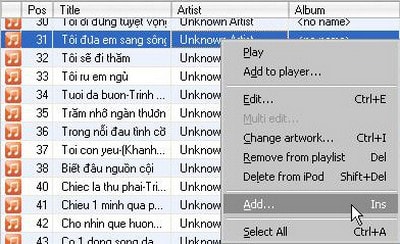
The publisher's current music-transfer instructions also describe drag-and-drop. Interface labels may differ from these legacy screenshots.
Create and organize playlists
- Select the plus button in the Playlists pane or right-click and choose Add playlist.
- Name the playlist.
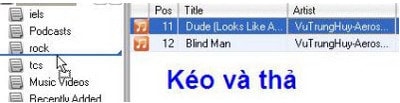
- Drag tracks from the device library into the playlist.
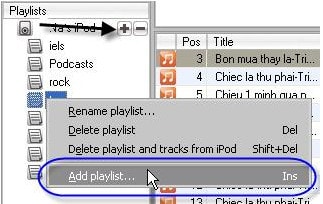
Removing a track from a playlist is not the same as deleting the audio from the device. Read the command carefully: Remove from playlist should leave the library copy, while a command such as Delete playlist and tracks can remove the songs themselves.
Edit song information and artwork
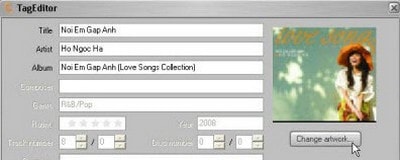
Right-click a track and choose Edit to correct the title, artist, album, genre, or artwork. Consistent metadata makes albums and artists group correctly on the iPhone. Make a small test change first if the library contains many tracks.
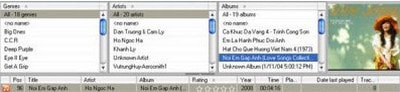
You can then filter or browse the library by artist and album.
Avoid losing existing music
- Let the program finish loading the current library before adding files.
- Review pending additions and deletions before clicking Update.
- Do not disconnect the cable during a write operation.
- Keep the original audio files and a separate device backup.
- If the phone uses Sync Library with Apple Music, understand how locally added files interact with that cloud library before mixing methods.
CopyTrans Manager is a third-party utility, not an Apple product. If it does not support the device or current iOS version, use Apple's supported workflow instead. See how to transfer local music with Apple Devices, Finder, or iTunes. For a broader media workflow, use the guide to move music, videos, and photos to an iPhone.
Related Articles
 How to Copy Music to iPhone with Copytrans Manager6 minutes read
 How to Copy Music to iPhone Without Itunes8 minutes read
 Experience with the Copytrans Suite Application7 minutes read
 Apps That Deserve to Replace Itunes9 minutes read
 How to Copy Videos, Movies, and Music to iPhone and iPad Using iTunes on a PC11 minutes read
 How to Copy Music to iPhone, iPad from Computer?8 minutes read
Reader Comments 0
Sign in with email or Google to join the discussion.