Table of Contents
On Windows 10, the safest way to install iTunes is through the Microsoft Store or the download options linked by Apple. Windows 7 and Windows 8.1 are no longer supported by Microsoft, so they should not be used for routine online purchases, account access, or device management. Upgrade Windows when possible rather than relying on an old iTunes build.
Install iTunes on Windows 10
- Open the Microsoft Store and search for iTunes.
- Confirm that Apple is the publisher, then select Get or Install.
- Open iTunes after installation and allow the Store to keep it updated.
Apple now provides Apple Music, Apple TV, and Apple Devices as separate Windows apps. If your main goal is to sync, back up, update, or restore an iPhone or iPad, install Apple Devices instead. Apple's Windows app download page explains the current choices.
Use a classic Apple installer only when needed
A standalone iTunes installer may still be appropriate for an older Windows configuration or a legacy iPod. Download it directly from Apple's iTunes downloads page and choose the package that matches the PC architecture. Do not use the obsolete 12.7.4 or 12.3 builds featured in the original tutorial simply because their screenshots look familiar.
Classic installer steps
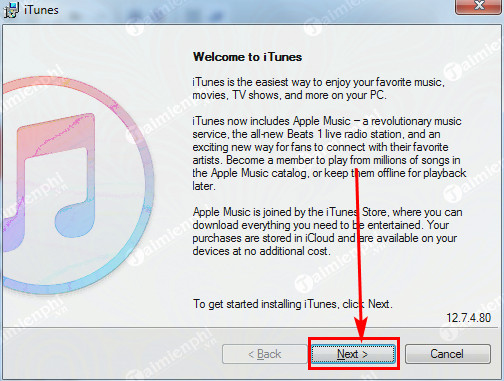
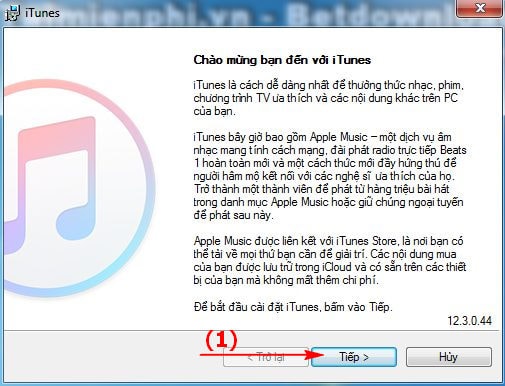
- Run the signed Apple installer and select Next.
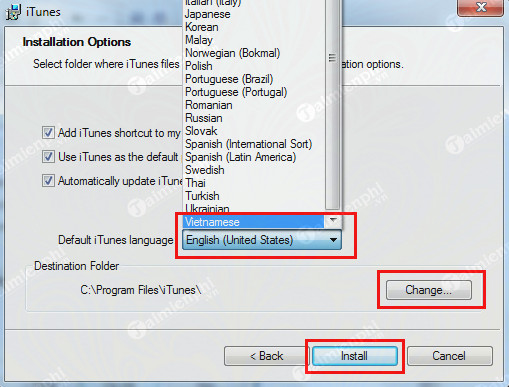
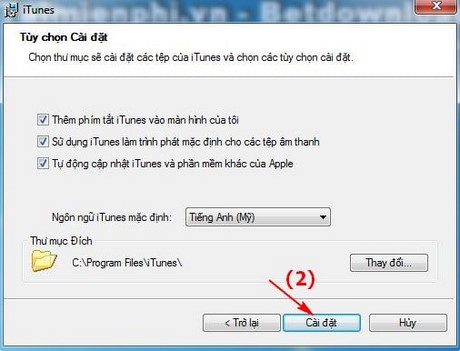
- Review the options for a desktop shortcut, default audio player, automatic updates, language, and destination folder. Keep automatic Apple software updates enabled when the operating system supports them, then click Install.
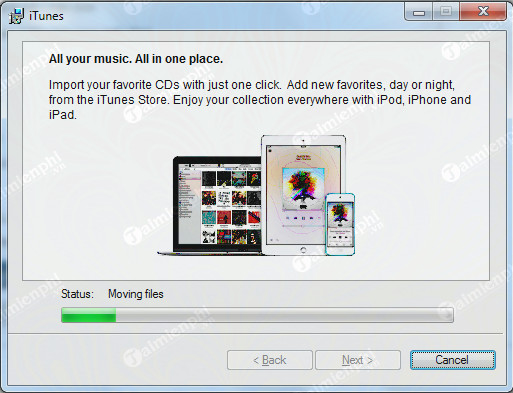
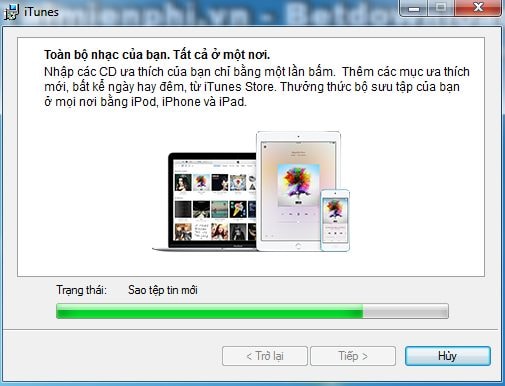
- Wait for the installer to complete. Do not close it or restart Windows during setup.
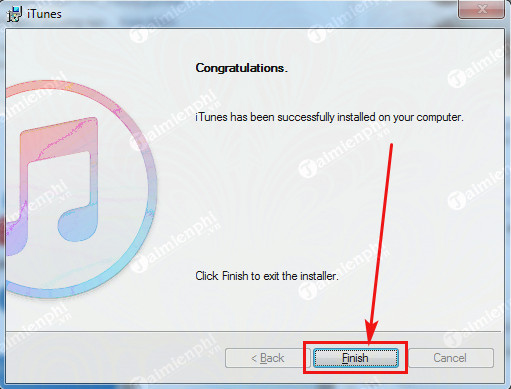
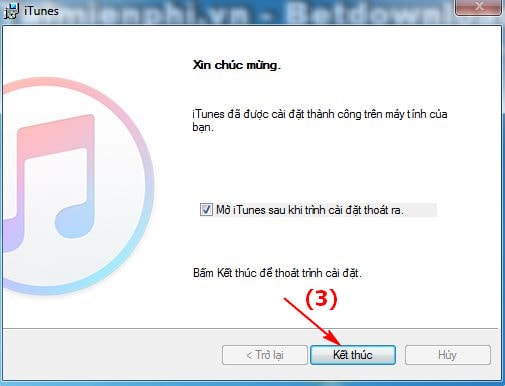
- Select Finish, restart the PC if asked, and then open iTunes.
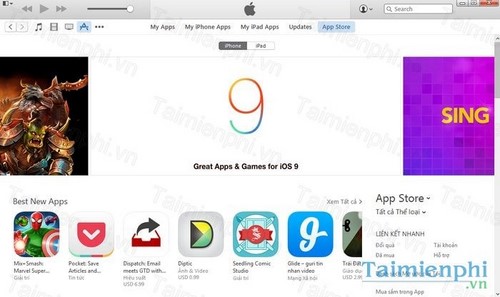
The resulting interface depends on the installed version and which newer Apple apps are also present.
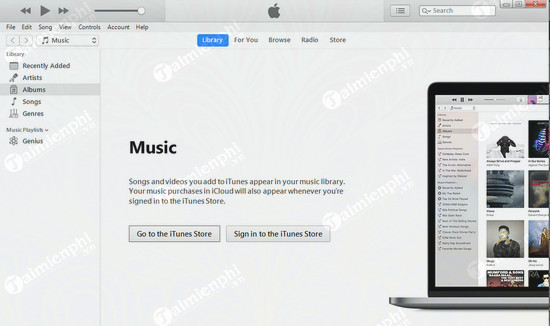
Older installer screens
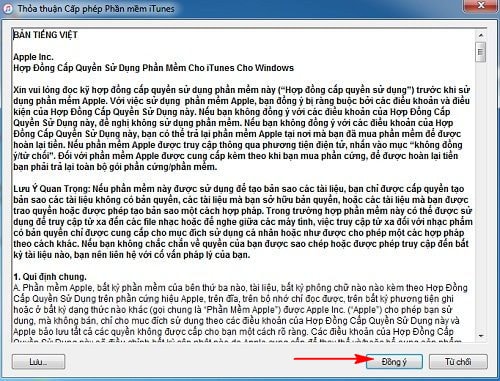
The next screenshots show iTunes 12.3, which is obsolete and should not be downloaded for a current PC. They are retained only to identify the workflow on a legacy system.
Show iTunes 12.3 installation screens
Windows 7 and 8.1 limitations
Both operating systems have reached end of support. Even if an older iTunes package installs, the PC lacks current platform security updates and some Apple services or device versions may not work. Avoid entering payment details or using the machine as the only location for an iPhone backup. Apple's legacy download page lists iTunes 12.10.11 for Windows 7 and 8, but that does not make those operating systems safe for general online use.
If the hardware supports it, move to a supported Windows release. The guide to updating Windows 10 explains the update process, though the PC may ultimately need a supported successor.
If installation or device detection fails
- Confirm that the installer matches the PC architecture and came from Apple or Microsoft.
- Install pending Windows updates and restart.
- Do not mix a Microsoft Store installation with a standalone installer.
- Use a data-capable cable, unlock the iPhone, and tap Trust.
- Repair or reinstall the Apple app before manually removing device drivers.
For ongoing maintenance, follow the current iTunes update guide. For everyday use after setup, see the iTunes beginner guide.
Related Articles
 Instructions for Installing, Updating and Using Itunes on Windows 108 minutes read
 Instructions for Installing Itunes for Ios 4 Devices15 minutes read
 How to Install Itunes for Windows 106 minutes read
 How to Fix ITunes Error Not Getting Connected to iPhone6 minutes read
 Does Itunes Not Work on Windows 10? This Is How to Fix It15 minutes read
 How to Change the File Download Folder on Itunes3 minutes read
Reader Comments 0
Sign in with email or Google to join the discussion.