Table of Contents
Command Prompt can appear inside either Windows Terminal or the legacy Windows Console Host. Resize the current window by dragging its edges, but change the saved launch size in the host's settings: use Windows Terminal > Settings > Startup for a tabbed Terminal window, or the title-bar Properties/Defaults > Layout pages for a legacy console window. Font size is separate from window size.
First identify the terminal host
- Windows Terminal: normally has tabs, a new-tab button, and a profile menu. It can host CMD, PowerShell, and WSL.
- Windows Console Host: normally shows a single classic console window with a title bar and no Terminal tabs.
The shell is still cmd.exe in either case. The host controls window dimensions, fonts, tabs, and rendering; CMD interprets commands.
Resize only the current window
Drag a window edge or corner. Use the maximize and restore buttons to switch between a normal window and the available screen area. This does not necessarily change the size used by the next new window.
In Windows Terminal, Ctrl plus the mouse wheel changes text zoom for the current session rather than setting the launch dimensions. Press Ctrl+0 to reset the zoom to the profile's configured font size.
Set the Windows Terminal launch size
- Open Windows Terminal.
- Press
Ctrl+,or choose Settings from the profile menu. - Open Startup.
- Set Launch mode to Default, not Maximized or Focus, if you want a normal-sized window.
- Set the initial columns and rows to the desired character grid.
- Save and open a completely new Terminal window to test it.
A practical starting point is 100 columns by 30 rows, but there is no universal “small default.” Display scaling, font size, padding, and tab visibility affect the physical size.
Microsoft's Windows Terminal startup settings document initialCols, initialRows, launch mode, position, and centering.
Edit Windows Terminal JSON when necessary
The Settings interface is preferred. If you need the JSON file, make a backup, open it from Terminal settings, and add or update these top-level properties without duplicating keys:
{
  "launchMode": "default",
  "initialCols": 100,
  "initialRows": 30,
  "centerOnLaunch": true
}
The real settings file contains many other properties, profiles, schemes, and actions; do not replace the entire file with this fragment. A JSON syntax error can prevent settings from loading.
Change the Windows Terminal font size
- Open Settings.
- Select the Command Prompt profile.
- Open Appearance.
- Set the font face and size, then save.
Font settings are profile-specific. Changing Command Prompt's font does not have to change PowerShell or WSL. Microsoft lists the current options in the Terminal profile appearance reference.
Change size in the legacy Windows Console Host
Open a classic Command Prompt window from Search if Windows is configured to use Console Host.
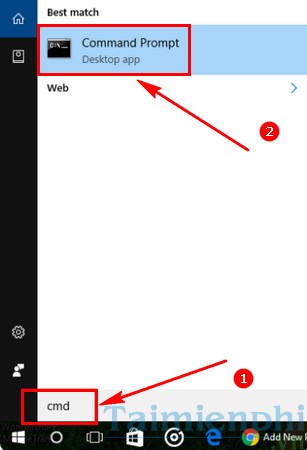
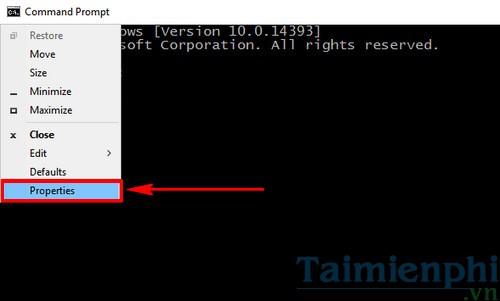
- Right-click the title bar.
- Choose Properties for the current launch context, or Defaults when you intend to change console-host defaults.
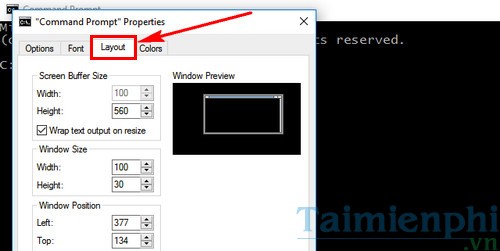
- Open the Layout tab.
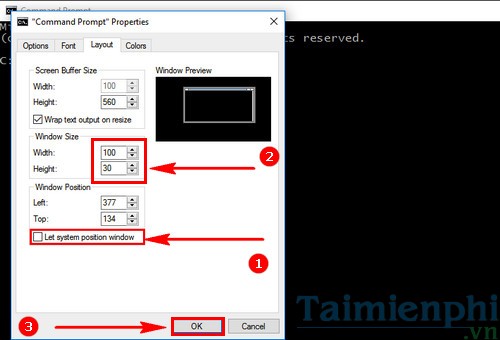
- Set Window Size width and height.
- Keep the screen buffer width at least as large as the window width.
- Clear Let system position window only if you also want to specify a saved position.
- Select OK, close the window, and test a new one.
Windows can store different console settings for different shortcuts or launch contexts. If a taskbar shortcut opens at one size and Run opens at another, review the properties of the shortcut you actually use.
Change the legacy Console Host font
In the same Properties or Defaults dialog, open Font, choose an available monospaced font and size, and save.
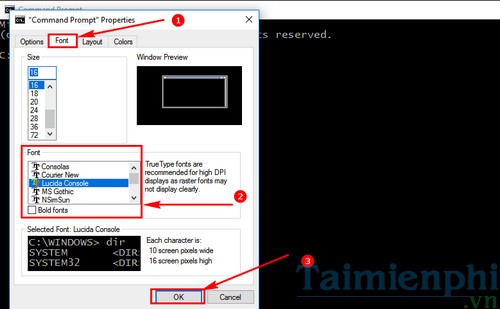
A larger font can make a fixed number of columns and rows produce a much larger window. Adjust font and window dimensions together.
Temporarily set columns and lines from CMD
In the legacy console host, this command can change the current console display dimensions:
mode con: cols=100 lines=30Run mode con /? for local syntax. Windows Terminal controls its own window and may not honor this command as a request to resize the Terminal frame, so use Terminal settings for persistent launch size.
Window size versus screen buffer size
| Setting | Meaning |
|---|---|
| Window size | The visible rows and columns |
| Screen buffer size | The stored console area that can extend beyond the visible window and provide scrollback |
| Font size | The physical size of each character cell |
| Launch mode | Whether the host starts normally, maximized, or in a focus mode |
A very tall buffer does not mean the window must be tall. It only retains more output for scrolling. Excessive scrollback can use more memory when commands produce large output.
Reset an unexpectedly large or off-screen window
Windows Terminal
- Open Settings and set Launch mode to Default.
- Set reasonable initial rows and columns.
- Remove or correct a custom initial position if the window opens off-screen.
- Reset text zoom with
Ctrl+0. - Open a new window; existing windows keep their current geometry.
Legacy Console Host
- Open the title-bar Defaults or the Properties for the exact shortcut.
- Set a modest Window Size and enable system positioning if manual coordinates are causing trouble.
- Check that the font size is not unusually large.
- Close and reopen from the same shortcut.
Avoid deleting console-related registry keys to reset size. That can remove unrelated settings and is unnecessary for ordinary layout problems.
If changes do not persist
- Confirm whether CMD opened in Windows Terminal or Console Host; changing one does not configure the other.
- Close all windows and test a new process.
- Check whether a shortcut has its own stored Properties.
- On a managed PC, policy or profile synchronization may restore organization settings.
- Verify that Terminal's settings file is valid JSON and writable by your account.
TipsMake's guide to opening Command Prompt helps you identify the launch path. For editing behavior, see the Command Prompt shortcut guide. The older CMD font customization article applies specifically to the legacy Console Host.
Related Articles
 How to Open Command Prompt on Windows 10, 8, 7, Vista and XP6 minutes read
 Open Folder in Command Prompt (CMD): What to Know5 minutes read
 How to Use the Command History Function in Command Prompt9 minutes read
 How to Open Folders in CMD5 minutes read
 How to Open Command Prompt on Windows: Step-by-Step Guide4 minutes read
 How to Execute a Program in Command Prompt7 minutes read
Reader Comments 0
Sign in with email or Google to join the discussion.