Table of Contents
Command Prompt has not been discontinued. If it is missing from the Windows+X menu, Windows is showing PowerShell or Windows Terminal there instead; cmd.exe remains available for compatible commands and batch files. Open it from Search, Run, File Explorer, Task Manager, or a Windows Terminal profile. There is usually no reason to restore the obsolete Creators Update menu toggle.
Why Command Prompt disappeared from the quick menu
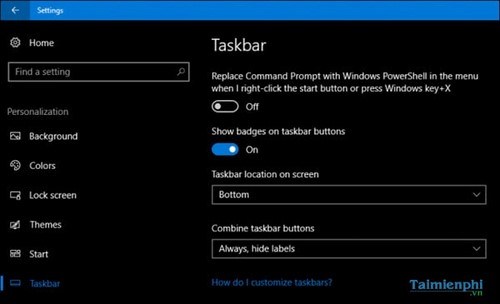
Windows 10 Creators Update replaced Command Prompt with PowerShell in the Quick Link menu and briefly offered a setting to switch the menu back. Later Windows releases moved to Windows Terminal, which can host Command Prompt, PowerShell, and WSL in tabs. The old Replace Command Prompt with Windows PowerShell toggle is not a current restoration method.
This change affects the menu entry, not the availability of C:\Windows\System32\cmd.exe.
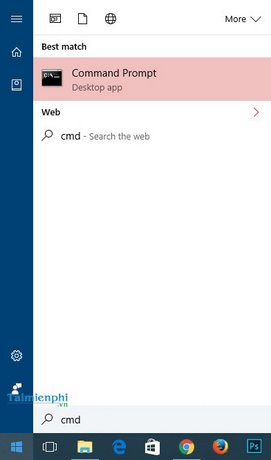
Open Command Prompt from Search
- Press
Windows+Sor open Start. - Type
cmd. - Select Command Prompt.
Choose Run as administrator only for a trusted command that needs elevation. The absence of administrator rights is not evidence that CMD is missing.
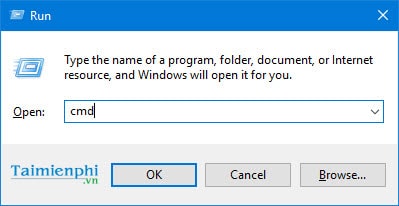
Open CMD with Run
- Press
Windows+R. - Enter
cmd. - Press Enter.
If an error appears, record the complete message. A normal policy restriction, a damaged executable, and an incorrect shortcut need different fixes.
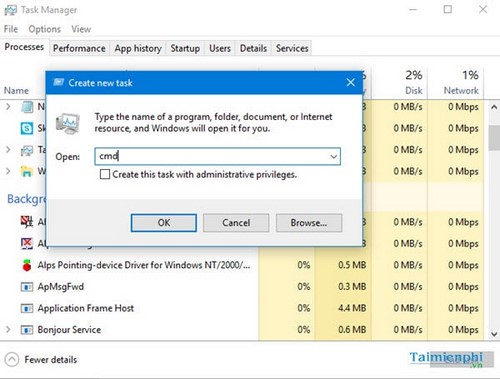
Open CMD from Task Manager
- Press
Ctrl+Shift+Esc. - Select Run new task. In some Task Manager layouts, it is under File.
- Enter
cmd.exeand select OK.
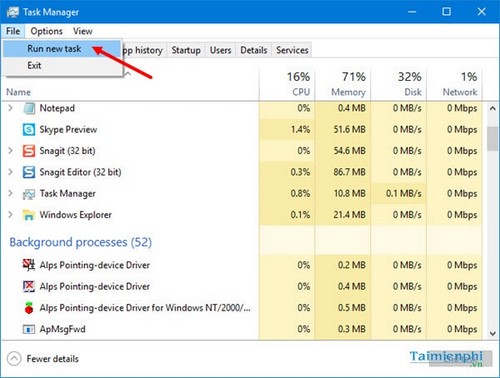
This route is useful when Start or File Explorer is not responding. Do not select the administrative-privileges option unless it is needed.
Open CMD in a specific folder
- Browse to the folder in File Explorer.
- Press
Ctrl+Lto select the address bar. - Type
cmdand press Enter.
The new Command Prompt starts with that folder as its working directory. On current Windows, a context menu may say Open in Terminal; open Terminal there and type cmd if you need CMD syntax.
Use Command Prompt inside Windows Terminal
- Open Windows Terminal from Start or the
Windows+Xmenu. - Select the arrow next to the new-tab button.
- Choose Command Prompt.
If the profile is unavailable, enter cmd.exe in PowerShell. Microsoft explains how to set the Windows Terminal default profile to Command Prompt. This changes which shell a new Terminal tab opens; it does not recreate the historical Win+X Command Prompt item.
Pin Command Prompt for faster access
- Search for Command Prompt.
- Right-click the result.
- Choose Pin to Start or Pin to taskbar, if shown.
You can also create a shortcut whose target is:
%SystemRoot%\System32\cmd.exeDo not configure it to always run as administrator. Elevate individual launches to reduce the impact of a pasted or mistyped command.
Confirm that cmd.exe still exists
Open File Explorer and check:
C:\Windows\System32\cmd.exeOn a standard Windows installation, %SystemRoot% resolves to the Windows directory. Do not download cmd.exe from another website or copy it from a random computer; system binaries are versioned and protected.
If Command Prompt is blocked by policy
On a work or school device, an administrator can disable Command Prompt or batch processing. Contact IT and explain the approved task you need to perform. Do not change Group Policy or registry controls to bypass an organization restriction.
On a personal device, check whether a parental-control, security, or hardening tool intentionally applied the restriction before trying to remove it.
If cmd.exe opens and immediately closes
- Open Windows Terminal or Task Manager and run
cmd.exe /d. The/doption disables AutoRun commands for that launch. - If this works, a broken or unsafe CMD AutoRun configuration may be the cause. Back up relevant settings and investigate before deleting anything.
- Check security software logs and run an approved malware scan.
- Review recent shell customizations or third-party terminal tools.
Do not apply a registry file from an unknown forum to “restore CMD.” AutoRun entries can execute commands every time CMD starts.
Repair damaged Windows system files
If the genuine cmd.exe is missing or Windows reports system-file corruption, use supported Windows repair and recovery guidance. From an elevated Windows Terminal or PowerShell window, Microsoft commonly recommends DISM followed by System File Checker:
DISM.exe /Online /Cleanup-Image /RestoreHealth
sfc /scannow
Read Microsoft's System File Checker instructions before running them. These commands can take time and may require a working update source. Back up important data first when broader system damage is suspected.
Command Prompt is not MS-DOS
Modern CMD is a Windows command shell with compatibility for many long-standing command names. It is not the MS-DOS operating system, and Windows is not “hiding DOS” behind PowerShell. PowerShell and CMD use different variables, quoting, pipelines, and script formats even when both can start the same executable.
Use the current workflow
For a complete set of launch methods, read TipsMake's updated guide to opening Command Prompt in Windows 10 and 11. The article on the Windows 11 Terminal context menu explains the replacement for “Open command window here,” and the CMD shortcut guide covers editing, history, and clipboard controls.
Related Articles
 How to Open Command Prompt on Windows 10, 8, 7, Vista and XP6 minutes read
 How to Find and Open Files with Command Prompt4 minutes read
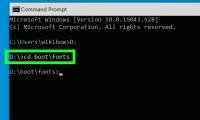 Open Folder in Command Prompt (CMD): What to Know5 minutes read
 How to Use the Command History Function in Command Prompt9 minutes read
 How to Open Folders in CMD5 minutes read
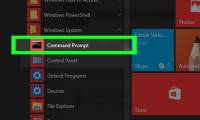 How to Open Command Prompt on Windows: Step-by-Step Guide4 minutes read
Reader Comments 0
Sign in with email or Google to join the discussion.