Table of Contents
Command Prompt keyboard shortcuts help you edit long commands, reuse history, complete paths, copy output, search the scrollback buffer, and stop a running command. The exact selection and scrolling behavior can differ between the legacy Windows Console Host and a Command Prompt tab inside Windows Terminal, but the core CMD editing shortcuts remain useful on Windows 10 and Windows 11.
Command editing and history
| Shortcut | Action |
|---|---|
Left/Right arrow | Move the cursor one character |
Ctrl+Left/Right arrow | Move by words |
Home | Move to the start of the current command line |
End | Move to the end of the current command line |
Up/Down arrow | Recall earlier or later commands from history |
Page Up/Page Down | Move to the first or last command in history in the classic CMD editor |
F7 | Show a selectable command-history list |
F8 | Cycle through history entries that begin with the characters already typed |
F9 | Run a history entry by the number shown with F7 |
Esc | Clear the current command line |
History belongs to the current CMD session. Closing the shell normally discards it unless another tool or configuration records commands.
Complete file and folder paths
Type part of a path and press Tab to cycle through matching names. Press Shift+Tab to cycle backward. For example:
cd D:\ProPressing Tab may complete it to a matching folder such as:
cd D:\ProjectsCMD adds quotes when needed in many completion scenarios, but always inspect the resulting path before running a destructive command.
Copy and paste
| Shortcut | Action |
|---|---|
Ctrl+C or Ctrl+Insert | Copy selected console text |
Ctrl+V or Shift+Insert | Paste clipboard text |
Ctrl+A | Select text according to the current line and console selection state |
Ctrl+M | Enter Mark mode in the legacy Command Prompt console |
Alt+selection | Begin block selection in supported console-host behavior |
Ctrl+C has two meanings: it copies when console text is selected, but it sends an interrupt to a running command when no selection is active. Check whether text is highlighted before pressing it.
Select and inspect console output
| Shortcut | Action |
|---|---|
Shift+arrow keys | Extend a text selection in supported selection mode |
Page Up/Page Down | Move by a page while in Mark mode |
Ctrl+Home in Mark mode | Move to the beginning of the buffer |
Ctrl+End in Mark mode | Move to the end of the buffer |
Ctrl+Up/Down arrow | Move the viewport through output history by one line |
Ctrl+F | Open Find in compatible console-host windows |
Windows Terminal also supports mouse selection, scrolling, and configurable key bindings. If a shortcut behaves differently there, check Terminal settings because a terminal-level binding can take precedence over the hosted CMD session.
Stop or close a command
Ctrl+Cinterrupts many running console commands when no text is selected.Ctrl+Breakis recognized by some console programs and keyboards, but not every device has a Break key.Alt+F4closes the active Command Prompt or Terminal window. This terminates programs running in that window and can lose unsaved work.- Type
exitto close the current CMD shell cleanly. In a Windows Terminal tab that was started from PowerShell,exitmay return to the parent shell or close the tab depending on how CMD was launched.
Useful editing examples
Reuse a previous command with a small change
Press Up to recall the command, use Ctrl+Left to jump between words, edit the target, then press Enter:
copy "D:\Drafts\report.txt" "D:\Archive\"Filter history by a prefix
Type the beginning of a command, such as ip, then press F8 to cycle through matching history entries such as ipconfig or ipconfig /all.
Cancel a continuous command
Run a continuous ping:
ping -t example.comPress Ctrl+C with no selected text to stop it and show the summary.
Enable Ctrl shortcuts in the legacy Console Host
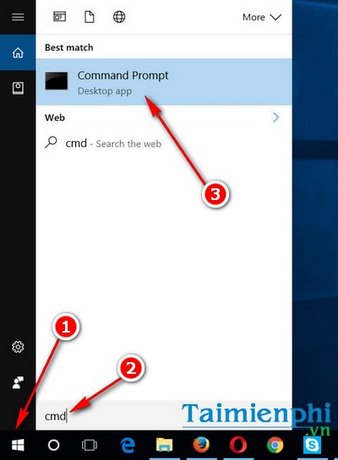
Ctrl-key copy and paste are enabled by default on current Windows configurations. If an older or customized Windows Console Host has them disabled:
- Open Command Prompt.
- Right-click the title bar and choose Properties.
- On Options, enable Ctrl key shortcuts or the related editing option shown by that console version.
- Select OK.
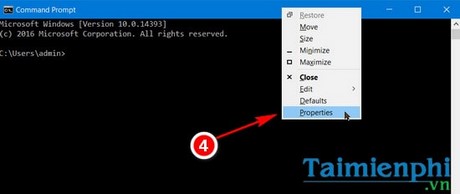
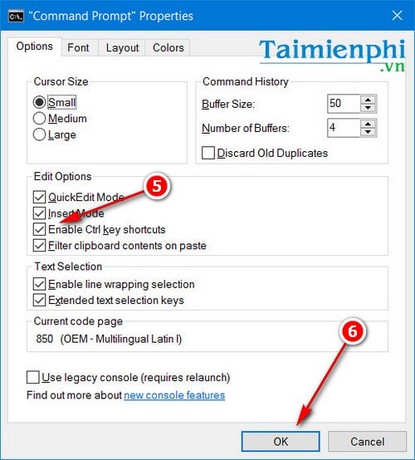
These Properties screens apply to the legacy console host, not the Windows Terminal settings interface. Windows Terminal has its own key-binding and interaction settings.
Command-line shortcuts are not system commands
Keyboard shortcuts only change how you interact with CMD; they do not grant administrative rights or make an unsafe command safe. Before pasting a command, understand its paths, wildcards, switches, and permission requirements. A pasted line can execute immediately if it contains a newline.
TipsMake's guide to opening Command Prompt in Windows 10 and 11 explains normal and elevated sessions. The list of common CMD commands provides safe file and network examples, while the broader Windows keyboard shortcut guide covers desktop and application shortcuts.
Microsoft maintains the current Windows keyboard shortcut reference, including a dedicated Command Prompt section.
Related Articles
 34 Common Shortcuts on Windows Command Prompt7 minutes read
 Common Keyboard Shortcuts in Command Prompt5 minutes read
 How to Use the Command History Function in Command Prompt9 minutes read
 How to Open Command Prompt on Windows 10, 8, 7, Vista and XP6 minutes read
 Add Command Prompt to Power User Menu on Windows 103 minutes read
 Use the Command in Windows: How to Using Command Prompt20 minutes read
Reader Comments 0
Sign in with email or Google to join the discussion.