Table of Contents
To create a Windows installer for a modern UEFI PC, use official installation media and choose a UEFI-compatible configuration in Rufus or Microsoft's creation tool. The destination Windows system disk normally uses GPT. The USB's own partition layout is a separate choice and depends on how the media is prepared.
Back up the USB before starting. The creation process can erase it. Also back up the destination computer before installing Windows.

A Windows USB installer prepared for UEFI boot.
Check the target computer and image
- Use an official Windows ISO for the target architecture. A typical Intel or AMD Windows 11 PC uses x64 media; Arm PCs need appropriate Arm media.
- Check the Windows version's hardware requirements and support status.
- Use a spare USB drive with adequate space, normally at least 8GB for modern Windows media.
- Confirm that the target PC supports USB boot in UEFI mode.
UEFI is not universally limited to 64-bit operating systems, but the firmware and installer architecture must be compatible. This guide focuses on the common x64 PC workflow. Windows 7 and 8-era installation requirements differ and should not be assumed to work on a current PC.
Method 1: create the media with Rufus
- Download Rufus from its official website and connect the spare USB.
- Under Device, confirm the correct drive.
- Click SELECT and open the Windows ISO.
- Choose Standard Windows installation where applicable.
- For a typical modern UEFI target, choose GPT and UEFI (non-CSM).
- Review the file-system choice and any image-specific options.
- Click START, verify the erase warning, and wait for successful completion.
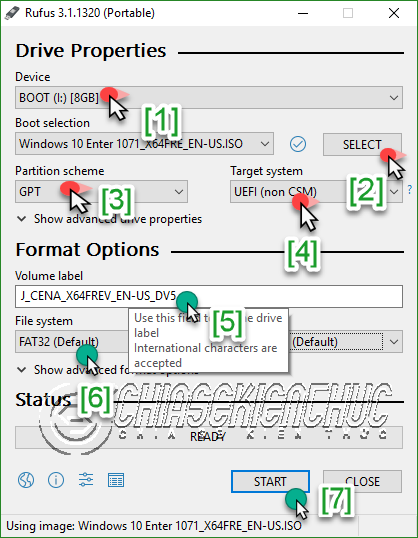
The screenshot shows an older Rufus interface. File-system options depend on the image. FAT32 has broad native UEFI compatibility but cannot hold an individual file of 4GB or larger. Rufus may use NTFS with its UEFI boot mechanism when necessary; UEFI media is not restricted to one creation method.
The old Rufus 2.x interface below used different labels. Do not download an obsolete release simply to reproduce these menus.
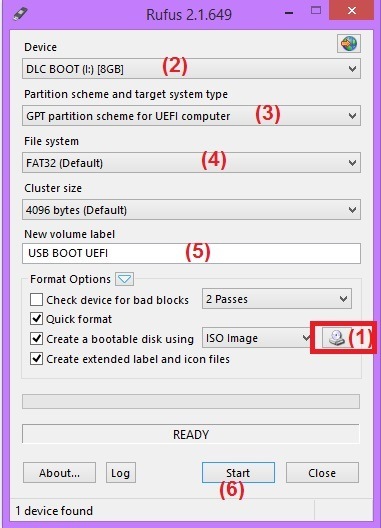
Historical Rufus UEFI configuration options.
Method 2: manually prepare a FAT32 installer
This is an advanced alternative for an appropriate ISO. Use a utility instead if you are unsure about selecting disks or handling oversized files.
1. Identify the USB before erasing it
Open an elevated terminal and inspect the disks:
diskpart
list disk
select disk N
detail disk
Replace N with the USB's verified disk number. Check model, size, and existing volumes. Do not assume Disk 1 is always the USB.
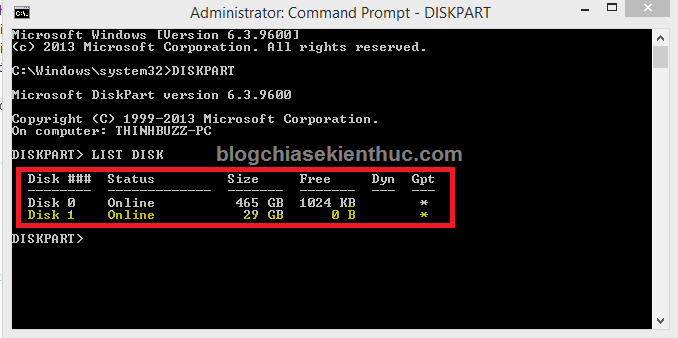
Inspect the disk list before selecting a USB destination.
2. Prepare the selected USB
The following erases the selected disk. Continue only when it is the backed-up USB:
clean
convert gpt
create partition primary
format quick fs=fat32 label=WINSETUP
assign
exit
If Windows cannot format the full capacity as FAT32, use a suitably sized partition or return to a media-creation utility. Do not switch to an unrelated internal disk to work around a format error. The legacy active flag is not required for this GPT/UEFI example.
3. Copy the complete installer contents
Mount the ISO and copy its contents to the USB, preserving folders such as efi, boot, and sources. Copying only the ISO file does not create this type of installer.
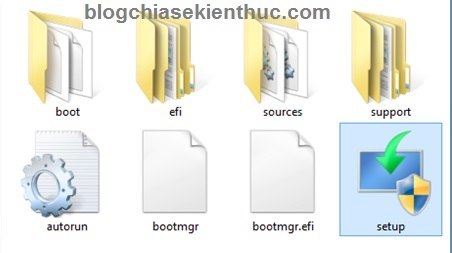
The installation media's file and folder structure.
4. Handle a large install.wim correctly
If sourcesinstall.wim is too large for FAT32, copy the other media files and split that WIM into supported smaller files. For example, with the ISO at D: and the USB at E:
dism /Split-Image /ImageFile:D:sourcesinstall.wim /SWMFile:E:sourcesinstall.swm /FileSize:3800Check those example drive letters first. Keep all generated SWM parts in the USB's sources folder. Do not use this WIM command on an ESD file. Microsoft's image-splitting guidance explains the supported approach.
Boot and verify the installer
Eject the finished USB, connect it to the target, and select its UEFI entry from the one-time boot menu. The boot-menu key guide can help. Reaching Setup confirms it boots; review the internal disk carefully before installing.
Do not delete internal partitions just because Setup reports a boot-mode or partition-style mismatch. First confirm the intended firmware mode. For more context, see UEFI versus legacy installation media and the Windows 11 USB walkthrough.
Related Articles
 How to Create a Windows 7/Vista Bootable USB Drive
 4 tools to create USB boot install Windows 10
 Create a Windows 10 Bootable USB for UEFI or Legacy BIOS
 How to Create a UEFI Bootable USB with Rufus
 How to Create a Hiren's BootCD PE USB with Rufus
 How to create a bootable macOS Big Sur installation drive
Reader Comments 0
Sign in with email or Google to join the discussion.