Table of Contents
If Windows audio is too quiet, check the output device, application volume, and speaker controls before adding a volume booster. Audio processing can make quiet material easier to hear, but it cannot give small laptop speakers the capabilities of larger speakers or guarantee distortion-free sound.
Begin at a modest volume, especially with headphones. Increase it gradually and reduce gain if you hear crackling, harshness, or distortion.
1. Check the complete volume path
- Open Settings > System > Sound and select the intended output device.
- Check Windows volume and the app's entry in Volume Mixer.
- Check the player or website's own volume control.
- Check physical speaker or headset controls and any connection problems.
- Compare a second audio source to see whether only one recording is quiet.
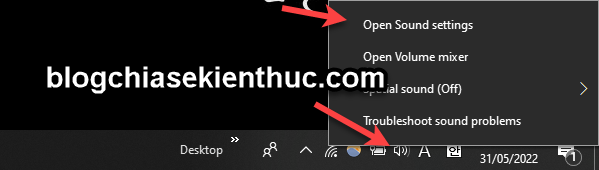
If all output is unexpectedly quiet or distorted, troubleshoot the device and driver first. Microsoft's low-volume guidance and the Windows low-volume checklist provide additional checks.
2. Try Loudness Equalization if the driver offers it
Loudness Equalization reduces perceived differences between quiet and loud material. It is useful for some speech and video, but it changes dynamics and is not available with every driver.
- Press Windows + R, enter
mmsys.cpl, and press Enter. - On the Playback tab, select the actual output device and open Properties.
- If an Enhancements tab and Loudness Equalization are available, enable it and apply the setting.
- Compare the same recording at a comfortable level, then disable it if the result is worse.
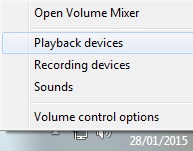
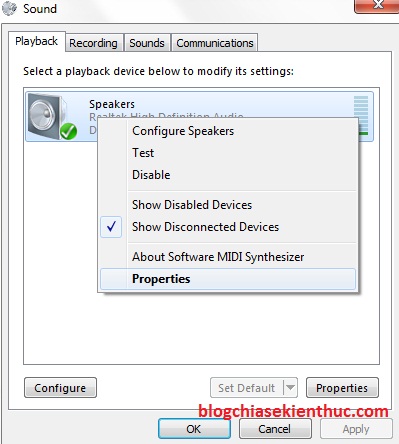
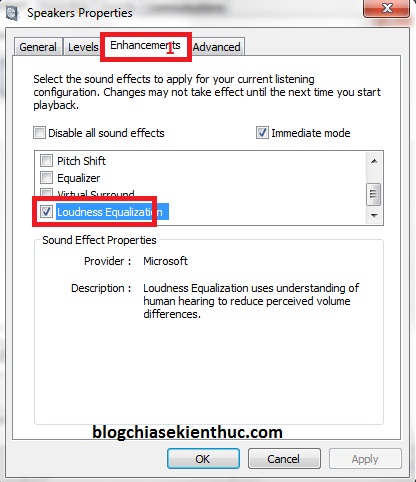
The screenshots show older Windows dialogs. Newer Windows versions may also expose audio-enhancement controls in Settings. If the option is missing, do not install an unrelated driver simply to obtain the checkbox.
Enhancements can themselves cause poor sound on some configurations. Turn them off temporarily when diagnosing distortion or unexpectedly low output.
3. Use one audio-processing application at a time
FxSound provides equalizer, effects, and preset controls. Obtain it from the official FxSound website and check current system requirements. Start with a restrained preset and adjust one control at a time.
Confirm the application's chosen playback device, then compare processing enabled and disabled. Avoid stacking multiple boosters, loudness effects, and strong bass boosts; excessive gain can cause clipping.
What happened to DFX?
The old DFX interface is shown below for reference. Its Dynamic Boost control was used to increase perceived loudness, but the publisher has discontinued support for the legacy DFX and FxSound Enhancer products. Use current software rather than searching for shared activation keys or patches.
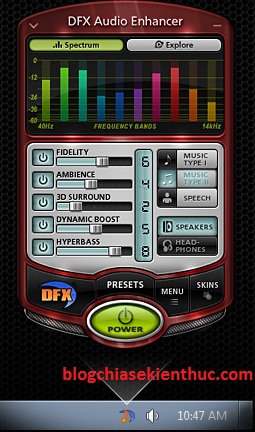
Legacy DFX audio-processing interface.
Other volume boosters
Applications such as Sound Booster offer additional gain, but check the publisher's current compatibility and licensing before use. A booster does not repair a faulty speaker, damaged recording, or driver problem. If needed, compare the options described in the audio utility overview, then verify details with the chosen publisher.
4. Adjust for clarity rather than maximum gain
- For speech, prioritize intelligibility rather than heavy bass.
- If bass becomes muddy or distorted, reduce it rather than raising the main volume further.
- Compare at similar perceived loudness so “louder” is not mistaken for “better.”
- Use suitable headphones or external speakers when the built-in hardware cannot deliver the output you need.
The following FxSound demonstration is a visual introduction. Its interface may differ from the installed release.
If processing makes audio worse
Turn off third-party effects, select the normal physical output, and test Windows audio again. Re-enable only the processing that improves your actual listening task. Persistent distortion at moderate volume may need device, connection, or driver troubleshooting rather than more amplification.
Related Articles
 How to use Sound Booster to increase computer and laptop volume
 Instructions for increasing computer volume beyond 100% with Sound Booster
 Top 5 Sound amplifier software, increase volume on the best computer
 How to increase PC volume, amplify sound, increase computer and laptop speakers
 How to increase the sound of MP3 files on MP3 Volume Booster
 How to install and use Sound Booster to increase computer speaker volume
Reader Comments 0
Sign in with email or Google to join the discussion.