Table of Contents
Opera AI is the built-in assistant in Opera’s desktop browser. Older versions and screenshots may call it Aria, but Opera now uses the Opera AI name for the current multi-model experience. On Windows, it can summarize pages, answer questions using tab context, help write text, generate images, work with uploaded files, and organize tabs through natural-language commands.
Those features make Opera a practical option for people who want AI inside a general-purpose browser rather than a separate agent-first product. Whether it is the right replacement for Chrome or Edge depends on the rest of the browser, the availability of the features you need, and whether Opera’s data handling fits your work.
Opera AI and Opera Browser are not separate downloads
Opera AI is a feature within current Opera editions, including Opera One on desktop. It is not a separate “Opera Aria browser.” After installing or updating Opera, look for the AI button near the top-right of the window or the AI entry in the sidebar. You may need to opt in before the assistant can use page content.
The assistant runs in a side panel and can also expand into a full browser tab. The panel is useful for a quick question while you keep the source page visible; the full-tab view provides more room and access to chat history and settings. Check the official Opera AI page for the current interface.
What Opera AI can do
- Summarize or explain a page: enable page context, then ask for the main argument, a simpler explanation, or specific facts.
- Compare related tabs: Opera AI can use pages within the current Tab Island as context, which is helpful for research or shopping comparisons.
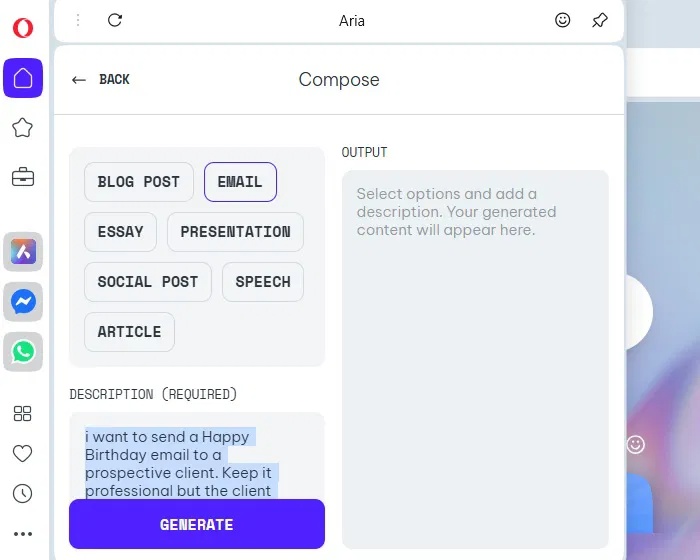
- Draft and revise text: ask for an email outline, a shorter paragraph, a change of tone, or alternative wording.
- Search the web: Opera says the assistant can gather information from online sources for current questions.
- Work with files: supported uploads include common document, spreadsheet, image, audio, and video formats. A prompt is required before a file is analyzed.
- Create images and files: the current assistant can generate images and several text-based file formats.
- Manage tabs: natural-language Tab Commands can close, group, pin, or bookmark tabs.
Opera also places ChatGPT and Gemini in its sidebar. Those services have their own accounts, terms, and data practices; opening them from Opera does not make their privacy rules the same as Opera AI’s.
Using the AI panel and full-tab view
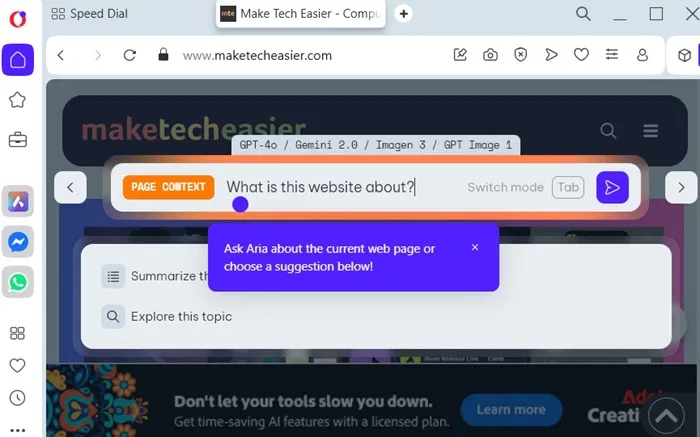
Open Opera AI from the toolbar or sidebar, type a request, and enable page context only when the answer needs the page. A useful prompt identifies the source and the expected output, for example: “Using only this page, list the three eligibility requirements and quote the heading where each appears.”
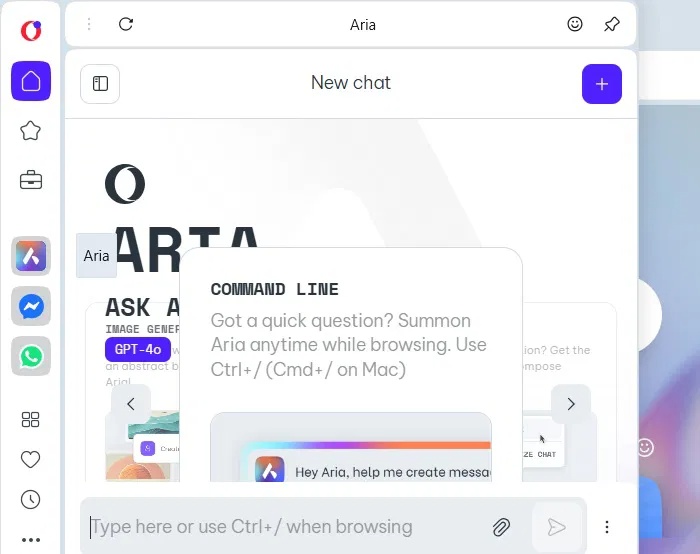
For longer work, expand the panel into a tab. Opera supports several active AI chats in different tabs, so keep unrelated tasks separate. Do not assume the assistant is a fact-checker: Opera’s own FAQ warns that responses can be false, misleading, or biased. Open the cited sources and verify important details.
Keyboard shortcuts have changed
The current Opera AI product page lists Ctrl+O on Windows and Cmd+O on macOS for opening the assistant. Older Aria documentation uses Ctrl+/ on Windows and Cmd+/ on macOS for the Command Line. That older shortcut is also documented for Tab Commands, and it can vary with keyboard layout.
If the shortcut shown in an older screenshot does nothing, use the AI button and check Opera’s shortcut settings rather than assuming the feature is missing. Updates may also change which interface opens.
Page context is permission-based
Opera AI can access information you enter in the chat and page or Tab Island content that you make available through page-context access. Opera says page access is blocked on some sensitive websites, including certain banking and payment services. The company also advises against using page context on banking, medical, payment, or other sensitive account pages.
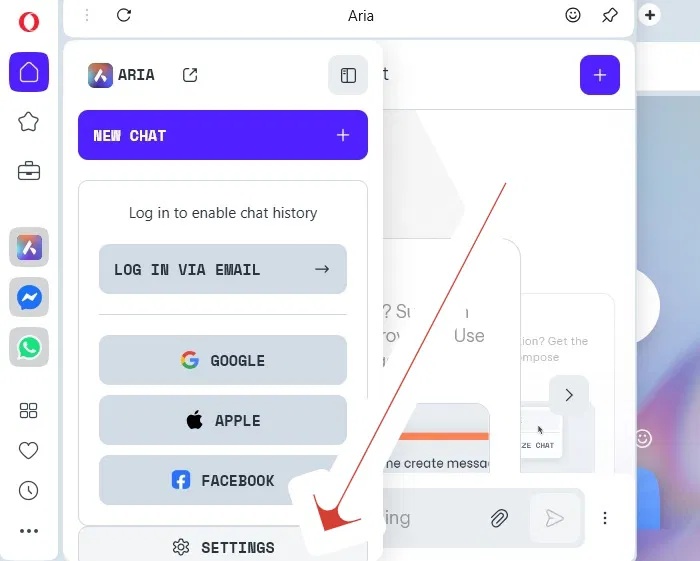
Page context is processed like other AI input, and the resulting exchange can appear in ordinary chat history. Opera AI is unavailable in private windows, so private browsing is not a way to use the assistant without saving its normal service data.
What Opera says about chat privacy
The old claim that every conversation is deleted after 30 days is no longer accurate. Opera’s current Browser AI FAQ gives different periods depending on account state and model provider:
| Data | Current stated handling |
|---|---|
| Chats while signed in to an Opera account | Encrypted and stored on Opera’s servers for up to one year, unless you delete them sooner. |
| Chats while signed out | Saved for six hours. |
| Uploaded files while signed in | Saved for up to one year; signed-out uploads are saved for six hours. |
| Parts of chats processed by OpenAI | Opera says anonymized portions may be retained on OpenAI servers for 30 days. |
| Parts processed by Google | Opera says anonymized portions are stored only as long as needed to generate the response, with a maximum of 24 hours. |
| Training | Opera says chat input and browsed page content are not used to train AI models. |
Opera recommends keeping personal data, private documents, sensitive photos, and financial or medical information out of AI chats. “Anonymized” is not a reason to upload information you are not authorized to share. Delete chats you no longer need, and use an approved tool for workplace or regulated data.
Organize tabs with natural-language commands
Tab Commands are one of Opera AI’s more practical browser-specific features. Instead of dragging many tabs by hand, you can ask the assistant to group related pages, close a defined set, pin selected tabs, or create bookmarks. Phrase the request precisely and review the tabs before accepting a broad closing command.
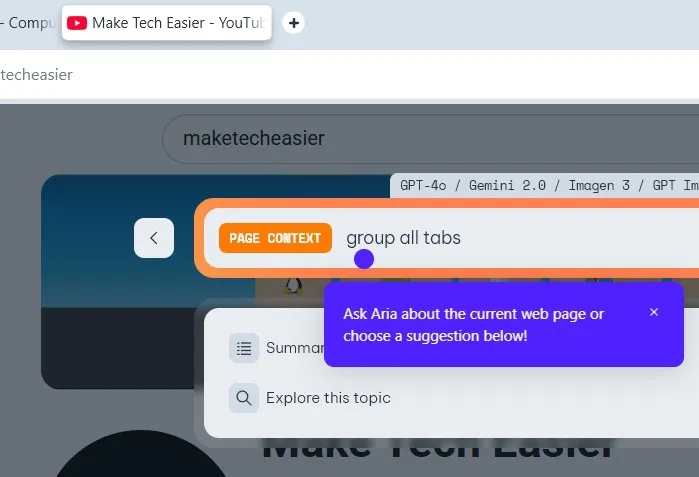
Tab Islands and Opera Workspaces can already organize pages without AI. Use Tab Commands when natural language is faster, and use ordinary groups or workspaces when you want predictable manual control.
A sensible first test on Windows
- Update Opera and open the AI panel from the toolbar.
- Start while signed out and ask a general question that contains no personal data.
- Open a public article, enable page context, and request a short summary with the source headings.
- Verify the summary against the page.
- Open several non-sensitive tabs and test one narrow Tab Command, such as grouping tabs from the same domain.
- Review chat-history settings before signing in or uploading a file.
Opera AI is a strong fit for Windows users who value a sidebar assistant, tab organization, and a browser with many built-in tools. It is less suitable when page content cannot be sent to remote AI providers or when you need an agent to complete complex workflows across logged-in sites. TipsMake’s AI browser comparison explains how Opera’s assistant-first approach differs from more agentic alternatives.
Related Articles
 5 Reasons Why Opera's Aria AI Is Useful: Features, Uses, and8 minutes read
 Opera Introduces Aria, a Cool AI Browser Assistant3 minutes read
 Meet Opera Air: Opera's New Browser5 minutes read
 Learn About Opera Page: of Opera Browser5 minutes read
 Opera Wants to Be the First PC Web Browser in the World to Integrate Electronic Wallets4 minutes read
 The Brand New Way to Use Opera One4 minutes read
Reader Comments 0
Sign in with email or Google to join the discussion.