Table of Contents
Learn how to turn off microsoft edge game assist with clear steps, practical tips, and troubleshooting guidance for a reliable result.
What is Game Assist in Microsoft Edge?
Game Assist is a built-in feature in Microsoft Edge (version 137 and later) on Windows 11 Home, Pro, and Education editions. This feature requires the latest updates for Windows 11 (22H2 and later) and Game Bar.
This feature acts as a support tool to enhance the PC gaming experience by integrating Game Bar utilities with Microsoft Edge. This allows gamers to access real-time tips, guides, or suggestions from Edge while playing games.
How to disable Microsoft Game Assist in Windows 11
Close Game Assist from Game Bar
Press the Win + G key combination to open the Game Bar on your computer. Then find the Game Assist utility and turn it off as usual.
This action only hides Game Assist while you're playing the game.
Uninstall Microsoft Edge Game Assist
Remove from Windows Settings
Step 1
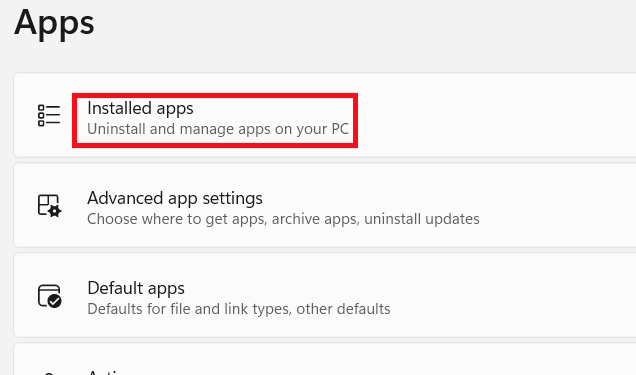
Open Settings on your computer, then select Apps on the left side, and then on the right, select Installed apps .
Step 2
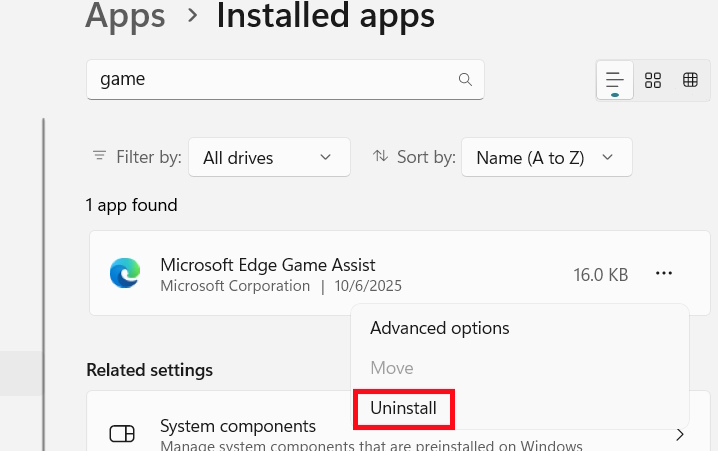
Go to the application settings interface on your computer. Find the Microsoft Edge Game Assist application, then click on the three-dot icon and select Uninstall .
Access the Game Bar Widget Store.
Press the Win + G key combination to open the Game Bar . Next, open the Widget Menu and access the Widget Store .
We click on the Installed tab and then find the Microsoft Edge Game Assist application . You also click on the three-dot icon and select Uninstall to remove it.
Final Thoughts
Use this guide as a practical checklist for how to turn off microsoft edge game assist. Work through the steps in order, verify each result, and adjust the options to match your needs.
FAQ
What do you need before following this How to Turn Off Microsoft Edge Game Assist guide?
Review the required tools, accounts, settings, or materials mentioned in the article. Learn how to turn off microsoft edge game assist with clear steps, practical tips, and troubleshooting guidance for a reliable result.
What are the main steps for how to turn off microsoft edge game assist?
Follow the sections in order, especially What is Game Assist in Microsoft Edge?, How to disable Microsoft Game Assist in Windows 11, Close Game Assist from Game Bar. Complete each step before continuing and verify the result as you go.
What should you do if the process does not work as expected?
Recheck the prerequisites, update the relevant app or service, review the settings, and repeat the step that caused the issue. Use any troubleshooting notes included in the guide.
Related Articles
 Microsoft Edge Game Assist Is Now Available, What's New?4 minutes read
 How to Install/uninstall Microsoft Edge Game Assist Widget on Windows4 minutes read
 How to Turn Off Self-Running Videos on Microsoft Edge3 minutes read
 Steps to Turn Off and Block Microsoft Edge from Running in5 minutes read
 How to Play New Surfing Offline Game on Microsoft Edge5 minutes read
 How to Turn Off Hold Assist Notification on iPhone3 minutes read
Reader Comments 0
Sign in with email or Google to join the discussion.