Table of Contents
The scariest thing about laptop theft isn't the loss of the hardware, it's the fact that your unencrypted drive can be read on any computer. Windows has built-in protection for this. You just have to know where to look!
Why do people avoid encryption?
For years, many people avoided BitLocker like the plague. The fear of accidentally locking their computers out of their own files kept them from enabling what is arguably Windows' most important security feature. And there were plenty of people who felt the same way.
Many people also believe that they have nothing worth protecting. But think about what's actually on your laptop — text messages synced from your phone, random notes containing financial information, family photos and videos, passwords saved in your browser, and countless personal documents. If your laptop is stolen, you could lose more than just a computer.
Why should I enable device encryption?
Modern iPhones and Android phones automatically encrypt your data when you enable lock screen protection. Likewise, all Apple computers with the T2 chip offer automatic data encryption right out of the box. The encryption on these devices is so seamless that you probably won't even notice it's there. That's exactly how it works — protecting your data in the background while you work.
If someone steals your unencrypted laptop, they can take the hard drive out, connect it to another computer, and browse through your files as if they belonged to them. With encryption enabled, no one can use the drive without first formatting it, which will erase all the data on it.
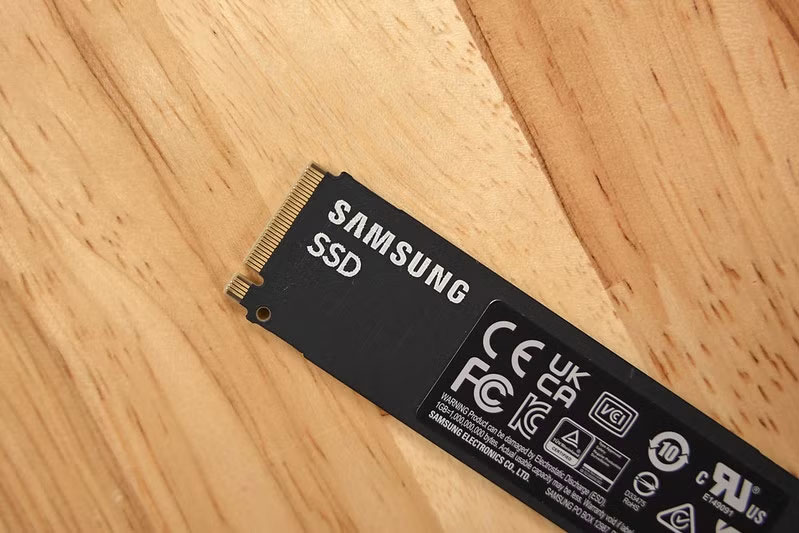
Likewise, selling or donating your old computer is less risky when you know your data is encrypted. Even if you forget to properly erase the drive, the new owner won't be able to access your old files without the encryption key.
How to enable device encryption
Microsoft has quietly turned on device encryption by default on new Windows 11 installations, no matter how you set up your PC. Whether you sign in with a Microsoft account or create a local account using workarounds to bypass the internet connection requirement, encryption is automatically enabled.
The key difference is where your recovery key is stored. With a Microsoft account, your recovery key is automatically saved to the cloud. But with a local account, encryption remains in a suspended state, with the key stored only on your local drive. This way, you're not fully protected, and you don't have a proper backup of your recovery key.
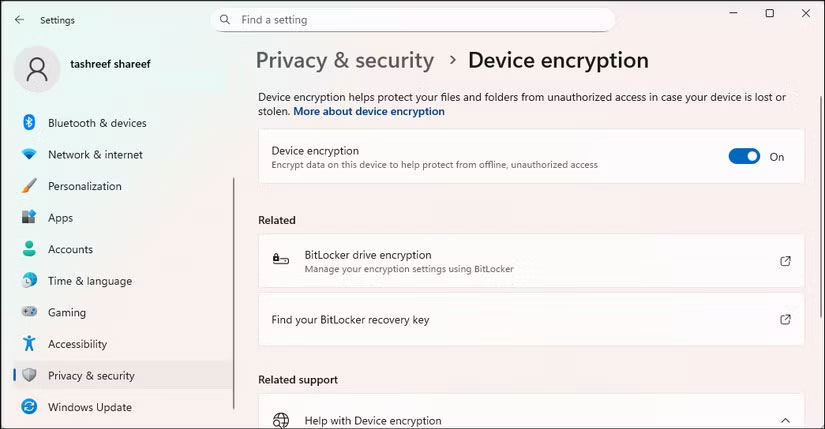
To complete the encryption process, you need to sign in with your Microsoft account, then upload your recovery key to the cloud.
If you just bought a new computer or installed Windows 11, check your encryption status right away. Open Settings > Privacy & security , then click Device encryption . If you see Device encryption is on , you're protected.
If you see a yellow warning that says Sign in with your Microsoft account to finish encrypting the device , your encryption process is not complete. Click Sign in and sign in to your Microsoft account to secure your system and back up your recovery key.
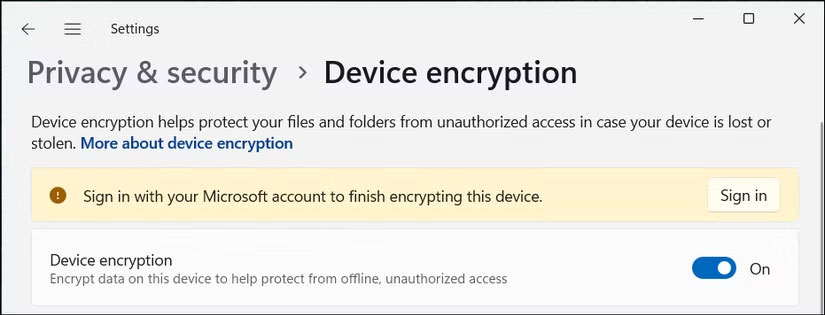
The encryption options available depend on your version of Windows and your hardware. Windows 11 Home includes a lighter version of BitLocker called Device Encryption , while Pro and Education editions offer full BitLocker with comprehensive management features and more control over your security settings.
Device Encryption on Windows 11 Home
Windows 11 Home makes things simple. If your PC supports it (most modern PCs do), device encryption is automatically turned on when you sign in with a Microsoft account on a fresh install.
If you've upgraded to Windows 11, you'll need to manually enable it in Settings . Go to Settings > Privacy & security > Device encryption and turn it on. That's it! Windows will handle the rest automatically, including saving the recovery key to your Microsoft account.
For most people, this simplicity should work pretty well as long as you have access to your Microsoft account.
BitLocker Encryption on Windows 11 Pro and Education
BitLocker offers all the features of device encryption, along with extensive management features. You can encrypt specific drives, use different authentication methods, and most importantly, choose multiple backup locations for your recovery keys right from the start.
To turn on BitLocker, click Start , type Manage BitLocker , and open it from the search results. Select the drive, click Turn on BitLocker , and enter your password when prompted. Windows will walk you through setup, including steps to back up your recovery key.
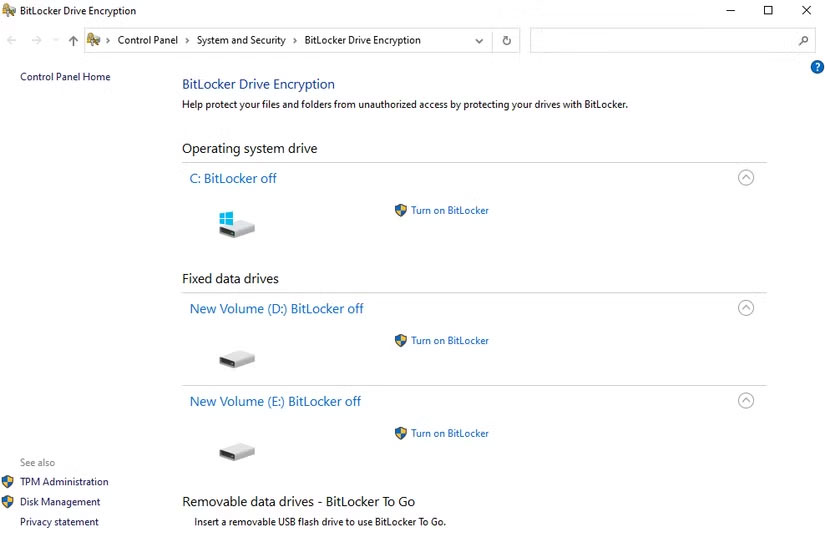
BitLocker also lets you encrypt external hard drives, which device encryption can't do. This is useful if you're backing up or saving sensitive data to a USB or external SSD.
Final Thoughts
The key takeaway is that Why Is Encryption a Must-enable Windows Security Feature is easier to evaluate when its benefits, limitations, and real-world use are considered together. Review the details above before applying the information to a specific situation.
FAQ
What is the main point of Why Is Encryption a Must-enable Windows Security Feature?
The scariest thing about laptop theft isn't the loss of the hardware, it's the fact that your unencrypted drive can be read on any computer. Windows has built-in protection for this. You just have to know where to look!
What should you know about Why do people avoid encryption??
For years, many people avoided BitLocker like the plague. The fear of accidentally locking their computers out of their own files kept them from enabling what is arguably Windows' most important security feature.
What limitations should readers keep in mind?
The answer can depend on the product version, source, use case, and date of publication. Review the article's context and confirm time-sensitive details before applying the information.
Related Articles
 How to Enable End-to-End Encryption in Messenger3 minutes read
 How to Enable Full-disk Encryption on Windows 10?7 minutes read
 Top 20 Best Encryption Software for Windows9 minutes read
 How to Enable Enhanced Anti-spoofing Windows 10?5 minutes read
 How to Enable / Disable Device Encryption in Windows 10 Settings3 minutes read
 How to Enable or Disable Ntfs File Encryption in Windows4 minutes read
Reader Comments 0
Sign in with email or Google to join the discussion.