Table of Contents
Windows Security helps protect a Windows 11 PC, but antivirus cannot make every account, website or personal decision safe. Keep its protections enabled and address the risks that need action outside the antivirus dashboard.
1. Phishing and social engineering
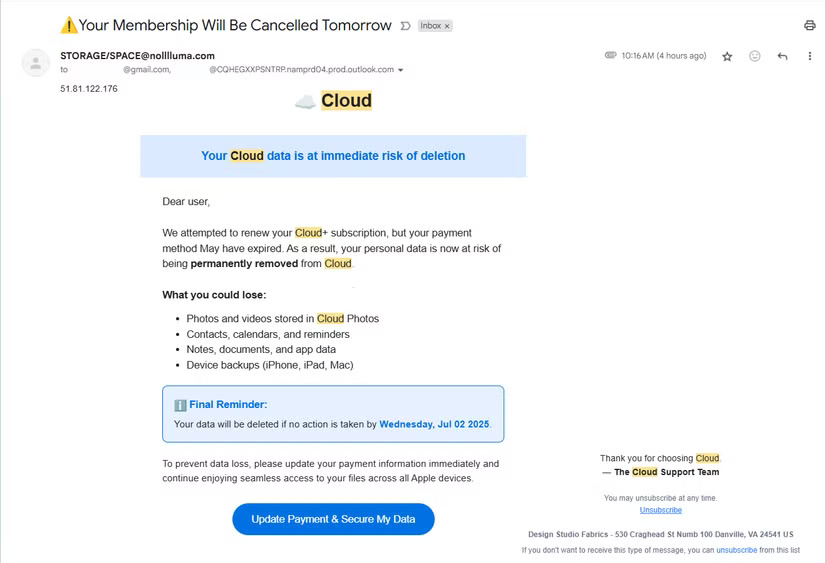
A fake storage warning, delivery message or support call may ask you to enter a password, approve a sign-in or transfer money. The attack can succeed without installing malware.
SmartScreen can warn about suspicious sites and downloads, but a page loading without a warning is not proof it is trustworthy. Open the service through a known app or bookmark and verify unusual requests using an independent contact method. Use our phishing-signal checklist to review the requested action rather than relying on spelling or logos.
2. Reused passwords and breaches at online services
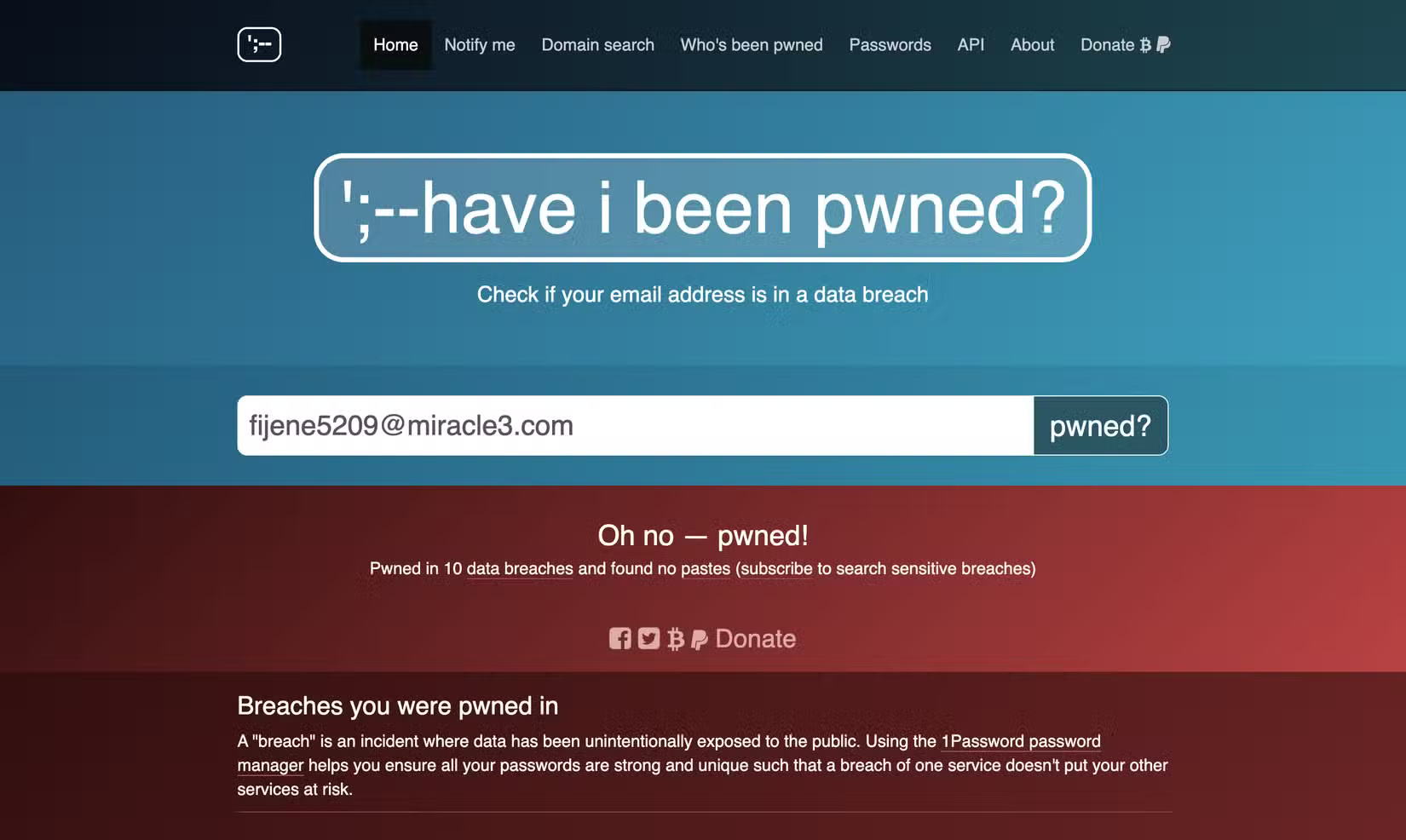
Security software on your PC cannot prevent a separate company's database from being breached. A reused password can also let an attacker enter several accounts after compromising just one.
Use a password manager to create a unique password for each account and enable MFA, preferably a passkey or security key where supported. Review account sign-in alerts and recovery details. If a provider confirms a breach, follow its verified instructions and change any reused credentials.
3. Newly exploited vulnerabilities
A zero-day vulnerability is one exploited before a fix is available or before the developer has had an opportunity to address it. It is inaccurate to say antivirus can never detect such attacks: behavior monitoring and other defenses may block suspicious activity without recognizing a known malware signature.
That protection is not guaranteed. Install security fixes promptly, keep browser and antivirus updates enabled, and avoid disabling protections to run an unfamiliar file. Microsoft explains Defender's behavior monitoring, including its role in detecting previously unseen threats.
4. Outdated applications
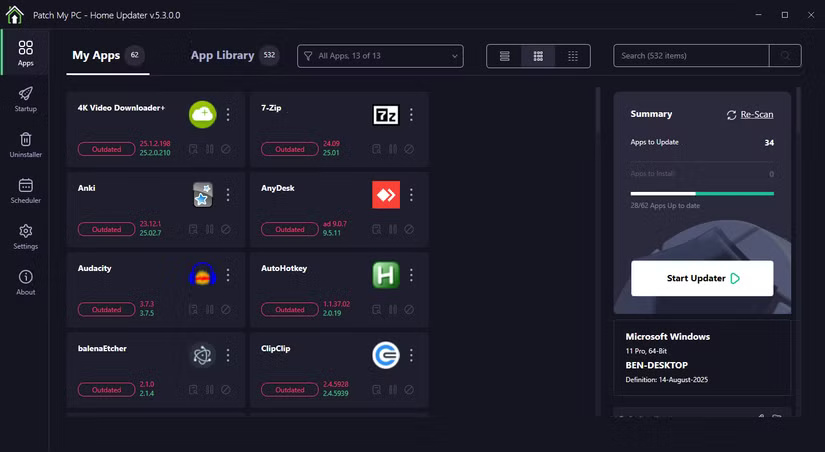
Windows Update does not necessarily update every application on the PC. Some desktop programs have their own automatic updaters; others require a manual update through the app or vendor.
Review your browser, office software, PDF reader and other installed applications. Enable their supported update mechanisms, remove software you no longer need, and replace unsupported applications. Obtain updates from the application itself or the vendor's official site rather than unsolicited update pop-ups.
5. Scams and compromises on other devices
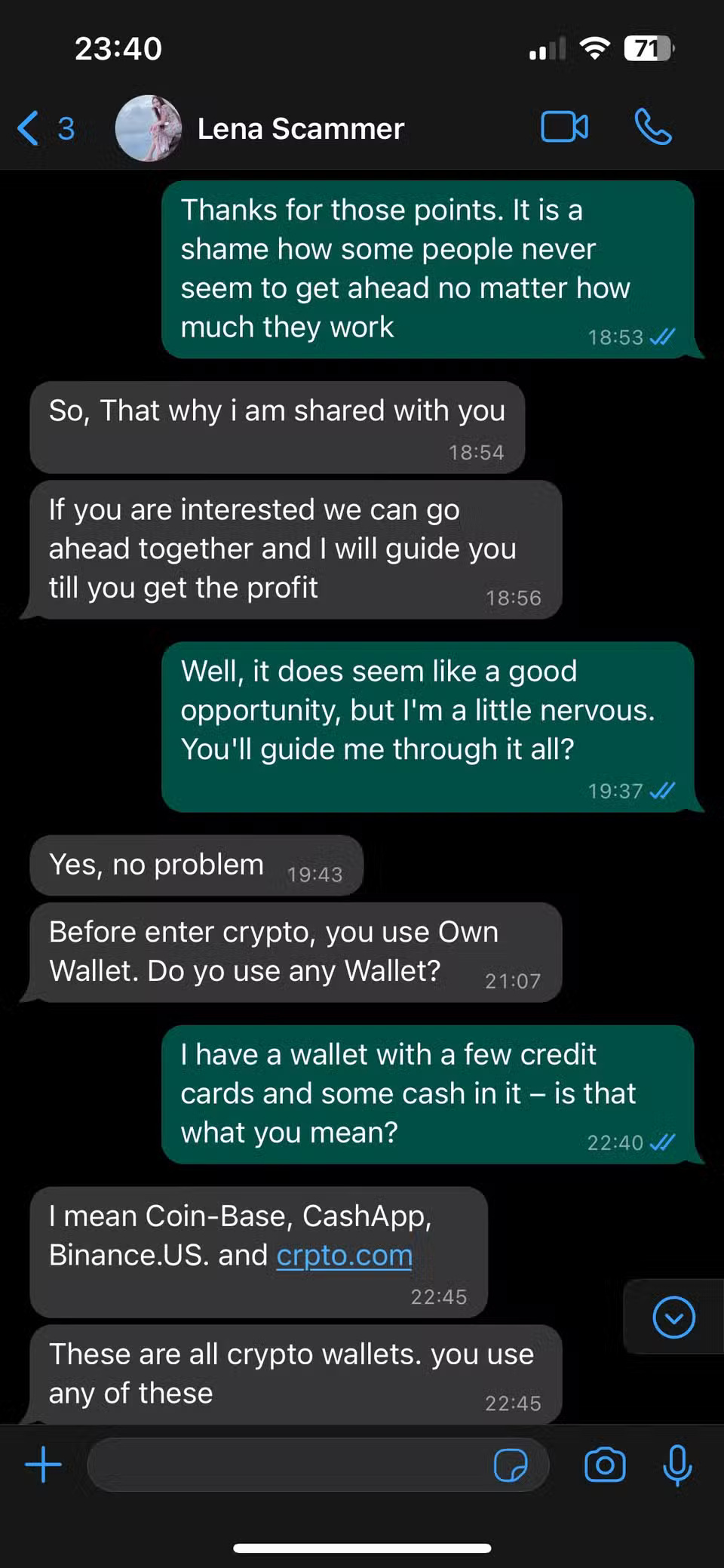
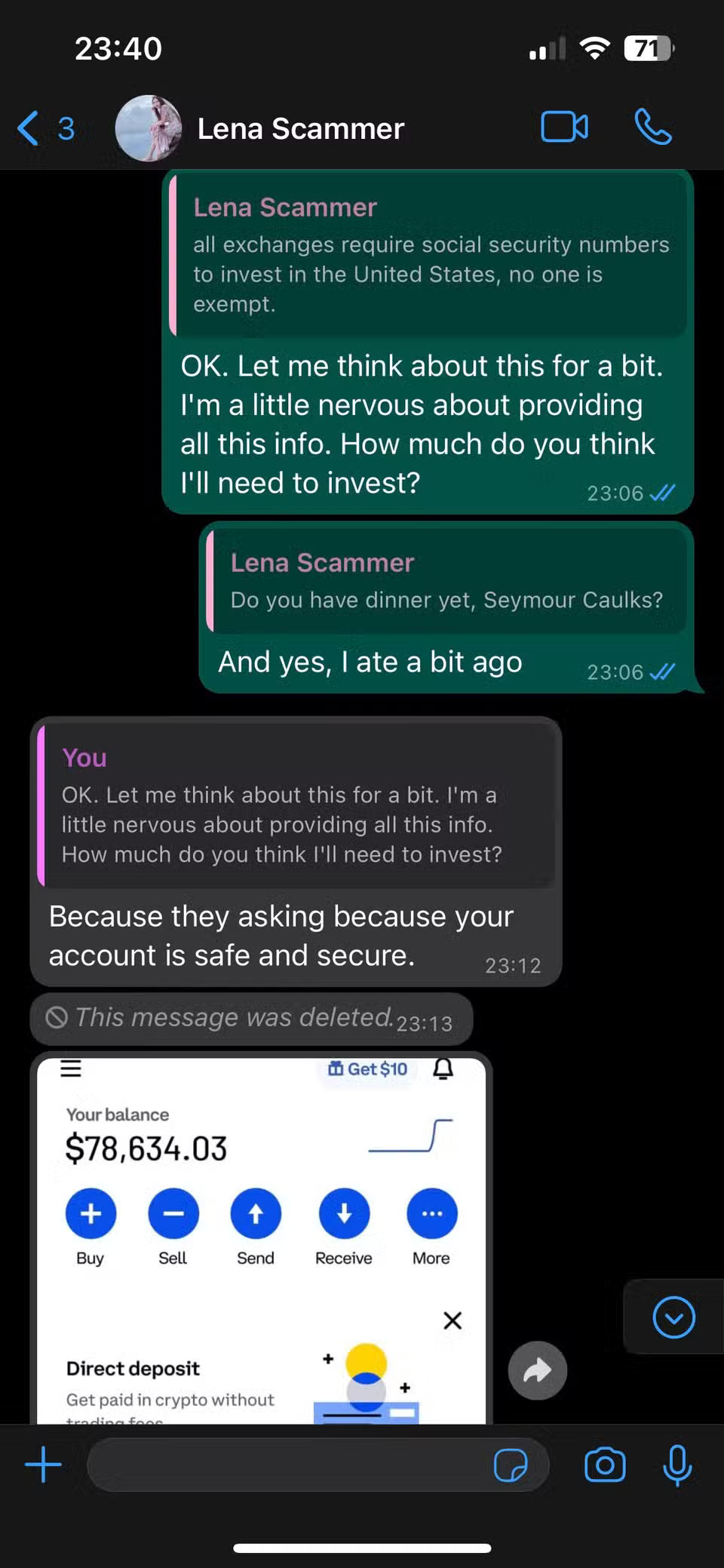
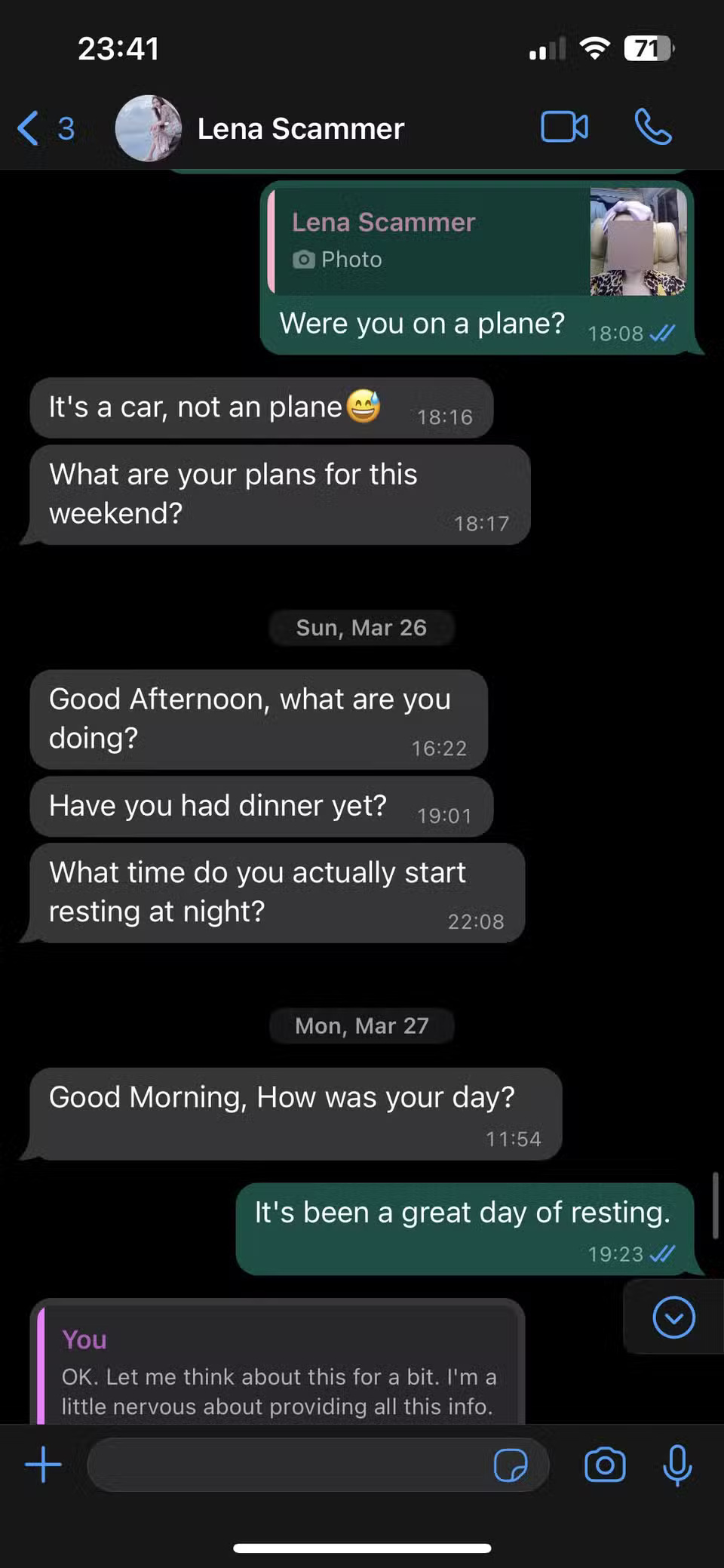
A clean Windows scan says little about a phone, router or online conversation. A scammer may start with a wrong-number message, build trust over time, then promote a fake investment platform or request money.
Do not install remote-access software or send funds because a new online contact asks. Verify identities and financial claims independently. Keep phones and routers updated and protect the accounts used on them as carefully as those on the PC.

If you have already interacted with a scam
Stop contact and open the affected service independently. Change exposed passwords from a trusted device, review active sessions and recovery settings, and report suspicious transactions to the relevant provider through its official channels. If you installed an unfamiliar program, run a security scan and seek help if you cannot establish that the device is safe.
Windows' built-in defenses remain useful. Microsoft's Windows 11 protection overview describes antivirus, SmartScreen and related features. They work best alongside account protection, software maintenance and careful verification.





Reader Comments 0
Sign in with email or Google to join the discussion.