Table of Contents
This guide will show you how to change the currency format used for your account in Windows 10 and Windows 11.
Your regional format settings affect how date/time, number, and currency data types are displayed when you apply formatting options. Windows supports many languages, along with currency and date/time formats for the countries/regions that use those languages.
Like number formats, each country/region has its own standards and conventions for representing currency values. You can change the currency format to a custom format that you want to use and display in Windows.
Note: The currency format for the current user is saved to string values (REG_SZ) in the registry key below:
HKEY_CURRENT_USERControl PanelInternational
Option 1: Change currency format in Settings
Note : This option is only available on Windows 11 build 26200.5742 (Dev 25H2) and build 26120.5742 (Beta 24H2).
1. Open Settings ( Win + I ).
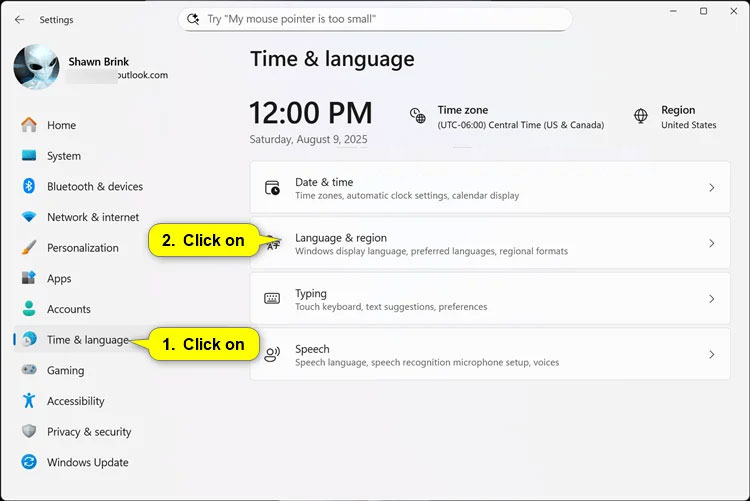
2. Click Time & language on the left, and click Language & region on the right.
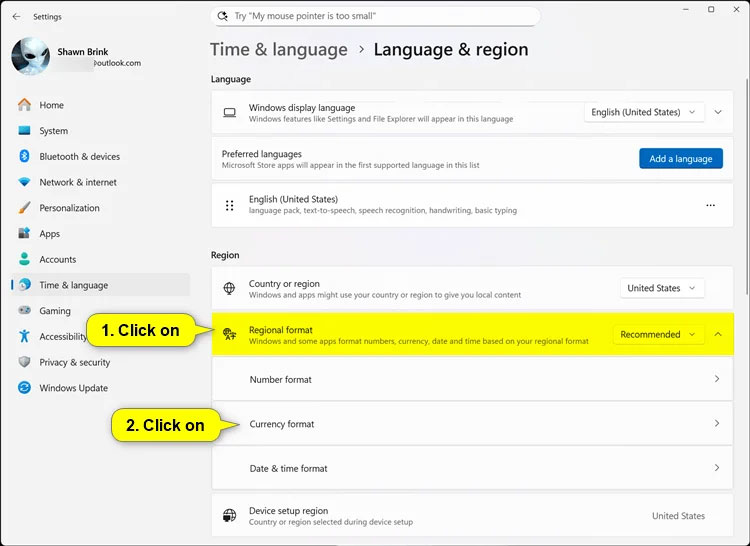
3. Click Regional format to expand it, then click Currency format .
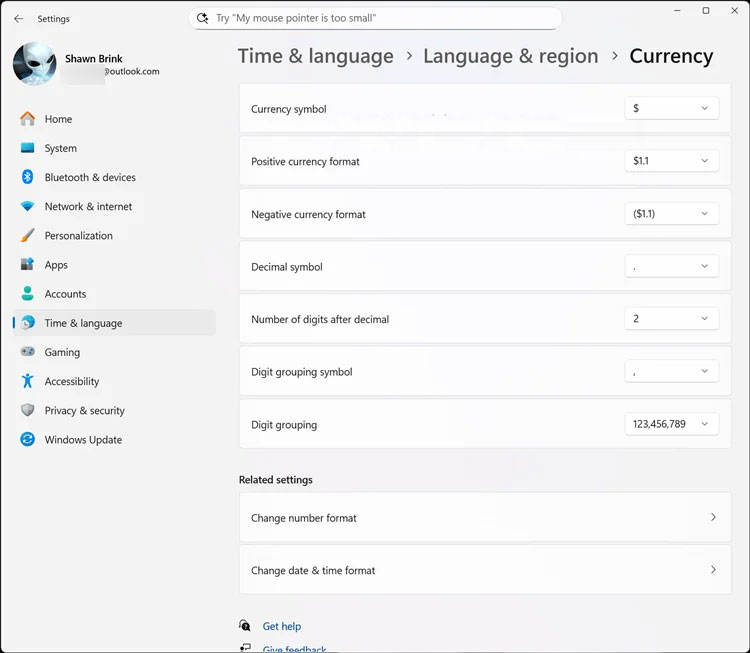
4. Now, you can select the currency format in the drop-down menu that you want to change.
5. Now, you can close Settings if you want.
Option 2: Change currency format in Control Panel
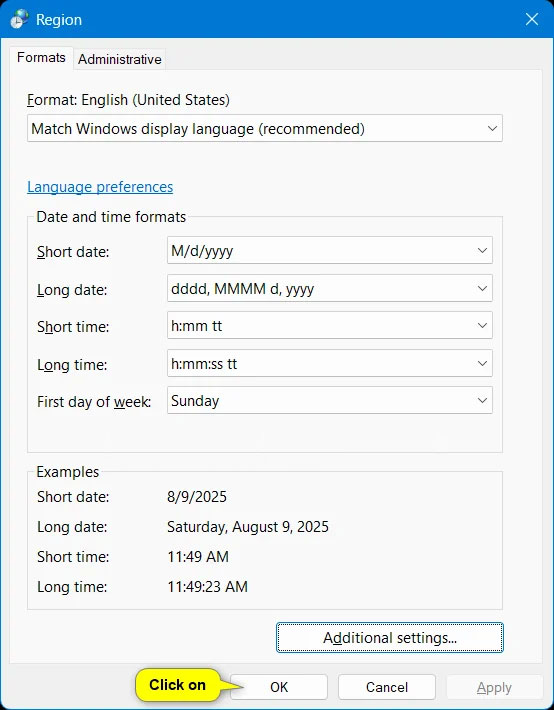
1. Open Control Panel (icon view) and click the Region icon.
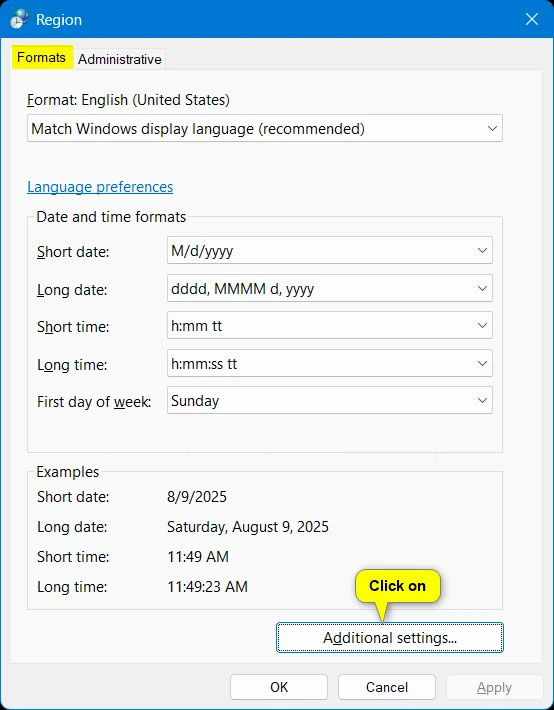
2. In the Formats tab, click the Additional settings button.
3. In the Currency tab, select the currency format from the drop-down menu you want to change to and click OK when done.
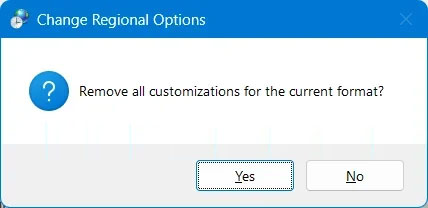
You can click the Reset button to restore all default digital currency settings at once.
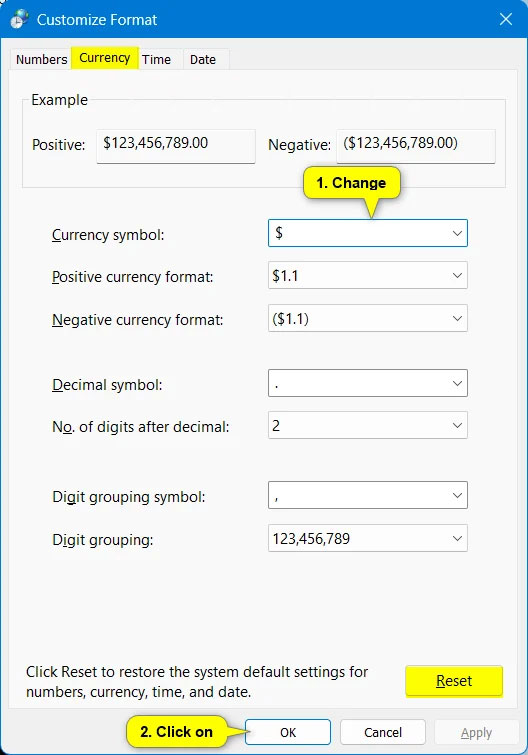
4. Click OK when finished.
Good luck!
Final Thoughts
Following the steps in order and checking version-specific settings should make it easier to Change Currency Format in Windows 11. If an option looks different, verify the device, app, or operating-system version before changing additional settings.
FAQ
What is the best way to Change Currency Format in Windows 11?
Start with the requirements described in the article and follow the steps in order. This guide will show you how to change the currency format used for your account in Windows 10 and Windows 11.
What should you know about Option 1: Change currency format in Settings?
Note: This option is only available on Windows 11 build 26200.5742 (Dev 25H2) and build 26120.5742 (Beta 24H2).
What should you do if the instructions do not match your screen?
Check the device, software version, account permissions, and regional settings. Interfaces can change after updates, so use the closest matching option and consult the official support documentation when necessary.
Related Articles
 How to Convert the Currency of Each Column, Row in Google Sheet3 minutes read
 How to Change the Date and Time Format on Windows, Change the Slash to a Dot10 minutes read
 How to Change Number Format in Windows 113 minutes read
 How to Adjust the Date and Currency Format in Google Sheets4 minutes read
 How to Change the Date and Time Format on Windows?7 minutes read
 How to Change the Network Logo on Android Phones4 minutes read
Reader Comments 0
Sign in with email or Google to join the discussion.