Table of Contents
Most Windows users store hundreds of files and folders on the desktop for quick access. However, in the long run, this will make the desktop cluttered and difficult to look at. There are many ways to hide all the icons on the Windows desktop to get a clean, distraction-free interface. Here is a guide to hide icons on the Windows 11 desktop.
Hide desktop icons via context menu
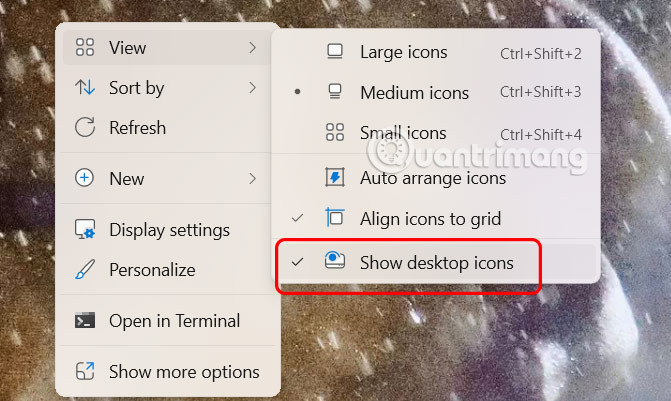
Just right-select the computer desktop, select View, then select Show desktop icons to hide icons on the computer desktop.
Immediately after that all icons on the computer screen will disappear.
Using display settings on Windows
If you want to hide specific system icons like This PC, Recycle Bin or Network, that's also simple.
Step 1:
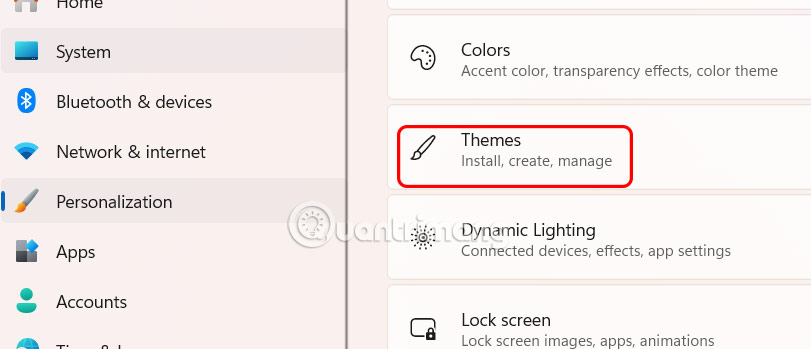
Open Settings on your computer and click Personalize on the left side of the menu, look to the right and click Themes to adjust.
Step 2:
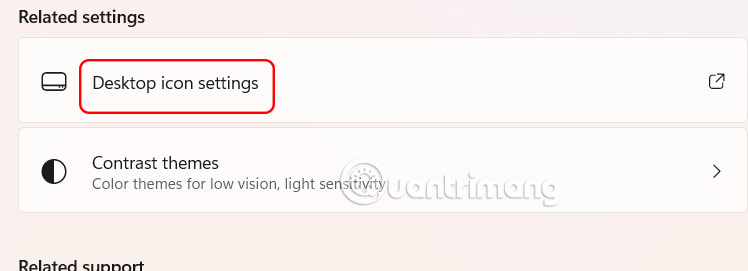
In the next interface, the user clicks on Desktop icon settings .
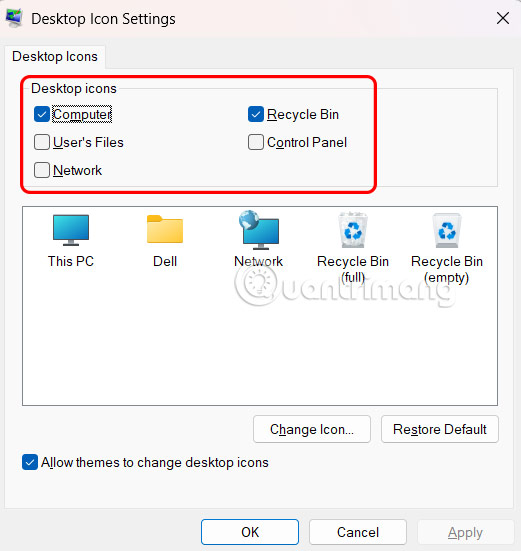
Now we just need to uncheck the icon we want to hide on the computer screen.
Hide files on Windows 11 desktop
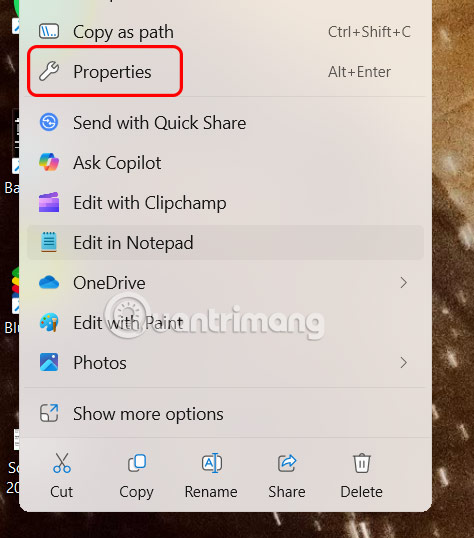
Right -click on the file and select Properties .
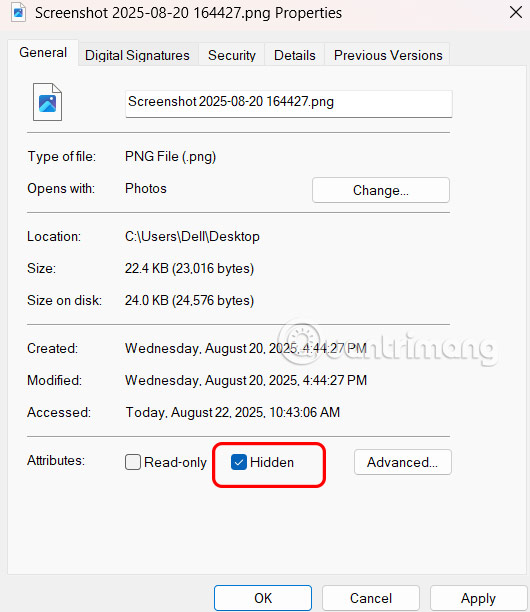
In the new interface that appears, select the General tab . Then look down at Attributes and select Hidden to hide this file on the computer screen.
To see hidden files, open File Explorer, click View, select Show, and then click Hidden items.
Use Group Policy Editor to hide desktop icons
If you are using Windows 11 Pro, Enterprise, or Student edition, you can use the Local Group Policy Editor application to disable desktop icons.
Step 1:
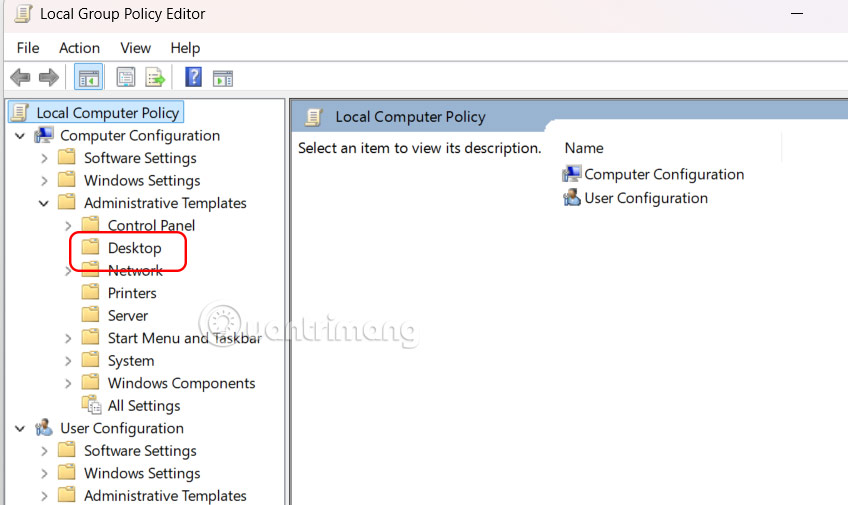
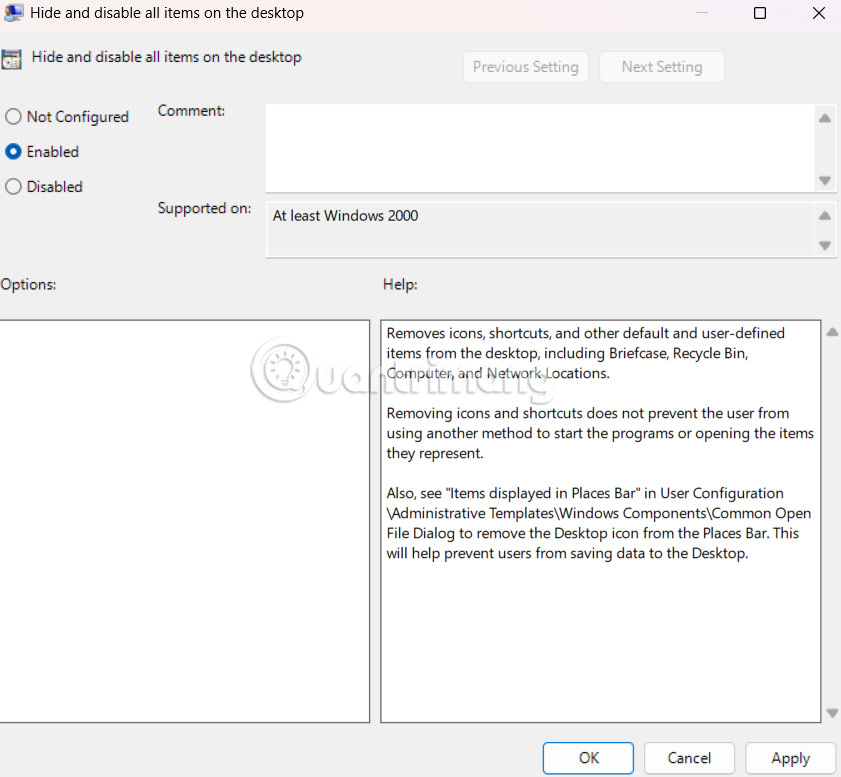
Open the Run dialog box and enter the keyword gpedit.msc to access Local Group Policy Editor. Next, access the path User Configuration > Administrative Templates > Desktop .
Step 2:
Next, click Hide and disable all items on the desktop to adjust.
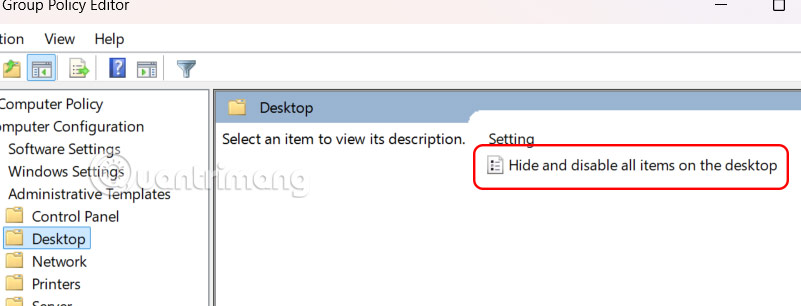
Then click Enabled to enable the feature of hiding icons on the computer screen.
Final Thoughts
Following the steps in order and checking version-specific settings should make it easier to Hide Icons on Windows 11 Desktop. If an option looks different, verify the device, app, or operating-system version before changing additional settings.
FAQ
What is the best way to Hide Icons on Windows 11 Desktop?
Start with the requirements described in the article and follow the steps in order. Most Windows users store hundreds of files and folders on the desktop for quick access. However, in the long run, this will make the desktop cluttered and difficult to look at.
What should you know about Hide desktop icons via context menu?
Just right-select the computer desktop, select View, then select Show desktop icons to hide icons on the computer desktop.
What should you do if the instructions do not match your screen?
Check the device, software version, account permissions, and regional settings. Interfaces can change after updates, so use the closest matching option and consult the official support documentation when necessary.
Related Articles
 How to Hide and Unhide All Desktop Icons on Windows2 minutes read
 How to Hide Desktop Icons on Ubuntu 20.043 minutes read
 How to Hide Desktop Icons7 minutes read
 How to Hide All Desktop Icons on Mac4 minutes read
 How to Hide/show System Icons on Windows 11 Desktop3 minutes read
 7 Websites to Download Free Desktop Icons for Windows 105 minutes read
Reader Comments 0
Sign in with email or Google to join the discussion.