Table of Contents
Windows 11 can sometimes lose connection to the Internet or local network and encounter errors such as Limited access or Unidentified Network . A quick way to fix the most common wired network problems is to reset the Ethernet connection. Windows 11 has a reset option to fix driver issues and many other Ethernet-related issues, including lost connections and slow data transfer. Here are the steps to reset the Ethernet connection in Windows 11.
How to reset Ethernet connection in Windows 11
Step 1:
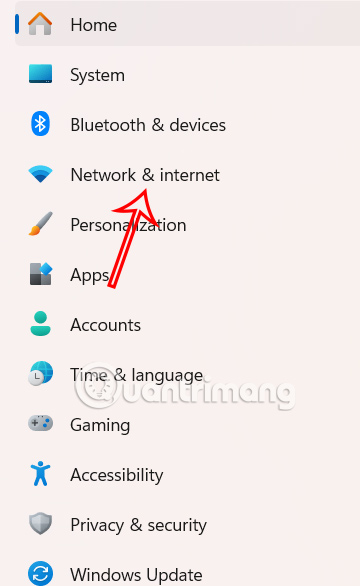
Press the Windows + I key combination to open Settings on your computer, then select Network & internet on the left side of the interface.
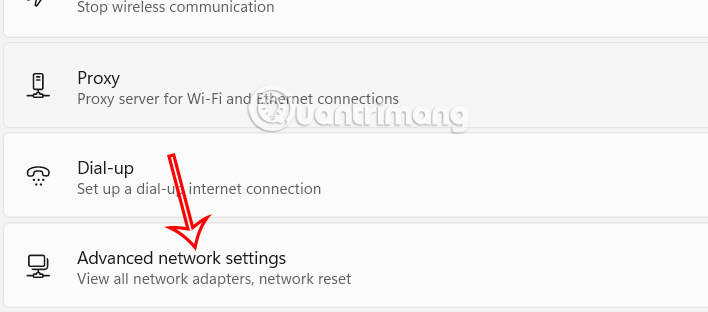
Next, look to the right and select Advanced network settings to open advanced settings for network connections on your computer.
Step 2:
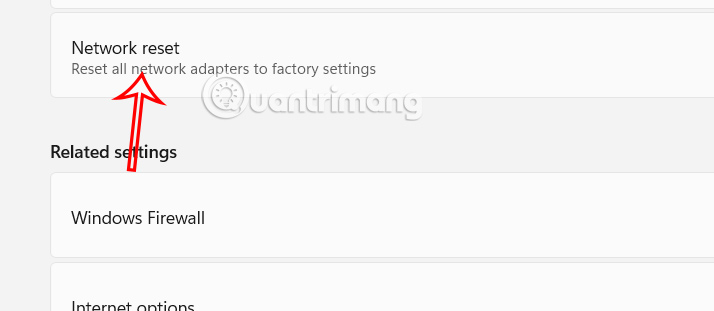
Then, in the new interface, the user clicks on Network Reset under More settings to reset the Ethernet connection in Windows 11.
Step 3:
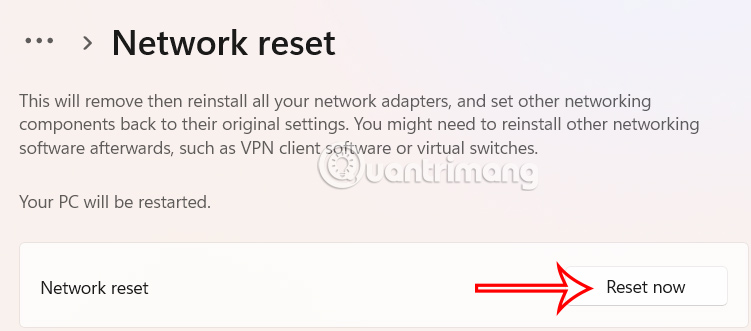
Finally, click the Reset now button to reset the Ethernet connection on your Windows 11 computer, solving existing problems with your computer's wired network connection.
Final Thoughts
Following the steps in order and checking version-specific settings should make it easier to Reset Ethernet Connection in Windows 11. If an option looks different, verify the device, app, or operating-system version before changing additional settings.
FAQ
What is the best way to Reset Ethernet Connection in Windows 11?
Start with the requirements described in the article and follow the steps in order. Windows 11 can sometimes lose connection to the Internet or local network and encounter errors such as Limited access or Unidentified Network. A quick way to fix the most common wired network problems is to reset the Ethernet connection.
What should you know about How to reset Ethernet connection in Windows 11?
Press the Windows + I key combination to open Settings on your computer, then select Network & internet on the left side of the interface.
What should you do if the instructions do not match your screen?
Check the device, software version, account permissions, and regional settings. Interfaces can change after updates, so use the closest matching option and consult the official support documentation when necessary.
Related Articles
 What to Do If Ethernet Connection Keeps Dropping on Windows 10/11 Explained9 minutes read
 How to Enable // Disable Ethernet Connection Measurement Feature6 minutes read
 How to Convert Ethernet Connection to WiFi: Practical Guide8 minutes read
 How to Connect to Ethernet on PC or Mac5 minutes read
 How Is Wired (Ethernet) Better Than Wireless (Wi-Fi)?9 minutes read
 Why Use Ethernet Connections Whenever Possible?6 minutes read
Reader Comments 0
Sign in with email or Google to join the discussion.