Table of Contents
Learn how to speed Up your computer using Ccleaner: Simple and Effective methods with clear steps, practical tips. Read the full guide below.
Guide to speeding up your PC with CCleaner super fast
How to speed up your computer easily and effectively using CCleaner.
Download or update to the latest version of CCleaner using the link below: - Download the latest CCleaner here.
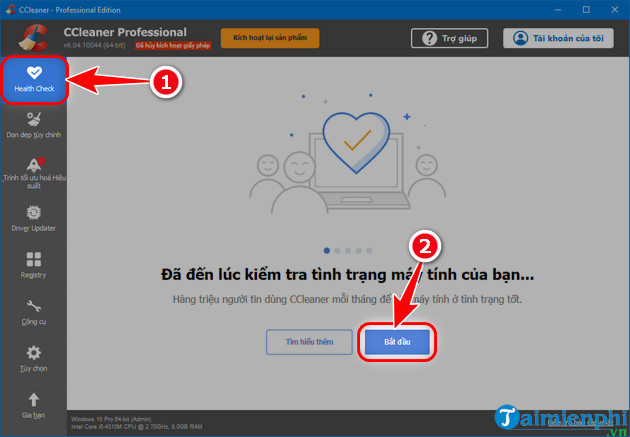
This is a feature that CCleaner has recently added to its software to quickly analyze your computer's status, then automatically adjust and update it to make it faster and safer.
Step 1: Select Healthy Check mode => Press Start to have CCleaner begin scanning.
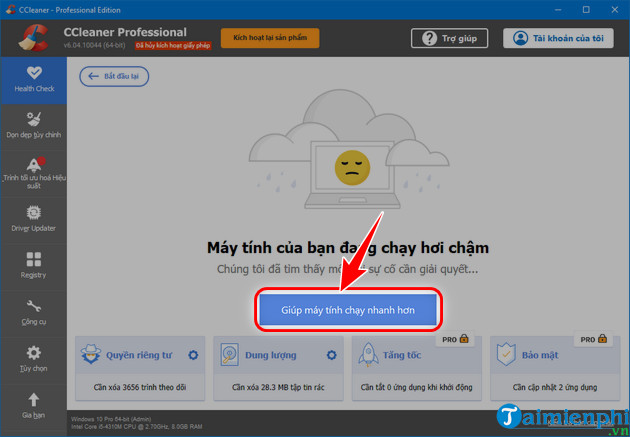
Step 2: click Help your computer run faster.
This feature lets you customize the deletion of browser and Windows files and data according to your needs.
Step 1: Select Custom Cleanup => Choose Windows or Applications. Step 2: Check the boxes next to the items you want to delete. - TipsMake recommends only deleting browser cache or browsing history and not cookies. Step 3: Click Run CCleaner.
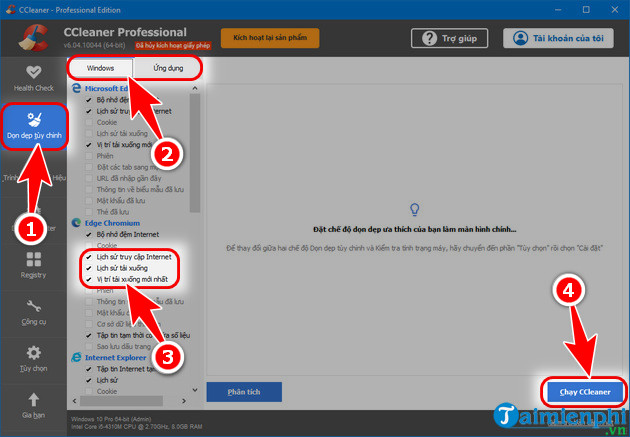
Step 4: Click Continue.
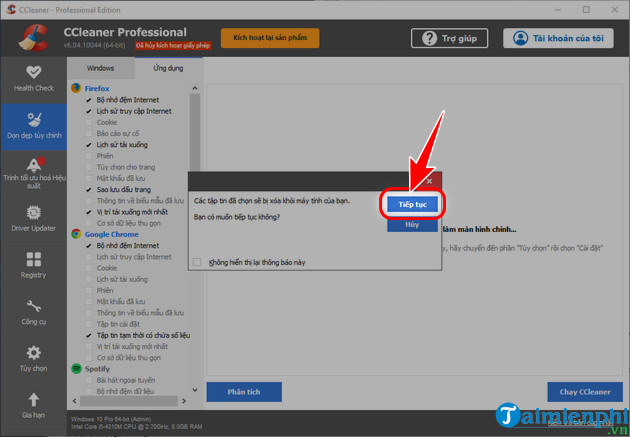
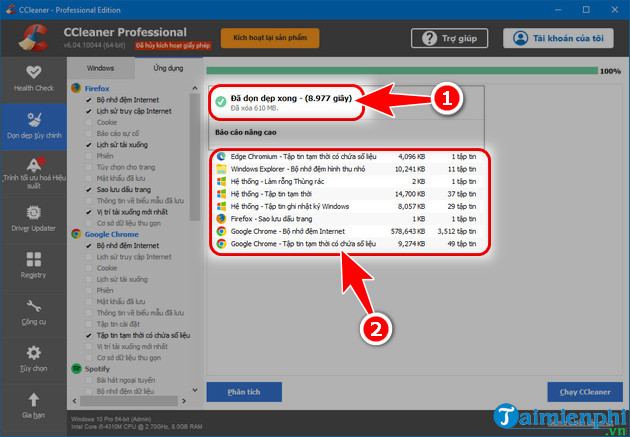
- After the cleanup is complete, CCleaner will display the real-time time taken, the amount of files deleted, and details of the number and size of files from each application.
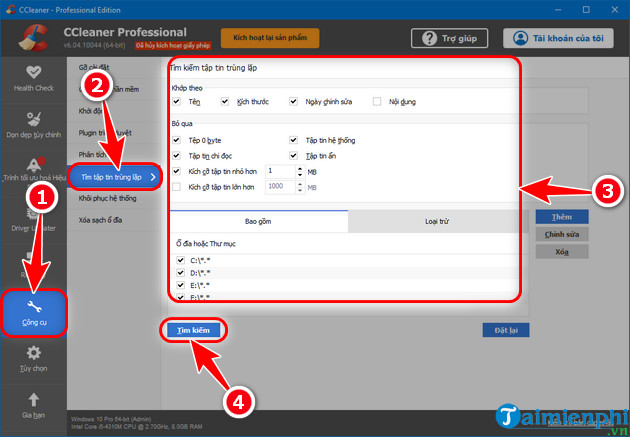
CCleaner will scan and find duplicate files on your drive so you can quickly delete unnecessary duplicate files.
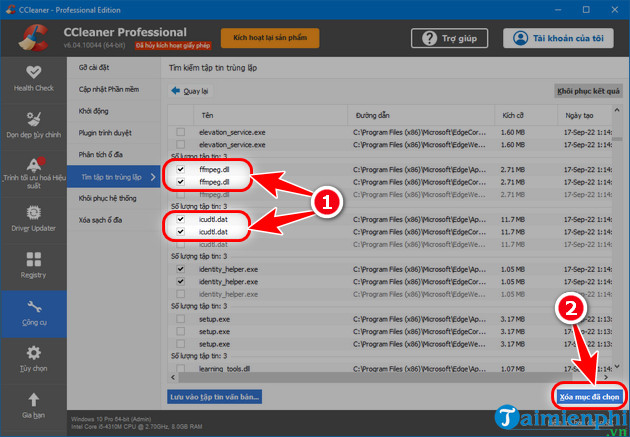
Step 1: Go to Tools => click Find Duplicate Files. Step 2: Set the appropriate options. Step 3: Click Search and wait for CCleaner to scan.
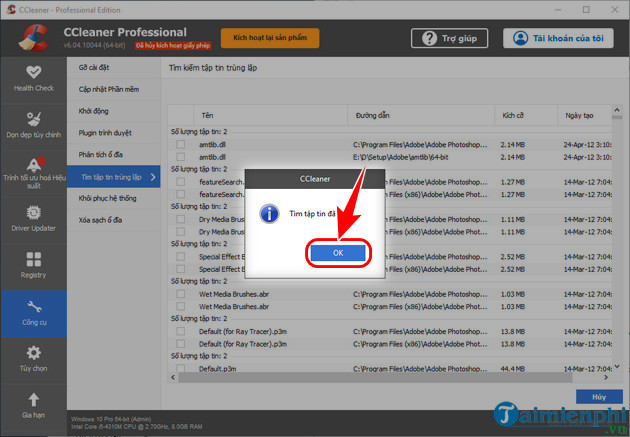
Step 4: Press OK to confirm .
Step 5: Select the duplicate files you want to delete => Click Delete selected items . Step 6: Click OK.
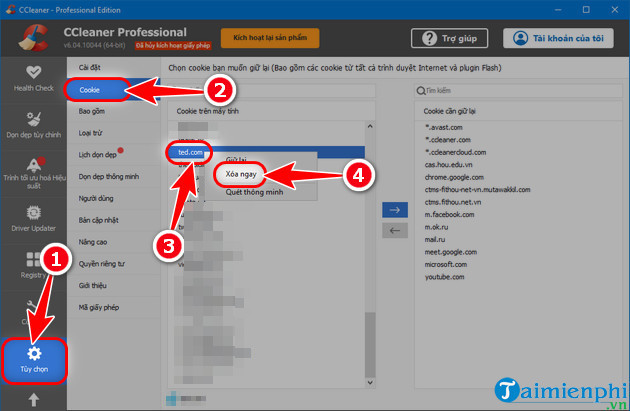
Step 1 : Click Options => Go to Cookies. Step 2: Right-click the cookie you want to delete => Select Delete Now. - You should carefully review cookies to avoid deleting important data and to retain cookies that are on the list of cookies to keep .
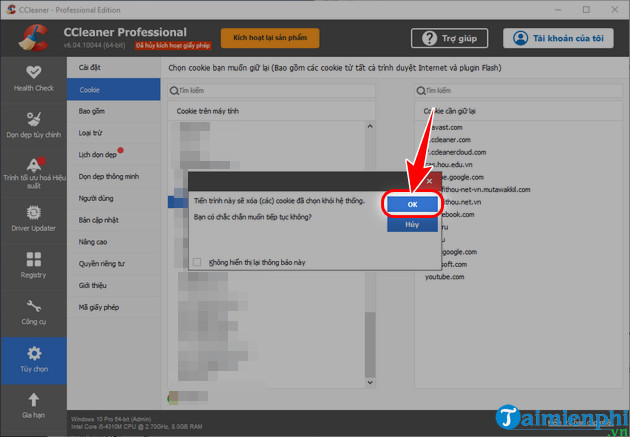
Step 3: Press OK to confirm the deletion.
After speeding up your computer with CCleaner, you'll notice a significant improvement in its performance. This will boost your work efficiency many times over. You can now install and use CCleaner on your phone , specifically the version designed for mobile operating systems.
FAQ
How can you Speed Up your computer using Ccleaner: Simple and Effective methods?
Learn how to speed Up your computer using Ccleaner: Simple and Effective methods with clear steps, practical tips. Read the full guide below.
How can you speed up your computer easily and effectively using CCleaner?
Download or update to the latest version of CCleaner using the link below: - Download the latest CCleaner here.
Do the steps or features vary by device or software version?
They can. Menu names, available settings, and compatibility may differ by device, region, account type, or software version, so check the options shown on your own screen.
Related Articles
 How to Restoring Original Settings for Ccleaner3 minutes read
 Ccleaner Setup Starts the Same System3 minutes read
 How to Use Ccleaner5 minutes read
 CCleaner 5.45 Is Wiped Out by Collecting User Data, If You Are Using It, Remove It Immediately3 minutes read
 CCleaner Has Been Hacked, Attached Malware, Things to Know and How to Fix It4 minutes read
 The Best CCleaner Replacement Software7 minutes read
Reader Comments 0
Sign in with email or Google to join the discussion.