Table of Contents
An undersea cable fault can reduce or reroute international capacity, but it is only one possible cause of slow internet. Weak Wi-Fi, local congestion, a faulty cable, overloaded equipment, DNS failure, a slow service, or an ISP line problem can produce similar symptoms. Diagnose the scope before applying a workaround.

Signs of a possible international-route problem
- Domestic sites and a nearby speed-test server work normally, but multiple overseas services are slow.
- The issue affects several devices and both Ethernet and Wi-Fi.
- Performance changes by destination or time of day.
- The ISP publishes a notice about international capacity or route maintenance.
- Traceroute results change or show high latency beyond the ISP network, although individual hops may deprioritize diagnostic traffic.
These signs are not proof of a particular AAG, IA, APG, or other cable failure. Providers can use several cable systems and terrestrial routes, and the impact depends on available backup capacity and traffic engineering.
1. Test the local connection first
Connect a capable computer to the main router with Ethernet, pause other network traffic, disconnect optional VPNs, and run several tests. Use the same service and server for repeat comparisons.
- Open a reputable service such as Speedtest.
- Choose a nearby domestic server and select Go.
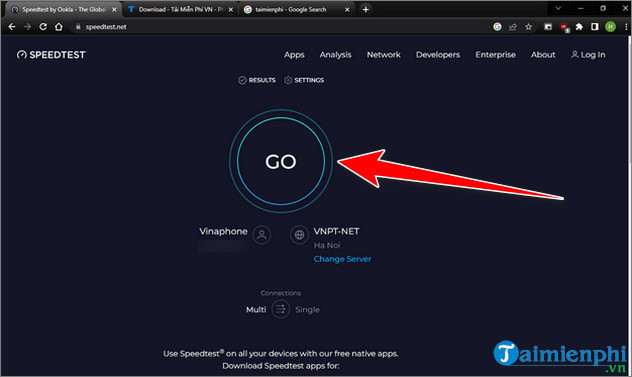
- Record download, upload, latency, server, date, and time. Repeat at least three times and use the median.
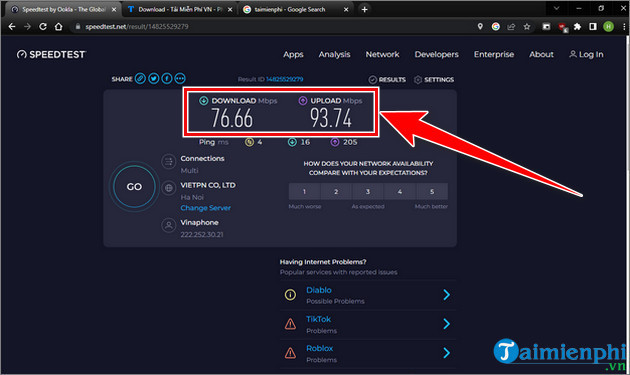
Then test an authorized server in the region used by the affected service, if the tool allows server selection. A fast domestic result and consistently poor overseas result narrows the issue to an international path, peering, or remote service. See how to run comparable internet speed tests for the full methodology.
2. Compare devices, Ethernet, and Wi-Fi
| Result | Likely focus |
|---|---|
| One computer is slow | That device, driver, VPN, proxy, malware, or background app |
| Wi-Fi slow but Ethernet normal | Signal, interference, band, channel, or access-point placement |
| All devices slow to all destinations | Router, modem, local line, ISP, or broad outage |
| Only overseas destinations slow | International route, peering, remote service, or capacity |
If Wi-Fi is the only problem, use the home Wi-Fi improvement guide. An undersea cable workaround cannot repair a weak signal inside the home.
3. Check cables, modem, and router
- Reseat Ethernet and WAN cables and replace visibly damaged cables.
- Check modem or optical-network-terminal indicators against the provider's manual.
- Restart equipment in the ISP's recommended order, allowing each device to finish booting.
- Make sure the router is ventilated and running current approved firmware.
- Confirm that its ports and processor can handle the subscribed plan.
Do not factory-reset the modem or router just because the internet is slow. A reset can erase ISP credentials, Wi-Fi names, security settings, and other configuration.
4. Find local applications using bandwidth
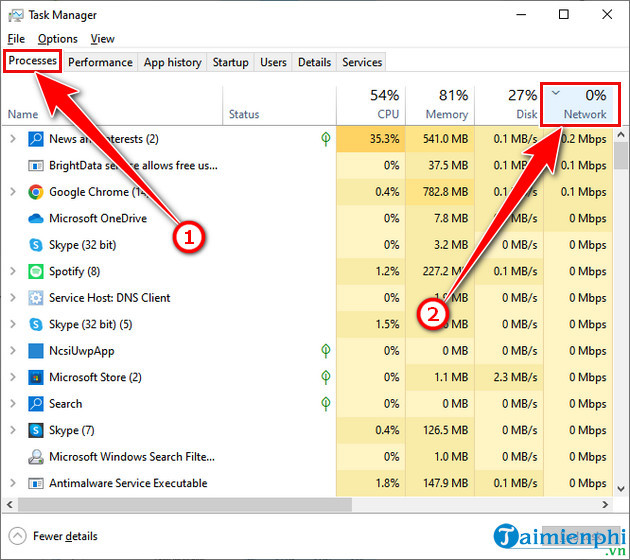
On Windows, open Task Manager and sort the Processes tab by the Network column. Look for backups, synchronization, game launchers, updates, and streaming apps.
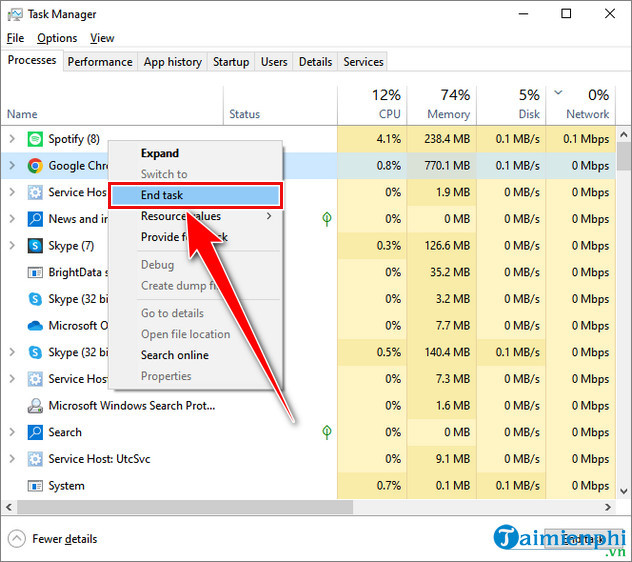
Close an application normally when possible. Use End task only for an app you recognize and can safely stop; ending Windows services or security processes can cause data loss or system instability.
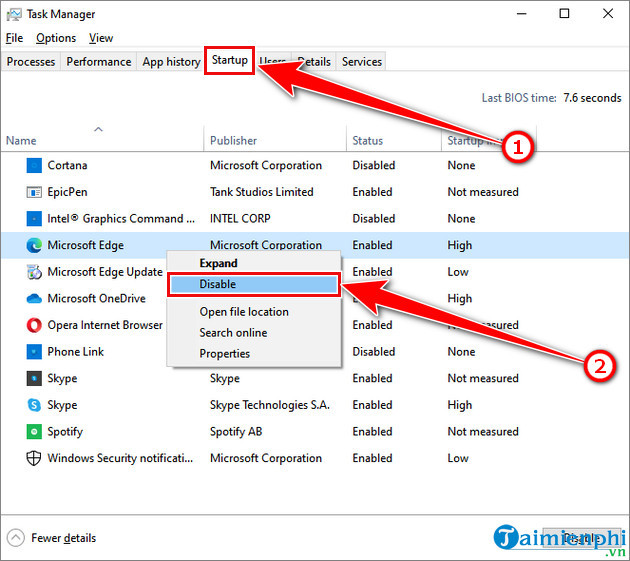
Review Startup apps and disable only nonessential software that you recognize. Disabling startup does not close the current process and does not solve external route congestion by itself.
5. Treat DNS and malware as separate hypotheses
DNS converts a domain name to an address. Changing DNS may help when names fail to resolve or the configured resolver is slow, but it does not add international bandwidth and usually will not fix a congested undersea route. Test with nslookup before replacing an ISP or organizational DNS setting.
Run the built-in security scan if the device shows redirects, unusual pop-ups, unknown proxy settings, or unexplained traffic. Download security software only from its official publisher; a slow connection alone is not evidence of infection.
6. Update the network adapter carefully
Install Windows updates and obtain the correct Wi-Fi or Ethernet driver from the PC or adapter manufacturer. Device Manager can check Windows Update, but a generic “Update driver” click does not guarantee a newer or better driver.
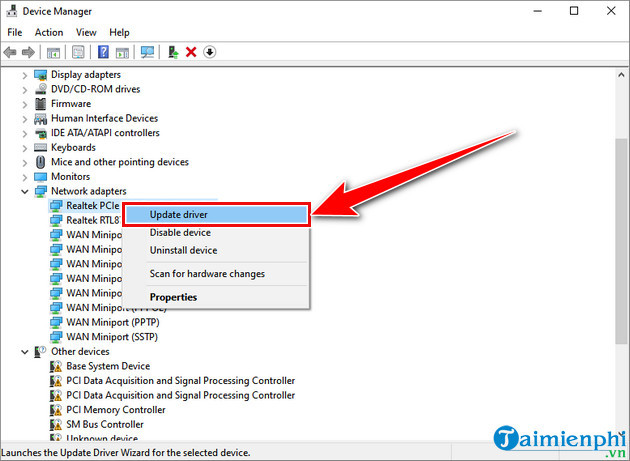
If the issue began immediately after a driver update, use Roll Back Driver when available. Record the adapter model before uninstalling anything.
Workarounds during a confirmed international outage
- Use a domestic mirror, local cloud region, or CDN endpoint when the service provides one.
- Schedule large international transfers outside the congested period and enable resume support.
- Reduce video quality and pause automatic backups during calls.
- A reputable VPN may use a different route, but it can also be slower. Compare several controlled runs and follow local law and network policy.
- Use a mobile connection only if it follows a healthier path and the data allowance is sufficient.
Do not repeatedly change DNS, registry values, or TCP settings in search of extra capacity. Those changes can create new faults and cannot repair a physical cable.
Report the problem with evidence
Contact the ISP when repeated wired tests show a significant problem. Provide the affected destinations, times, domestic and overseas test results, traceroute output, modem indicators, and whether every device is affected. Ask whether the provider has a current outage notice and an estimated restoration process; avoid relying on old social posts about a previous cable incident.
For a full decision tree, use TipsMake's guide to finding the source of slow Wi-Fi and internet. The correct fix follows the bottleneck: local Wi-Fi settings for a wireless problem, equipment or line service for a local failure, and routing or capacity workarounds for a confirmed international disruption.
Related Articles
 Top Reasons for Slow Internet and Intermittent Connection7 minutes read
 Click: How to Increase Internet Speed in Windows 711 minutes read
 Map of 420 Internet Cables, Stretching 1.1 Million Kilometers on the Seabed Around the World4 minutes read
 Useful Tips on How to Fix Centurylink's Slow Internet Problems8 minutes read
 Instructions for Troubleshooting Windows 7 Network Errors16 minutes read
 Troubleshoot Connectivity Problems in the Network -- Part 410 minutes read
Reader Comments 0
Sign in with email or Google to join the discussion.