Table of Contents
This updated guide compares Samsung features you may not be using for better photos and highlights the details that matter most. Great photos are more than just a matter of pointing and shooting. If you own a Samsung phone, you have a secret treasure trove of camera tricks waiting to be unlocked for your creativity.
7. Use Shot Suggestions for Better Framing
Shot Suggestions is a smart AI tool that acts as a built-in photo guide. It analyzes your scene in real time by recognizing objects and scenes, then suggests the best way to frame your shot.
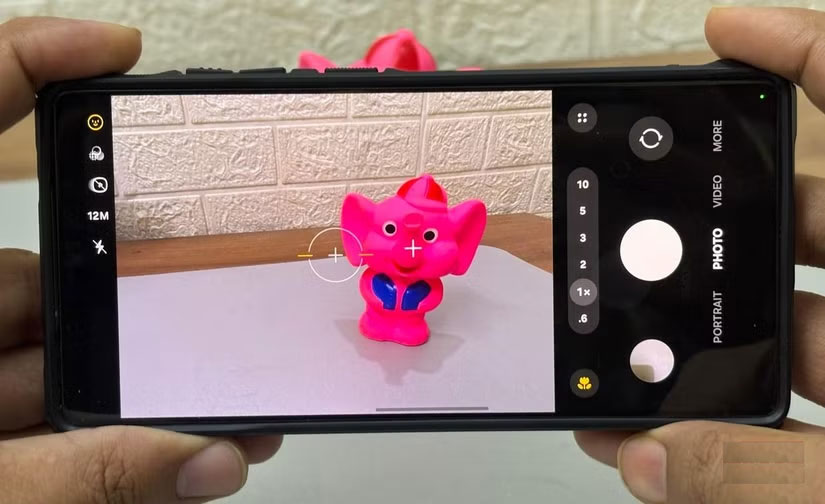
As you aim your camera, a small target will appear on the screen, guiding you to tilt or angle your shot, making your photo look balanced, professional, and visually appealing. The target will move as you reposition your camera, and when everything is lined up correctly, the target will turn yellow to confirm you've found the ideal composition.
To use this feature, open the Camera app and tap the settings icon. In the Settings menu, find Shot Suggestions and turn it on.
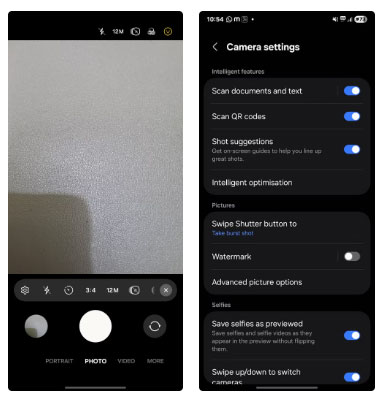
Once enabled, this feature will automatically work every time you open the camera. When you point it at a subject, you'll see a small circle or target on the screen to help you find the best frame.
6. Turn on the Camera Grid for Perfect Composition
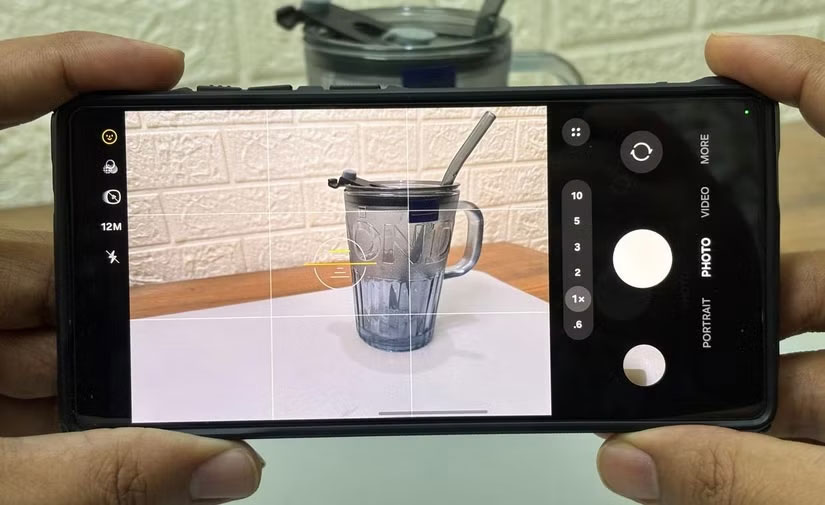
Another feature you can use to improve your photography skills is the camera grid. Simply enable it in your camera settings and it will divide your screen into nine equal rectangles with two horizontal lines and two vertical lines. These lines are more than just aesthetic; they act as a visual guide to help you apply the rule of thirds, one of the most basic principles of photography.
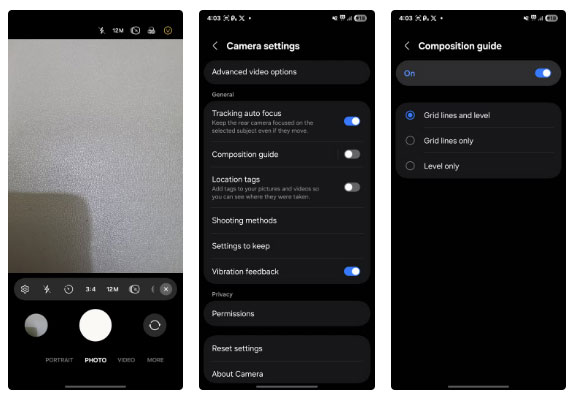
To enable the camera grid, open the Camera app and tap the settings icon. In the Settings menu, scroll down to General and tap Composition Guide . From here, you can select Grid lines and level to enable both the grid and horizon level, or select Grid lines only to use just the grid.
5. Improve Color with Scene Optimizer
After framing your photo with the camera grid lines, you can further enhance the look of your photo with Scene Optimizer. This feature uses artificial intelligence to analyze the scene and adjust your camera settings accordingly. It brightens dark scenes, makes food look appetizing, and brings landscapes to life.
To use Scene Optimizer, open the Camera app and tap the settings icon. In the Settings menu, tap Intelligent optimization , then turn on Scene optimizer .
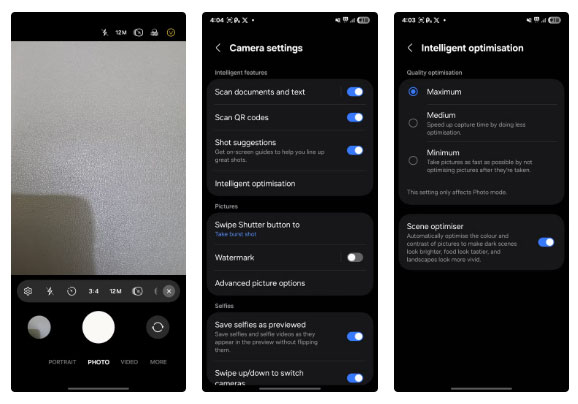
A new Samsung phone may have Scene Optimizer turned on. It recognizes up to 30 different scenes, including landscapes, food, flowers, birds, and even text.
4. Edit Photos to Improve Quality
Sometimes photos do not turn out the way you expected. Maybe the light is low, the subject is a little blurry, or something just does not look right. The photo editing tools on your Samsung phone can help you fix those moments with just one tap.
To use the photo editing tool, open the photo you want to improve in the Samsung gallery app. Then, swipe up on the photo to reveal editing suggestions and select Remaster from the top menu.
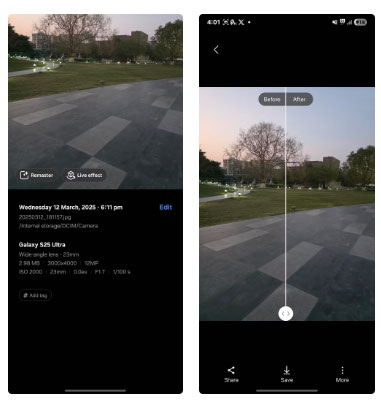
On older devices, you can tap the three-dot menu and select Remaster picture from the list of options.
3. Pro Mode for Advanced Photography
If you're an experienced photographer or just want more creative control, Pro Mode is worth exploring. This mode gives you access to manual settings similar to those on a DSLR.
To start using Pro Mode, open the Camera app and tap the More button in the bottom right corner. Then, simply select PRO to switch to Pro Mode. From here, you can adjust settings like ISO, shutter speed, white balance, and exposure compensation.
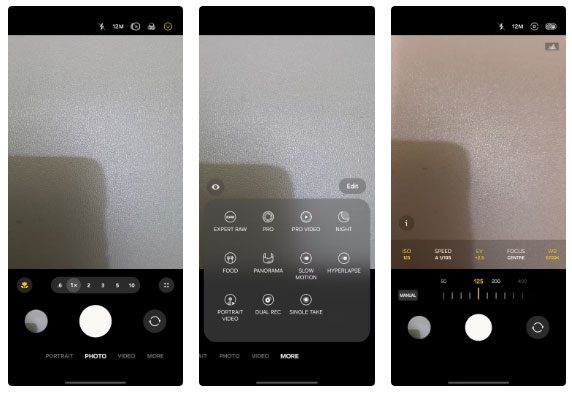
Experiment with different settings to see their effects on your photos.
2. Shoot in RAW Format with Expert RAW
RAW is a photography format that captures everything your camera sensor sees. it is favored by professionals because it gives you complete control over image quality and makes editing easier. Unlike JPEG, which compresses and loses some data to save space, RAW files retain all the details. This results in better image quality, improved dynamic range, and more accurate colors.
To use this feature, open the Camera app on your Samsung Galaxy phone, open More > EXPERT RAW and download it from the Galaxy App Store. Once set up, you'll see an interface similar to Pro Mode, where you can manually control ISO, shutter speed, white balance, and virtual aperture.
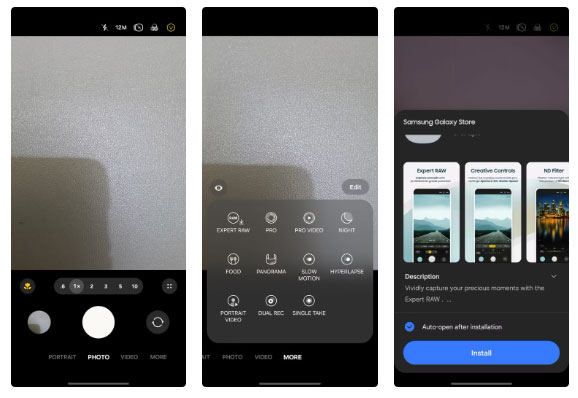
1. Edit with Galaxy Enhance - X
Samsung already gives you a smart editing experience with Edit Suggestions, but if you want more control and advanced enhancements, Galaxy Enhance-X takes it even further.
Unlike Edit Suggestions, Galaxy Enhance-X does not come pre-installed; you have to download it separately from the Galaxy Store.
To get started, download and install the app from the Galaxy Store. Once installed, open the app and grant the necessary permissions to access your photos. You can then select any image from your gallery and choose from a variety of enhancement tools to apply.
These are some of the features that really improve smartphone photography. But there are still plenty of tricks and tools to explore on your Samsung Galaxy. Just experiment with the settings, experiment with lighting, angles, and subjects, and find what works best for you.
FAQ
How were the samsung features you may not be using for better photos options evaluated?
The comparison focuses on practical features, ease of use, limitations, compatibility, and the type of user each option is most likely to help.
Which option is best for beginners?
Beginners should prioritize a clear interface, useful documentation, reliable support, and the core features needed for their first project.
Should I choose a free or paid option?
Start with a free option when it covers your needs. A paid plan may be worthwhile when you need advanced tools, commercial rights, collaboration, or professional support.
Related Articles
 Samsung Features That Make People Wonder Why Other Phones Exist9 minutes read
 How to Take a Snapshot on Samsung Galaxy J7 Pro5 minutes read
 How to Create Stickers from Photos on Samsung: Step-by-Step Guide4 minutes read
 Instructions for Restoring Deleted Photos on Samsung Phones4 minutes read
 How to Recover Deleted Photos on Samsung Galaxy: Complete Guide6 minutes read
 How to Recover Deleted Photos on Samsung Phones, Easily Retrieve Your Photos3 minutes read
Reader Comments 0
Sign in with email or Google to join the discussion.