Table of Contents
Once you start using gestures, everything becomes smoother. Navigation becomes easier, apps open faster, and you barely need to touch the power button anymore.
If your phone is slow, it's not always the hardware that's the problem. Sometimes it's just how you use it. That's often the case with Samsung phones. People keep pressing buttons and digging through menus when simple gestures can do the same thing faster. Once you start using gestures, everything becomes smoother. Navigation becomes easier, apps open faster, and you barely need to touch the power button anymore. The phone stays the same, but how you use it makes a difference.
Core navigation gestures
Move around your phone faster
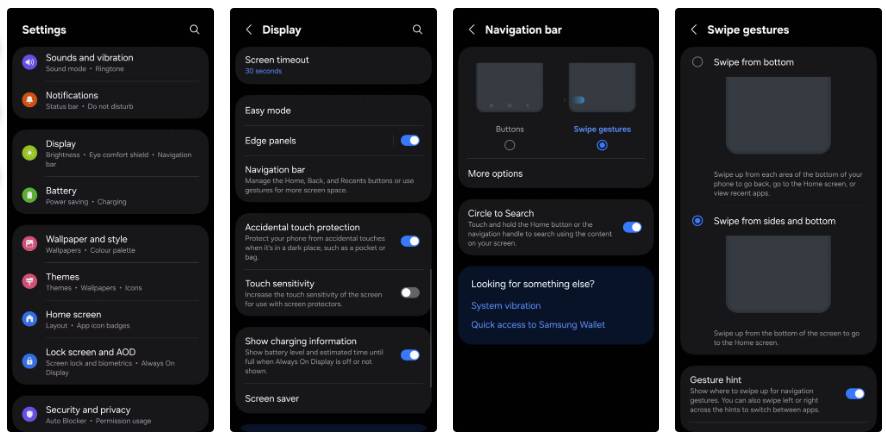
It took a while for people to give up on navigation buttons, but once they did, they never wanted to go back. The buttons worked well, but each action required a separate tap. With gesture navigation enabled, a swipe up takes you to the home screen, a long swipe opens recent apps, and a short swipe in from either edge takes you back. It reduces hand movement, and it becomes more natural over time. If you want to switch, go to Settings -> Display -> Navigation bar And select Swipe gestures . For more control, tap More options And adjust the swipe-back gesture area.
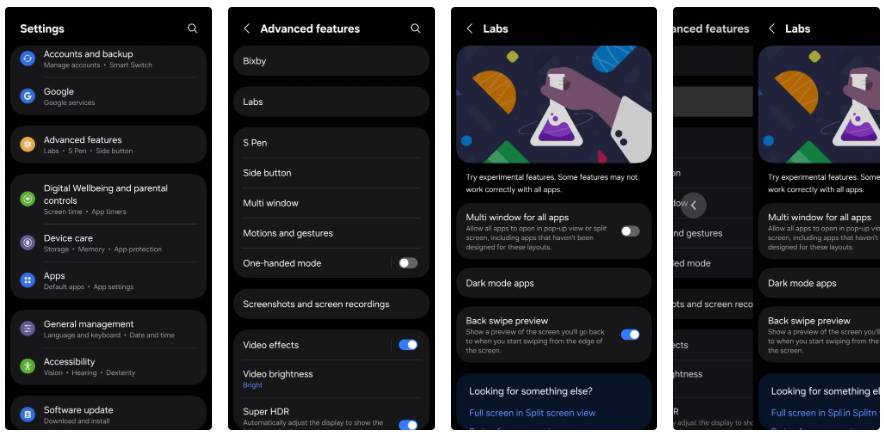
There's a shortcut in the gesture bar that lets you switch between your most recent apps. This shortcut is automatically integrated once you activate the swipe gesture. Switching from chat to browser or gallery to camera is easy because your thumb is already near the bottom edge. One UI 8 also adds a predictive back swipe preview. When you start swiping back, the phone will show you a small preview of where it will take you. To enable this feature, go to Settings -> Advanced features - > Labs And turn on Back swipe preview .
Instant access gestures and multitasking
Do more with quick swipes
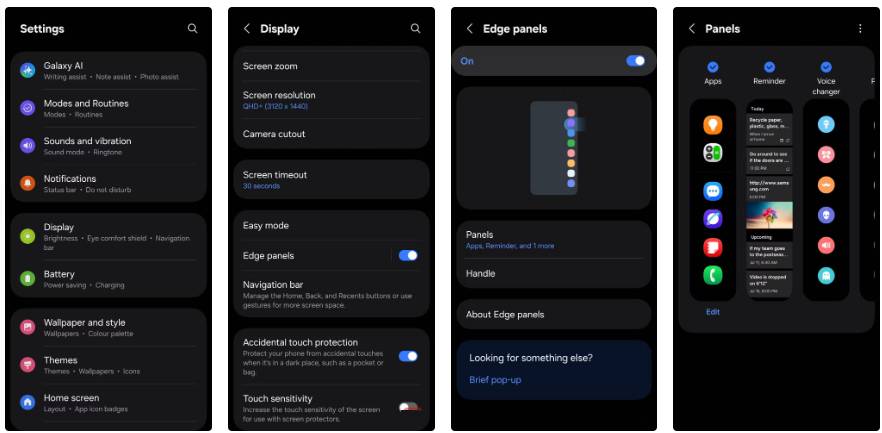
Samsung integrates shortcuts into everyday tasks to reduce unnecessary steps. Once you've set up navigation, these gestures help you open tools faster, switch tasks more easily, and focus on what you're doing. The first thing to set up is Edge panels . Swiping in from the side opens a drawer containing your favorite apps, tools, and clipboard items, saving you the hassle of returning to the home screen and keeping everything at your fingertips. You can customize it in Settings -> Display -> Edge panels -> Panels . Select the panel you want, then position the handle in the most accessible location.
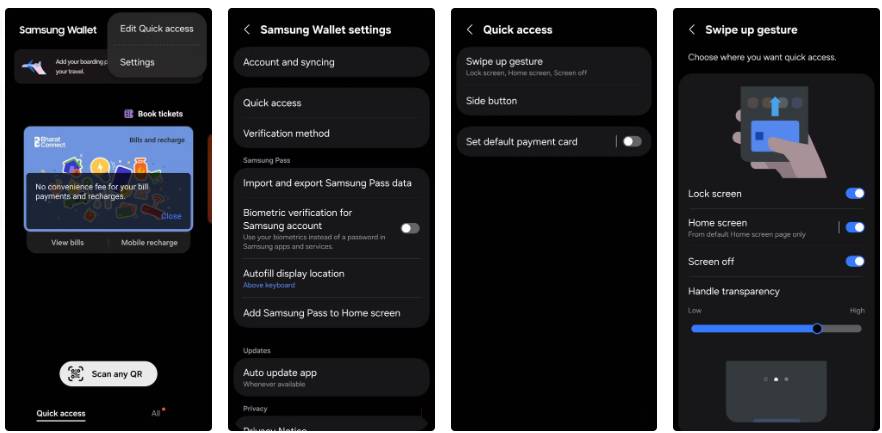
Next up is the Samsung Wallet shortcut. Swiping up from the bottom edge opens the wallet in places you allow, like the Lock screen or Home screen, making payments and cards just a gesture away. Enable this feature in Samsung Wallet -> Menu (3 dots) - > Settings -> Quick access -> Swipe up gesture , then choose where the gesture will work.
Lock screen and motion-based gestures
Smart motion for faster interactions
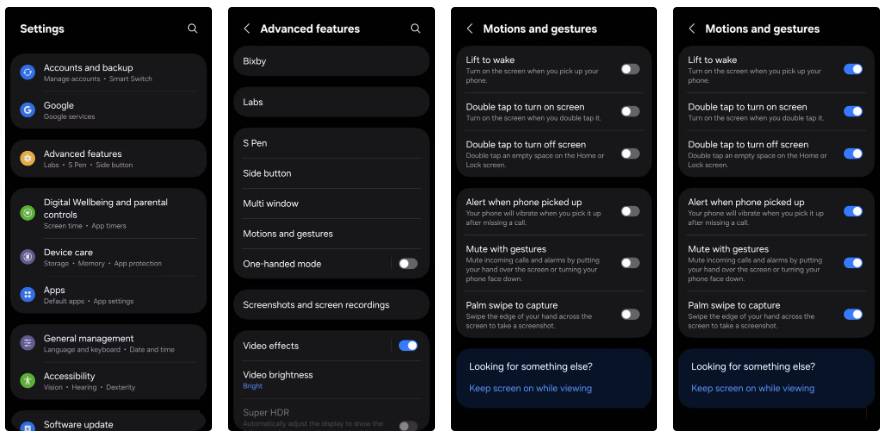
Some gestures don't change how you use your phone, but they do make it more responsive in everyday moments. Lift to wake Turns on the screen as soon as you pick up your phone, making it easier to see the time or new notifications. It works even better with face unlock because the screen turns on first, so unlocking starts when the screen reaches eye level. You can also use the double-tap gesture to wake and turn off the screen from the Home screen or Lock screen. This saves many power button presses throughout the day and feels natural once you get used to it.
FAQ
What should you know about the options in this guide?
In practical terms, once you start using gestures, everything becomes smoother. Navigation becomes easier, apps open faster, and you barely need to touch the power button anymore.
Which option is the best choice?
The best choice depends on your priorities, compatibility, budget, and the specific features discussed in the comparison.
What should you compare before deciding?
Compare core features, limitations, ease of use, compatibility, and long-term value before making a decision.
Related Articles
 Samsung's New Keyboard Gestures Make Typing Incredibly Fast: What to Know6 minutes read
 7 Gestures, Fast and Convenient Shortcuts on Samsung Phones8 minutes read
 How to Take a Snapshot on Samsung Galaxy J7 Pro5 minutes read
 6 Simple Tips to Help Your Samsung Phone Last for Years7 minutes read
 Samsung Features That Make People Wonder Why Other Phones Exist9 minutes read
 7 Android Gestures You May Not Know Yet7 minutes read
Reader Comments 0
Sign in with email or Google to join the discussion.