Table of Contents
If you're tweaking your Galaxy for the first time, start with some of the core Samsung Galaxy settings that you should always change.
Phones don't always need new apps or software updates to feel fresh. Sometimes the best upgrades are built right in. You'll notice this when you start figuring out how to get the most out of your Samsung phone. For a long time, people used it the same way every day and never explored what was hidden in the menus.
If you're tweaking your Galaxy for the first time, start with some of the core Samsung Galaxy settings that you should always change.
6. Caller image loops like GIF
Make incoming calls more lively
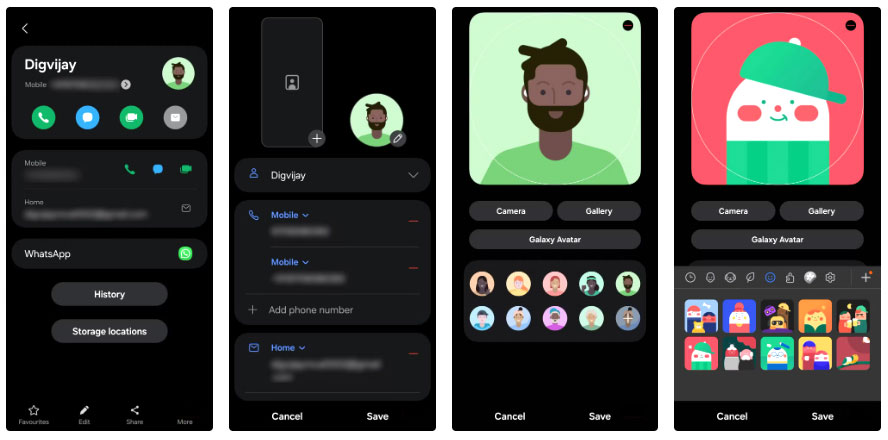
To make the caller photo familiar without being stiff, show about two seconds of a smile or a quick wave:
- Go to Contacts , select that person's card and tap Edit (pencil icon).
- Tap the image area to open the Gallery. Select the saved GIF.
- If the moment you want is in a video, open the clip in Gallery, tap More (three dots) > Open in Video player , then pause at the exact frame where the loop should start.
- Tap the GIF Button in the upper left corner. Set the start point and loop length, adjust the speed, and choose the direction ( Forward , Reverse , or Back and Forth ).
- Save the GIF, go back to the contact and apply it to the photo.
5. Voice Focus for noisy calls
Allow callers to only hear you
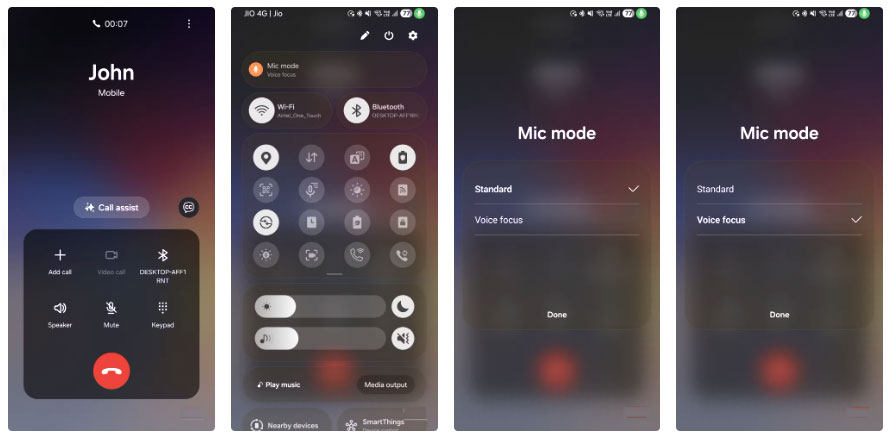
Sometimes the person on the other end of the line says your voice is distorted or the room is too noisy. When that happens, you stay on the call and turn on Voice Focus. With this feature, your voice is heard while steady noises like traffic, air conditioning, or a desk fan fade into the background:
- Start or answer a call.
- Swipe down during a call to open the Quick Panel.
- Tap Mic mode , then select Voice Focus .
4. Turn off status bar from screenshots
Take clear, distraction-free photos
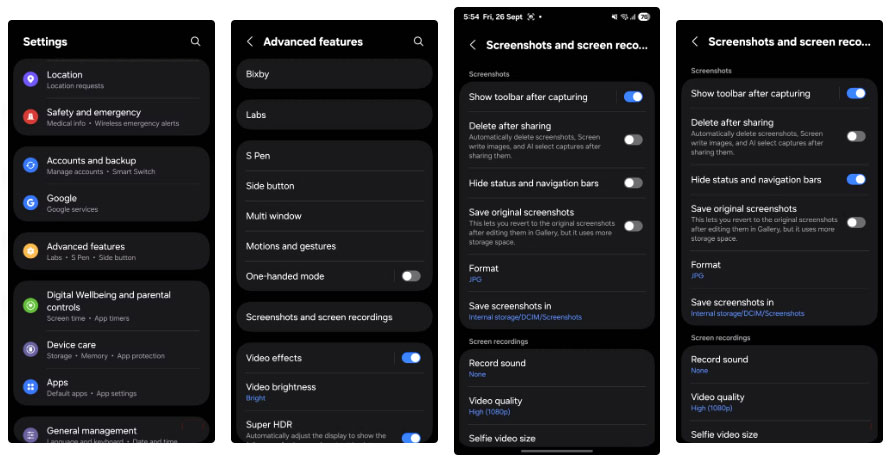
When you share a screenshot, you don't want the clock, battery, or navigation bars cluttering up the frame. It looks messy and turns every share into a crop. Flip a built-in switch and your phone will remove those bars before saving the photo, so the shot only shows what you want it to:
- Open Settings .
- Click Advanced features > Screenshots and screen recordings .
- Turn on Hide status and navigation bars .
3. Set up auto-restart for smoother operation
Keep your phone running smoothly
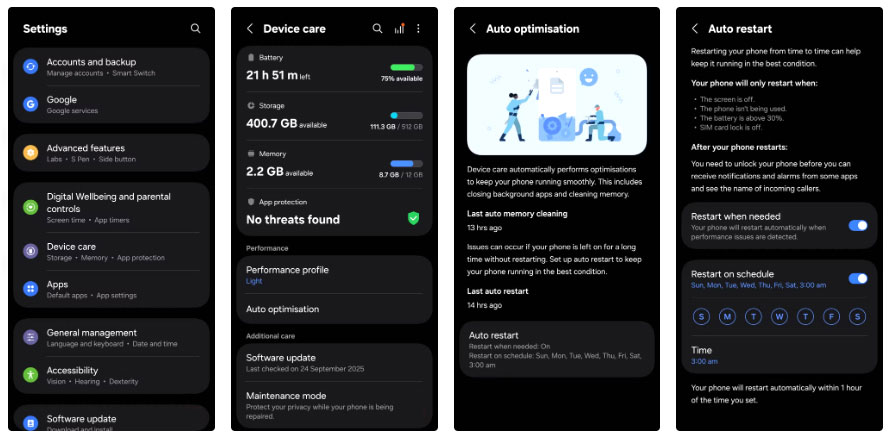
A few days without restarting can lead to minor glitches. Animations feel heavier and apps open slower. With scheduled restarts, it automatically handles:
- Open Settings , then tap Device care .
- Click Auto optimization > Auto restart .
- Turn on Restart on schedule , then choose a day/time that doesn't conflict with your alarm. Early morning is a good choice.
2. Test connection to fix Wi-Fi
Find the real location that is slow
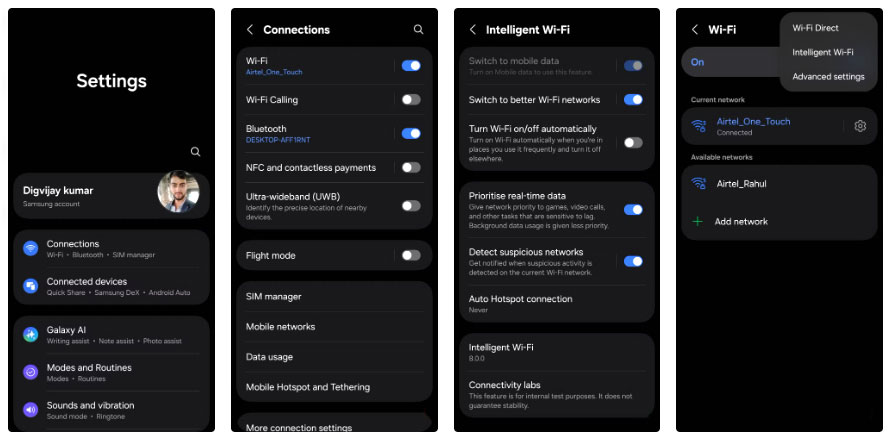
When an app feels slow, it's often the connection that's causing the problem, not the app. Your Galaxy hides a network diagnostics page that shows you weak spots, dropped connections, and how your phone switches between bands. Use this page to check your signal at your desk and confirm whether the bottleneck is your router or the internet:
- Open Settings , go to Connections , then select Wi-Fi .
- Tap the menu (three dots) and select Intelligent Wi-Fi .
- Tap repeatedly on the Intelligent Wi-Fi Heading until Connectivity labs Appears, then open it.
1. Use Gallery Labs for better image management
Secure and organize your files
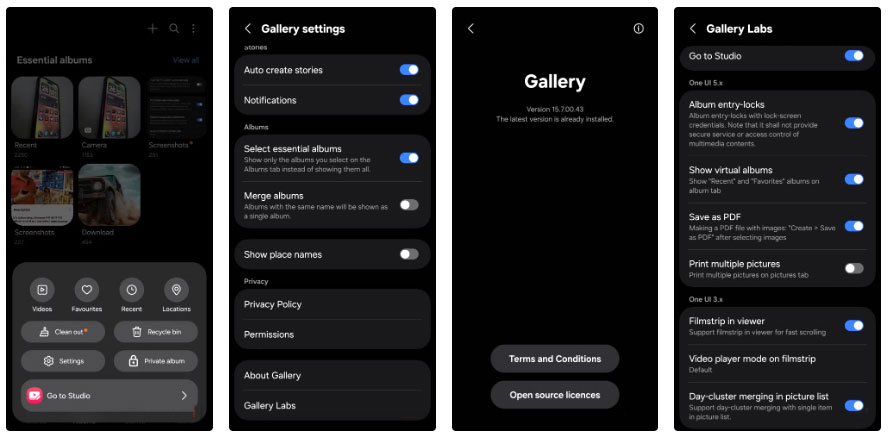
By default, Samsung Gallery doesn't offer a lock option, but many Galaxy models have it hidden in a setting. It's located in Gallery Labs, a hidden menu where Samsung stores experimental features. Once enabled, you can lock any album using a screen lock method, so you don't have to worry about handing your phone over.
- Open Gallery > Menu > Settings .
- Scroll down to About Gallery And tap the version number a few times until Gallery Labs is enabled.
- Go back to Gallery settings, open Gallery Labs And enable Album entry-locks .
- Close and reopen Gallery. Tap and hold an album, then select More > Lock album .
- Unlock using the screen lock method whenever You should see it.
Note : If your phone doesn't have Album entry lock, use Secure Folder. Go to Settings > Security and privacy > More security settings > Secure Folder .
FAQ
What should you know about the options in this guide?
In practical terms, if you're tweaking your Galaxy for the first time, start with some of the core Samsung Galaxy settings that you should always change.
Which option is the best choice?
The best choice depends on your priorities, compatibility, budget, and the specific features discussed in the comparison.
What should you compare before deciding?
Compare core features, limitations, ease of use, compatibility, and long-term value before making a decision.
Related Articles
 Tips to Exploit the Full Potential of the USB Port on Samsung Phones7 minutes read
 Custom Tips for Virtual Navigation Keys on Samsung Phones Are More5 minutes read
 12 Settings on Samsung Galaxy Phones You Should Change12 minutes read
 Find Samsung Phone, How to Locate Samsung When Lost5 minutes read
 6 Simple Tips to Help Your Samsung Phone Last for Years7 minutes read
 How to Unlock a Samsung Phone: Clear Instructions11 minutes read
Reader Comments 0
Sign in with email or Google to join the discussion.