Table of Contents
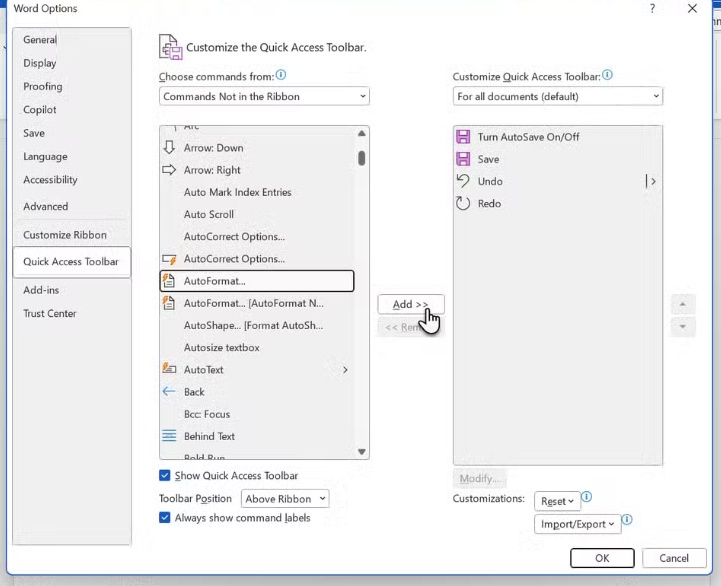
Word for Windows includes commands that may not appear on your ribbon by default. You can add supported commands such as Speak, AutoFormat, Print Preview Edit Mode, and Quick Print to the Quick Access Toolbar, then use them without switching ribbon tabs.
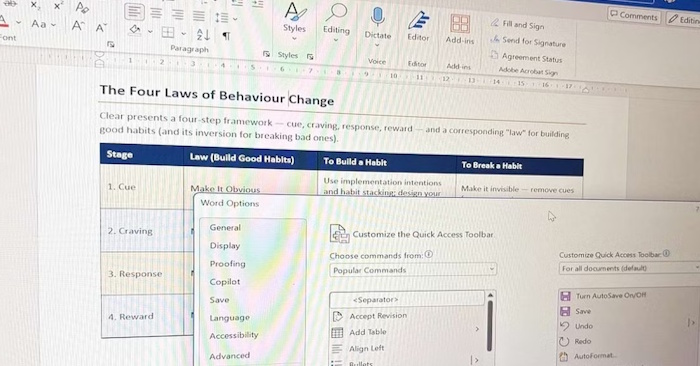
This walkthrough is for desktop Word on Windows. Command availability differs on Mac, mobile, and Word for the web; the presence of a Word app does not imply the same customization options.
Add a command to the Quick Access Toolbar
- Open File > Options > Quick Access Toolbar, or choose More Commands from the toolbar's customization menu.
- Set Choose commands from to All Commands.
- Select the command you want and choose Add.
- Arrange its position if needed, then choose OK.
If the toolbar is hidden, show it through Word's ribbon or toolbar display controls. Microsoft's toolbar guide explains the available options. To remove a shortcut later, right-click it and choose the removal command.
Speak: listen to selected text
Add Speak, select a passage, and use the toolbar button to hear it. Listening can help you notice missing words or awkward phrasing, but it will not identify every spelling or factual error.
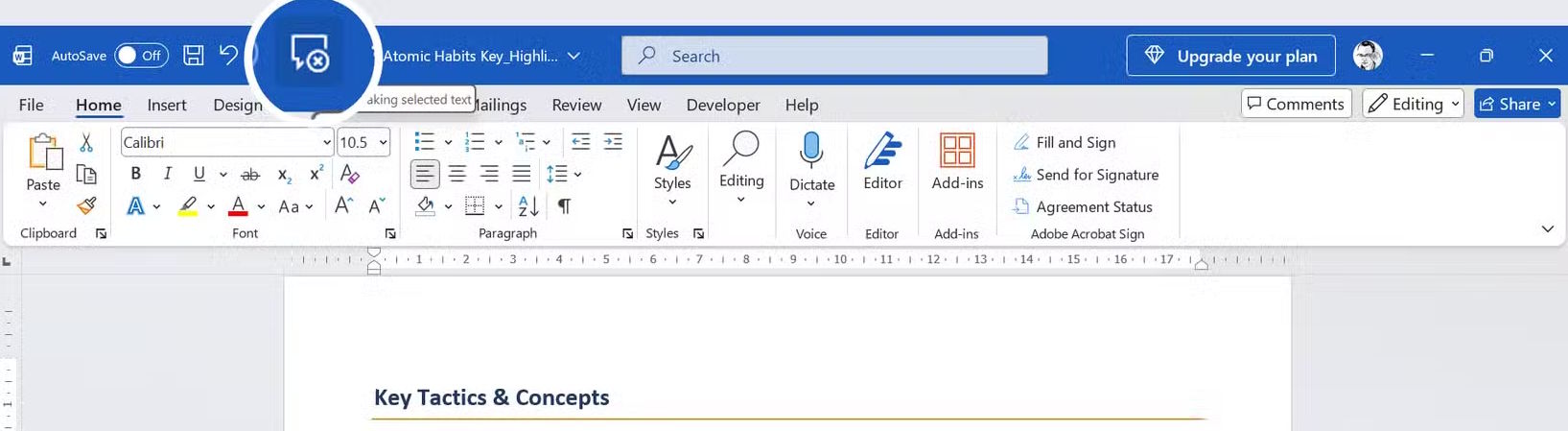
Read Aloud, available in supported versions under Review, offers another listening workflow. Speak focuses on selected text; Read Aloud can read from the cursor with playback controls. See using Speak and Read Aloud for a comparison.
AutoFormat: review formatting changes to existing text
The legacy AutoFormat command can apply formatting rules to existing text. This differs from AutoFormat As You Type, which reacts while you type. Depending on enabled options, changes can affect quotation marks, dashes, lists, and other formatting.
Save a copy before running it on a long or carefully formatted document. Apply it to a small selection first and inspect the result. AutoFormat does not “fix all errors,” and unwanted changes can affect code, quotations, or intentionally formatted text. Use Undo if the result is unsuitable.
Print Preview Edit Mode: an older preview workflow
If Print Preview Edit Mode appears in All Commands, add it to open the legacy preview interface. In versions exposing a Magnifier control, turning Magnifier off lets you edit text from that view.
This is separate from the modern File > Print preview. If the command is unavailable, edit in the normal document view and return to Print preview. Our Print Preview Edit Mode guide shows the older interface.
Quick Print: send a job without reviewing the print dialog
Quick Print sends the document using the current default printer settings. This can be convenient for a familiar, checked job, but it bypasses the opportunity to inspect the destination, page range, paper, and duplex settings.
Use Ctrl + P instead when the printer or layout matters. Before using Quick Print, verify the default printer and confirm that you want the whole job sent immediately. A PDF printer or an unexpected physical printer may be selected.
Keep the toolbar useful
Add only commands you actually use and test each one on an appropriate document. A short toolbar is easier to recognize than a row of unfamiliar icons. Availability and behavior depend on Word version and document context, so inspect the result rather than assuming a legacy command acts the same everywhere.
Related Articles
 Make the Most of the Power of Microsoft Word with These 10 Hidden11 minutes read
 Hide the Ribbon Toolbar in Word 2013: Ribbon Word 20133 minutes read
 How to Add the Developer Tab to the Ribbon in Microsoft Word5 minutes read
 Show Success in Word: How to Quickly Show Lost Toolbars in Word5 minutes read
 How to Hide and Show the Ribbon Toolbar in Word and Excel3 minutes read
 Complete Guide Word 2016 (Part 1): Familiarize Yourself with the9 minutes read
Reader Comments 0
Sign in with email or Google to join the discussion.