Table of Contents
If your iPhone will not scan a QR code, use the rear camera in Photo mode, improve the lighting, and check that QR scanning is enabled. First determine whether the phone cannot recognize the code or recognizes it but cannot open its destination—those are different problems.
1. Try a clear code in Photo mode
Open Camera, select Photo, and hold the whole QR code inside the frame. Keep the phone steady and roughly parallel to the code. Move slightly farther away if it will not focus; avoid covering the code's corners or quiet border.
If one code fails but another scans, the first may be damaged, too small, blurred, or poorly printed. Ask for a clearer copy rather than repeatedly changing your phone's settings.
2. Check Scan QR Codes in Camera settings
Open Settings > Camera and enable Scan QR Codes. Use Settings search if the path differs on your version.
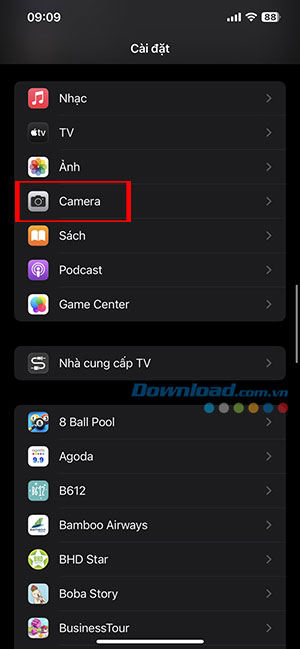
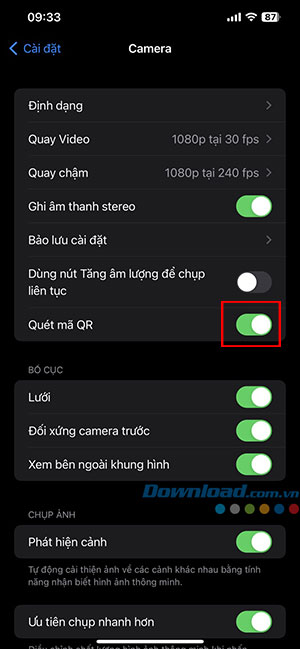
Return to Camera and test again. When a link or action appears, inspect it before opening. Recognition does not establish that the destination is trustworthy.
3. Improve light, focus, and the code itself
- Use even lighting and avoid glare on glossy paper or another screen.
- If scanning a display, enlarge the code and adjust screen brightness.
- Keep the full pattern visible; do not crop tightly into its edges.
- Gently clean the camera lens with a soft, lint-free cloth.
- Try another known-working code to separate a code problem from a camera problem.
4. Try Code Scanner in Control Center
On current iOS versions, open Control Center, touch and hold its background, choose Add a Control, and add Scan Code. Then open that control and position the code on screen. Apple's QR-scanning instructions show the current workflow.
On older versions, add Code Scanner through Settings > Control Center, as illustrated below.
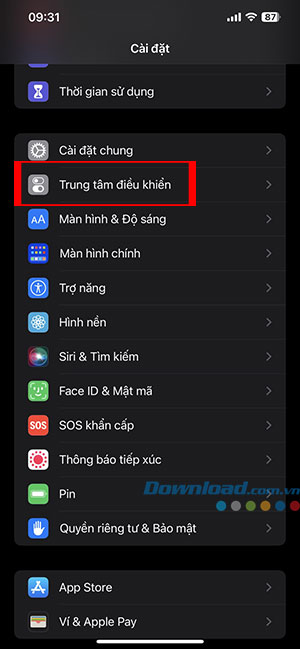
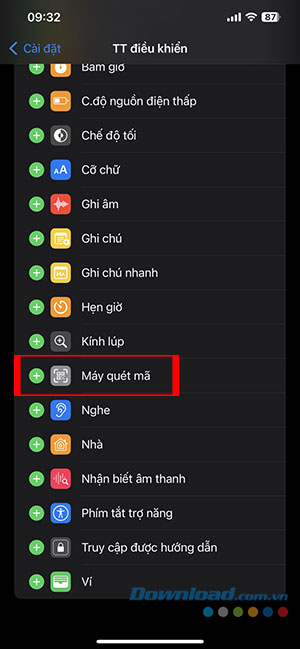
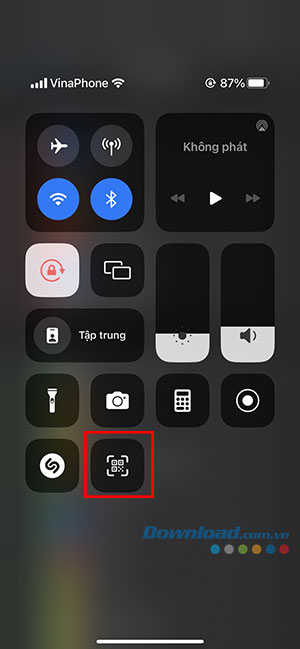
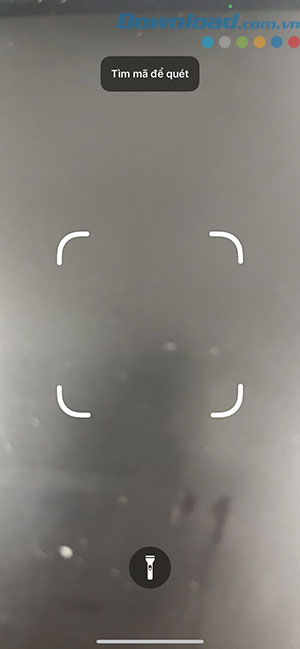
Use the scanner's flashlight control if more light is needed, but watch for reflections. A separate third-party scanner is not normally needed for an ordinary QR code.
5. If a code scans but its page does not open
Check your network connection and the website address. A removed page, expired ticket, or invalid destination is not a camera fault. Do not enter a password or payment details just because a scanned page asks for them; verify the expected service independently.
If the code is already in an image on your phone, use an image-based workflow rather than pointing Camera at the same screen. See scanning QR codes from photos; available image-recognition controls vary by app and iOS version.
6. Restart and update if scanning fails broadly
If Camera is unresponsive, close it from the app switcher and reopen it. Restart the iPhone if the problem persists. Use a normal shutdown and restart when touch controls work; see restart options by iPhone model for an unresponsive device.
Check Settings > General > Software Update and follow the update's power, storage, and network requirements. An update may fix a software issue, but it cannot repair a damaged code or guarantee that every destination works.
If the camera cannot focus on ordinary subjects either, inspect that broader camera problem and contact Apple support if necessary. Avoid a factory reset as a routine QR-scanning fix.
Related Articles
 4 Very Simple Ways to Scan QR Codes on iPhone: Best Options Compared7 minutes read
 Scan the Qr Code on Chrome: How to Scan Qr Codes on Google Chrome4 minutes read
 10 Ways to Fix the Error of Not Being Able to Scan QR Codes on iPhone7 minutes read
 Instructions for Scanning Wi-Fi QR Codes on iPhone Are Simple and Easy to Follow3 minutes read
 How to Scan QR Codes on Photos7 minutes read
 How to Quickly Scan QR Codes on iPhone2 minutes read
Reader Comments 0
Sign in with email or Google to join the discussion.