Table of Contents
GS Auto Clicker is designed to repeat mouse clicks. A repeated click is not the same as holding the left button down continuously. The developer's documented controls describe single and double clicks, so do not assume your version includes the Hold down option shown in some older tutorials.
Check the click options in your installed version
- Open GS Auto Clicker.
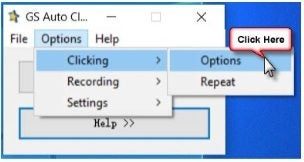
- Choose Options > Clicking > Options.
- Check the mouse-button and click-type controls actually available in that dialog.
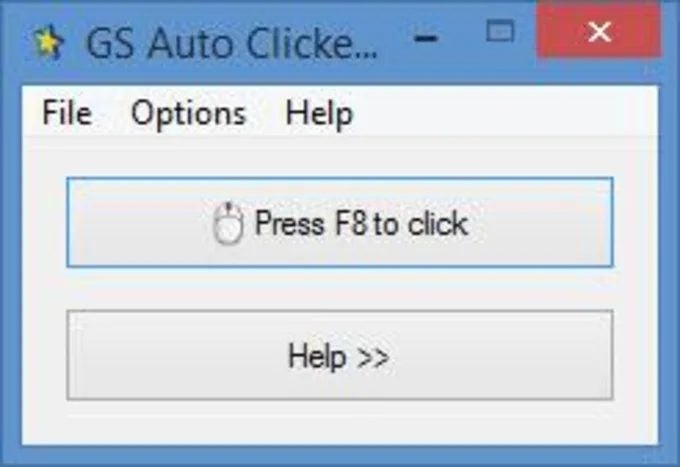
The menu path opens click configuration, not a separate installation or macro recorder.
Select Left for the left mouse button. If the only click types are Single and Double, neither provides a continuous mouse-down action.
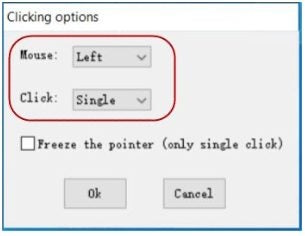
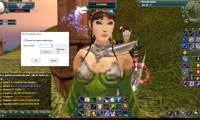
The screenshot above comes from the earlier walkthrough. Its claimed Hold down step should not be treated as a feature guarantee for all GS Auto Clicker releases. Compare your controls with the developer's setup instructions.
If you need repeated left clicks
Choose the appropriate click type, then open Options > Clicking > Repeat to configure the interval and repetition count. Start with a slow interval and a small count on a harmless target.
Check the start/stop hotkey shown in your copy. The documented default is F8, but it can be changed. Test stopping before running a longer sequence. Our GS Auto Clicker settings guide covers repeat and position options.
If you need a continuous hold or drag
Look for a feature that explicitly sends mouse-down and mouse-up actions, or use a built-in accessibility option appropriate to the task. Rapid repeated clicks are not a reliable substitute for a continuous hold.
For dragging, Windows offers ClickLock on supported mouse settings screens; check its behavior for your workflow rather than assuming it works like a toggle inside every game. Whatever method you choose, test the release action first so the pointer cannot remain unintentionally pressed.
Check the target application's rules
Automation may be restricted in a game or work application. Keep it away from purchase, delete, and account controls, and avoid leaving an untested sequence running. For the program's basic workflow, see using GS Auto Clicker.




Reader Comments 0
Sign in with email or Google to join the discussion.