Table of Contents
Microsoft PowerToys can replace several single-purpose Windows apps if you use them for everyday tasks such as launching programs, remapping a key, or previewing files. Open PowerToys Settings and enable one module at a time. Test it with your usual shortcut or workflow before removing a tool you already use.
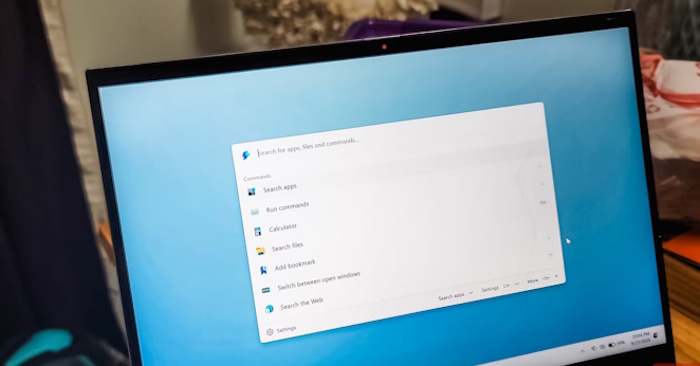
Command Palette for launching apps and commands
Use Command Palette to find and launch apps, run commands, or do quick calculations. Open its settings to check the activation shortcut and available extensions. If you use Flow Launcher with a specific search provider or extension, check whether Command Palette supports that workflow before switching.
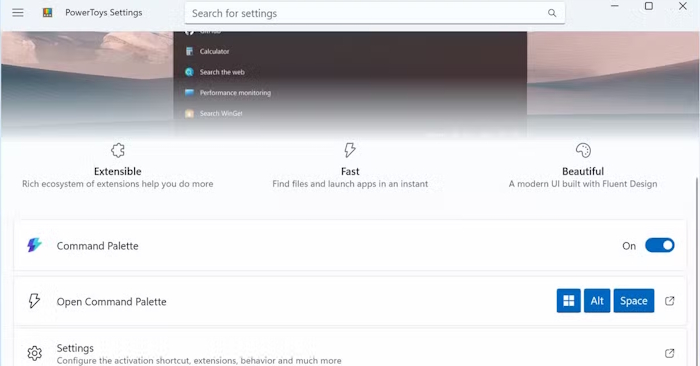
Command Palette Dock for pinned shortcuts
The optional Command Palette Dock puts pinned apps, commands, or extensions on a screen edge. Try auto-hide if it crowds your normal workspace. It can cover the job of a second launcher bar, while dedicated tools such as WindowSill may still have integrations you rely on.
Light Switch for scheduled dark mode
Use Light Switch to schedule Windows theme changes or assign a shortcut to toggle the theme. Check whether your usual apps follow the Windows theme. If you depend on conditions such as battery state or rules for when a game is running, compare them with the options in your installed version before moving from Auto Dark Mode.
Awake for downloads and presentations
Set Awake to keep the PC awake for a specific interval or until a chosen time. Use Keep screen on only if the display needs to stay visible. Microsoft’s Awake documentation explains its lock-screen behavior. Check your Windows power settings if the computer must continue working after you lock it.
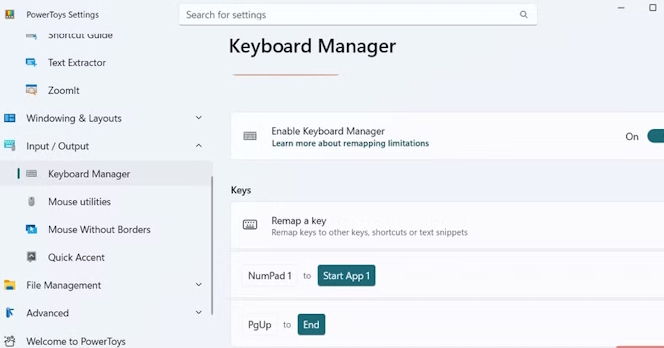
Keyboard Manager for key and shortcut remaps
Open Keyboard Manager and select Remap a key or Remap a shortcut. For example, you can map an unused key to a shortcut you reach for often. TipsMake’s guides to remapping the numeric keypad and turning Caps Lock into a modifier show practical starting points. Keep AutoHotkey for scripts with multiple actions, app-specific logic, or conditional behavior that your remap cannot reproduce.
Peek for fast file previews
Enable Peek, select a file in File Explorer, and press the activation shortcut shown in PowerToys. Try the formats you open most often, such as images or text files. If you are moving from QuickLook, verify that your file types render correctly and decide whether you want to keep your existing preview shortcut.
Related Articles
 How to use PowerToys on Windows 10
 Microsoft revived PowerToys, a popular customization tool on Windows 95 / XP
 PowerToys toolkit will have a new look and feel suitable for Windows 11
 PowerToys will soon support creating app spaces and launching with just one click
 8 Microsoft PowerToys Utilities That Make Windows 11 Easier to Use
 PowerToys is now available in Windows 11 Microsoft Store
Reader Comments 0
Sign in with email or Google to join the discussion.