Table of Contents
The Microsoft Store isn't very popular with Windows users, but the apps it offers – including free ones – offer a ton of hidden benefits.
Windows 11 comes with a ton of apps and features to get you started, but you can take your experience even further with the right apps. While there's no shortage of tools you can download from the internet, many people prefer to use the Microsoft Store because the apps there are verified by Microsoft and updates are easy.
The store is full of apps, from productivity tools to fun customization tools. The right apps can help you work faster, organize your files more efficiently, and even make everyday tasks more enjoyable.
8. PDFgear
All-in-one PDF document processing companion
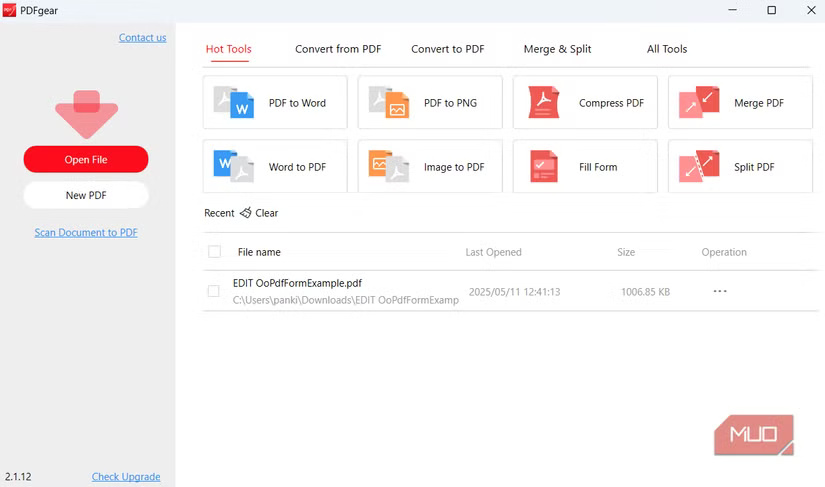
PDFs are everywhere, and while Windows 11 lets you view them in Edge with a few annotation tools, the experience is still basic. If you regularly need to merge multiple PDFs, rearrange pages, or convert files to other formats, PDFgear is a must-have app.
This free app is incredibly intuitive and puts a full suite of PDF tools at your fingertips. In addition to viewing and editing, PDFgear lets you fill out forms, insert images, and even run OCR to convert scanned documents into searchable text.
7. EarTrumpet
Control your sound
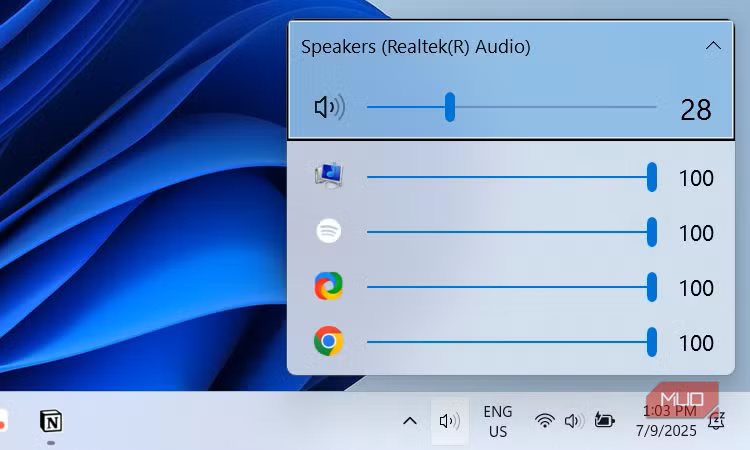
While Windows lets you control the volume for individual applications, you have to open the volume mixer every time you want to adjust it. EarTrumpet changes all that by placing individual volume sliders for each application right on the taskbar. With it, you can adjust music, game sounds, and notifications individually without having to dig through multiple menus.
6. QuickLook
Quickly view all files
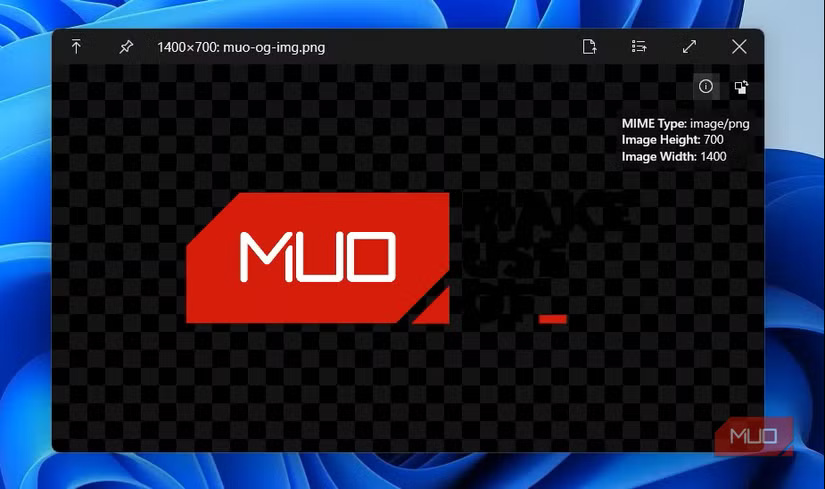
File Explorer on Windows already shows thumbnails and has a dedicated Preview Pane if you want to view photos or documents in larger format, but this feature isn't really useful when you want to quickly check large documents, audio, or video files.
You could open dedicated apps for each file type, but launching them takes time—and that's not practical if you just want to preview a bunch of files to find the one you need. QuickLook solves this problem by letting you preview almost any file with a single press of the spacebar. For anyone who's used a Mac, this may sound familiar, and it probably is.
5. TreeSize Free
Find out what's eating up your storage space
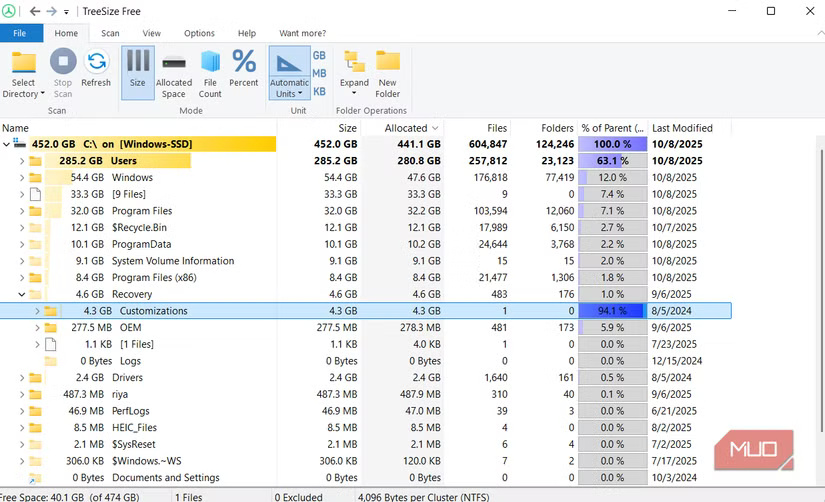
Windows shows how much space each drive is using, but it doesn't make it easy to see which folders are taking up the most space. Instead of opening each folder's properties, you can use TreeSize Free to see what's taking up space on your PC.
4. PowerToys
Productivity Tools You Didn't Know You Needed
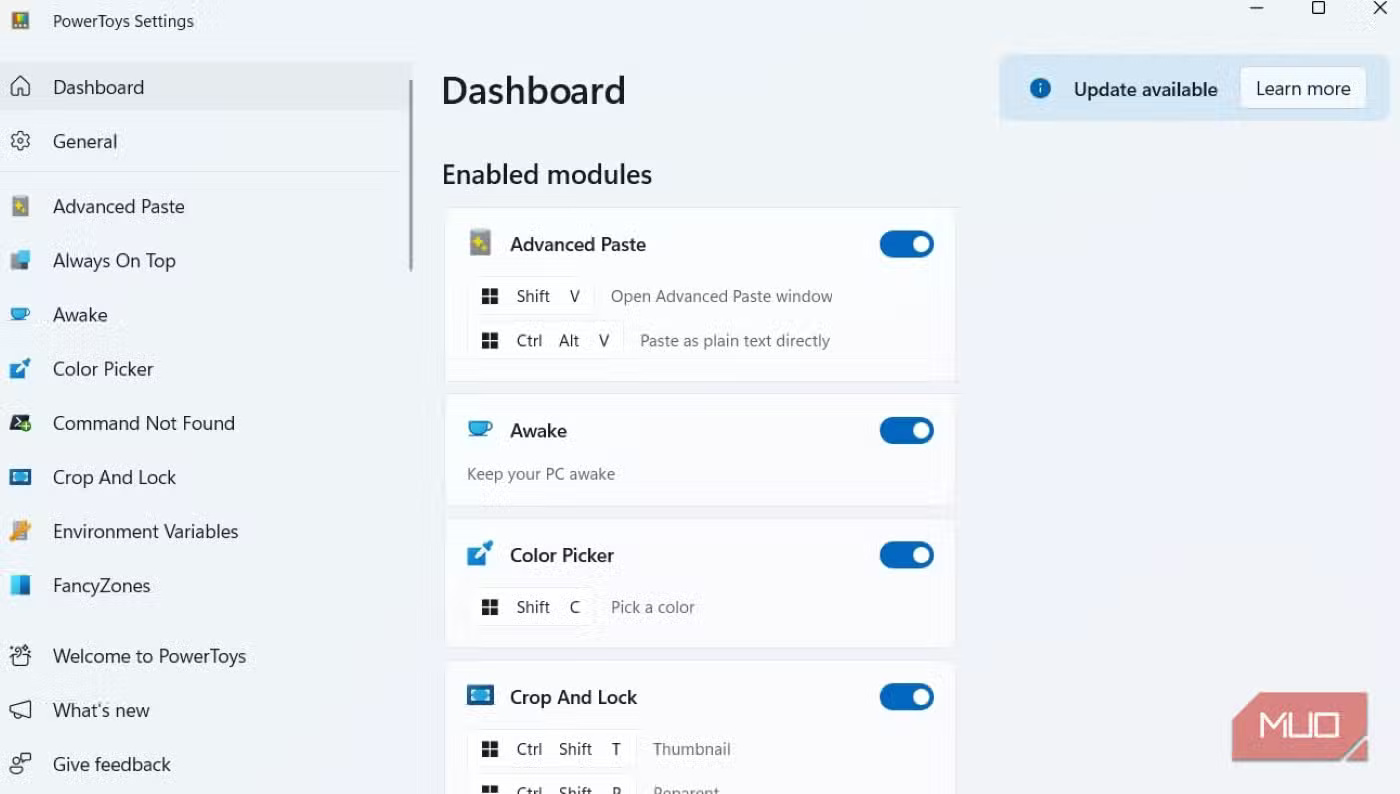
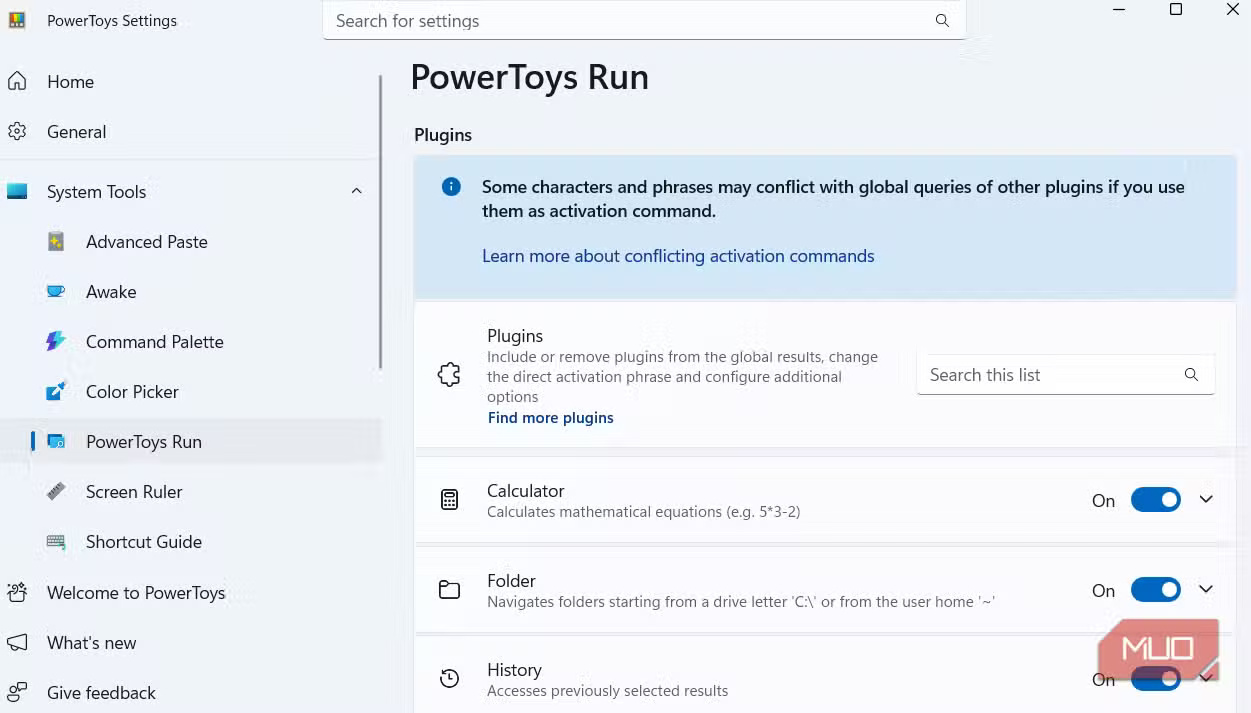
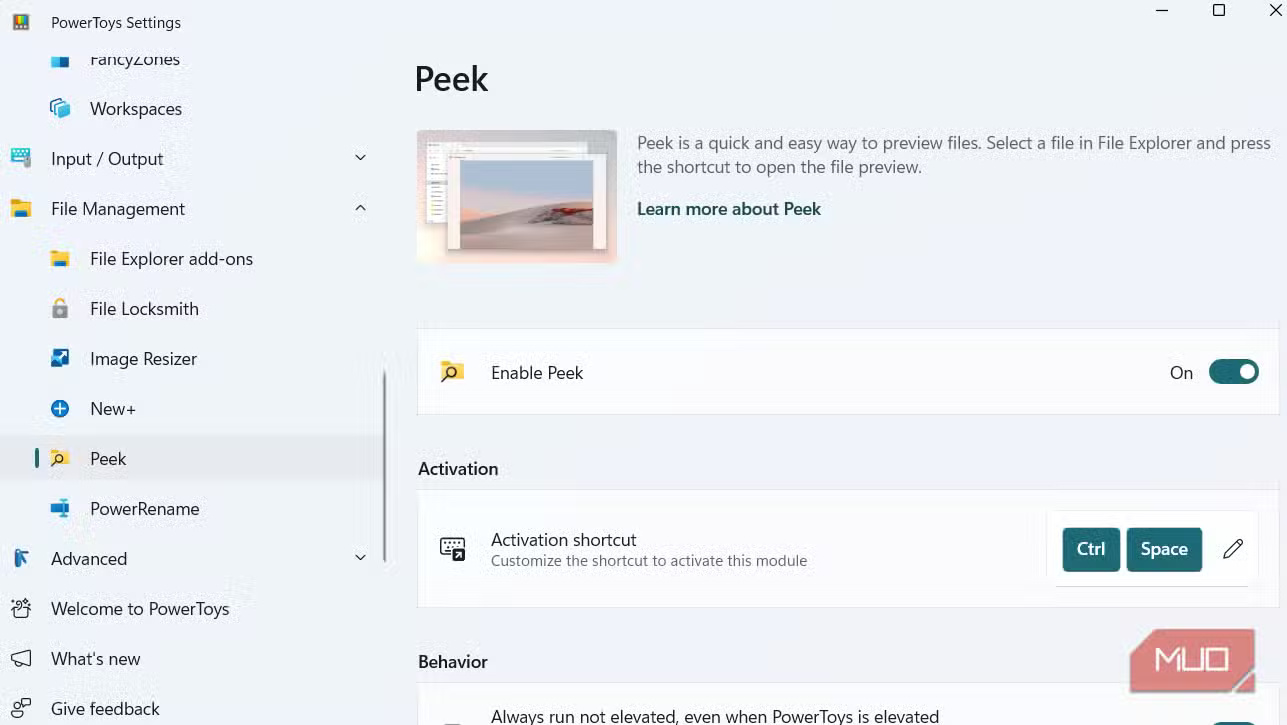
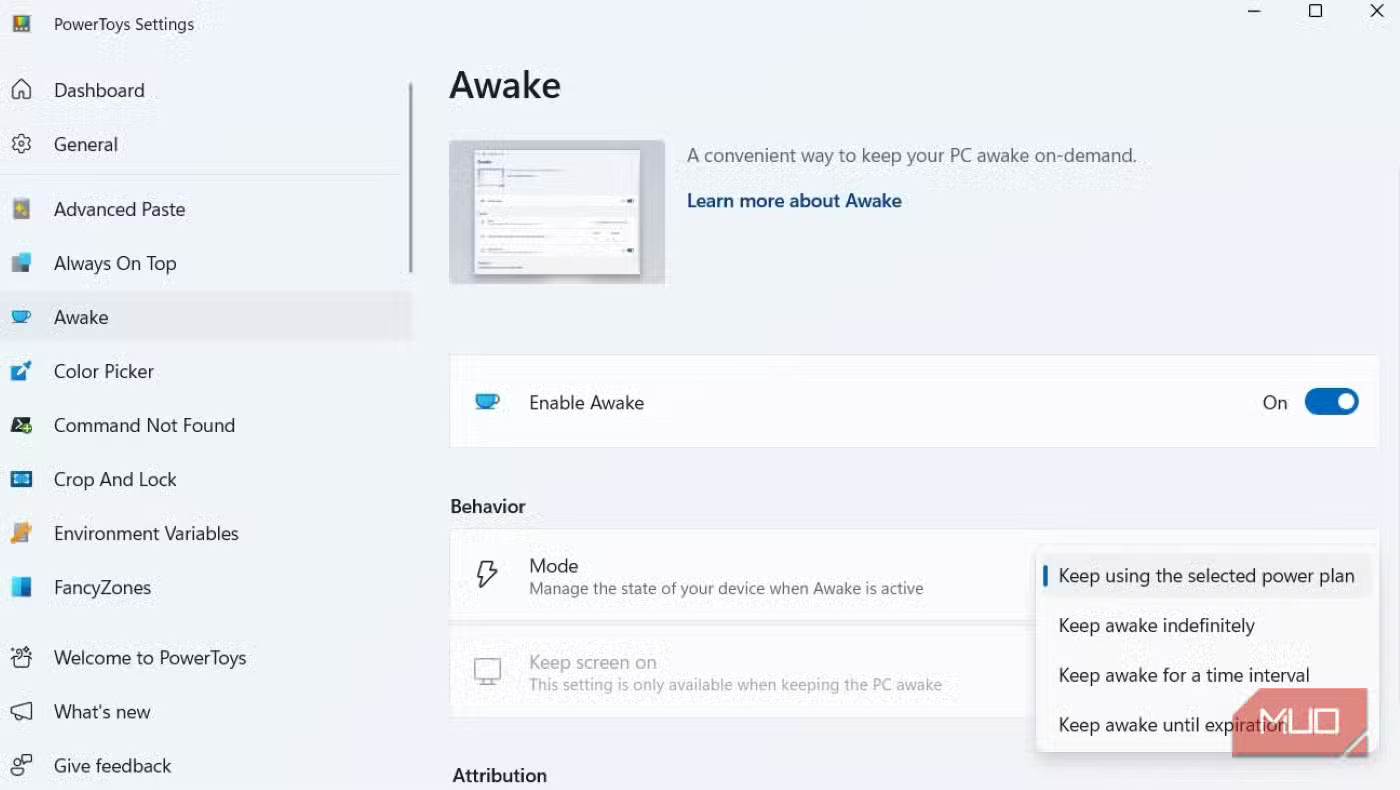
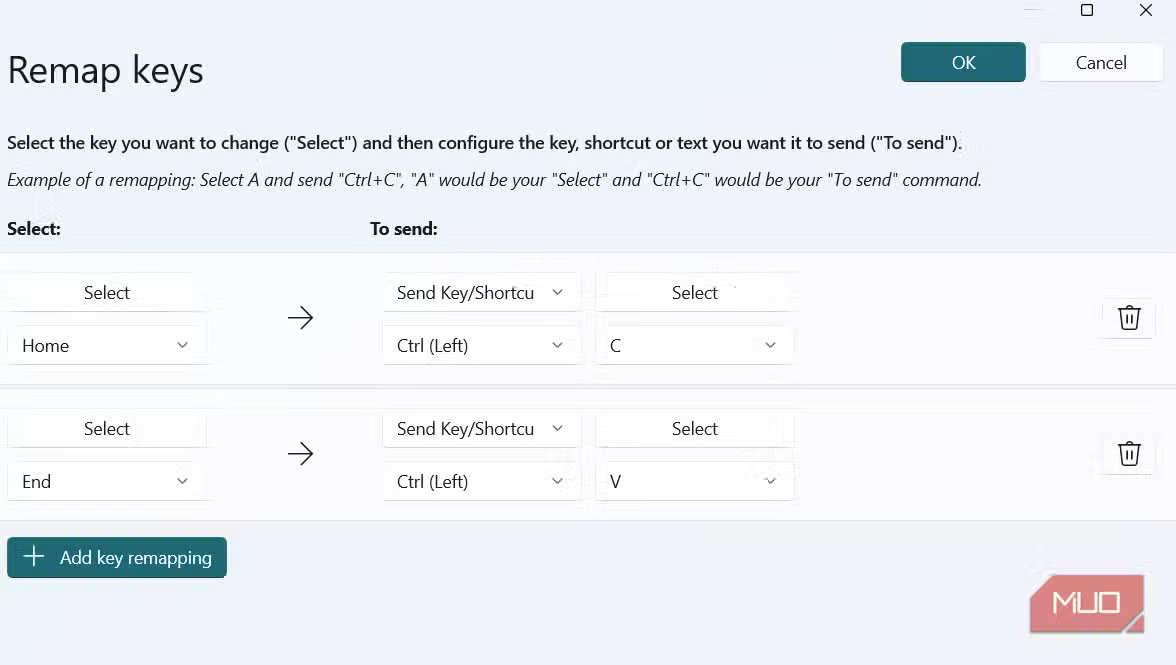
PowerToys are one of those apps that add many useful features to your Windows computer. For example, Command Palette gives you macOS-style Spotlight search to open apps, run commands, search local files, and even do quick web searches. The Workspaces Module lets you launch a specific group of apps and files with a single click.
3. ShareX
Screenshots and more, all upgraded
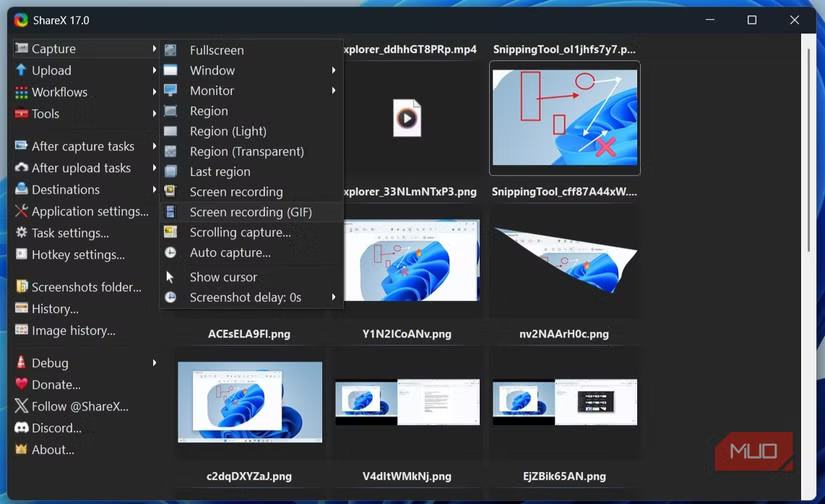
The Snipping Tool app has improved a lot over the years and should meet most people's needs. However, it lacks some key features that you might need, such as the option to take screenshots using your mouse cursor, take scrolling screenshots, or automatically take screenshots at specific intervals.
ShareX addresses all of those shortcomings and more. In addition to the standard screenshot features, it also offers feature-rich annotation and editing tools, allowing you to blur or pixelate certain parts of the image, add shapes, emojis, watermarks, or even unique backgrounds.
2. Ditto
Never lose a snippet again
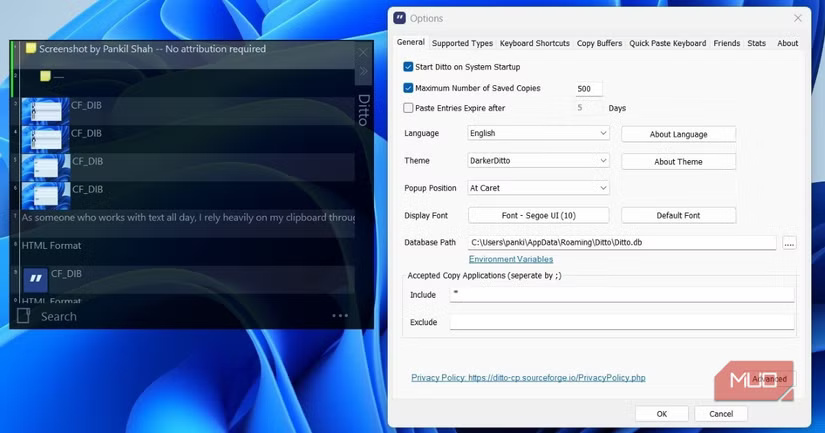
Ditto is an open source application that is like the Windows clipboard but improved. With Ditto, you can easily access previously copied items, edit them, and even search them. The application can store unlimited items and will not erase them when you restart, unlike the Windows Clipboard.
The app runs in the background, always ready with a simple shortcut of your choice. Not only can you pin specific items, but you can also assign specific shortcuts to them for easier pasting.
1. Lively Wallpaper
Make your desktop come alive
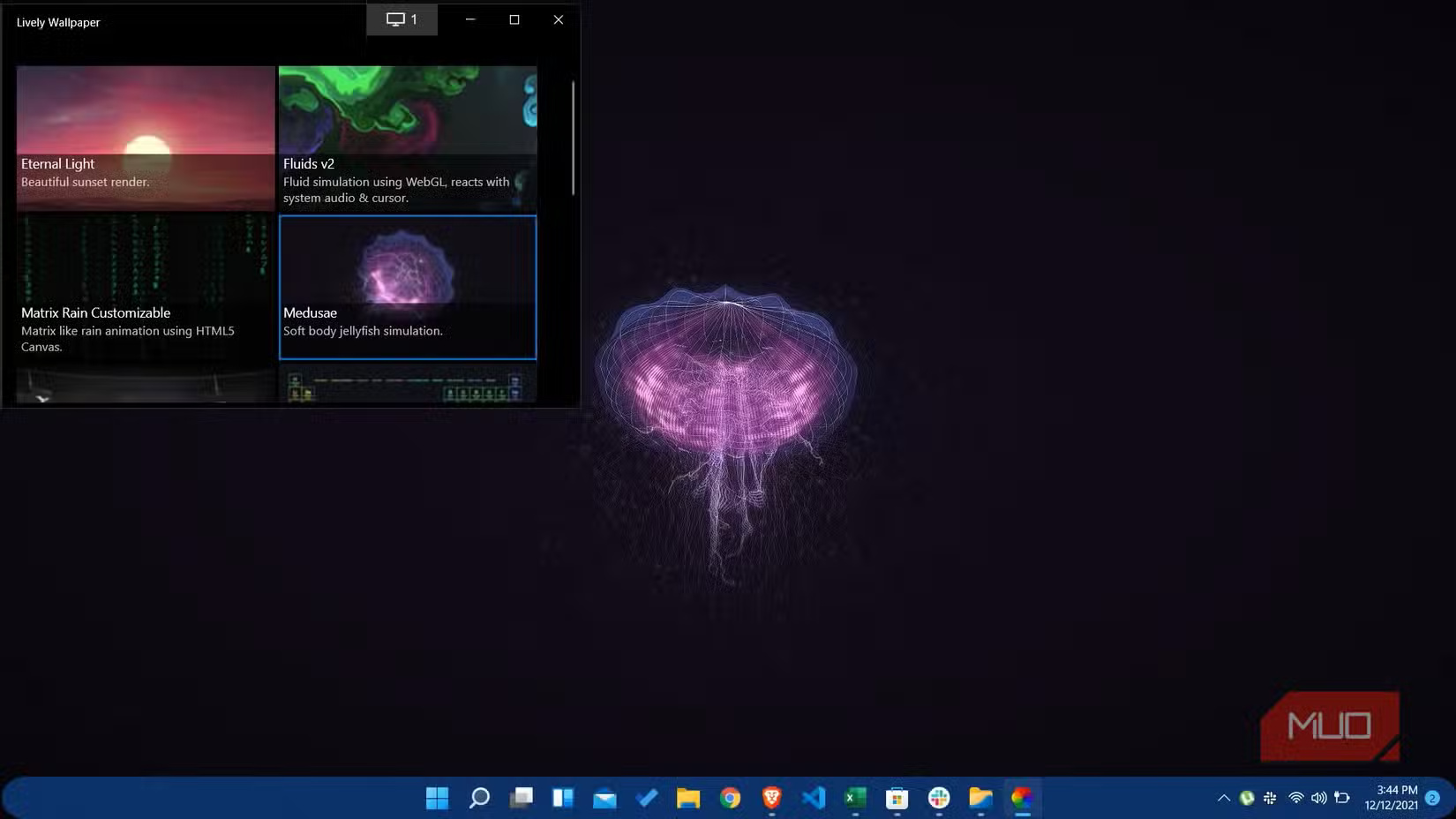
Windows lets you set a static wallpaper or a simple slideshow, but if you want something more dynamic, Lively Wallpaper is for you. It can turn any GIF, video, or even web page into an interactive wallpaper, bringing your desktop to life in a way that a static image can't.
You can choose from the built-in wallpaper library or use your own media files. Lively Wallpaper also supports multiple monitors, allowing each monitor to have its own live wallpaper.
FAQ
What should you know about the options in this guide?
In practical terms, the Microsoft Store isn't very popular with Windows users, but the apps it offers – including free ones – offer a ton of hidden benefits.
Which option is the best choice?
The best choice depends on your priorities, compatibility, budget, and the specific features discussed in the comparison.
What should you compare before deciding?
Compare core features, limitations, ease of use, compatibility, and long-term value before making a decision.
Related Articles
 Fix Microsoft Store Not Downloading Apps and Games: Key Facts17 minutes read
 The Windows Store Will Be Renamed to Microsoft Store in Windows3 minutes read
 Steps to Remove Installed Apps from Store on Windows 105 minutes read
 Microsoft Removed 1500 Junk Apps on the Windows Store3 minutes read
 Free Microsoft Store: Complete Guide3 minutes read
 How to Allow or Block Access to Microsoft Store in Windows 104 minutes read
Reader Comments 0
Sign in with email or Google to join the discussion.