Table of Contents
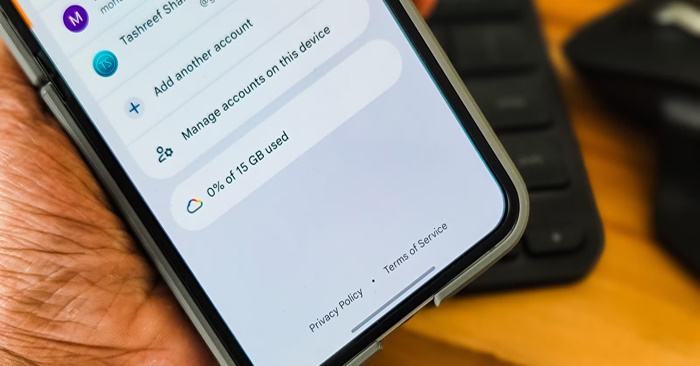
To free Gmail storage and keep a copy of your old mail, export the messages first, verify the archive, and then remove the copies you no longer need online. If you need every message to stay searchable in your existing Gmail account, check Google Drive and Google Photos first. They share your Google Account storage with Gmail.
Find out what is using the space
Open Google’s storage management guide and check the breakdown for Gmail, Drive, and Photos. Removing an unwanted large file in another service can free room while leaving your inbox intact. Using Gmail’s Archive button only moves a message out of the inbox. The message still counts toward storage.
In Gmail, try has:attachment larger:10M older_than:2y to find older messages with large attachments. Review results one thread at a time. Gmail can show an entire conversation even if only one message matches.
Export mail with Google Takeout
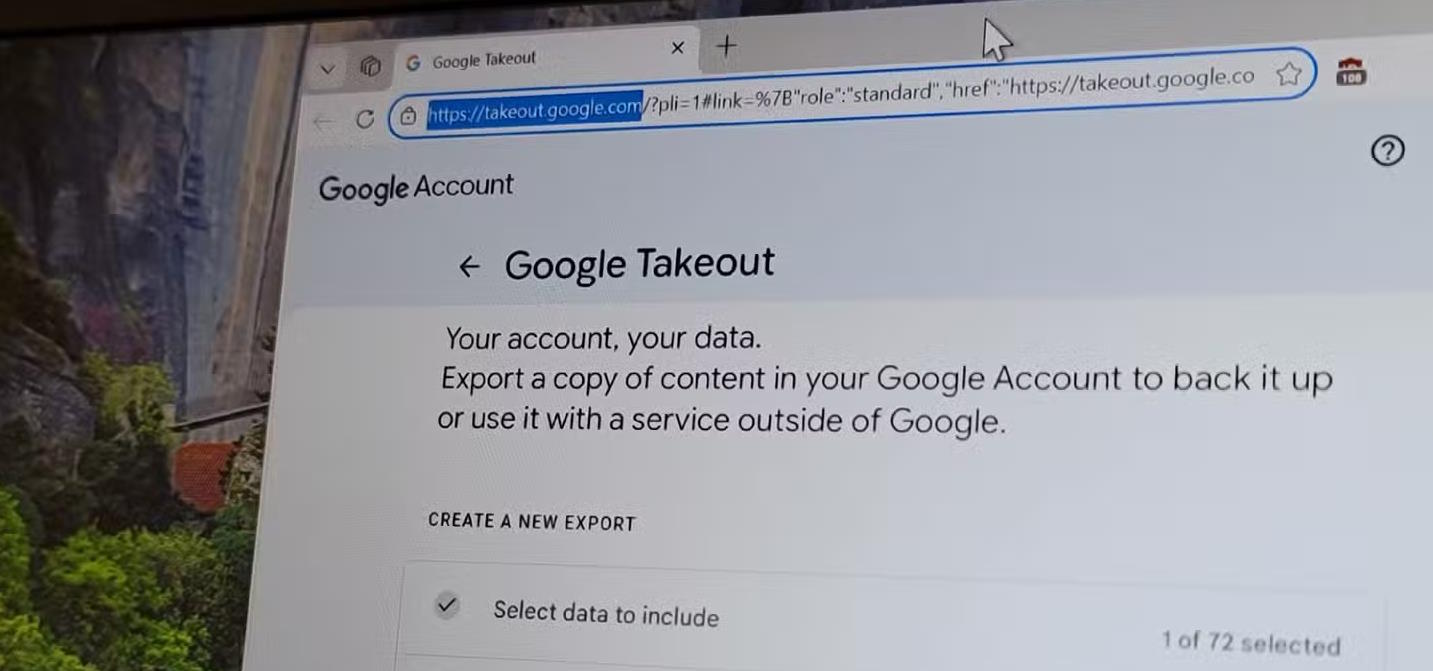
- Open Google Takeout, deselect the other products, and select Mail. TipsMake’s Google Takeout walkthrough explains how to choose what to export.
- For a smaller export, label the mail you want to preserve in Gmail, then select that label in Takeout’s mail options. Include any sent mail or other messages you need.
- Request the export, download all parts when ready, and store them outside the Google Account you are cleaning up. Keep a second copy on separate storage if the mail matters.
- Extract the archive and open the MBOX mail file using a compatible reader or email client. Check several important threads, dates, and attachments before relying on the backup. TipsMake’s Gmail backup guide covers the download process.
Remove only mail you can recover from the archive
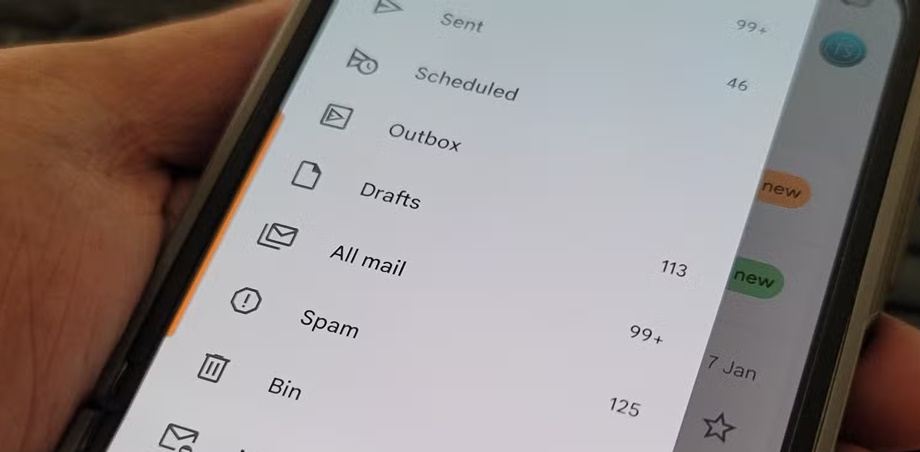
Start with a small batch of verified messages. Deleting moves them to Trash, where they still count toward storage until permanently removed. If you empty Trash yourself, review its contents first. Google says the storage display can take time to update after a large cleanup.
What happened to the second-account POP method?
Google stopped accepting new users for Gmail’s POP fetching feature after the first quarter of 2026. Existing setups can continue through the transition described in Google’s notice. For a new cleanup, use a verified export or a separately tested migration. Automatic forwarding only handles new mail and leaves your old mailbox where it is.





Reader Comments 0
Sign in with email or Google to join the discussion.