Table of Contents
A Hyper key turns one physical key into the four-modifier combination Ctrl + Shift + Alt + Win. Mapping Caps Lock this way creates combinations such as Hyper+E that are unlikely to overlap with ordinary shortcuts. AutoHotkey v2 can provide the hold behavior while still letting a quick tap toggle Caps Lock.
This is a software remap: the AutoHotkey script must be running, and applications with elevated privileges may not receive keystrokes from a standard user process. Test the setup before adding it to startup.
How the Windows Hyper key works
Windows has no key formally named Hyper. In this guide, “Hyper” means pressing Ctrl, Shift, Alt, and the left Windows key together. A script holds those modifiers while Caps Lock is held, then releases them when Caps Lock is released.
You can assign the resulting combination in an application's shortcut settings or define actions in the same AutoHotkey file. AutoHotkey uses these modifier symbols:
^for Ctrl+for Shift!for Alt#for the Windows key
PowerToys Keyboard Manager is simpler for a one-to-one remap. AutoHotkey is more suitable here because the key needs hold/release logic and an optional tap action. For a simpler comparison, see how Windows tools remap the Menu key.
Install AutoHotkey v2 and create the script
- Download AutoHotkey from its official website and install the current v2 release.
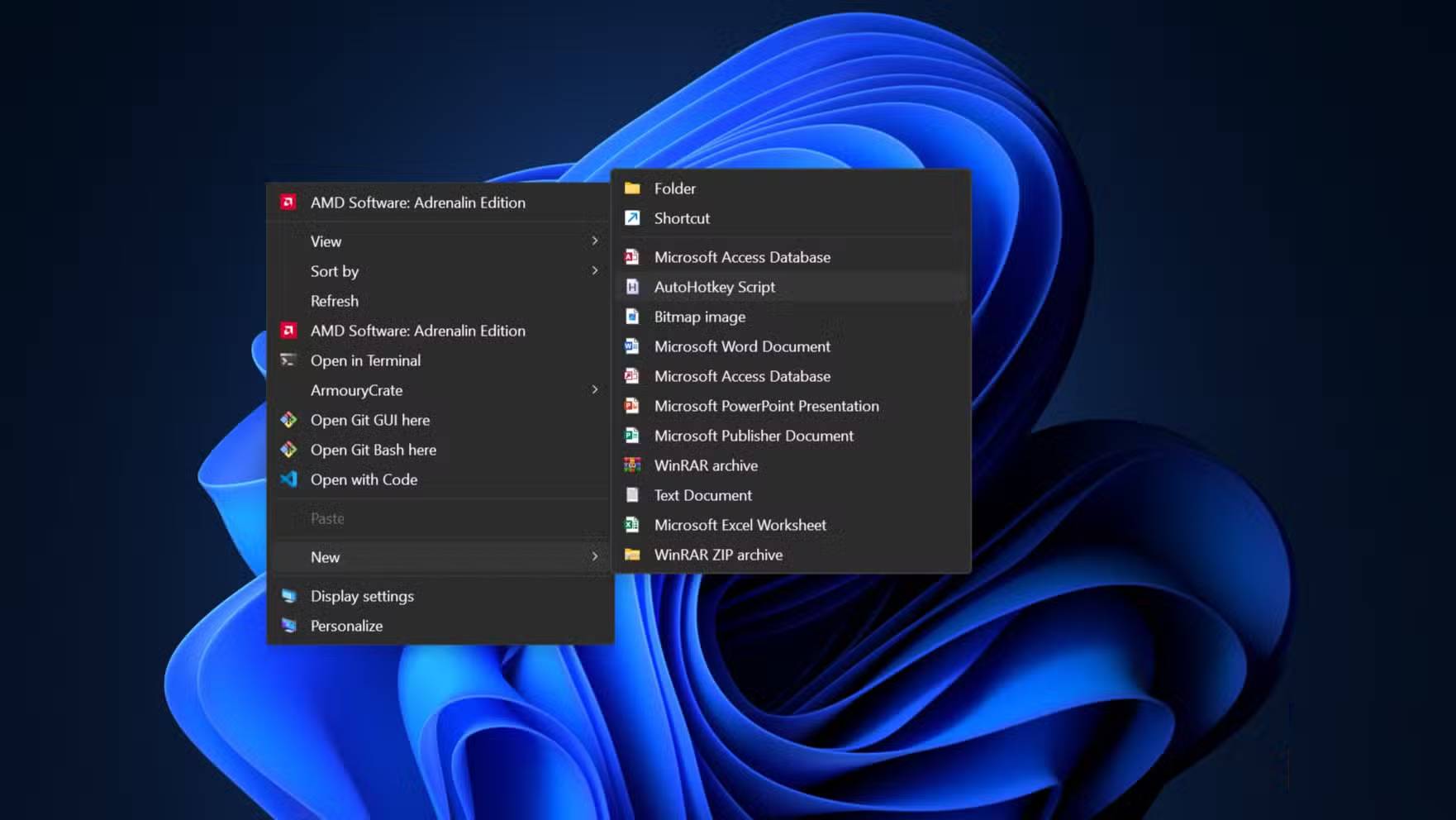
- Right-click an empty area in a folder and choose New > AutoHotkey Script. If that menu item is unavailable, create a plain text file and give it an
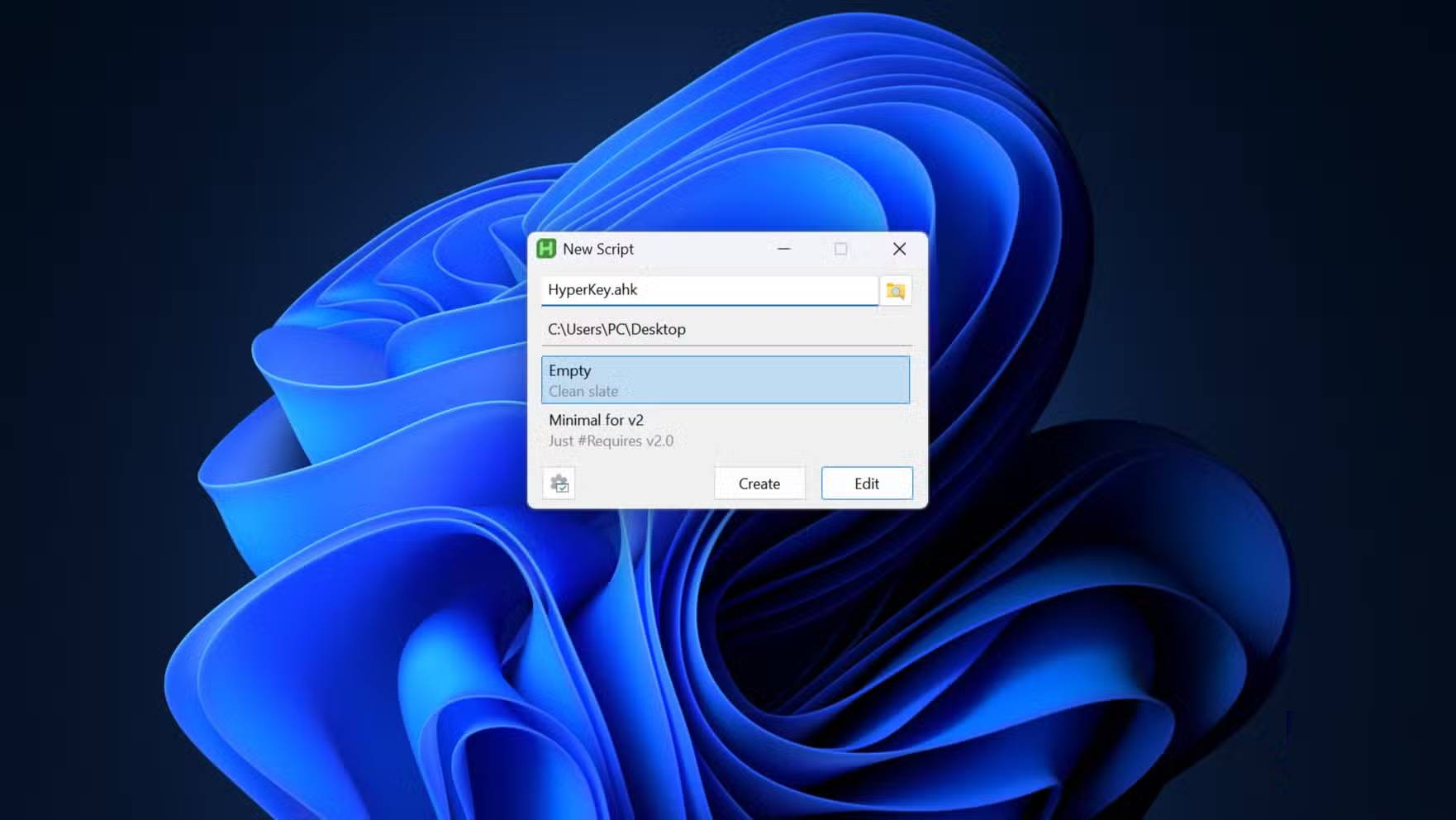
.ahkextension. - Name it
HyperKey.ahk, right-click it, and choose Edit Script. - Replace the file's contents with the script below, save it, and double-click the file to run it.

#Requires AutoHotkey v2.0
#SingleInstance Force

*CapsLock::
{
    started := A_TickCount
    Send "{Blind}{Ctrl DownR}{Shift DownR}{Alt DownR}{LWin DownR}"
    KeyWait "CapsLock"
    Send "{Blind}{LWin Up}{Alt Up}{Shift Up}{Ctrl Up}"

    if (A_PriorKey = "CapsLock" && A_TickCount - started < 200)
        SetCapsLockState GetKeyState("CapsLock", "T") ? "Off" : "On"
}
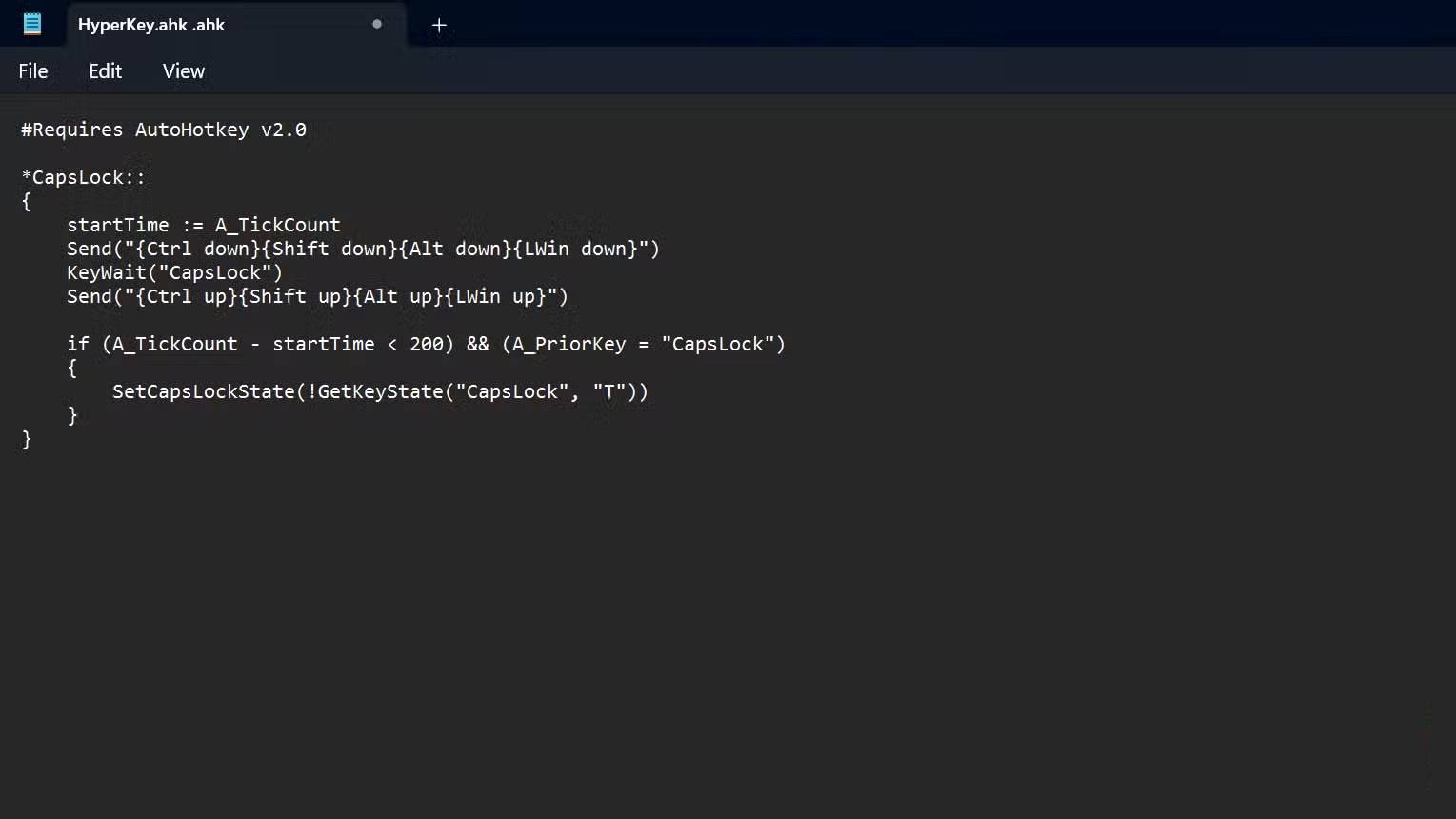
Hold Caps Lock and press another key to send a Hyper combination. A tap shorter than 200 milliseconds toggles Caps Lock only when no other key was pressed. Increase the threshold slightly if intentional taps are missed, or remove the final if block if you never want Caps Lock mode.
A simpler script without tap-to-toggle
If Caps Lock should only be Hyper, use this shorter version:
#Requires AutoHotkey v2.0
#SingleInstance Force

*CapsLock::
{
    Send "{Blind}{Ctrl DownR}{Shift DownR}{Alt DownR}{LWin DownR}"
    KeyWait "CapsLock"
    Send "{Blind}{LWin Up}{Alt Up}{Shift Up}{Ctrl Up}"
}
The explicit key-up line matters. If a script is forcibly terminated while Caps Lock is held and a modifier appears stuck, physically press and release that modifier once. Then correct the script before restarting it.
Add useful Hyper shortcuts
You can register Hyper combinations in another application's shortcut editor. To handle them in AutoHotkey itself, append definitions such as:
^+!#e::Run "explorer.exe"
^+!#n::Run "notepad.exe"
With the script running, Caps Lock+E opens File Explorer and Caps Lock+N opens Notepad. Replace these with actions you actually need and avoid remapping combinations used by accessibility tools, password managers, or workplace security software.
AutoHotkey can also open folders, move windows, or run multi-step actions. This list of useful minimalist Windows applications gives more context on where AutoHotkey fits, but build and test one shortcut at a time.
Only change the Office protocol handler if Windows intercepts Hyper
Some Windows and Microsoft 365 configurations associate the four-modifier press with an Office or Microsoft 365 action. Do not edit the registry preemptively. First run the script and test a Hyper shortcut. If an Office page or app opens as well, the per-user ms-officeapp protocol association may be responsible.
Before changing it, create a restore point or export the existing key if it exists:
reg export "HKCU\Software\Classes\ms-officeapp" "%USERPROFILE%\Desktop\ms-officeapp-backup.reg" /yIf Registry Editor reports that the key does not exist, there is nothing to export. To create a per-user handler that neutralizes that protocol action, open Terminal and run:
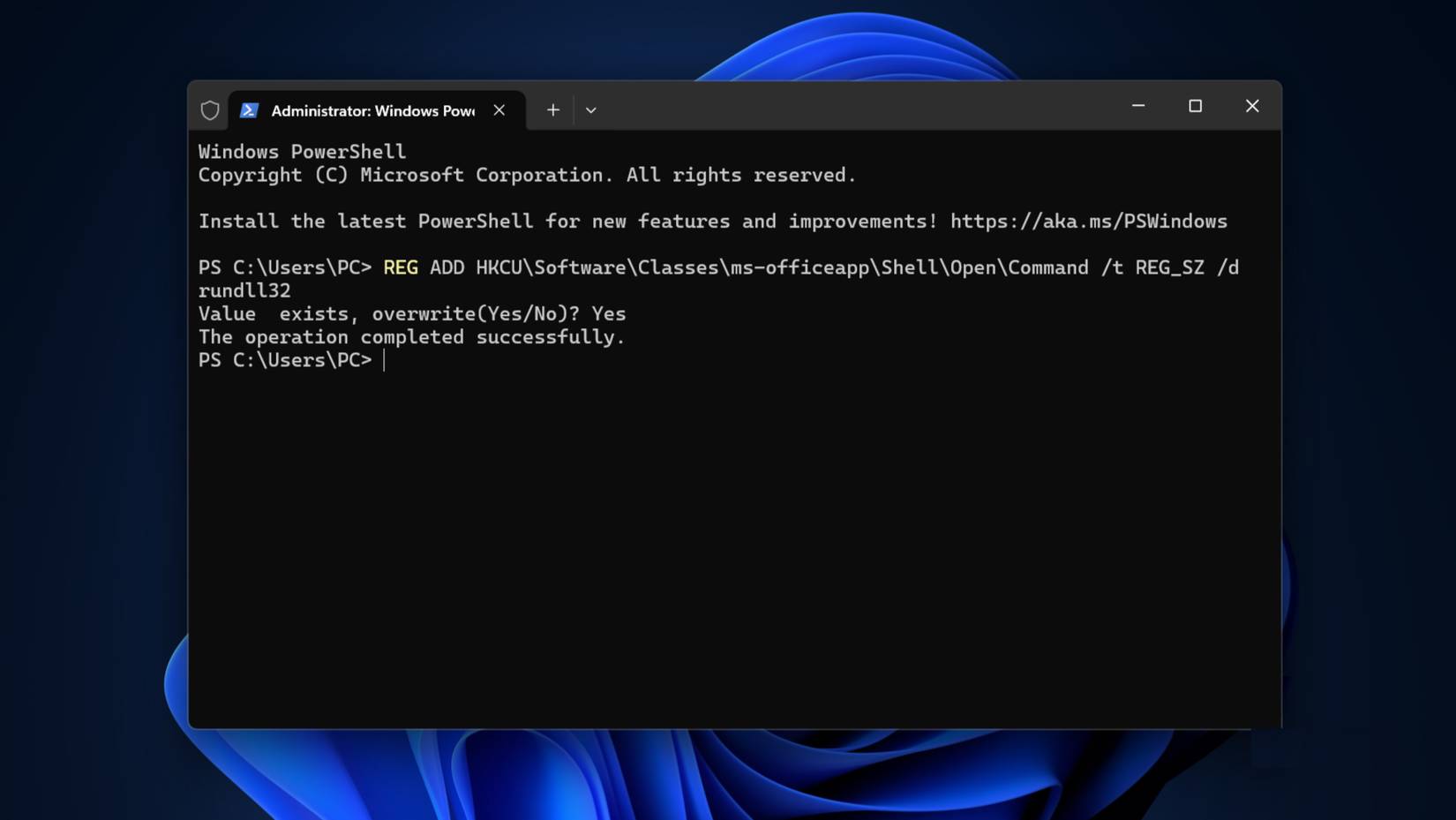
reg add "HKCU\Software\Classes\ms-officeapp\Shell\Open\Command" /ve /t REG_SZ /d rundll32 /fThis changes a protocol handler for the current user; it is not required on every PC and may affect a dedicated Office key. Test Office links and keyboard behavior afterward. To restore, import the exported .reg file. If no key existed before and this guide created the entire per-user override, remove only that override with:
reg delete "HKCU\Software\Classes\ms-officeapp" /fOn a managed work computer, leave policy and registry settings to the administrator.
Run the script at sign-in
- Press Win + R, enter
shell:startup, and press Enter. - Create a shortcut to
HyperKey.ahkin the Startup folder. A shortcut is preferable to moving your only copy of the script. - Sign out and back in once to confirm that it starts correctly.
Running the script as administrator is usually unnecessary and expands its privileges. Keep it at standard user level unless you understand and specifically need elevated-window interaction.
Troubleshooting
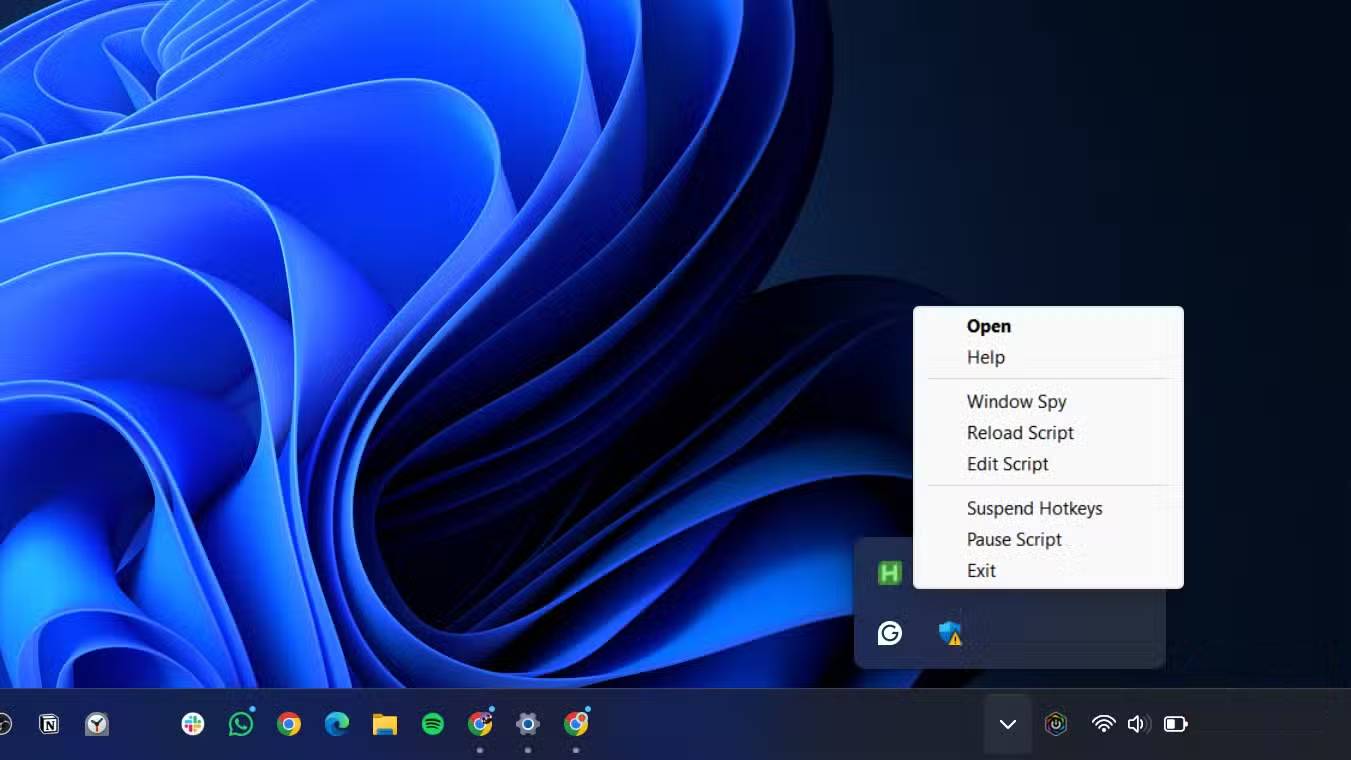
- Caps Lock does nothing: confirm the green AutoHotkey tray icon is present and that the file requires v2, not the incompatible v1 syntax.
- A shortcut triggers two actions: search Windows, the target app, and other automation tools for the same four-modifier combination.
- Caps Lock toggles while used as Hyper: raise the tap threshold only if needed and confirm another key is registered before releasing Caps Lock.
- The script cannot control an elevated app: this is an integrity-level boundary, not necessarily a broken remap.
- You want to undo everything: exit the script from its tray icon, remove its Startup shortcut, and restore any registry value you changed.
Related Articles
 How to Turn Caps Lock Keys into Modifier Keys on Mac6 minutes read
 Fixed a Bug with the Cap Lock Key on Windows 10 Suspended3 minutes read
 How to Disable the Caps Lock Key in Windows 104 minutes read
 How to Turn Off Caps Lock: Step-by-Step Guide7 minutes read
 Instructions: Turn Off Caps Lock Keys in Mac OS X2 minutes read
 Steps to Turn Off Caps Lock Using Caps Lock or Shift Key in Windows 11 Explained4 minutes read
Reader Comments 0
Sign in with email or Google to join the discussion.