Table of Contents
This updated guide compares useful Windows apps that don't come pre - installed and highlights the details that matter most. Windows computers come with a variety of pre-installed applications. While some are useful, others are not. Still, there are a number of handy Windows applications that most users would probably enjoy if they were part of the Windows experience from the start.
11. Everything
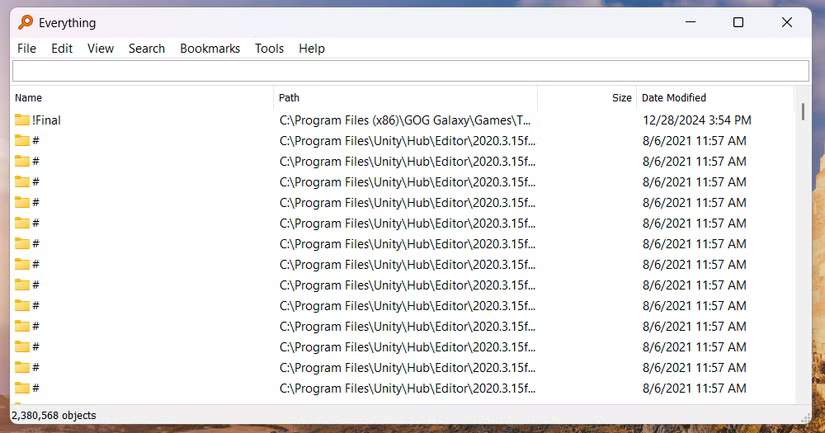
While Windows 11 is great, its built-in search feature still feels a little lacking. that is exactly the problem Everything solves.
Everything is a blazing fast file search utility that outperforms Windows Search in both speed and simplicity. Unlike the default search engine, which attempts to index file contents and is often slow as a snail, Everything focuses only on file and folder names. This streamlined approach allows it to deliver results almost instantly.
10. QuickLook
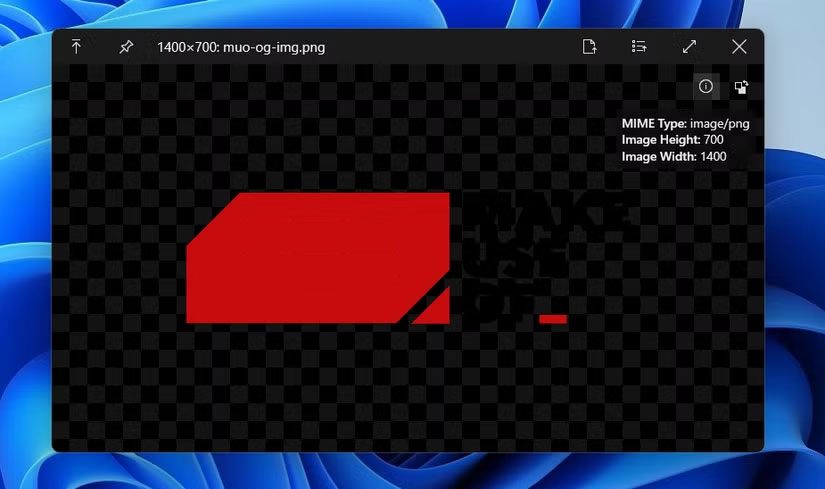
While File Explorer lets you preview images and PDFs without opening them, those tiny thumbnails aren't always useful. QuickLook is a free app that emulates macOS's spacebar preview feature—and it does it very well. Once installed, QuickLook integrates seamlessly into your workflow.
9. EarTrumpet
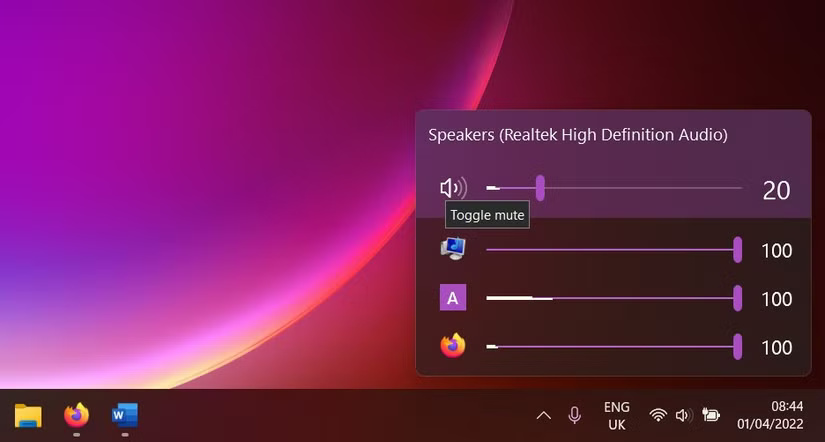
Microsoft's handling of audio controls in Windows is still pretty poor. While both Windows 10 and 11 include app-specific volume controls, you'll need to use the volume mixer tool every time you want to make any adjustments.
The app also includes handy features like keyboard shortcuts, so you can quickly access the volume control pop-up without having to choose through menus.
8. ShareX
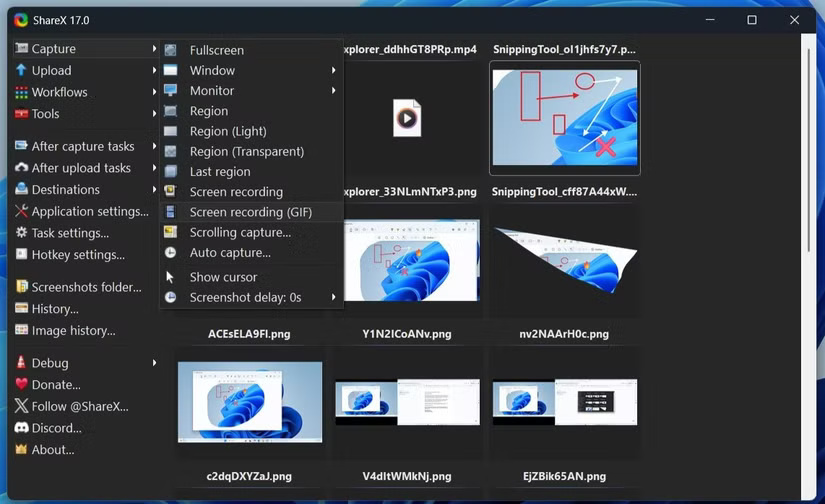
With recent updates, the Snipping Tool has evolved beyond just being a screenshot tool. Still, if you need more than just basic screenshots, you'll need to use an app like ShareX.
With ShareX, you can record videos or GIFs, annotate screenshots, apply watermarks, resize images, add effects, and more – all within a single interface. The app even supports advanced automation like automatically uploading your captures to cloud services like Google Drive, Dropbox, OneDrive, Imgur, and Mega.
7. Start11
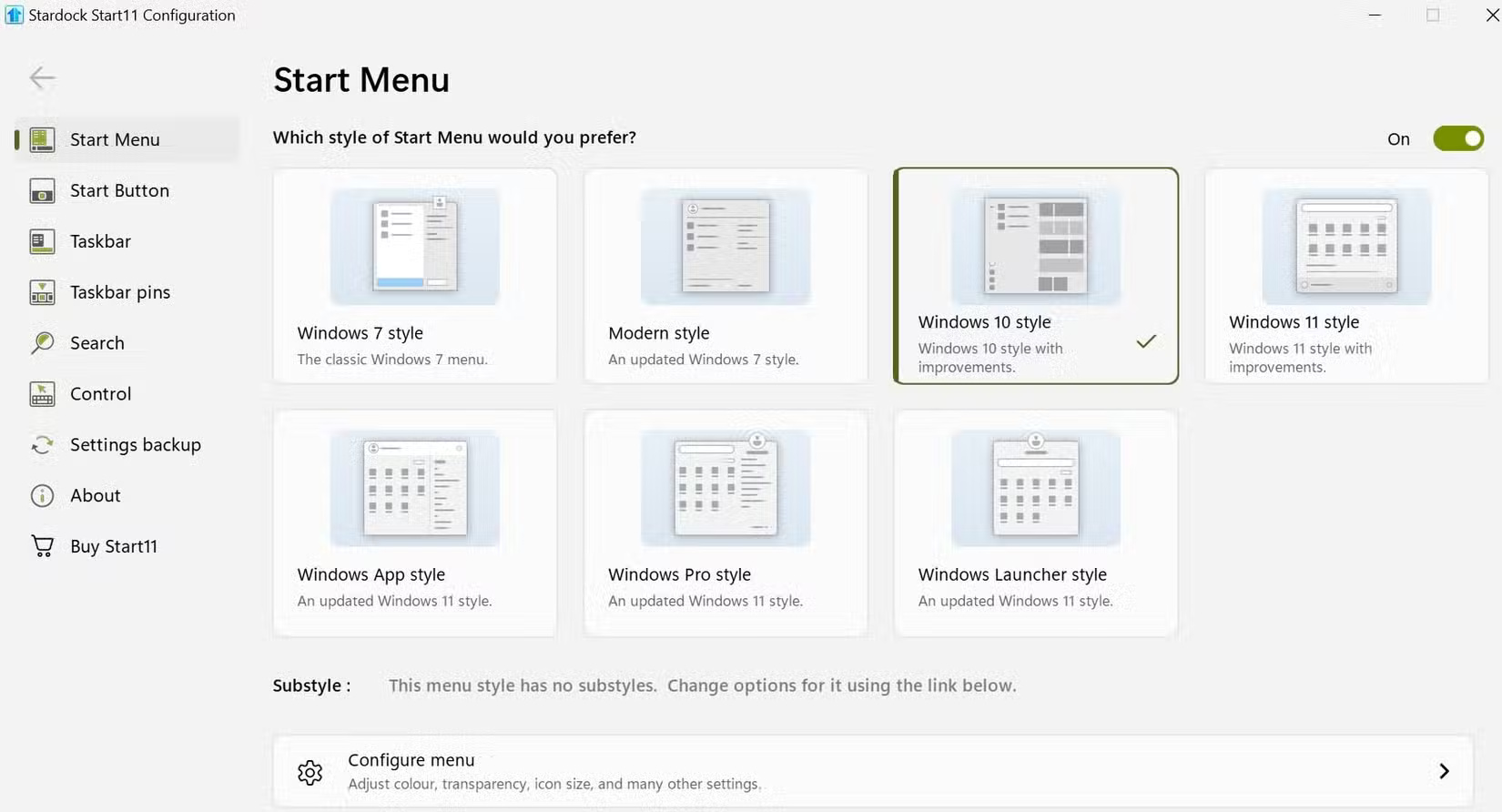
While Windows 11 offers some basic options for customizing the Start menu and taskbar, it is not very flexible. Start11 is a handy tool that lets you completely redesign your Windows Start menu with classic styles reminiscent of Windows 7, Windows 10, or even layouts that combine the old and new. Each style is highly customizable, so you can tweak the colors, transparency levels, icon sizes, and more to suit your preferences.
- How to Use Start11 to Completely Overhaul Windows 11
6. Ditto Clipboard
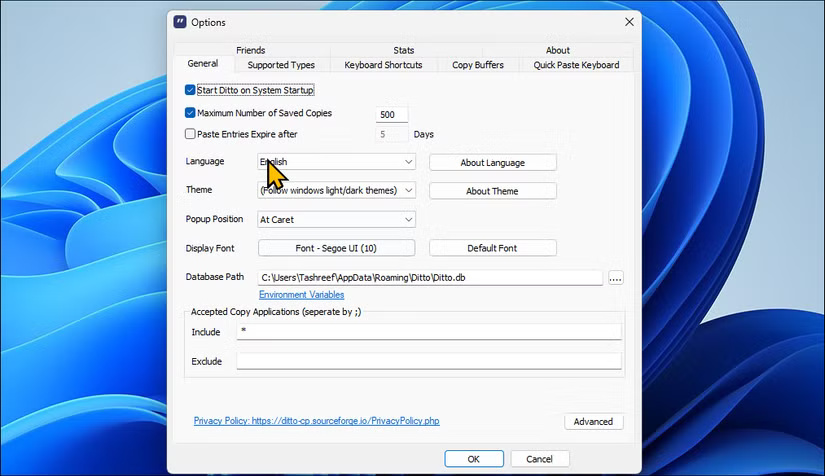
While Windows does have a clipboard manager, it is quite limited. for instance, it only holds up to 25 items at a time, there is no option to search within copied content, and you cannot even resize the clipboard window for convenience.
Ditto is a clipboard app that solves all of these limitations and more. It lets you save an unlimited number of clipboard items, from text snippets to images, and you can organize them into groups for easier access.
5. PDFgear
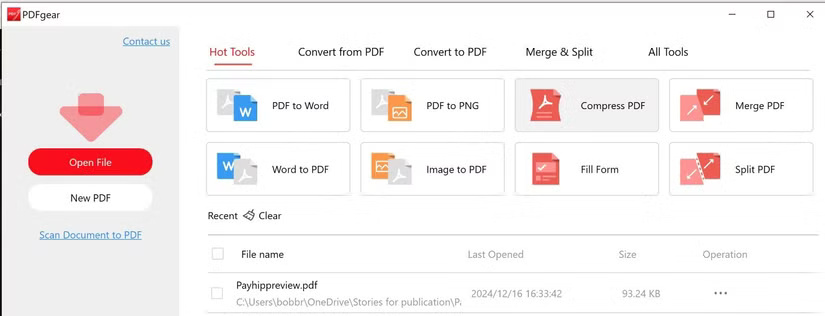
PDFgear lets you edit, annotate, and convert PDFs without forcing you to upload anything to the cloud or sign up for an expensive subscription. It offers a clean, modern interface and handles common tasks like merging documents, editing text, filling out forms, or even running OCR (optical character recognition) on scanned files with ease.
4. Rainmeter
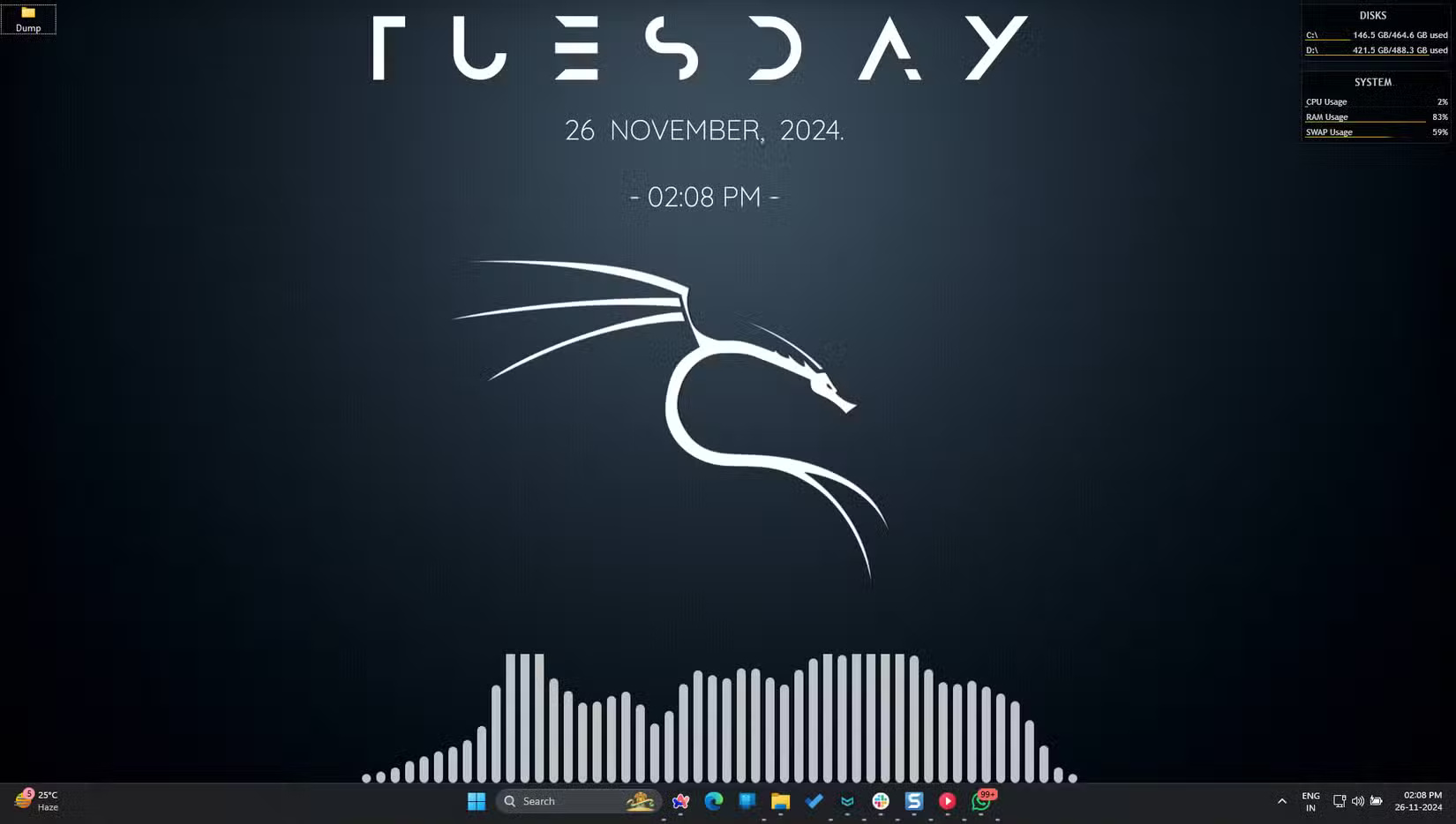
With an application like Rainmeter, you can display custom skins on your desktop. These skins include all sorts of different widgets, including clocks, calendars, widgets, shortcuts, and more, to give your desktop the look and feel you want.
3. LocalSend
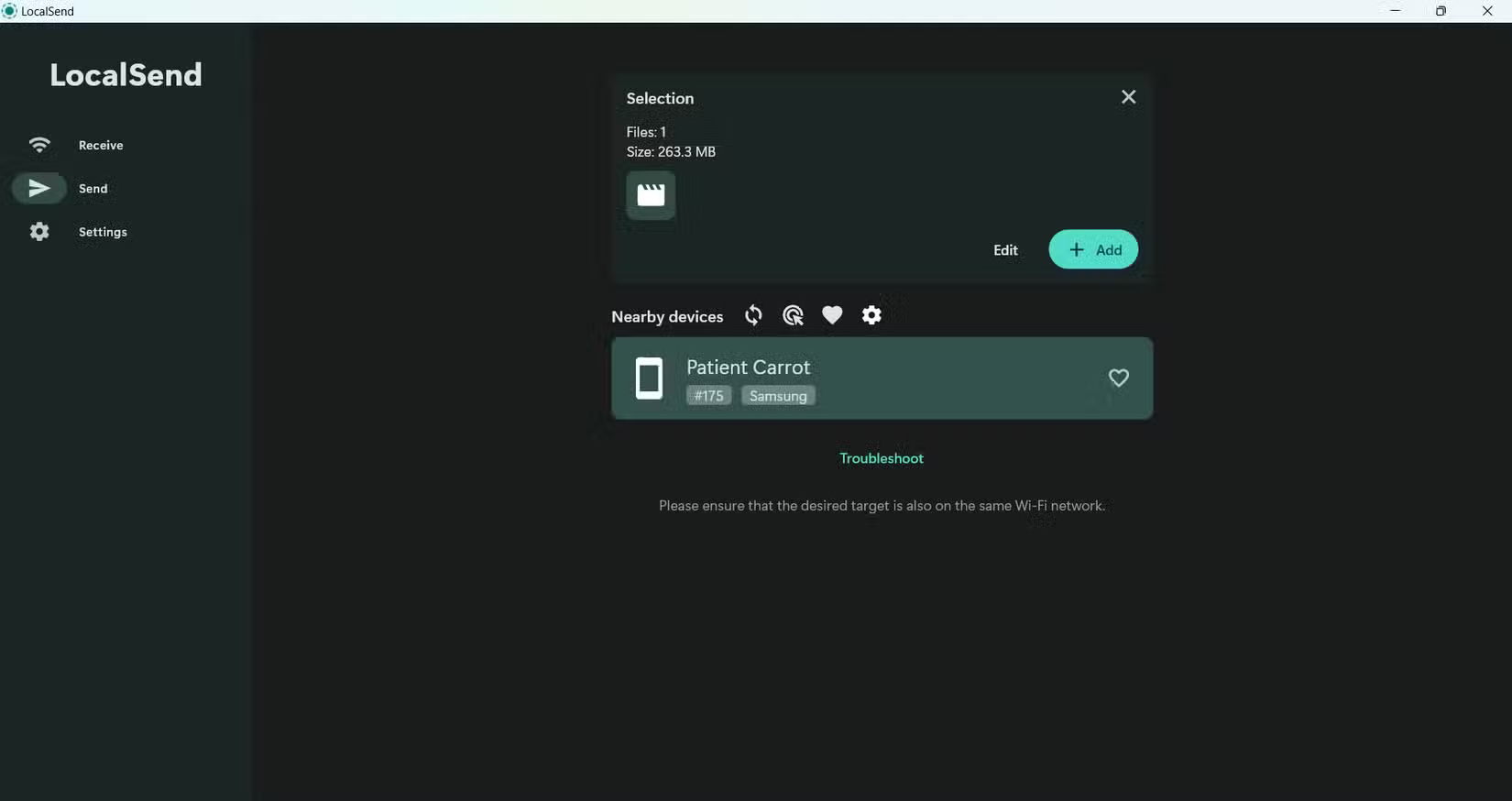
LocalSend leverages your local Wi-Fi network to transfer files quickly and securely across multiple platforms. No logins, no cables, and no complicated pairing steps.
The beauty of LocalSend is its simplicity. The app has a clean, consistent interface across all platforms, so once you use it on one device, it will feel right at home on any other. Just install the app on your PC and other devices and you're good to go.
- Learn About LocalSend: An AirDrop-Like App for Wirelessly Transferring Files Between Devices
2. PowerToys
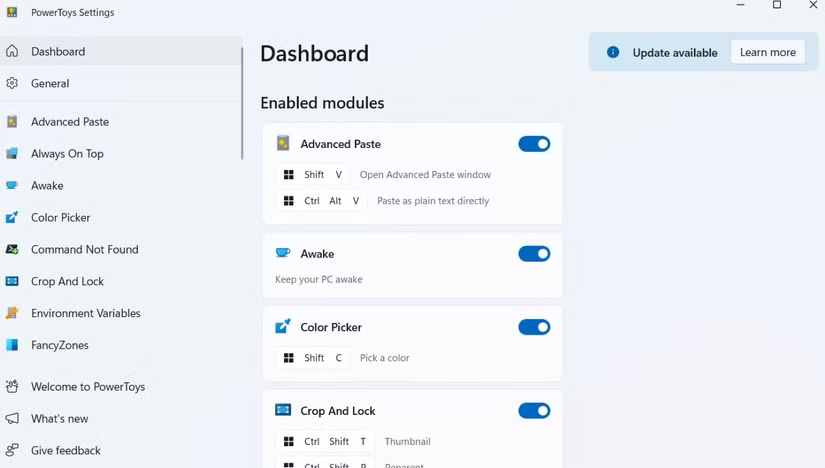
PowerToys is like a Swiss Army knife for power users. It includes tools like Keyboard Manager (for remapping keys), Always on Top (for pinning a window on top of others with a keyboard shortcut), and PowerRename (for batch renaming files with advanced options). There's also FancyZones, a powerful window manager that makes multitasking smoother than the default Snap Layouts.
- How to Use PowerToys on Windows 10
1. PC Manager
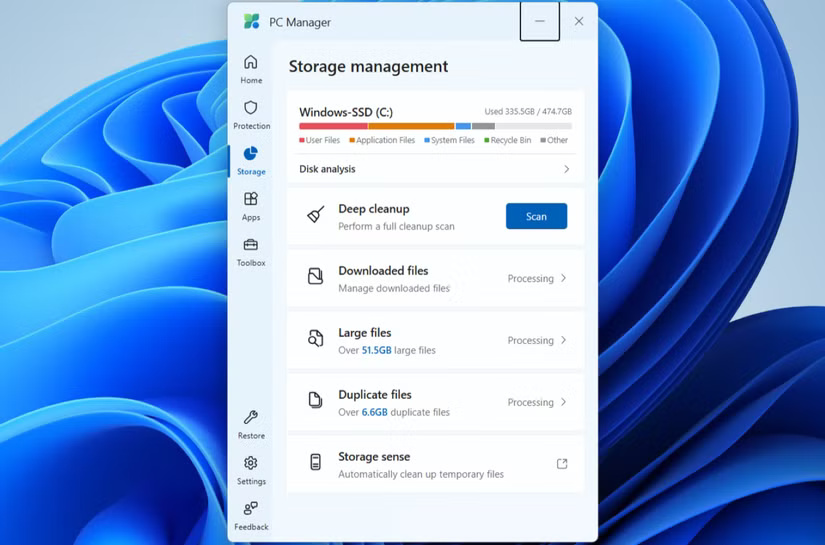
Another useful Microsoft app that you will not find pre-installed on your Windows PC is PC Manager. As the name suggests, this app integrates a variety of PC maintenance tools into one simple interface.
Whether you want to boost performance with a single choose, free up storage space by deleting temporary files, or identify and manage large or duplicate files, PC Manager makes it easy. It also includes startup management, threat scanning with Microsoft Defender, and system health monitoring—all without the clutter or hassle of searching through separate system menus.
FAQ
How were the useful windows apps that don't come pre - installed options evaluated?
The comparison focuses on practical features, ease of use, limitations, compatibility, and the type of user each option is most likely to help.
Which option is best for beginners?
Beginners should prioritize a clear interface, useful documentation, reliable support, and the core features needed for their first project.
Should I choose a free or paid option?
Start with a free option when it covers your needs. A paid plan may be worthwhile when you need advanced tools, commercial rights, collaboration, or professional support.
Related Articles
 Steps to Remove Installed Apps from Store on Windows 105 minutes read
 Delete These 10 Pre-Installed Apps Immediately After Buying Your iPhone!6 minutes read
 Pre-installed Apps That Can Be Safely Uninstalled on Samsung Phones7 minutes read
 5 Pre-Installed Android Apps That Slow Down Your Phone: Practical Guide6 minutes read
 How to Instantly Launch Apps with Wox on Windows9 minutes read
 8 Useful Samsung Apps That Don't Come Pre-Installed on Galaxy Phones11 minutes read
Reader Comments 0
Sign in with email or Google to join the discussion.