Table of Contents
Explore uses of a usb drive that you may not know about, including the key concepts, practical examples, important considerations, and useful guidance.
You can also use USB to quickly connect to a wireless network on all your PCs, boost computer performance, or even run a web server directly from the USB drive itself.
Here are some surprising ways you can use a USB drive.
1. Use a USB drive to lock/unlock your PC
Would you like to lock and unlock your computer with a physical tool, just like in the movies? With the free PREDATOR tool, you can!
PREDATOR turns a USB drive into an access control device. When you leave your PC, simply unplug the USB drive and the computer will lock. When you return, plug the USB drive back in and the computer will unlock.
This is similar to using the Lock function in Windows, but the only difference is that you don't have to enter your password when you return.
- Download PREDATOR for Windows
2. Run portable applications anywhere
One of the strangest things about software is that it usually needs to be installed. However, with portable applications, it's different.
Portable applications and games can easily be copied to a USB flash drive and then run from any compatible device, typically a 32-bit or 64-bit PC. Browsers, email tools, messaging applications, and games can all be run from a USB drive.
This is a particularly useful solution if you want to keep a range of applications with you to use on any PC you can find.
3. Boost performance with ReadyBoost
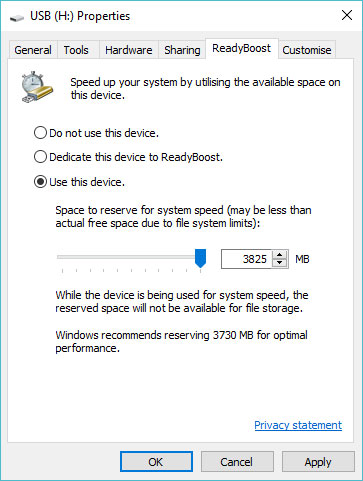
If you have a slow hard drive in your computer, ReadyBoost can help speed things up. When you enable ReadyBoost for a drive, it acts as a cache for the hard drive, saving frequently used files. If reading from a USB drive instead of the hard drive is faster, Windows will read the cached memory of the flash drive instead.
You won't see much of a performance increase with a 7200+ RPM drive. If you have an SSD, Windows won't let you use ReadyBoost because the cache will be slower than on an SSD.
To enable ReadyBoost, right-click the USB drive in Windows Explorer, select Properties , and use the options on the ReadyBoost tab. Windows will only allow you to enable ReadyBoost if the USB drive is fast enough, so you may see these options grayed out for some devices. ReadyBoost also requires the USB drive to have at least 256MB of free space.
4. Create a backup with Win32 Disk Imager
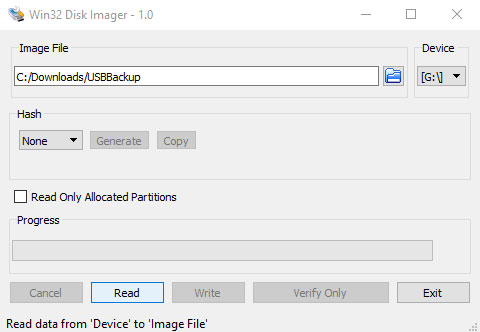
If you use a USB flash drive for multiple purposes, backing up its contents can be helpful. An easy way to do this is with Win32 Disk Imager.
Although Win32 Disk Imager is commonly used to write bootable disk images to USB drives, it can also create images. Simply install and run the tool, plug in your USB drive, select a destination and name for the image file, and click Read to copy the disk contents.
When you need to restore a disk image, simply browse to the image and click Write.
- Download Win32 Disk Imager for Windows
5. Store important travel documents
If you travel frequently, you may misplace important documents. Visas, booking confirmations, and even passports can easily get lost. Packing documents in the wrong bag can lead to many problems if the baggage handler makes a mistake.
One solution is to save all your travel documents to a compact USB drive and carry it with you, which could even include scanning your passport, if you only need to provide immigration officers with the information they require for a background check, in case your passport is misplaced and you can't find it right away.
6. Install almost any operating system
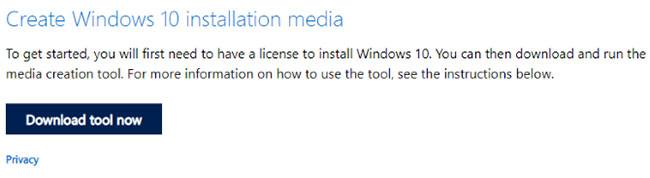
You can use a bootable USB disk image of an operating system to install a new operating system on your PC.
For example, Windows 10 users can create a bootable USB installer using a specialized tool. In case of problems with the operating system, this tool can be used to restore or even reinstall Windows.
Similarly, all versions of Linux-based operating systems can also be installed from a USB drive. Many options offer a live environment, giving you a feel for the operating system, running directly from the USB before installation. It's even possible to create a USB installer for macOS.
7. Stay secure online with the live Tails operating system
Additionally, you might be looking for an operating system that can run from a USB drive to keep your online activity private.
The solution to this problem is Tails, which, unlike standard operating systems, protects your privacy and anonymity. No logs are kept on this operating system. Meanwhile, modern encryption software encrypts files, emails, and instant messages, and internet data is routed through Tor.
Each time you use Tails on a USB drive, it starts a completely new session. This enhances online privacy and security (just make sure you use a strong password!).
- Download Tails
8. Boot the live operating system using the flash drive
You don't need to install an entire new operating system from a USB drive on your computer. You only need to boot from one drive.
From portable versions of Windows to "Live" builds of Linux distributions that can be used on the go, this option offers a huge privacy advantage. You see, the operating system is loaded into the computer's memory, meaning that when the computer restarts, your activity data is lost.
Furthermore, you can keep a portable operating system in your pocket, ready to plug into any computer. When it comes to the great things about using USB drives, this is one of the best.
9. Create a password recovery drive on a USB drive for Windows
Are you worried that you might forget your Windows password or have actually lost it?
If you use a local account in Windows, there's no easy way to reset your password if you forget it. You can reset your Microsoft online account from any other device, but with a local account, things are different.
Your choice is simple: abandon your account or create a password recovery disk in Windows 10 & 11. For the second option, plug in a formatted USB drive, click Start , and type "password reset disk". When you see Create a password reset disk , click Open and follow the instructions.
It's best to use the USB drive for this purpose permanently, so keep it in a drawer for later use, just in case you need it.
10. Save your PC from hardware failures and viruses
You should always keep a recovery USB drive handy. That way, if your PC crashes and you need to recover or retrieve data from the hard drive, you'll have a backup option. Flash drives are ideal for this task, as they can store and boot recovery tools to help you fix your computer.
These tools include:
- Hiren's BootCD
- System Rescue
- Knoppix
- Ultimate Boot CD
- Trinity Rescue Disk
Download your preferred tool, burn it to a USB drive, and boot your vulnerable computer from the USB.
10. Running a portable operating system
There are many good operating systems worth trying
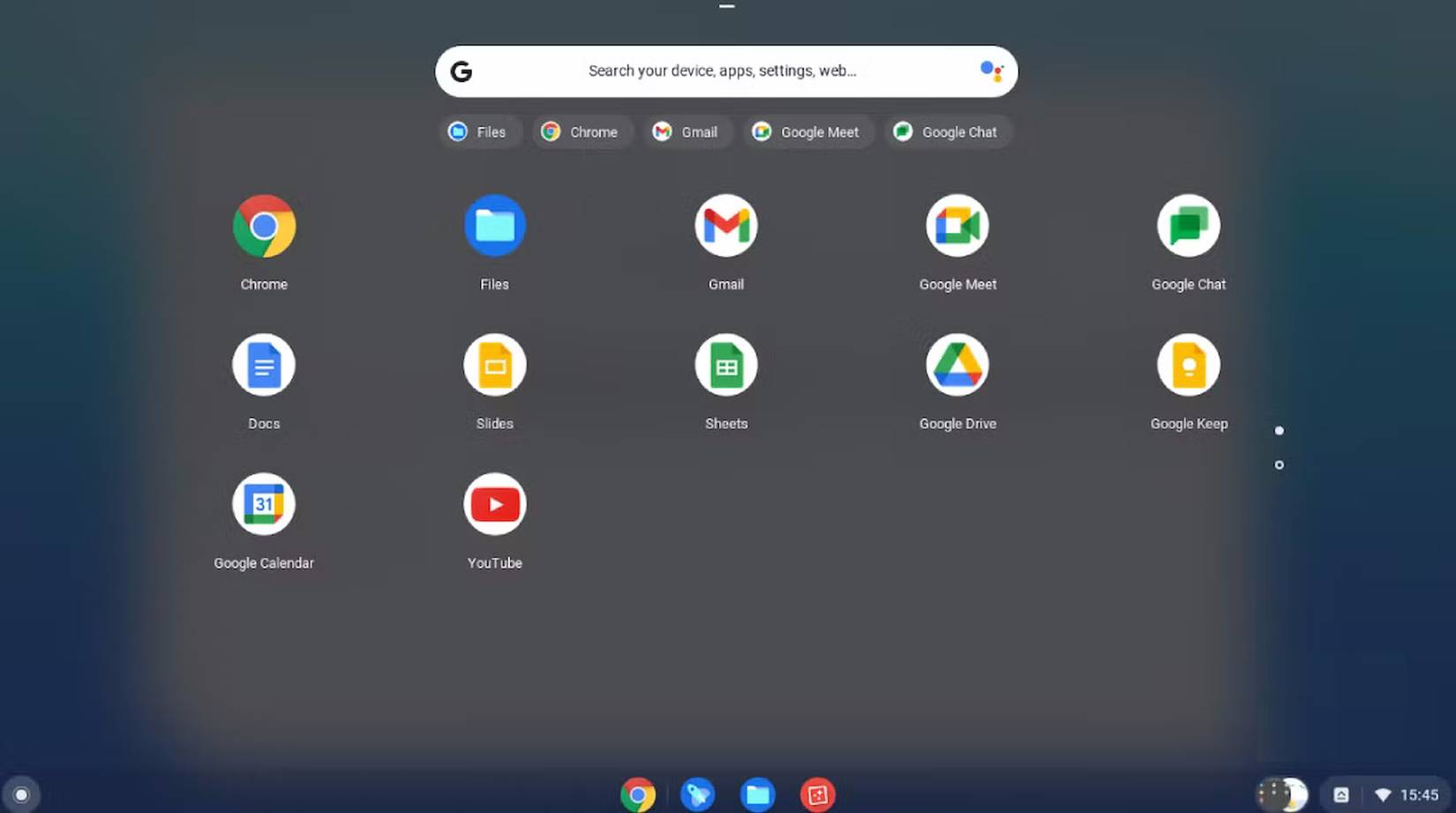
If you like trying different operating systems besides Windows, USB drives are the perfect way to store them. Instead of installing a new operating system on your main computer and risking conflicts, you can run it directly from the USB drive.
This works by creating a bootable USB drive containing a complete, standalone operating system. To do this, you need a tool like Rufus, which can convert an ISO file into a bootable USB drive in minutes. Once complete, you can plug it into your computer anytime and load it from the boot manager.
The biggest advantage here is freedom. You can try new platforms like Linux distributions, ChromeOS, etc., without buying new hardware. You can even use this bootable USB drive on computers other than your own.
Additionally, portable operating systems are great for troubleshooting. If your computer won't boot, booting from a USB-based operating system can help you back up files, scan for problems, or fix issues externally.
11. Use a USB drive to automatically back up your file history
Keep older versions with just a few clicks
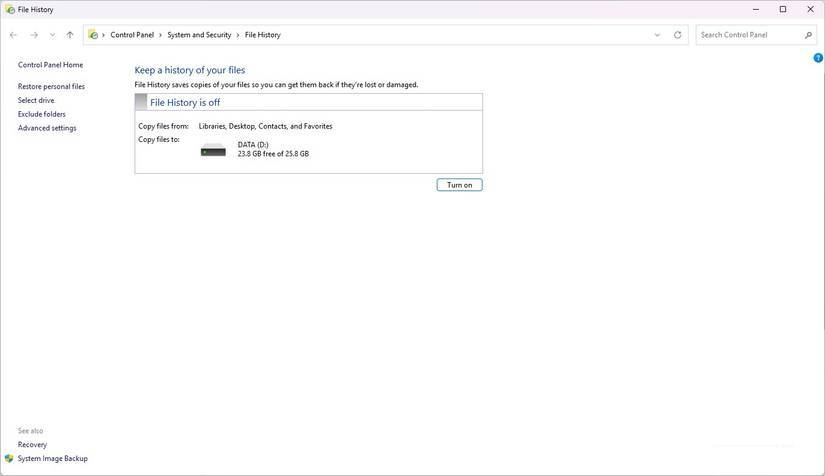
Windows includes a feature called File History that can automatically back up your documents, photos, desktop files, and other personal folders periodically.
To do this, you need to plug in a USB drive so Windows can keep older copies of the file. This way, if you accidentally delete something, overwrite a file, or realize you need an older version, you can easily restore it. Because this feature keeps multiple versions of the file, you can undo changes made several days or even weeks ago.
To do this, plug in the USB drive and select it as the backup location in File History. As long as the drive is plugged in, Windows will automatically back up the files inside the folders you specify, such as Pictures, Videos, Documents, etc.
12. Carry your password manager offline securely
Store login information securely
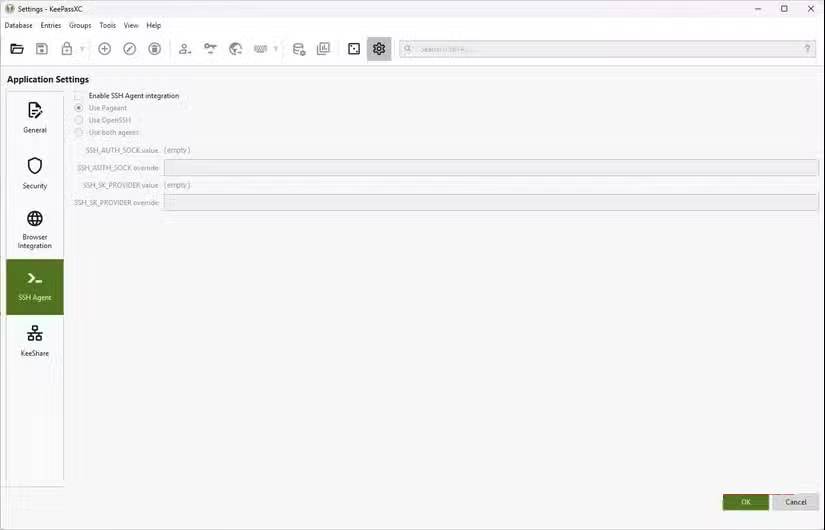
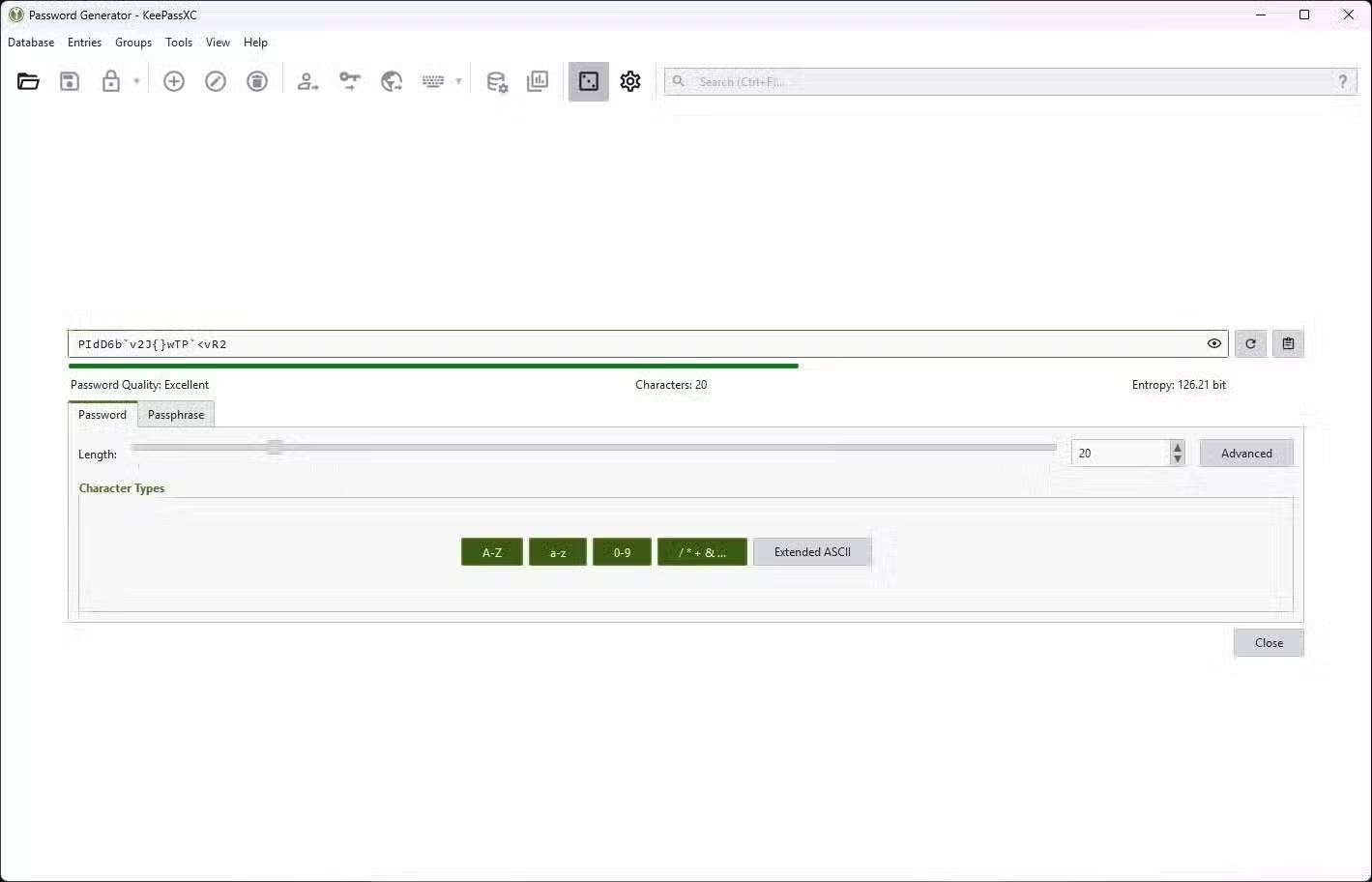
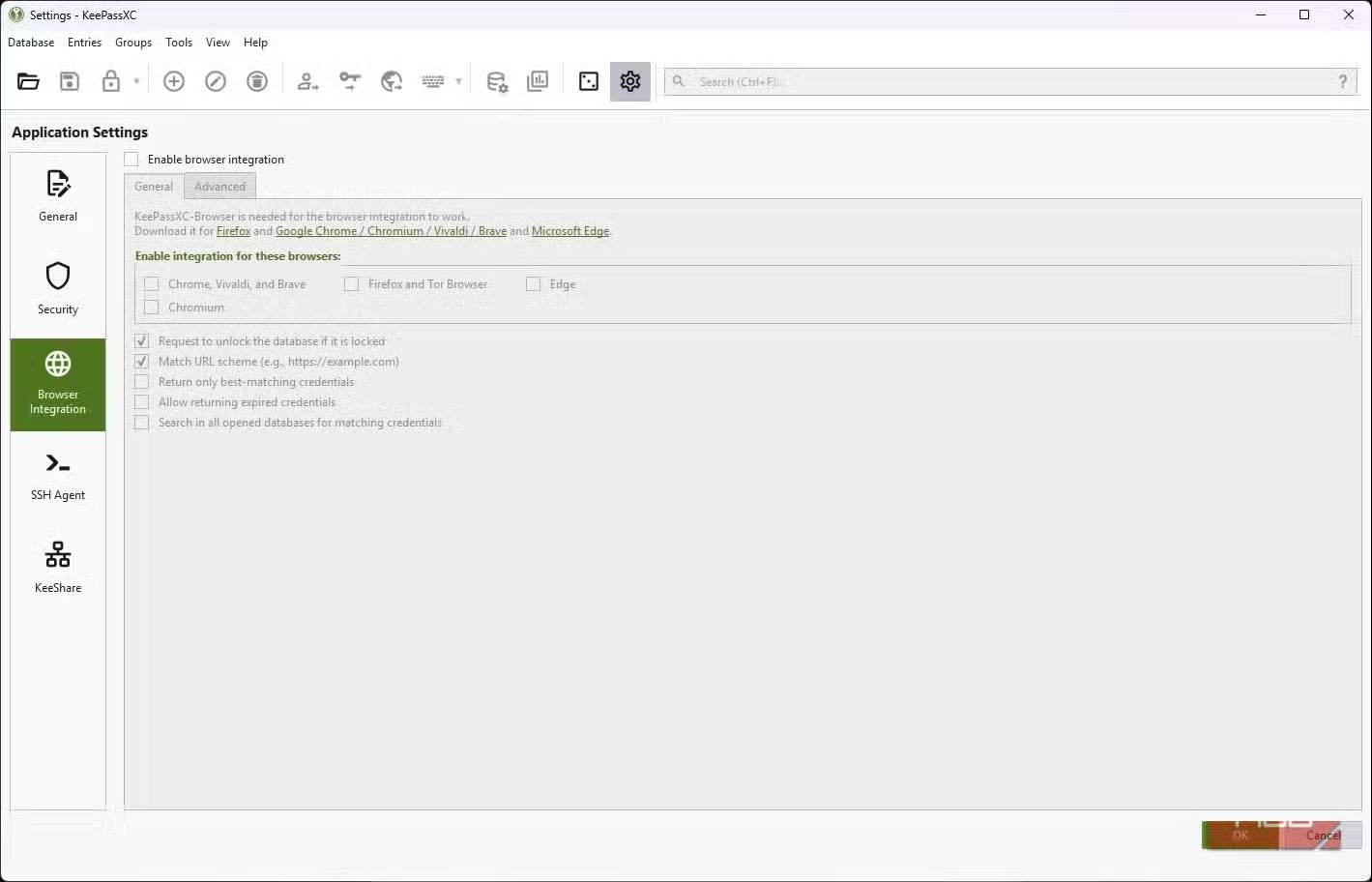
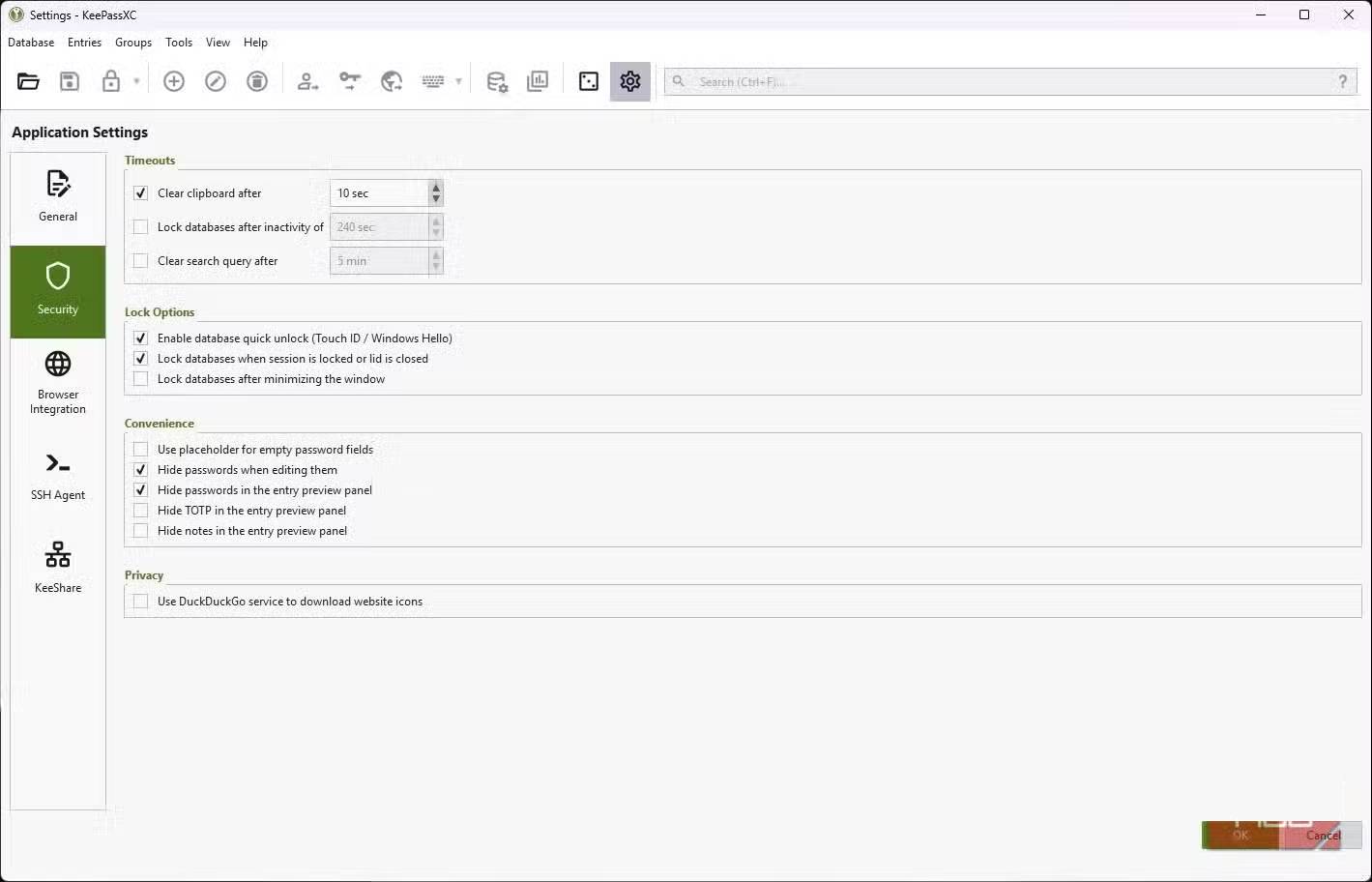
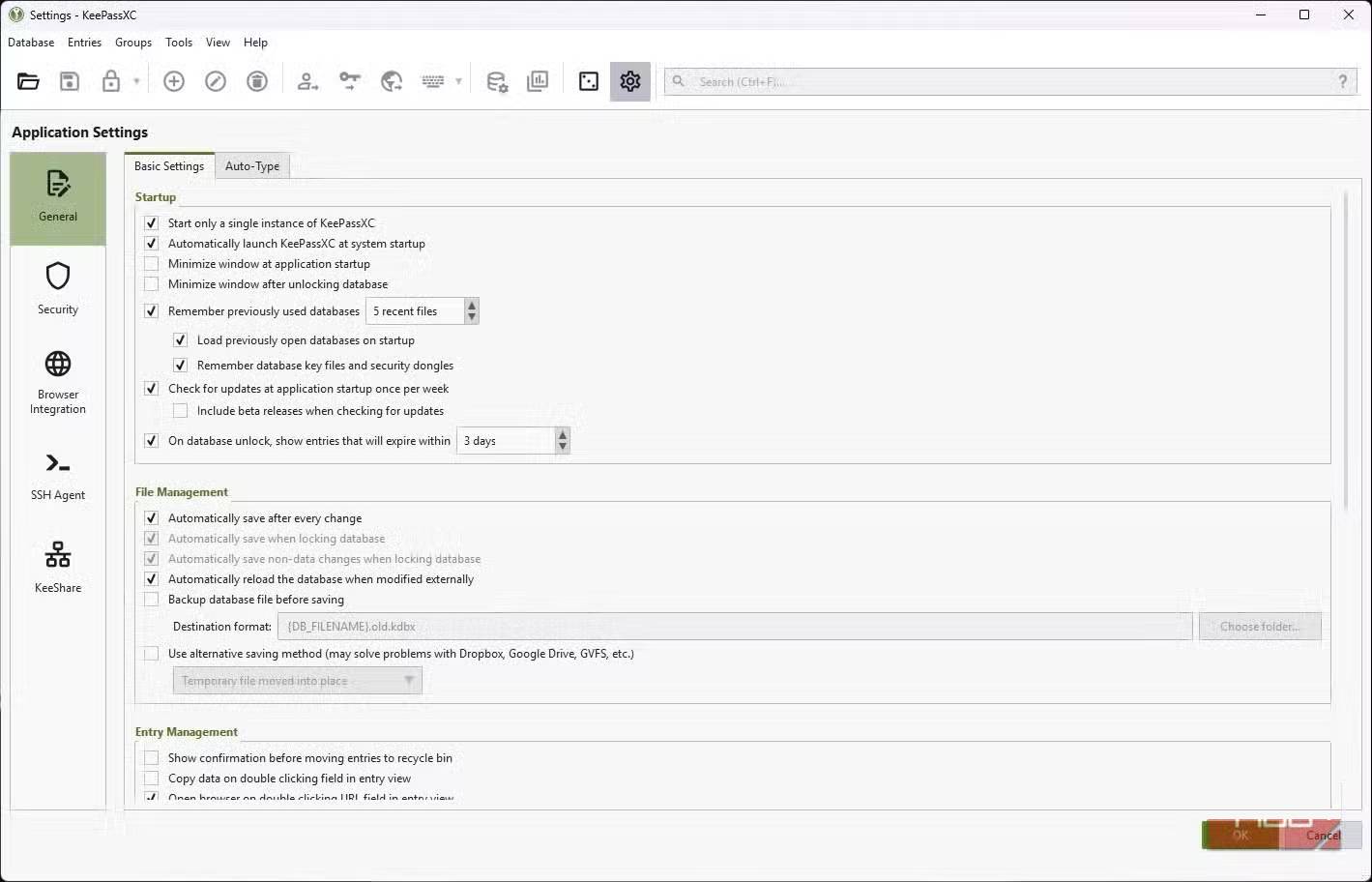
Password managers are great, but if you want something completely free, you can turn your USB drive into an offline password manager. KeePassXC is a free, open-source tool that can store all your login information in a single encrypted database file. Only your master password can unlock everything, and the file itself is useless to anyone who doesn't have it.
You can store both the password database and the portable version of KeePassXC on a USB drive. Since everything is stored offline, you don't need to worry about your passwords being leaked in the event of a cybersecurity breach.
This setting is especially useful if you don't want to save passwords in your browser and frequently switch between different computers.
Final Thoughts
Understanding uses of a usb drive that you may not know about makes it easier to evaluate the information and apply the most relevant recommendations. Focus on the key points above and verify details that may change over time.
FAQ
What is uses of a usb drive that you may not know about?
Explore uses of a usb drive that you may not know about, including the key concepts, practical examples, important considerations, and useful guidance.
What key points does this article cover?
The article focuses on 1. Use a USB drive to lock/unlock your PC, 2. Run portable applications anywhere, 3. Boost performance with ReadyBoost, with practical explanations and examples.
How can you use this information in practice?
Use the explanations to compare options, verify important details, and make a more informed decision. Apply the recommendations that best match your goals and situation.
Related Articles
 Difference Between Flash Drive and Pen Drive7 minutes read
 How to Format an SSD Drive: Step-by-Step Guide4 minutes read
 Google Drive 4,2021.46200, Google Drive Download and3 minutes read
 How to Identify Hard Drive Failure, Hard Drive Failure, Bad Hard Drive7 minutes read
 How to Use the RAM Drive in Windows 105 minutes read
 How to Partition a Hard Drive in Windows 86 minutes read
Reader Comments 0
Sign in with email or Google to join the discussion.