Table of Contents
You can extract the audio from an MP4 file without installing a desktop program by uploading the video to an online converter, selecting MP3 as the output, and downloading the result. Zamzar, ConvertFiles, and Online-Convert all provide this workflow in a browser.
Use an online service only for material you are allowed to process. Do not upload confidential meetings, private family footage, client files, or unreleased media without checking the service's privacy and deletion policies. For sensitive or very large videos, a local converter is safer.
Before converting the file
- Confirm the source: the MP4 must contain an audio track. A silent video cannot produce useful MP3 audio.
- Choose the right output: MP3 is widely compatible, but it is lossy. If a service offers M4A/AAC and you only need to extract an existing AAC track, that option may avoid an unnecessary format change.
- Check the size limit: free upload limits vary by service and can change.
- Keep the original: conversion does not improve the source recording, and repeated lossy conversions can reduce quality.
Option 1: Convert MP4 to MP3 with Zamzar
Zamzar's MP4-to-MP3 converter has a simple three-stage interface. Zamzar says files converted on its free service are stored for no more than 24 hours, and users can delete them sooner; review the current policy before uploading anything personal.
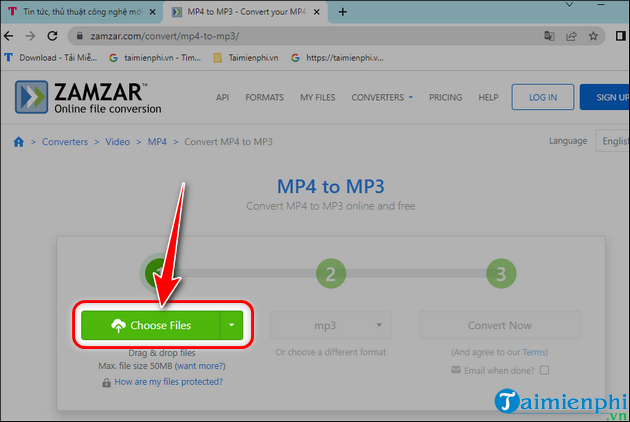
- Open the converter and click Choose Files.
- Select the MP4 on your computer or phone and confirm that MP3 is the output format.
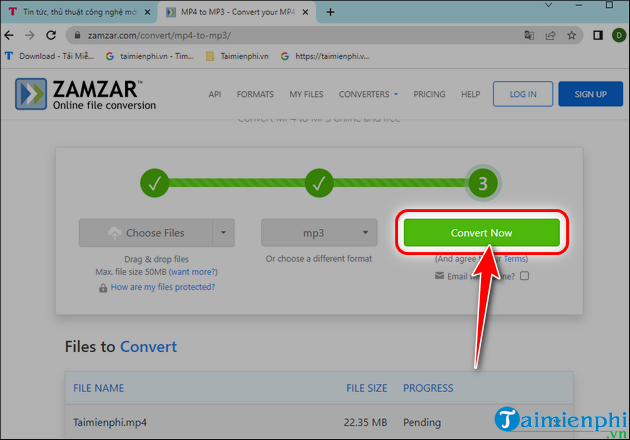
- Click Convert Now. Keep the browser tab open while the file uploads and converts.
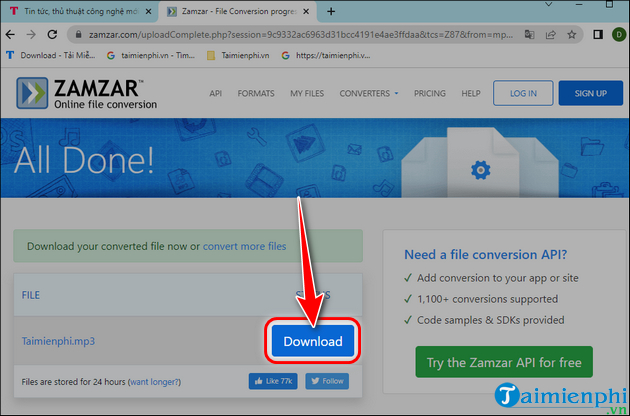
- When processing finishes, click Download and save the MP3.
Option 2: Use ConvertFiles
ConvertFiles supports direct MP4-to-MP3 conversion. Its current public page states an upload limit, but limits and controls can change, so read the value displayed beside the upload box.
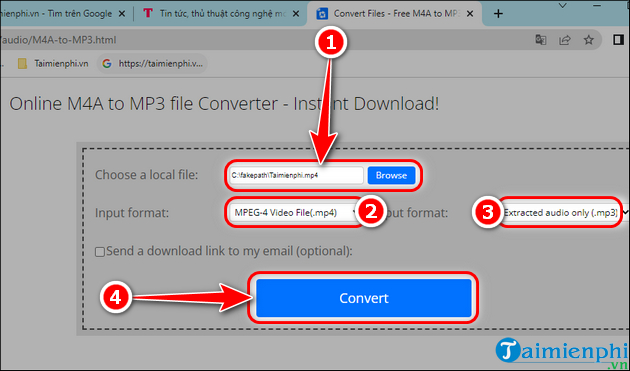
- Click Choose File or Browse and select your video.
- Set the input to MP4 and the output to MP3 if the page does not detect them automatically.
- Click Convert.
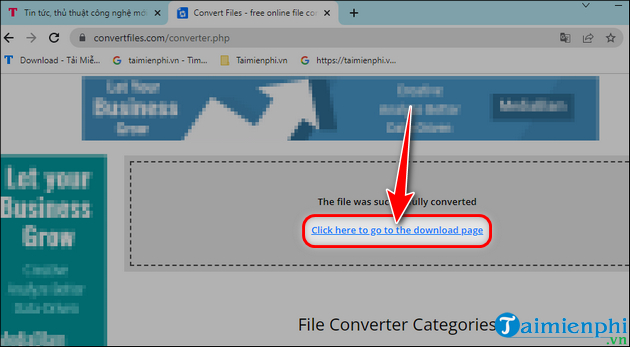
- Wait for the completion page, then open the supplied download page.
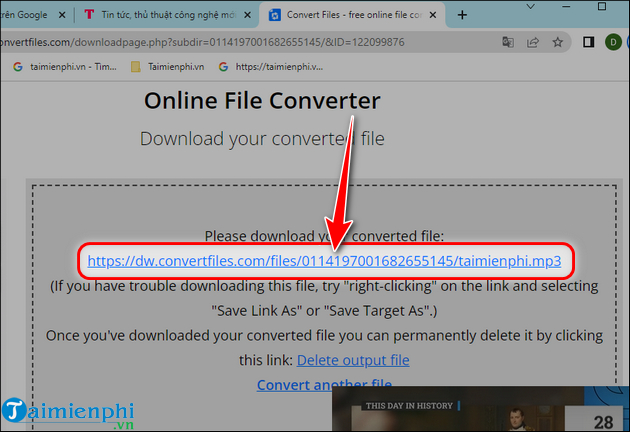
- Click the link that ends in
.mp3.
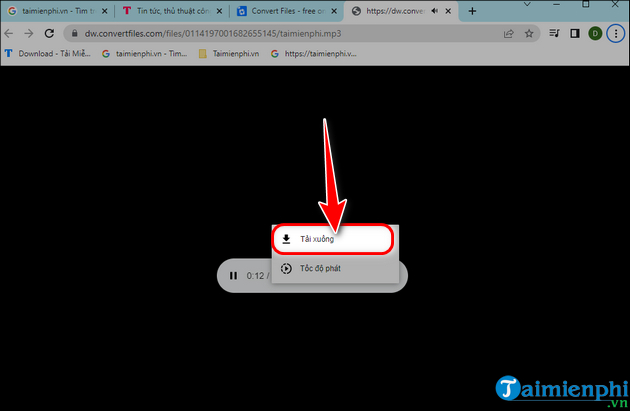
If the MP3 opens in the browser's audio player instead of downloading, use the player's menu.
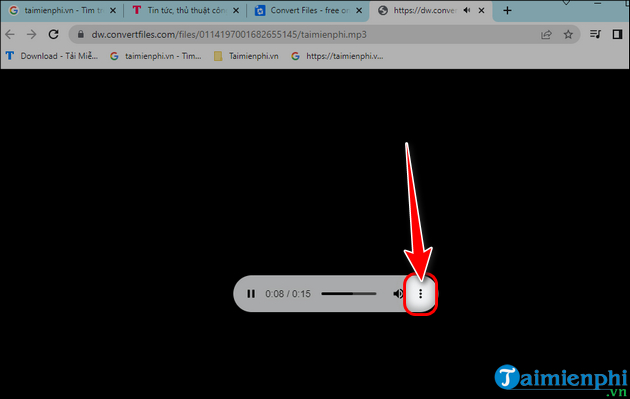
- Select Download and choose a folder.
Option 3: Use Online-Convert
Online-Convert's MP4-to-MP3 tool is useful when you want optional audio settings as well as basic conversion.
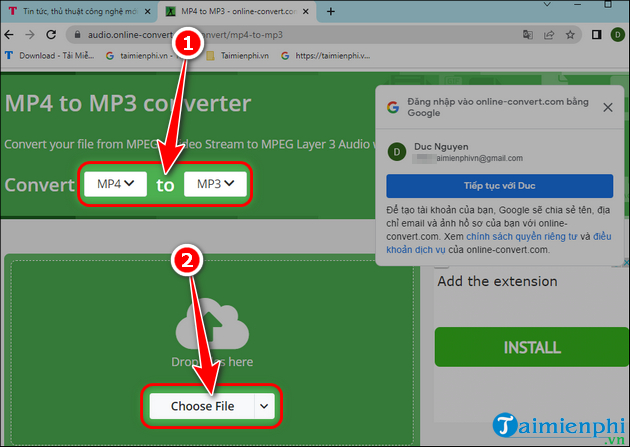
- Open the MP4-to-MP3 page, click Choose File, and select the MP4. Make sure the page shows MP3 as the destination.
- Review the optional audio settings. Keep the original sample rate and channel layout unless you have a specific reason to change them. A lower bitrate saves space but can reduce clarity.
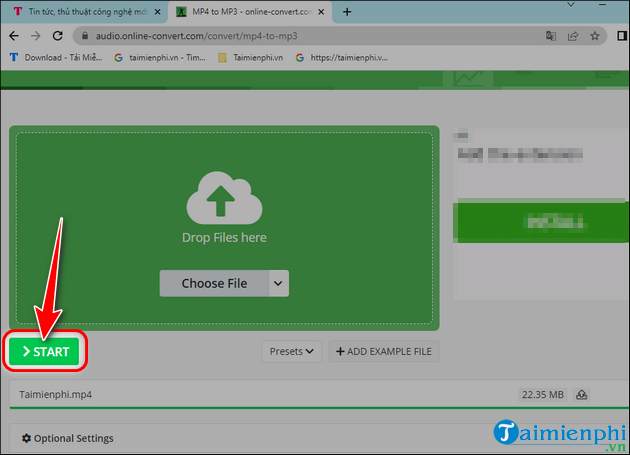
- Click Start and wait for the upload and conversion to finish.
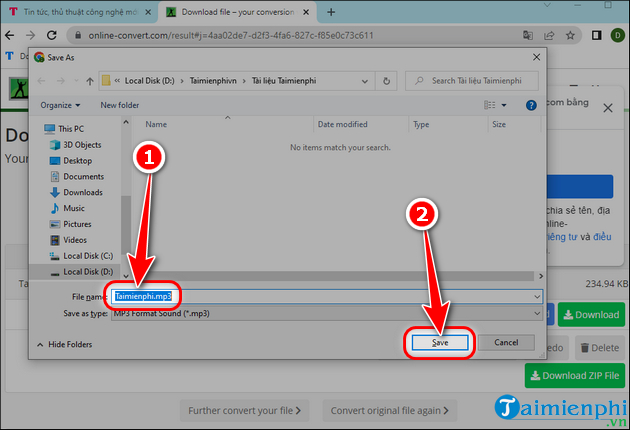
- Download the result. If the download starts automatically, verify the filename and destination before closing the page.
How to choose MP3 quality
A higher bitrate generally preserves more audio detail but creates a larger file. Spoken lectures and voice notes can tolerate more compression than music. If the converter offers an “automatic” or “same as source” option, use it for the first attempt, then listen before deciding whether a smaller output is acceptable.
Do not choose a very high MP3 bitrate expecting it to restore missing detail. The converted file cannot contain more real information than the audio track in the MP4.
Check the downloaded MP3
- Play the beginning and end to confirm the full audio was exported.
- Jump to several points and check for silence, glitches, or drift.
- Confirm that the filename ends in
.mp3and that your media player recognizes it as audio. - Compare the duration with the video. Small display differences can occur, but a much shorter file usually indicates a failed conversion.
- Delete the online job or uploaded file if the service provides that control.
When an online converter is not the best choice
Use a local tool for private recordings, batch jobs, unreliable internet connections, or videos larger than the site's limit. Format Factory can handle local conversion; see our guide to using Format Factory for video processing. You can also compare video-to-MP3 desktop converters or review other online file-conversion tools.
Avoid sites that ask you to install a browser extension, notification permission, “download manager,” or unrelated executable before conversion. A legitimate browser converter should accept the file and return the result without those additions.
Related Articles
 The Quickest and Simplest Way to Convert MP4 to MP36 minutes read
 Convert PDF Files to Image Files Easily and Quickly4 minutes read
 How to Convert MP4 to MP3, the Best Software to Convert MP47 minutes read
 How to Convert MOV to MP4 and HD MP4 with Quicktime Pro 7: Clear Instructions8 minutes read
 How to Convert AI Files to PNG, JPG Without Software5 minutes read
 Guide to Convert MP4 to 3GP3 minutes read
Reader Comments 0
Sign in with email or Google to join the discussion.