Table of Contents
Convert PDF pages to PNG when you need sharp screenshots, diagrams, or transparency support; choose JPEG for photographs and smaller files; use TIFF only for workflows that specifically require it. Each PDF page normally becomes a separate image.
Choose resolution and format first
| Format | Best for | Tradeoff |
|---|---|---|
| PNG | Text, line art, interface screenshots | Larger than JPEG for photos |
| JPEG | Photos and general sharing | Lossy compression can blur small text |
| TIFF | Publishing, scanning, archival workflows | Large files and less convenient sharing |
For screen display, choose a pixel size appropriate to the destination. For print, set sufficient resolution and check physical dimensions. Increasing the resolution cannot restore detail that is absent from the original scan.
Method 1: Export with PDF-XChange Editor
PDF-XChange Editor can export selected pages to common image formats and provides controls for page range, resolution, naming, and destination. Follow the illustrated guide to export PDF pages as images with PDF-XChange.
This is useful for local conversion because the PDF does not need to be uploaded. Obtain the application from its official publisher and verify whether the required export feature is included in the installed license.
Method 2: Use a maintained desktop PDF application
In Adobe Acrobat or another supported editor, look for Export a PDF, Convert, or Export to Image. Select JPEG, PNG, or TIFF, choose the page range and quality, then save to a new folder. Avoid extracting embedded images if you actually need a rendered copy of each complete page; those are different operations.
Archived Free PDF to JPG workflow
The older program shown below could add one PDF or a folder, select an output folder, choose an image format and dimensions, then start conversion.
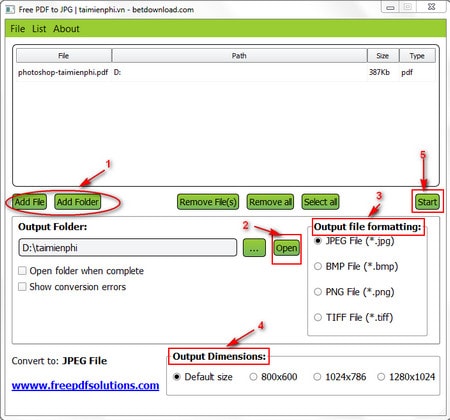
Its current publisher and official download source were not established in the source article. Do not install an executable from a mirror solely to follow this screenshot. Use a current, signed application instead.
Method 3: Use an online converter
Most online tools let you upload a PDF, choose PNG or JPEG, convert, and download either individual pages or a ZIP archive. Use this route only for non-sensitive documents and verify the site's domain, pricing, size limits, file-retention policy, and download controls.
Archived Zamzar interface
The old Zamzar process required choosing a file and output format, entering an email address, receiving a link, then downloading images or a ZIP:
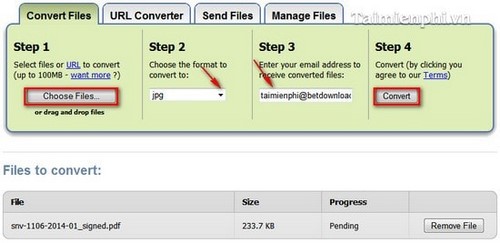
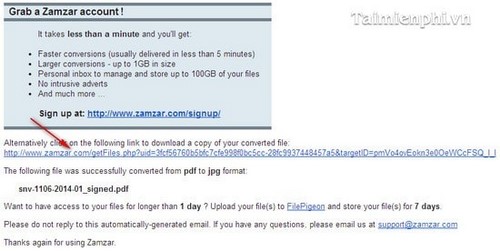
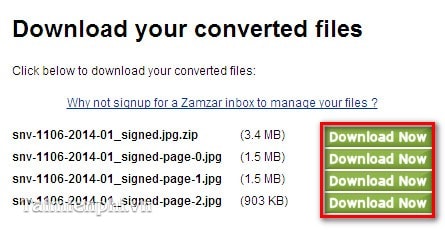
Current services usually provide a direct browser download and may not require email. Do not enter an email password on a converter site or trust an unexpected attachment. Check the present interface rather than relying on these old screenshots.
Convert only selected pages
Use the converter's page-range field when available. If it only exports the entire document, create a copy containing the required pages first. The guide to cropping and adjusting PDF pages can help with page boundaries, while a proper extract/split tool is needed to remove unwanted pages.
Preserve readability
- Use PNG for small text and diagrams where JPEG artifacts are noticeable.
- Do not repeatedly save a JPEG at lower quality.
- Check page rotation and crop boxes before export.
- Use sequential filenames with leading zeros, such as
page-001.png. - Keep the source PDF; images lose selectable text, links, bookmarks, forms, and document structure.
- Add alternative text when the exported image is placed on a web page or in a document.
Privacy and copyright
Use local conversion for contracts, identity records, financial information, medical documents, client files, and other confidential material. Converting a page to an image does not remove confidential text or grant permission to reuse protected content.
If you need one combined PDF from several images, use the reverse workflow in how to convert JPG images to PDF. After export, open several pages at full size and verify dimensions, order, color, sharpness, and filenames before deleting any working files.
Related Articles
 How to Convert a JPG Image to a PDF5 minutes read
 How to Convert a JPG File to PDF with Just One Operation3 minutes read
 Tips for Converting and Editing PDF Files Easily7 minutes read
 How to Convert PNG Images to PDF Easily and Quickly4 minutes read
 3 How to Convert Image Files to Cad Most Accurately4 minutes read
 How to Convert CAD Files to Word the Fastest and Most Standard Way4 minutes read
Reader Comments 0
Sign in with email or Google to join the discussion.