Table of Contents
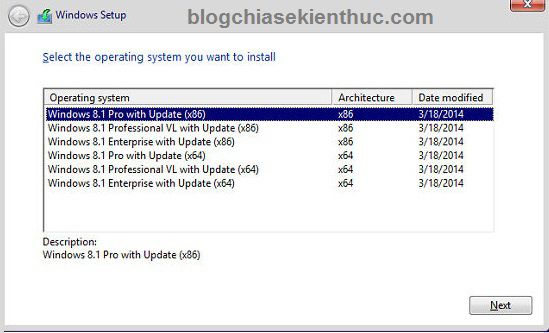
A Windows All-in-One installer stores multiple selectable Windows images in one installation package. A practical starting point is to combine compatible editions of the same Windows release and architecture into one install.wim. Combining arbitrary releases and x86/x64 images is more complex and should not be assumed to work with one unchanged Setup environment.
Check the original Microsoft ISO first: it may already contain the editions you need. Custom media does not grant licenses for the included editions.
What to prepare
- Official source installation media for the editions you are authorized to use.
- A supported technician PC and compatible Windows deployment tools.
- A working folder with enough space for the full media tree and exported images.
- A disposable VM for testing each edition and intended boot mode.
Keep source ISOs untouched. Work on copies and record their release, architecture, and edition. The older screenshots here use Windows 8.1 and historical utilities; they do not establish support for every current Windows release.
1. Install deployment tools
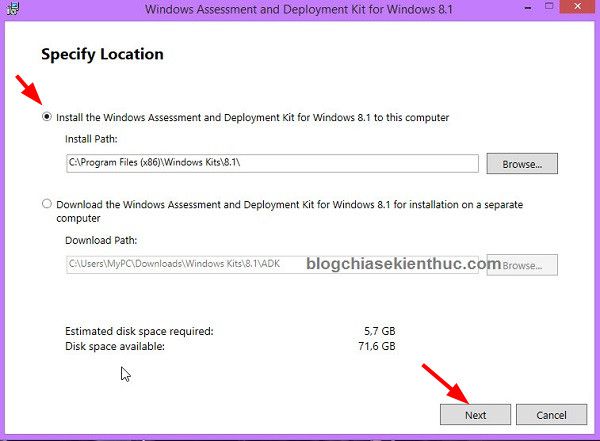
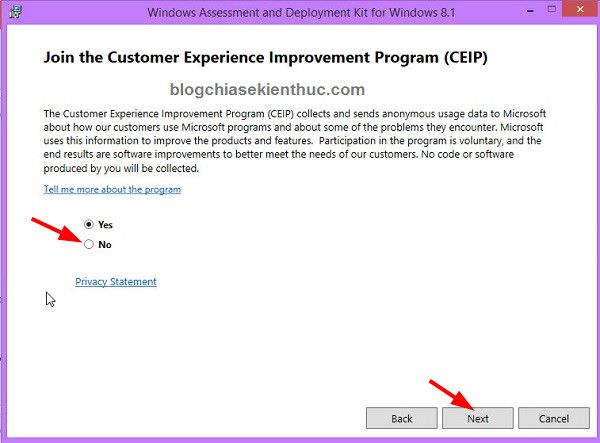
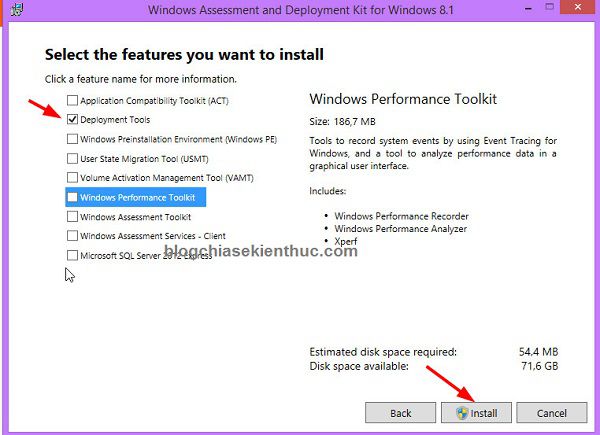
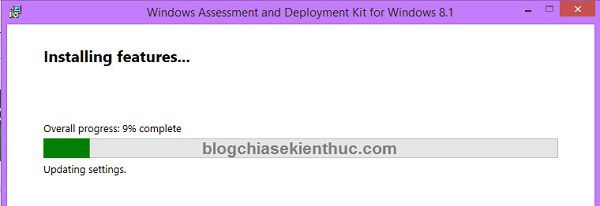
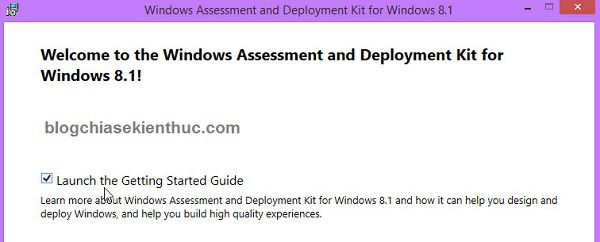
Use a Windows ADK version appropriate to the image and select Deployment Tools when needed for tools such as Oscdimg. Follow the actual installer's requirements and license terms rather than copying every old checkbox.
2. Copy a complete base installer
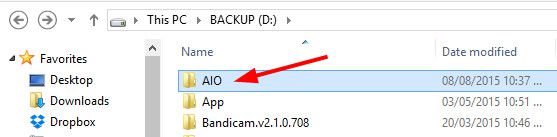
Create a working folder such as D:AIO. Mount the base ISO and copy its entire contents into that folder. Retain its boot, EFI, sources, and Setup files.
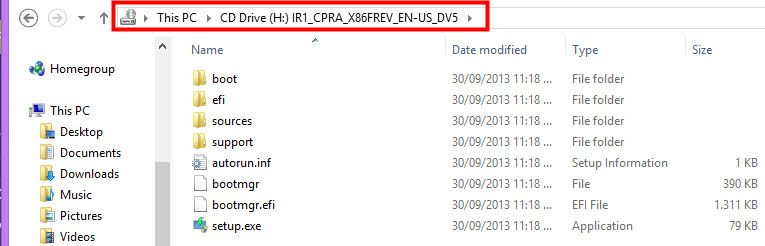
If the working image is read-only after copying, make the working copy writable. Check whether sources contains WIM or ESD installation images before proceeding.
3. Inspect source image indexes
Open an elevated deployment-tools command prompt. The screenshots show an older environment; current commands below use DISM rather than ImageX.
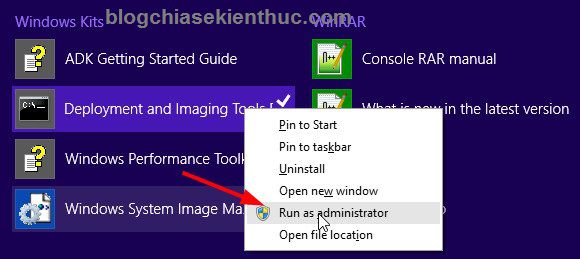

For an additional ISO mounted as H:, inspect its image metadata:
dism /Get-WimInfo /WimFile:H:sourcesinstall.wimSubstitute the actual drive and filename. Identify the index for the desired edition; index 1 is not necessarily the edition you want.
4. Export the desired edition into the working WIM
The following example exports source index 1 into the destination image. Check all paths and the selected index first:
dism /Export-Image /SourceImageFile:H:sourcesinstall.wim /SourceIndex:1 /DestinationImageFile:D:AIOsourcesinstall.wim /DestinationName:"Additional edition" /CheckIntegrityUse a descriptive destination name. Repeat for other compatible images, then inspect the resulting file:
dism /Get-WimInfo /WimFile:D:AIOsourcesinstall.wimUse Microsoft's DISM image-management reference for supported formats and options. If the base media contains install.esd, plan the replacement explicitly; do not leave competing image files and assume Setup will choose the intended one.
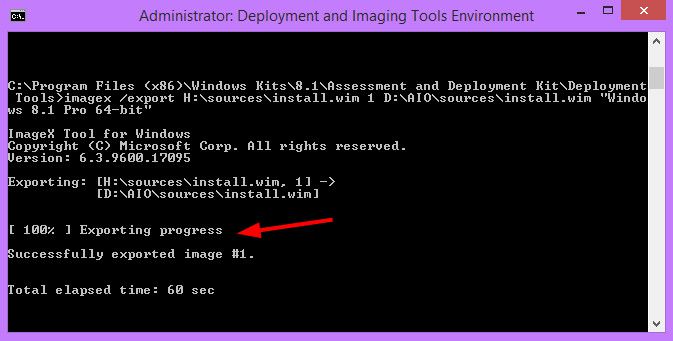
The old screenshot uses ImageX. Its command paths and index assumptions should not be copied as a current universal recipe.
5. Build bootable media
Packaging a folder as an ordinary data ISO does not necessarily make it bootable. The build must include the boot entries needed for the intended firmware.
Oscdimg supports BIOS, UEFI, and multi-boot image options. A BIOS-only command using etfsboot.com does not by itself add UEFI boot. Use the documented Oscdimg boot options with boot files from the base media, and save the output ISO outside the input folder.
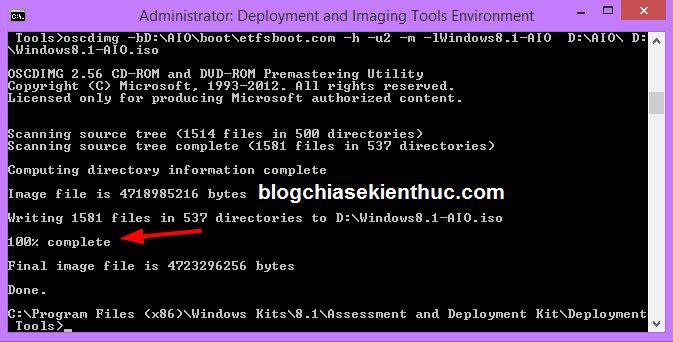
For USB deployment, account for the file system: FAT32 cannot store an individual file of 4GB or larger. Use a creation method that handles your installation image correctly. The Windows USB creation guide explains the normal media workflow; a customized image still requires testing.
Older GUI alternatives
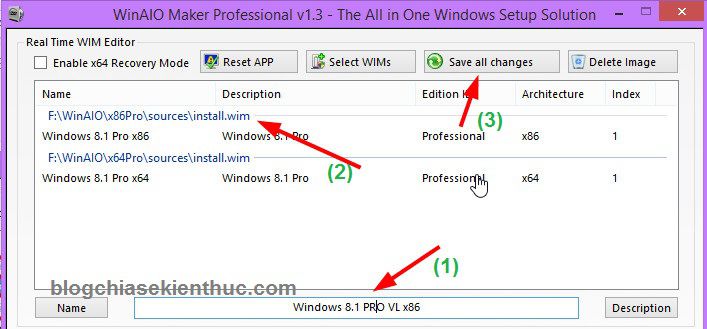
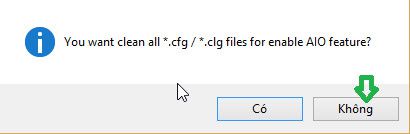
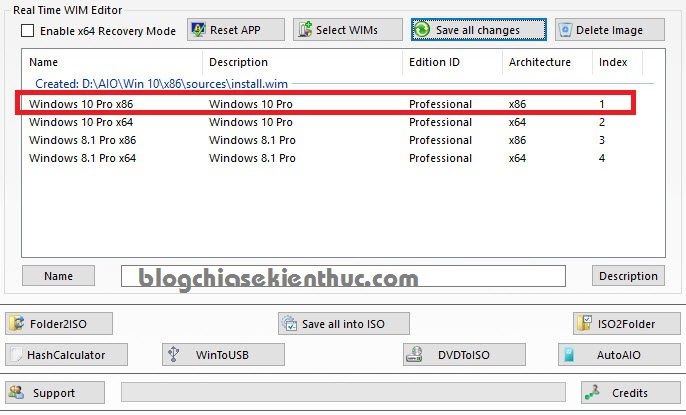
The original article used WinAIO Maker Professional to select WIM files, edit edition names, and save a combined ISO. These screenshots are retained to explain that historical workflow. Check the utility's current source and compatibility before relying on it; do not assume it handles a modern image merely because it accepts the file.
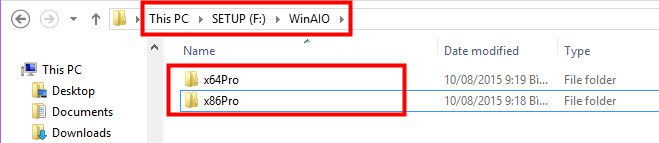
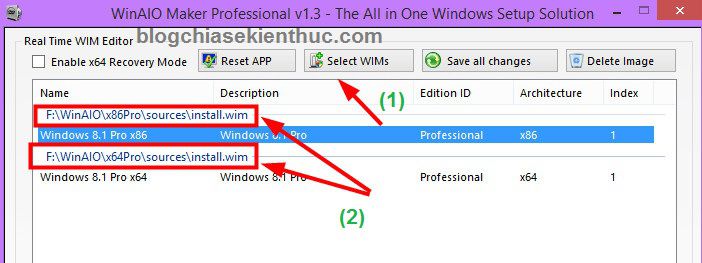
In that interface, image selection is followed by naming and saving. Verify which image each label describes; renaming an entry does not change the Windows edition inside it.
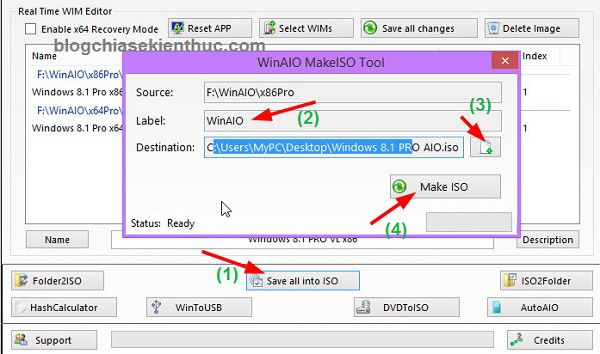
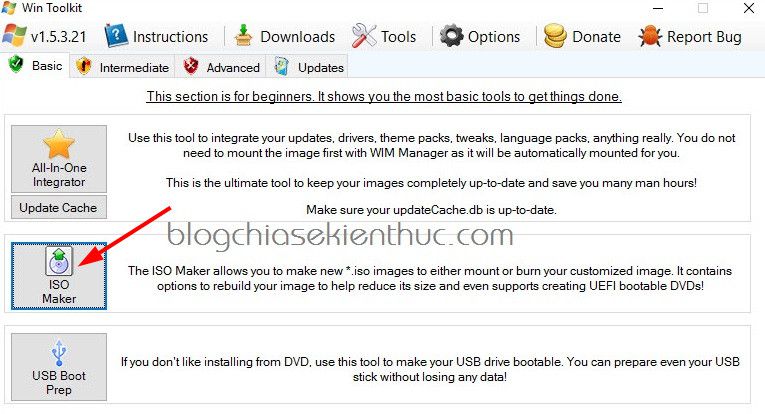
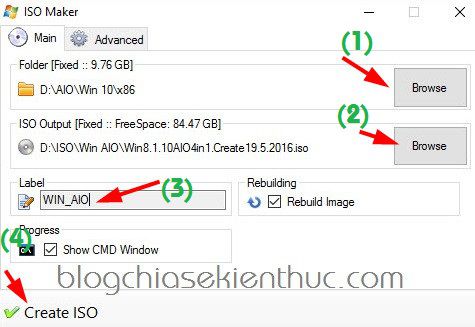
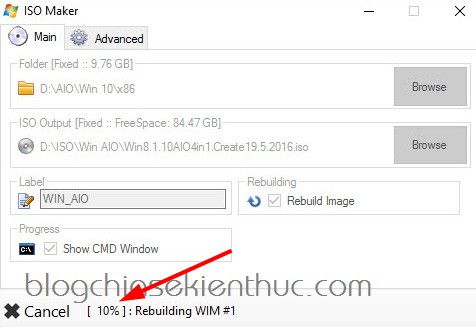
WinToolkit's illustrated ISO Maker is another older packaging interface. It takes a complete media folder, output path, and label. As with Oscdimg, correct boot configuration matters in addition to creating the ISO file.
Test every intended installation choice
Boot the completed ISO in a disposable VM and verify that Setup offers the expected editions. Test an installation of each included image and check the resulting edition. Repeat in each firmware mode you plan to support.
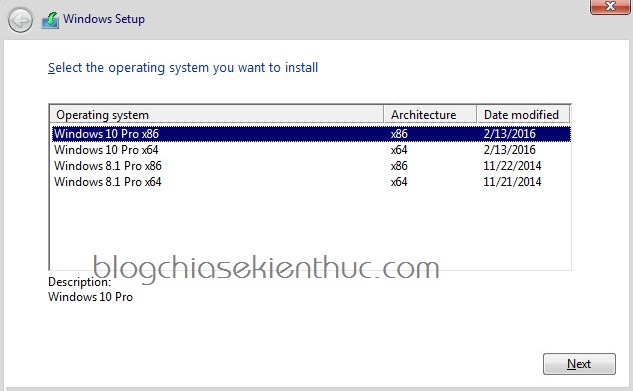
An edition-selection screen is not proof that all entries install successfully. If working with mixed architectures or different Windows releases, use a separate tested deployment design rather than extending this basic same-release workflow blindly. For background on firmware choices, see UEFI and legacy Windows installation media.
Related Articles
 How to fix corrupted macOS installer errors
 Microsoft allows users to reactivate Windows App installer
 How to turn off Windows Installer to block MSI package
 Can You Delete the Windows Installer Folder? Safer Cleanup Options
 Install Ubuntu in Windows using the Wubi Installer
 Fix Opera installer crashes downloading on Windows
Reader Comments 0
Sign in with email or Google to join the discussion.