Table of Contents
To restore a Windows system image on a UEFI/GPT computer, boot compatible recovery media, select the correct archive, and restore the required system partitions to the intended disk. Acronis True Image can perform this recovery, but success depends on the image, hardware, boot configuration, and destination layout.
Back up destination files before recovery. Restoring partitions can overwrite them. The “100% successful” claim in older guides should not be treated as a guarantee.
Use a known and appropriate backup
Prefer a backup you created or an image supplied through a verified manufacturer or organization process. The older Windows 8.1 example in these screenshots is not a recommendation to install a publicly shared image or an unsupported Windows release.
A matching checksum can help detect a damaged or mismatched download; it does not independently prove that the image is trustworthy. Check that the recovery tool supports the archive format and that the target hardware can run the backed-up system.

1. Confirm the intended boot configuration
Check whether the backup represents a UEFI Windows installation and whether the destination disk is GPT. Do not blindly enable every firmware option containing “UEFI” or disable compatibility settings before understanding the existing configuration.
Use the computer manufacturer's documented one-time boot menu to start the rescue media in the intended mode. The UEFI and legacy BIOS guide explains the distinction.

2. Inspect the destination without deleting it
In the rescue environment, identify the destination disk by its model, size, and partition layout. Drive letters may differ from the ones in normal Windows.
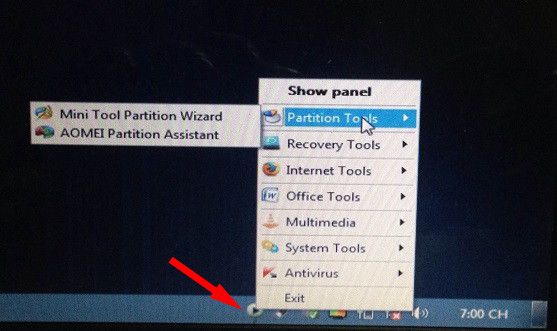
If the disk is already GPT, there is no reason to convert it again. If it is MBR, review the required migration or whole-disk recovery process before making changes. A partition-style conversion is separate from selecting a recovery archive.
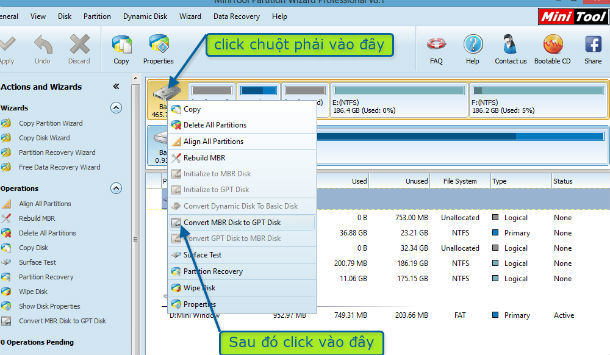
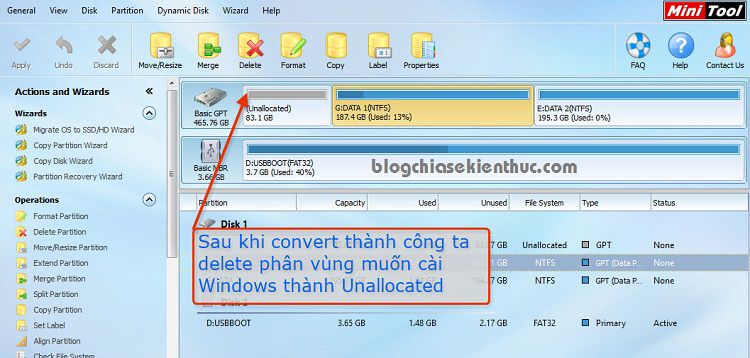
Do not delete every partition smaller than 500MB. Those may be boot, recovery, reserved, or manufacturer partitions. Pre-deletion is not a universal requirement for Acronis recovery. Review the wizard's proposed layout first.
3. Select the archive in Acronis
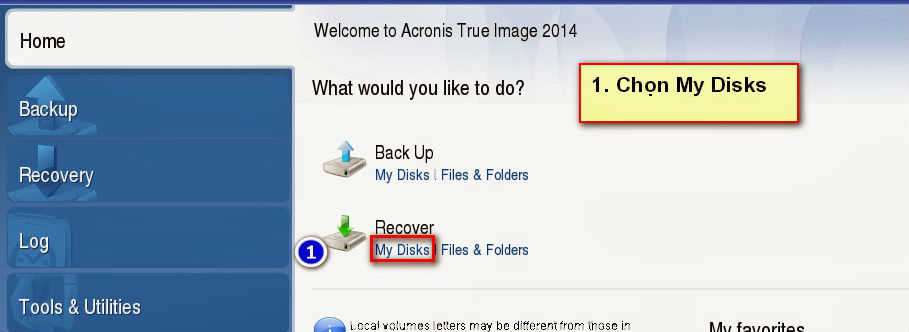
Open Acronis True Image and select the disk-recovery function. The older interface uses Recovery > My Disks.
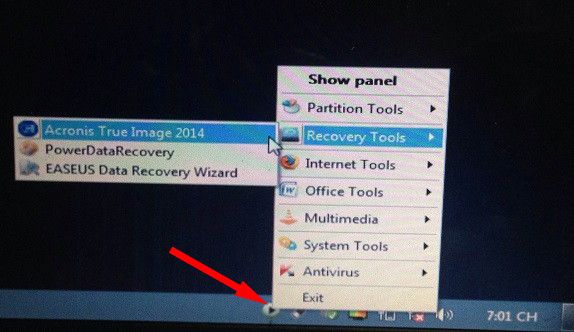
Browse to the existing TIB archive and select the intended recovery point. Check the backup's contents and date.
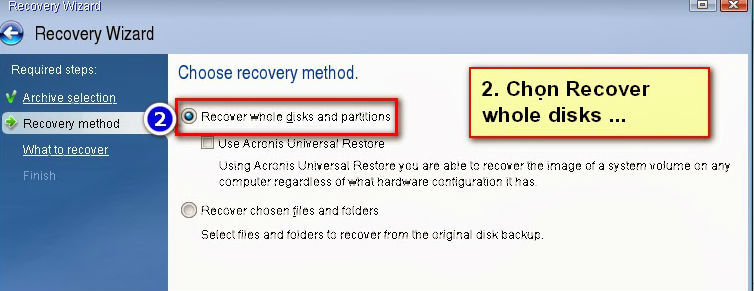
Choose Recover whole disks and partitions for a system image rather than file-only recovery.
4. Select and map the required partitions
Inspect the archive's partition list. A UEFI system normally relies on its EFI System Partition and Windows partition, with other components depending on the backup and recovery plan. The three partitions in this old example are not a universal number.
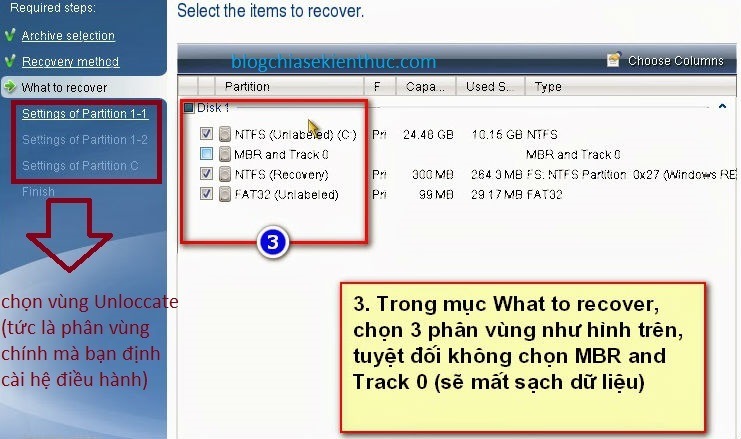
Whole-disk recovery and selected-partition recovery have different effects. Boot-record choices such as MBR and Track 0 should be reviewed in the context of the selected operation, rather than treated as a checkbox that always causes or prevents data loss.
For each selected source partition, use New location to assign its destination. Review the resulting sizes and positions. Prepared unallocated space can be used by the wizard to create partitions; it is not an existing formatted volume.
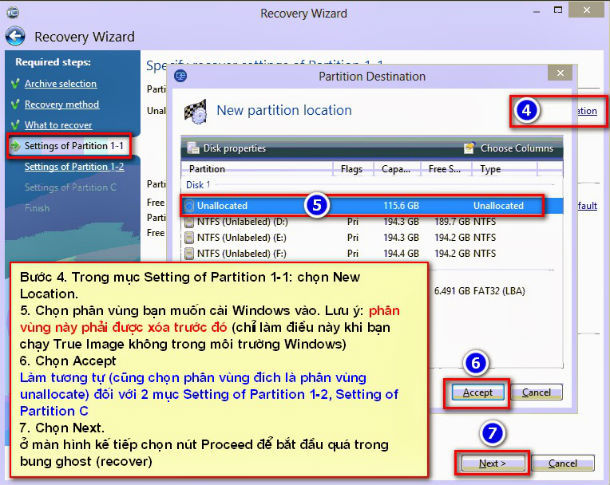
Do not map multiple source partitions onto the same existing destination partition. Do not overwrite the physical disk containing your only copy of the backup.
5. Review the summary and restore
Confirm the archive, recovery point, destination disk, final layout, and all overwrite operations. Cancel if unrelated data would be affected. Start recovery only when the summary matches your plan, and keep power and storage connected until completion.
Afterward, start the restored disk through its UEFI Windows Boot Manager entry. Check that Windows loads and that files, applications, and drivers are present.
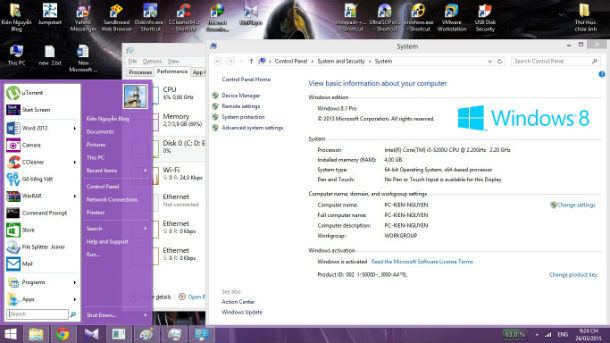
The desktop screenshot shows the older demonstration image; it is not evidence that another image or hardware combination will work.
Check partition sizes after recovery
If the restored Windows partition is smaller than intended, inspect the remaining unallocated space before resizing it. Back up first. Extending a partition depends on available space and layout; do not delete an intervening recovery or EFI partition simply to make space contiguous.
Older video demonstration
This video is a visual reference to the older procedure. Follow the verified layout for your own archive rather than copying every partition choice.
For additional context, see the TIB recovery overview and Acronis system-recovery documentation. If Windows fails to boot, check the firmware mode and recovered boot partitions before repeating the restore.
Related Articles
 How to check whether Windows is booting in UEFI or Legacy mode
 How ghost hard drive Win 7 easy and safe with AOMEI Backupper
 How to create and extract Ghost in UEFI standard and standard GPT hard drive
 Restore a GHO Windows Image on UEFI: Compatibility and Boot Checks
 How ghost hard drive in Windows 10 with EaseUS
 Restore a UEFI TIB System Backup with Acronis True Image
Reader Comments 0
Sign in with email or Google to join the discussion.