Table of Contents
Windows power settings control the balance between responsiveness, energy use, and battery life. Balanced is a sensible starting point for everyday use. Choose a more efficient setting when battery life matters, and test a performance-focused setting when a demanding task benefits from it.
The traditional Control Panel plans are Balanced, Power saver, and High performance. “Power Server” is a mistranslation of Power saver. Some computers expose fewer plans or use manufacturer-specific controls.
Open the power controls
Press Windows + R, enter powercfg.cpl, and press Enter to open Control Panel's Power Options.
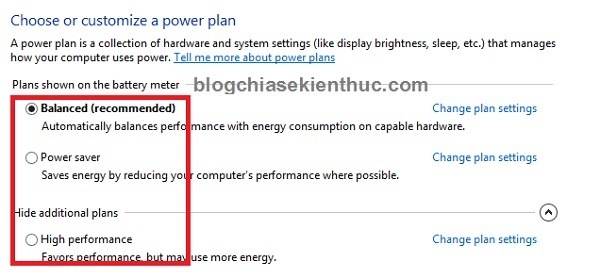
Traditional Windows Power Options.
On Windows 11, also check Settings > System > Power & battery > Power mode, or the corresponding Power page on a device without a battery. Modern power modes and classic power plans are related controls, but their names and availability differ. See Microsoft's power-mode instructions for your version.
Compare the classic power plans
| Plan | Purpose | When to try it |
|---|---|---|
| Balanced | Adjusts power use to the workload | Normal desktop work and mixed use |
| Power saver | Favors lower energy use, potentially reducing responsiveness | Light work when conserving battery matters |
| High performance | Favors responsiveness, potentially using more power | A demanding task where testing shows a useful improvement |
High performance does not guarantee that the processor stays at its maximum clock, nor does selecting it automatically damage the computer. Actual behavior depends on the hardware, firmware, workload, thermal limits, and plan settings.
A performance plan cannot remove limits imposed by insufficient cooling, a slow storage device, or too little memory. If the PC is slow, use the broader Windows performance troubleshooting guide to identify the bottleneck.
Compare behavior on your own computer
Open Task Manager with Ctrl + Shift + Esc and view the Performance page while repeating the same task under different settings. Compare task completion time, fan noise, responsiveness, and battery use where relevant.
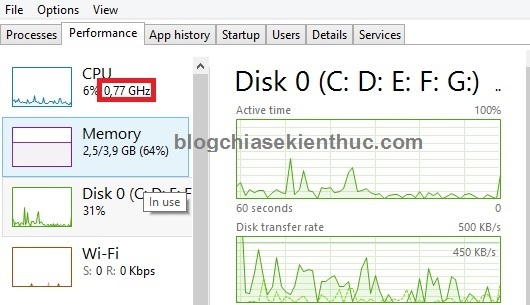
Older example of processor behavior under a power-saving plan.
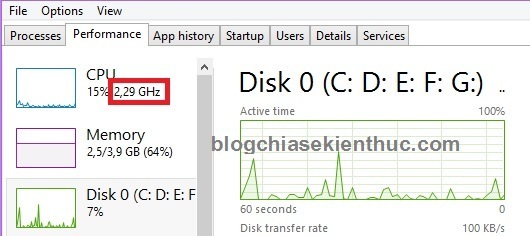
The frequencies shown in these older screenshots apply to that test system. They are not expected clock speeds for every processor or proof that a particular plan is working correctly. A low idle clock can be normal.
Adjust screen and sleep settings
In classic Power Options, choose Change plan settings for the active plan. Set reasonable display-off and sleep times, checking battery and plugged-in choices separately when available. Review advanced settings only when you understand their effect.
Reducing display brightness can be useful when battery life matters. For a practical example, see adjusting laptop brightness; exact keys and controls vary by model.
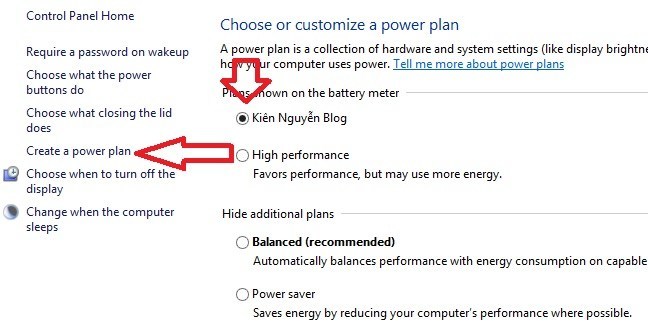
You can create a custom plan where Windows offers that option, but a descriptive name does not change its behavior. The settings inside it determine the result.
Optional: switch classic plans with a shortcut tool
The original article uses Sordum's Switch Power Scheme. It is an optional convenience for people who often switch classic plans; Windows' own controls remain sufficient for ordinary changes.
Download from the publisher, extract the archive, and run the executable appropriate to your Windows architecture. The screenshots below show an older release and may list more plans than your computer has.
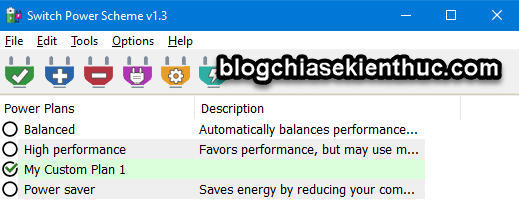
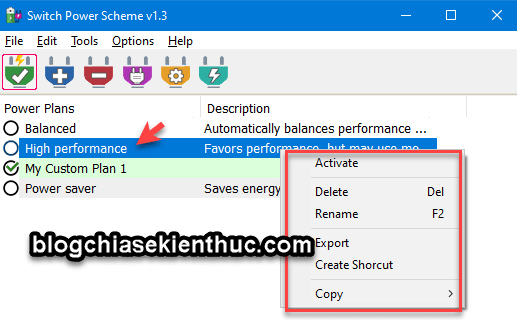
Right-click an available plan and select Activate, then confirm that it becomes the selected plan.
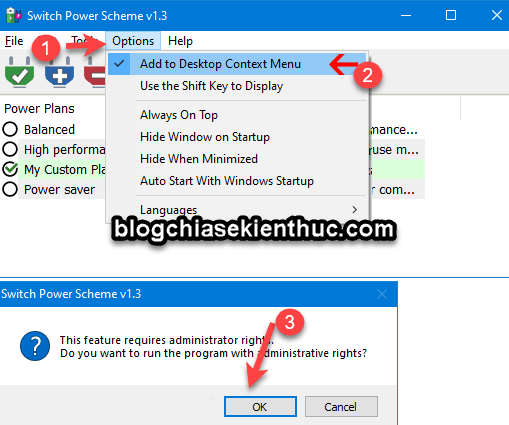
If desired, its Options menu can add plan switching to the desktop context menu. The older interface calls this Add to Desktop Context Menu.
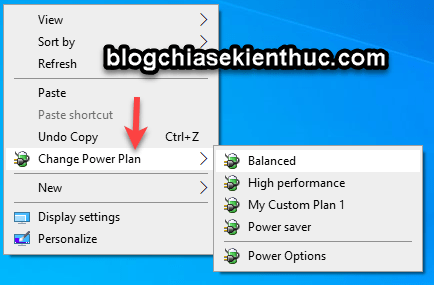
Use Balanced as a baseline, change one setting at a time, and keep the configuration that provides a useful benefit for your actual work. If a plan is missing, check the device's supported power model and manufacturer guidance before trying to force additional plans.
Related Articles
 How to check for simple Linux server performance
 Steps to add/remove 'Maximum processor state' from Power Options in Windows
 Steps to Fix 'There Are Currently No Power Options Available' error on Windows 10
 Fix 'There Are Currently No Power Options Available' error on Windows 10/11
 Set up a separate power source for Windows 7 on Laptop?
 Steps to add/remove 'Link State Power Management' from Power Options in Windows 10
Reader Comments 0
Sign in with email or Google to join the discussion.