Table of Contents
Black Myth: Wukong requires a 64-bit Windows PC, 16GB of RAM, and 130GB of free storage at minimum. A GTX 1060 6GB or RX 580 8GB meets the published minimum for 1080p at the Medium preset, while 4K and full ray tracing require substantially faster hardware. The developer's reference results use an upscaler such as DLSS, FSR, or XeSS, so native-resolution performance can be lower.

Official standard PC requirements
| Component | Minimum: 1080p Medium | Recommended: 1080p High | Ultra: 4K Very High |
|---|---|---|---|
| Operating system | Windows 10 64-bit | Windows 10 64-bit | Windows 10 64-bit |
| Processor | Intel Core i5-8400 or AMD Ryzen 5 1600 | Intel Core i7-9700 or AMD Ryzen 5 5500 | Intel Core i7-9700 or AMD Ryzen 5 5500 |
| Graphics | GeForce GTX 1060 6GB or Radeon RX 580 8GB | GeForce RTX 2060, Radeon RX 5700 XT, or Intel Arc A750 | GeForce RTX 4070 or Radeon RX 7800 XT |
| Graphics memory | 6GB | 6GB | 12GB |
| System memory | 16GB RAM | 16GB RAM | 32GB RAM |
| Storage | 130GB; HDD supported, SSD preferred | 130GB SSD | 130GB SSD |
| DirectX | Version 11 | Version 12 | Version 12 |
Check the current listing on the Black Myth: Wukong Steam page before buying or upgrading. Available space must also cover future patches and temporary update files, so do not fill the drive to its limit.

Full ray-tracing requirements
| Target | Processor | Graphics | RAM |
|---|---|---|---|
| 1080p Medium, Low ray tracing | Core i5-9400 or Ryzen 5 1600 | GeForce RTX 3060 8GB | 16GB |
| 1080p Medium, Medium ray tracing | Core i7-9700 or Ryzen 5 5500 | GeForce RTX 4060 8GB | 16GB |
| 4K High, Very High ray tracing | Core i7-9700 or Ryzen 5 5500 | GeForce RTX 4080 SUPER 16GB | 32GB |
All three ray-tracing profiles call for a 130GB SSD. Full ray tracing is especially demanding, and upscaling or frame generation may be needed for an acceptable frame rate. NVIDIA explains the game's full-ray-tracing and DLSS implementation in its technical overview.
Can a laptop run Black Myth: Wukong?
A laptop can run the game if its actual CPU, GPU, memory, and cooling are sufficient, but a mobile GPU with the same product family name as a desktop card can perform differently. Also check the laptop GPU's configured power limit and VRAM, not only “RTX 4060” or another model label.
- Entry level: target 1080p with reduced settings and an upscaler. A laptop RTX 3060, 4050, or similar GPU may be workable, but test the specific machine.
- Comfortable 1080p: favor 8GB of VRAM, 16GB or more system RAM, dual-channel memory, and a sustained-performance cooling design.
- Ray tracing: expect a large performance cost. Disable it first if frame times are unstable.
- Storage: use an SSD and keep enough free space for installation and updates.

How to check whether your PC is ready
- Open Settings > System > About to see the processor and installed RAM.
- Press Windows + R, enter dxdiag, and check the Display tab for the GPU and graphics memory.
- In File Explorer, confirm that the destination drive has well over 130GB free.
- Update the graphics driver from NVIDIA, AMD, or Intel.
- Run the free Black Myth: Wukong Benchmark Tool on Steam at your intended resolution and preset.
If you need help identifying a component, follow these four ways to check PC hardware details. A benchmark is more useful than comparing model names alone because it exposes thermal throttling, memory configuration, and laptop power limits.
Settings to improve performance
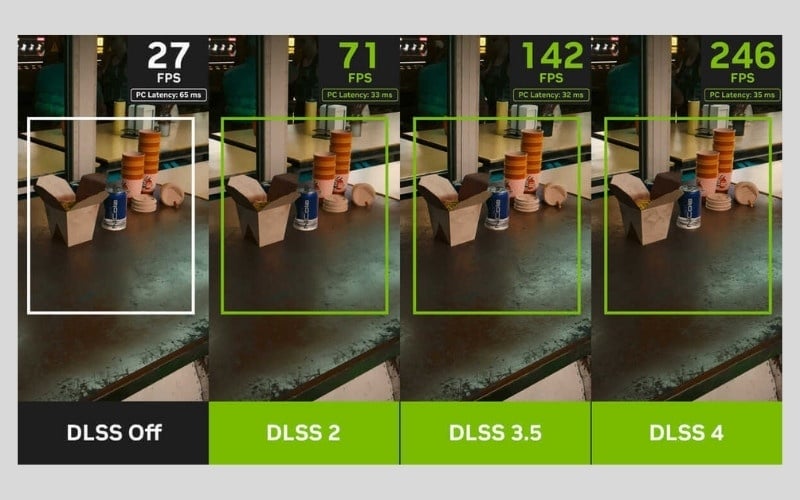
- Choose the correct upscaler: use DLSS, FSR, or XeSS as supported by your GPU. Start with Quality at 1080p or 1440p, then try Balanced if more performance is needed.
- Reduce full ray tracing: this is the first setting to lower or disable when GPU load is too high.
- Lower shadows, global illumination, and visual effects gradually: change one setting at a time and rerun the same benchmark scene.
- Use frame generation carefully: it can improve displayed frame rate on supported hardware, but it does not replace a stable base frame rate and may add artifacts or latency.
- Set a sensible frame-rate cap: a stable cap often feels better than frequent swings between high and low performance.
- Close unnecessary background workloads: browsers, recording tools, and launchers can consume RAM, CPU time, or GPU resources.
Motion blur is mostly a visual preference; disabling it can make camera movement look clearer but does not guarantee a meaningful performance increase. General advice for diagnosing low frame rates is also covered in the guide to reducing game lag through graphics settings.
Upgrade priorities

Upgrade only after identifying the limiting component:
- If GPU utilization stays near its limit, lower resolution or graphics settings before replacing other parts.
- If the system has less than 16GB RAM, memory is below the published minimum.
- If loading stutters and the game is on an HDD, moving it to an SSD is a practical first step.
- If the CPU or GPU overheats and reduces clock speed, clean the cooling system and correct airflow before buying faster hardware.
- When replacing a graphics card, verify power-supply capacity, connectors, case clearance, and CPU balance.
The published specifications are reference points, not guarantees for every scene or laptop. Use the benchmark tool, monitor frame-time consistency, and select the visual settings that deliver the experience you prefer.
Related Articles
 Black Myth Wukong Minimum System Requirements4 minutes read
 Download, Install and Play Black Myth Wukong on PC, Laptop: Step-by-Step Guide6 minutes read
 Tips for Playing Black Myth Wukong for Newbies: What You Need to Know7 minutes read
 Top Good Games Like Black Myth Wukong You Should Not Miss: What You Need to Know6 minutes read
 Gamers Experience Black Myth: Wukong at ROG Day Season 33 minutes read
 Black Myth: Wukong Steals the Record from Cyberpunk 2077: What You Need to Know5 minutes read
Reader Comments 0
Sign in with email or Google to join the discussion.