Table of Contents
A 3.5mm audio connection carries analog signals between a source, headphones, a microphone, powered speakers, or other equipment. The socket on the device is technically the jack and the metal connector on the cable is the plug, although “headphone jack” is commonly used for either. Compatibility depends on the number of contacts and their wiring—not just the 3.5mm diameter.
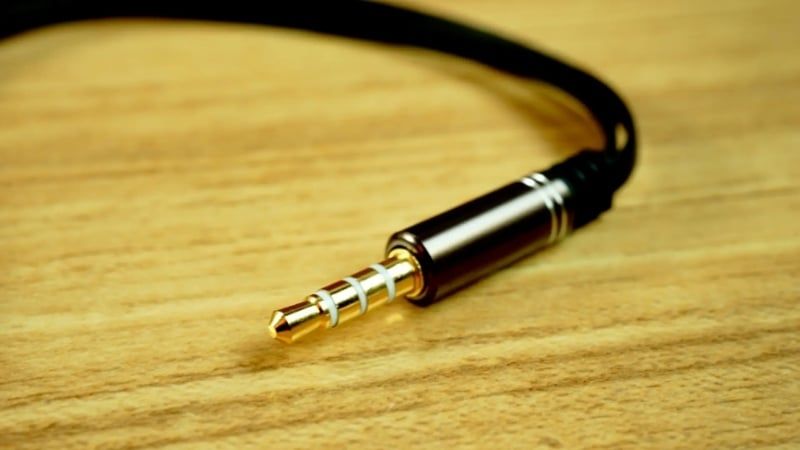
How to count the contacts
The letters describe conductive sections separated by insulating bands:
- T — tip
- R — ring
- S — sleeve
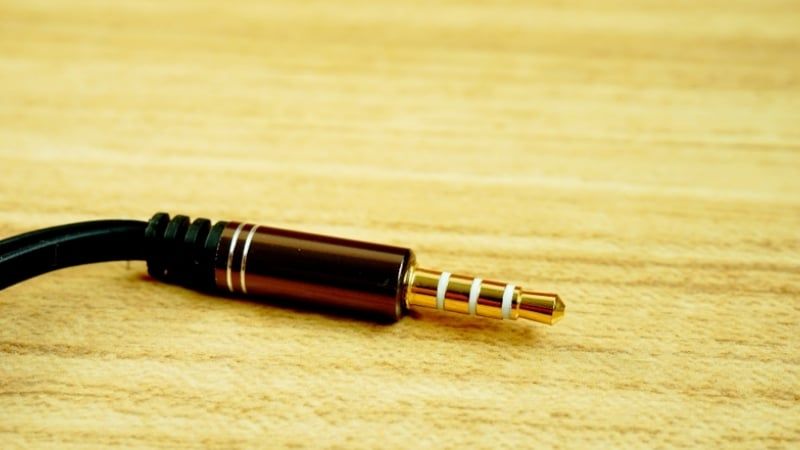
A TS plug has two contacts and one insulating band; TRS has three contacts and two bands; TRRS has four contacts and three bands. Count the metal sections rather than calling the bands “lines.”
TS: two contacts
A 3.5mm TS plug is commonly used for an unbalanced mono signal: tip carries the signal and sleeve is the return or shield. It appears on some mono microphones, trigger or control cables, and compact instruments. The same shape can be wired for a specialized purpose, so confirm the equipment manual before connecting it.
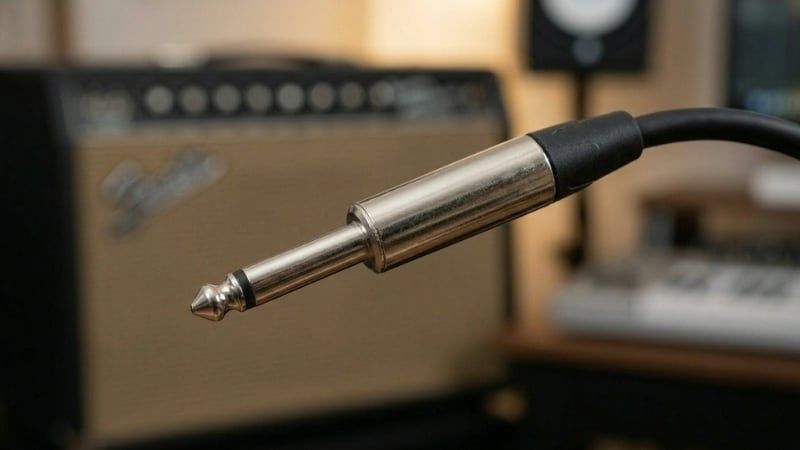
TS has a tip and sleeve separated by one insulating band.
TRS: three contacts
On ordinary headphones, a TRS plug normally carries left audio on the tip, right audio on the ring, and a common return on the sleeve. It does not provide a microphone contact in that stereo-headphone wiring.
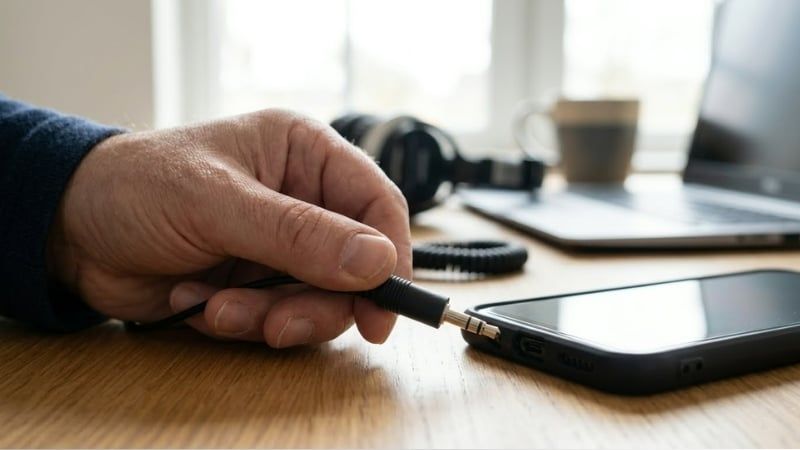
TRS does not always mean stereo. Professional and recording equipment may use TRS for balanced mono, an insert send/return connection, or another documented scheme. Plug diameter and contact count identify the mechanical format, not the signal assignment.
TRRS: four contacts for a headset
A common headset TRRS plug combines stereo headphones and a mono microphone in one connector. Current consumer devices usually use the CTIA/AHJ arrangement: tip is left, the first ring is right, the second ring is common, and sleeve is microphone. Older OMTP equipment swaps the microphone and common contacts.
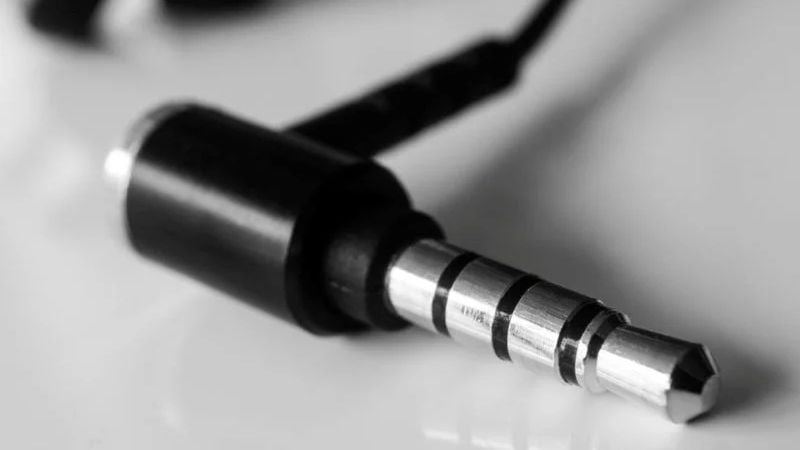
TRRS adds a fourth contact, but the pinout still has to match the device.
An OMTP headset in a CTIA jack may produce weak, distorted, or missing audio and an unusable microphone. A CTIA-to-OMTP adapter swaps the two relevant contacts. Some inline controls also use resistance values interpreted by the source, so volume buttons are not universally compatible even when audio and microphone work. The history of headphone-jack wiring standards provides more context.
Combo jack versus separate PC jacks
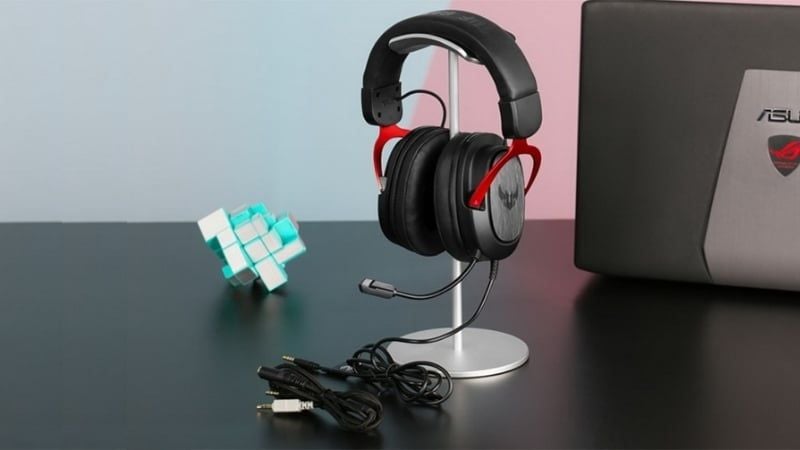
Many laptops and console controllers have one four-contact headset jack. Desktop PCs often use two three-contact sockets: typically green for headphone output and pink for microphone input. A TRRS headset needs a correctly wired headset splitter to separate its headphone and microphone signals.
Do not confuse this with a simple headphone Y-splitter, which duplicates stereo output for two listeners and does not create a microphone connection.
Why a plug can fit but not work
- The jack is output-only and has no microphone input.
- A TRS headset plug is being used where a TRRS microphone contact is required.
- CTIA and OMTP wiring do not match.
- The desktop needs a headset splitter, not a passive output splitter.
- The microphone requires plug-in power or a preamp the device does not provide.
- The contact spacing or case prevents full insertion.
- Software selected a different input or output device.
- Lint, oxidation, a bent contact, or cable damage interrupts the connection.
Remove the plug before cleaning. Do not use a metal tool inside a powered jack. If audio plays on one side only, test another known-good headset before assuming the port has failed.
Why wired 3.5mm headphones remain useful
An analog cable adds negligible transmission delay and requires no radio pairing or headphone battery for passive models. That is useful for games, instruments, calls, and long sessions. Total latency can still come from the game, operating system, DSP, USB interface, or audio driver, so “zero latency” is not literally accurate.
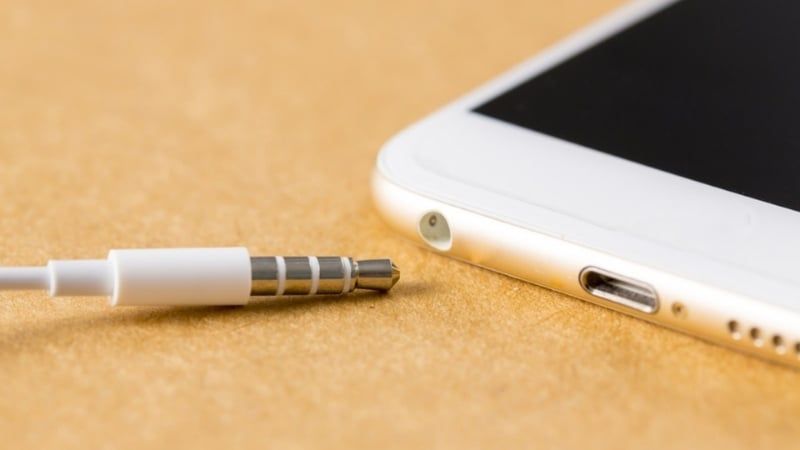
Sound quality depends on the recording, headphones, fit, source DAC, headphone amplifier, output impedance, noise, and available power. A 3.5mm connection is neither inherently low-quality nor automatically better than USB or wireless.
3.5mm versus USB-C audio
A 3.5mm jack provides analog audio after conversion by the source device's DAC. Most USB-C-to-3.5mm adapters contain their own DAC and headphone amplifier, so their quality and power vary. Some devices also support a passive USB-C analog-audio accessory mode, but support is inconsistent; an active adapter with explicit compatibility is usually safer.

USB headphones can add software controls, microphone processing, or virtual surround. Those features come from the USB audio device and software, not from the connector alone. A device needing lower interactive latency may instead use USB or a dedicated 2.4GHz wireless dongle. For Bluetooth tradeoffs, see what a Bluetooth version does and does not guarantee.
Using a 3.5mm-to-6.35mm adapter
A physical adapter can connect 3.5mm headphones to a compatible 6.35mm headphone output. Match TS or TRS contacts and make sure the larger socket is actually a headphone output—not a line input, instrument input, speaker output, or balanced mono connection.
A simple 6.35mm adapter normally carries headphone audio only; it does not make a consumer TRRS headset microphone compatible with professional microphone equipment.
Quick buying checklist
- Check whether the device has a stereo output, a microphone input, or a four-contact combo jack.
- Count contacts on the plug and confirm the documented pinout.
- For a desktop with two sockets, buy a CTIA headset splitter rather than a headphone-sharing cable.
- For USB-C, use an adapter known to work with the exact phone, tablet, or laptop.
- For demanding headphones, check impedance, sensitivity, and amplifier capability rather than assuming every 3.5mm output provides the same power.
Related Articles
 Hey Phone Manufacturer, Give Us Back the Headphone Jack!5 minutes read
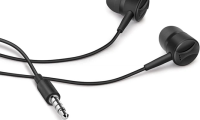 A Headphone Jack Explained6 minutes read
 Removing the 3.5mm Jack Is Making Things Worse: Explained9 minutes read
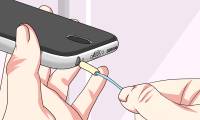 How to Clean the Headphone Jack: Clear Instructions7 minutes read
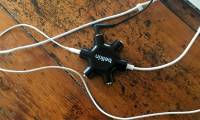 Headset Divider: Top 5 Best Headphone Divider 20196 minutes read
 How to Fix the Headphone Jack Problem in Computers That Do Not Hear5 minutes read
Reader Comments 0
Sign in with email or Google to join the discussion.