Table of Contents
To enable Gmail keyboard shortcuts on a computer, open Settings > See all settings > General, find Keyboard shortcuts, choose Keyboard shortcuts on, and save the changes. After enabling them, press ? in Gmail to open the current shortcut list.

What Gmail shortcuts can do
Keyboard commands reduce repeated mouse movement when you compose, search, archive, label, and navigate messages. Some common formatting and browser-style commands work immediately, while many single-letter Gmail commands must be enabled in settings.
Shortcuts may vary by keyboard layout, language, device, and operating system. On a Mac, many commands use Command where Windows and ChromeOS use Ctrl.
How to turn on Gmail keyboard shortcuts
- Open Gmail on a computer and sign in to the correct account.
- Select the gear icon in the upper-right corner.
- Choose See all settings.
- Stay on the General tab and scroll to Keyboard shortcuts.
- Select Keyboard shortcuts on.
- Scroll to the bottom and choose Save Changes.
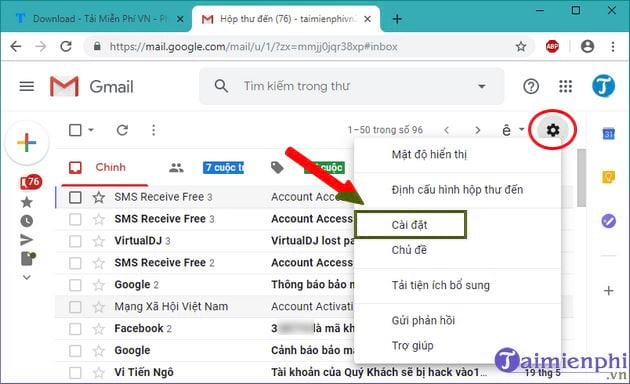
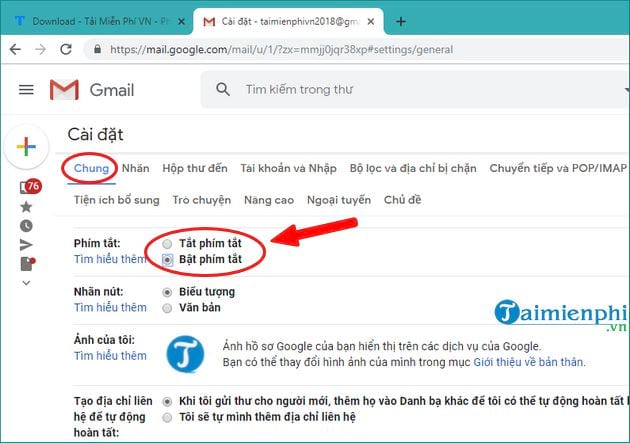
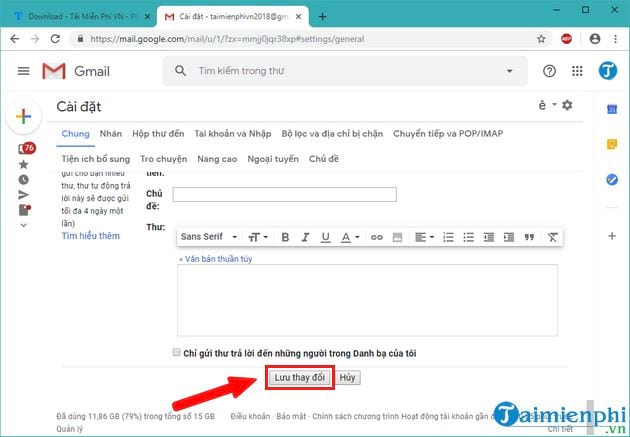
The screenshots may show an older Gmail layout or a different interface language, but the setting names and workflow remain recognizable. If an organization manages the account, some options can differ.
Open Gmail's complete shortcut reference
With Gmail open, press Shift + /, which produces the ? character on many keyboards. Gmail displays a shortcut dialog for the current account and interface. This is more reliable than memorizing an old static list because it reflects the available commands.
Google maintains a current reference in Gmail Help's keyboard shortcut guide.
Essential Gmail shortcuts
Compose and send
| Action | Shortcut | Notes |
|---|---|---|
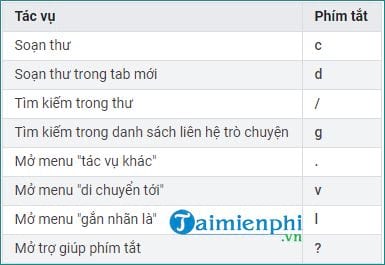
| Compose a message | c | Requires Gmail shortcuts to be enabled |
| Compose in a new tab | d | Useful when referencing the inbox |
| Send | Ctrl/Command + Enter | Gmail may ask for confirmation |
| Add Cc | Ctrl/Command + Shift + c | Works in the compose window |
| Add Bcc | Ctrl/Command + Shift + b | Works in the compose window |
| Insert a link | Ctrl/Command + k | Use on selected text or at the cursor |
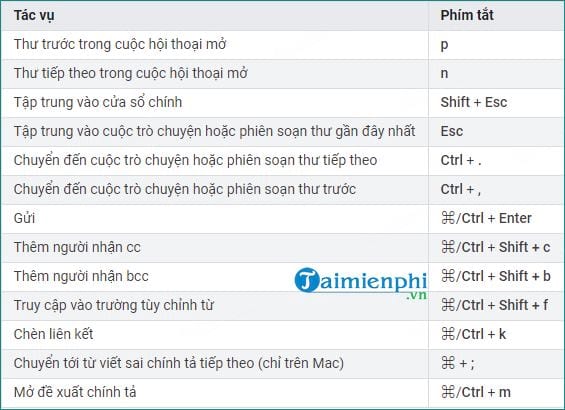
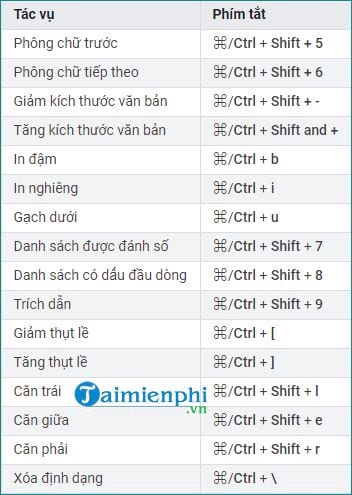
Format message text
| Action | Windows/ChromeOS | Mac |
|---|---|---|
| Bold | Ctrl + b | Command + b |
| Italic | Ctrl + i | Command + i |
| Underline | Ctrl + u | Command + u |
| Remove formatting | Ctrl + | Command + |
Manage selected or open messages
| Action | Shortcut |
|---|---|
| Select a conversation | x |
| Archive | e |
| Delete | # |
| Mark as spam | ! |
| Mark as read | Shift + i |
| Mark as unread | Shift + u |
| Reply | r |
| Reply all | a |
| Forward | f |
| Undo the last action | z |
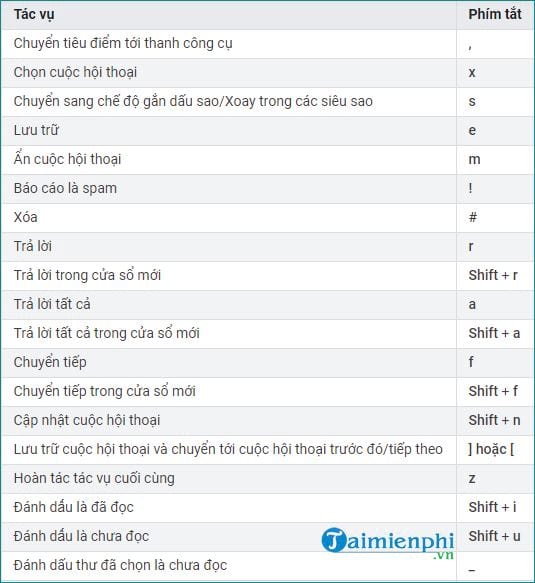
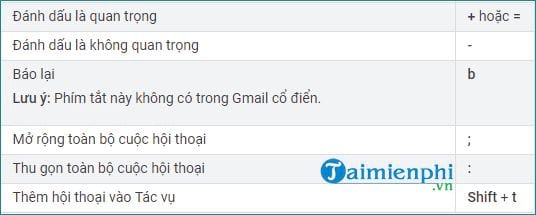
Deletion and spam commands act quickly. Practice first in a test account or with unimportant messages, and remember that z can undo many recent actions while Gmail's notification remains available.
Navigate Gmail
| Action | Shortcut |
|---|---|
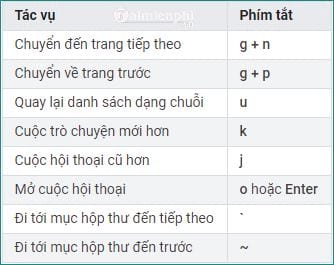
| Move to a newer conversation | k |
| Move to an older conversation | j |
| Open a conversation | o or Enter |
| Return to the conversation list | u |
| Search mail | / |
| Open the More actions menu | . |
| Open Move to | v |
| Open Label as | l |
Use multi-key “go to” commands
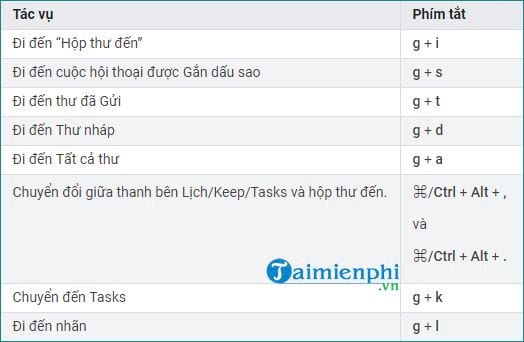
Some commands are sequences rather than simultaneous key combinations. For example, press g, release it, and then press the second key. The current shortcut dialog shows which destinations are available for your account.
- g then i: go to Inbox.
- g then s: go to Starred.
- g then d: go to Drafts.
- g then a: go to All Mail.
If a sequence opens a browser command instead, click inside Gmail and try again. Do not hold both letter keys at the same time.
Customize Gmail keyboard shortcuts
Gmail can expose custom shortcut settings through its Advanced features:
- Open Settings > See all settings > Advanced.
- Enable Custom keyboard shortcuts if the option appears.
- Save the change and allow Gmail to reload.
- Return to Settings and open the new Keyboard Shortcuts tab.
- Change only the commands you use, avoid duplicate assignments, and save again.
Custom shortcuts are best for experienced users with a stable workflow. Start with Gmail's defaults so instructions and support documentation remain easy to follow.
Why Gmail shortcuts may not work
- Shortcuts are disabled: Recheck the General settings and save the change.
- The cursor is inside a text field: Single-letter keys may type into the field instead of triggering an action.
- A browser or extension uses the same command: Test Gmail in a private window or temporarily disable the conflicting extension.
- The keyboard layout differs: Punctuation shortcuts such as ?, #, and ! may require different modifier keys.
- The account or device has limited support: Mobile apps and managed Workspace accounts may not offer the same shortcuts as desktop Gmail.
- The Gmail window is not focused: Click the message list, then retry the command.
A simple way to learn the shortcuts
Choose three commands for one week—for example c to compose, e to archive, and / to search. Add navigation commands only after those feel automatic. You can also review these Gmail shortcuts that use Shift and the broader Windows keyboard shortcut guide.
Keep Gmail's ? shortcut reference as the authoritative list for your current interface. It is faster to verify a command there than to rely on an outdated image or memorized list.
Related Articles
 80+ Most Useful Gmail Shortcuts: Complete Overview7 minutes read
 15 Most Useful Gmail Shortcuts3 minutes read
 All Gmail Shortcuts Save Time You Should Know3 minutes read
 5 Shift Shortcuts Are Extremely Useful When Using Gmail2 minutes read
 Instructions for Using Gmail Shortcuts in Outlook Web Apps2 minutes read
 Keyboard Shortcuts in Illustrator Are Often Used, Keyboard Shortcuts Are7 minutes read
Reader Comments 0
Sign in with email or Google to join the discussion.