Table of Contents
To log out of Gmail on a computer, open Gmail, select your profile picture in the upper-right corner, and choose Sign out. If the computer is lost, shared, or no longer accessible, open your Google Account's security page from another trusted device, review Your devices, and sign out each relevant session remotely.
Signing out, removing an account, and deleting an account are different
- Sign out: Ends the active Google session in that browser.
- Remove an account from the sign-in chooser: Removes the visible account name from that browser's account-selection screen; it does not delete the Google Account.
- Remove an account from a phone: Disconnects the Google Account from that device and may sign the account out of other Google apps on the device.
- Delete a Google Account: Permanently affects account data and is not required for an ordinary logout.
How to log out of Gmail on the current computer
- Open Gmail in the browser where you are signed in.
- Select your profile picture or initial in the upper-right corner.
- Choose Sign out. If several Google Accounts are active, Gmail may show Sign out of all accounts.
- Wait for the Google sign-in or account-selection page to appear.
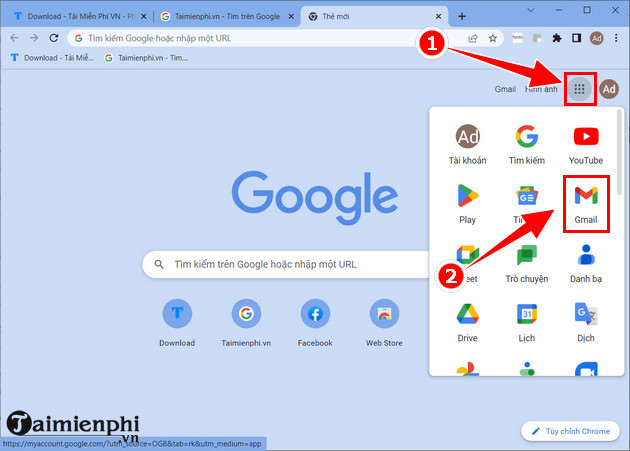
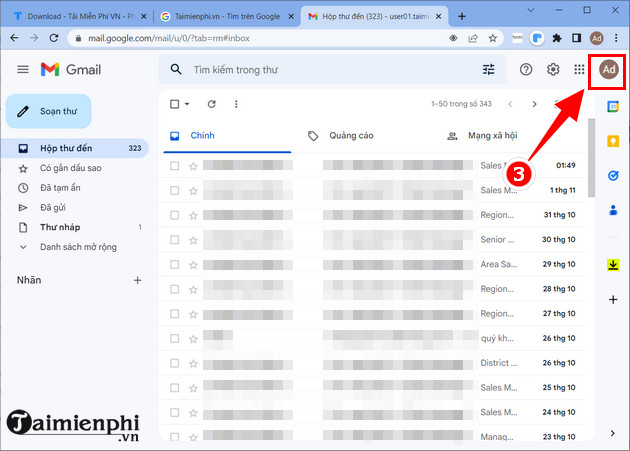
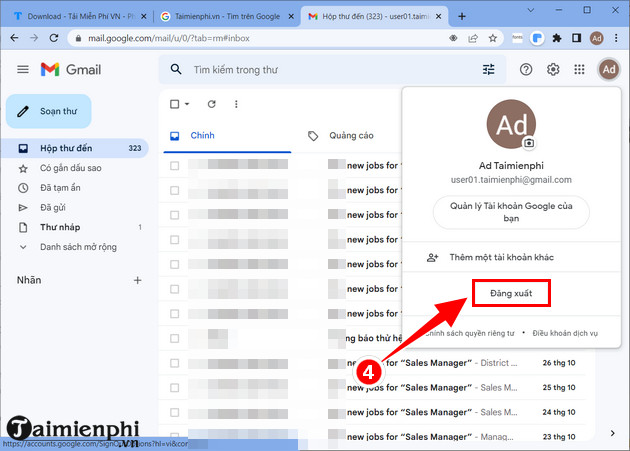
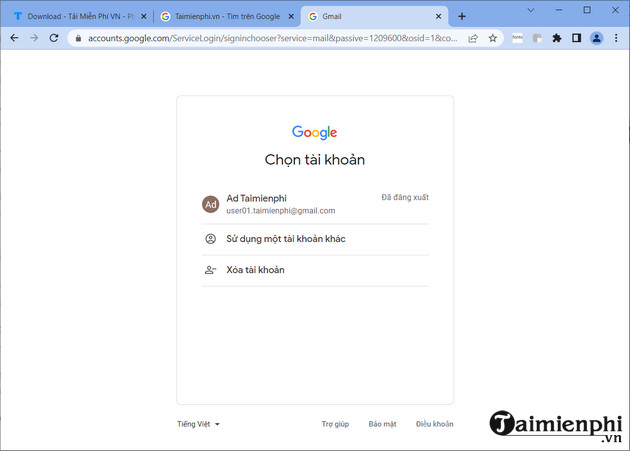
Google's current instructions are available in Gmail Help's sign-out guide. Interface wording can vary by browser, managed account, and whether several accounts are signed in.
Why Gmail may sign out every Google Account in the browser
Google services in one browser profile can share an account session. When multiple accounts are active, the menu may offer only Sign out of all accounts rather than logging out one account independently.
After signing out, sign back in only to the accounts you want to use. For better separation, use different browser profiles for work, school, and personal accounts. A private window is appropriate for short access on a computer you do not own, but you must still close every private window when finished.
Remove an account from the browser's sign-in list
Signing out may leave the account's email address or profile image on the account chooser. On the sign-in page, choose Remove an account or the account-management option, then remove the entry from that browser. This clears the convenient chooser entry but does not remove a password stored by the browser or a third-party password manager.
If you saved the password on a shared computer, remove that saved credential from the browser's password settings as well. For safer cross-device credential storage, review this guide to password management software.
How to sign out of Gmail on another computer or device
Use this method when you left Gmail open at work, used a hotel or library computer, sold a device, or see a session you do not recognize.
- On a trusted device, open your Google Account.
- Select Security & sign-in.
- Find Your devices and choose Manage all devices.
- Select the device or session you want to review.
- Choose Sign out and confirm.
- If the same device shows several sessions, review and sign out each one as needed.
Google explains that one device can display multiple sessions because each browser, app, or service can create its own sign-in period. Signing out one session does not always end every other session on the same device.
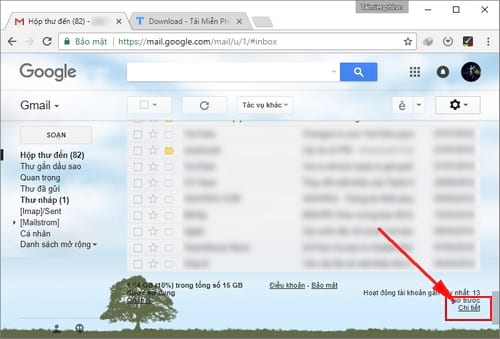
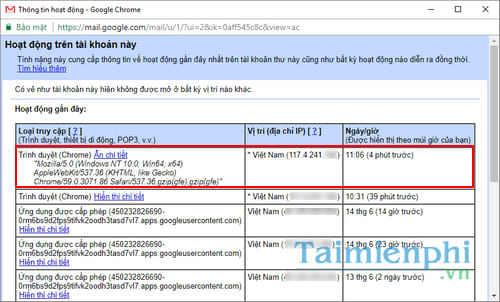
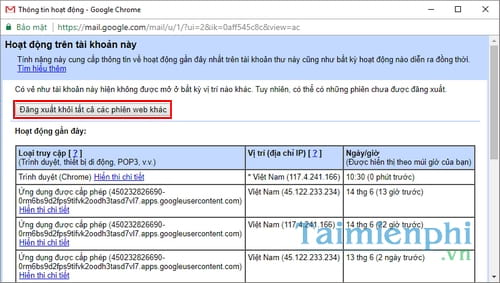
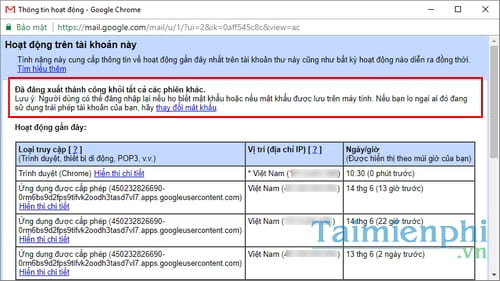
The screenshots above show an older Gmail activity workflow. The Google Account Your devices page is now the clearer place to inspect and end device sessions.
What to do if a device is lost or stolen
Remote logout is only one part of securing the account. From a trusted device:
- Sign out the lost device from Your devices.
- Review recent security activity for unfamiliar locations or actions.
- Change the Google Account password if someone may know it or the computer stored it.
- Confirm the recovery phone number and recovery email.
- Turn on two-step verification and store backup methods safely.
- Check Gmail forwarding, filters, delegates, and connected apps for unauthorized changes.
If the device contains sensitive work or personal data, also use its platform's legitimate lost-device controls to lock or erase it when available. Remote Google sign-out does not erase local files already downloaded to the device.
How to recognize a suspicious Google session
A device entry can show the device type, approximate location, browser or app, and recent activity. Location is approximate and may reflect a mobile carrier, corporate network, or VPN, so a different city alone does not prove compromise.
Treat a session as suspicious when several signals do not match your activity, such as an unknown device, an unfamiliar browser, unexpected account changes, security alerts you did not trigger, or messages sent without your knowledge. Sign it out, change the password, and review security settings.
Using Gmail on a shared or public computer
- Use a private or guest browser window when possible.
- Do not allow the browser to save the password.
- Do not approve the computer as a trusted two-step-verification device.
- Sign out when finished and close every browser window you opened.
- Do not download confidential attachments unless you can securely remove them.
- Avoid logging in when the computer appears unmanaged, modified, or unsafe.
Common logout problems
The account still appears after signing out
The account chooser may remember the email address. Remove the account from the chooser and clear any saved password separately.
The device still appears in account history
Signed-out devices can remain visible for a period as historical security information. Check the device entry's current access status rather than assuming its presence means the session is active.
New mail still appears in a desktop application
An email client can use a separate Google authorization. Review the device sessions and third-party connections in the Google Account security settings, then revoke access that should no longer exist.
You signed out but the browser signs in again
Check saved passwords, browser sync, operating-system accounts, and shared browser profiles. On an organization-managed computer, contact the administrator if account policies automatically restore the session.
Build a safer Gmail workflow
Remote session reviews are most useful when combined with strong, unique passwords and two-step verification. For day-to-day productivity after securing the account, see how to enable Gmail keyboard shortcuts.
When you finish using Gmail on any computer you do not control, sign out, remove the account from the chooser if appropriate, and verify the device later from your Google Account. Those steps protect more than email because the same Google session may also access Drive, Photos, Calendar, and other services.
Related Articles
 How to Change Gmail Password (Password) on the Computer3 minutes read
 The 5 Best Gmail Add-ons That Will Save You Hours Every Week6 minutes read
 3 Good Tips to Help You Manage Inbox on Gmail More Effectively3 minutes read
 How to Quickly Open the Compose Window in Gmail2 minutes read
 Quickly View Email Sender Information on Gmail with Gmail Sender4 minutes read
 How to Recover Deleted Messages in Gmail Quickly3 minutes read
Reader Comments 0
Sign in with email or Google to join the discussion.