Table of Contents
On a computer, change the Gmail background from Settings > Theme > View all. Choose a built-in design or select My photos to use an image available through Google Photos. In the Gmail mobile app, you can usually choose Light, Dark, or System default, but personal photo backgrounds are a desktop feature.
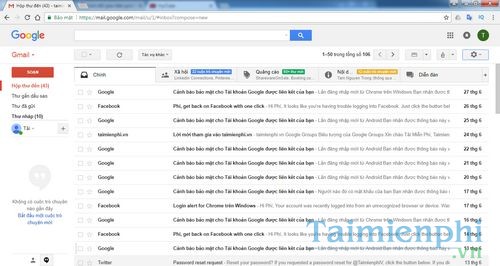
How to change the Gmail theme on a computer
- Open Gmail and sign in to the account you want to customize.
- Select the gear icon in the upper-right corner.
- In Quick settings, find Theme and choose View all.
- Select a built-in theme, Default, or Dark.
- If the theme offers adjustments, review the available text background, vignette, or blur controls.
- Close the theme window after the new appearance is applied.
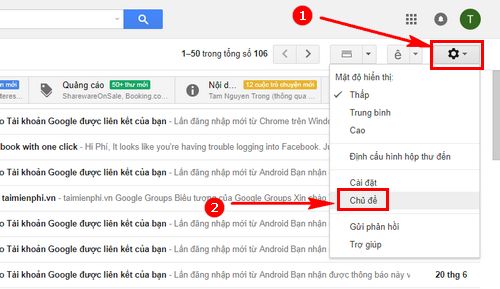
Gmail applies the theme to that account's web interface. It does not change the desktop wallpaper, Google Account profile photo, email message background, or recipients' view of your messages.
How to use a personal photo as the Gmail background
A family photo, landscape, illustration, or brand image can make the inbox easier to recognize, but choose an image that does not expose sensitive information on a shared or workplace screen.
- Open Gmail on a computer and select Settings.
- Next to Theme, choose View all.
- Select My photos in the theme window.
- Choose an available photo from Google Photos.
- Select the image, then choose Insert.
- Adjust readability options if Gmail offers them.
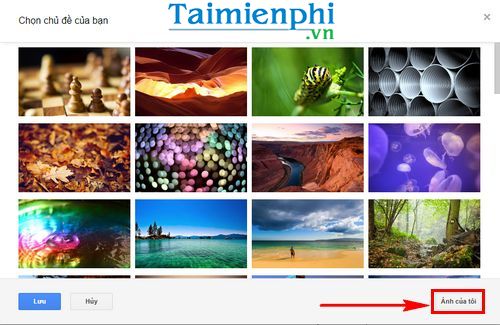
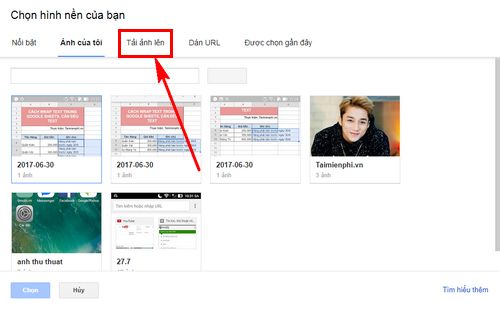
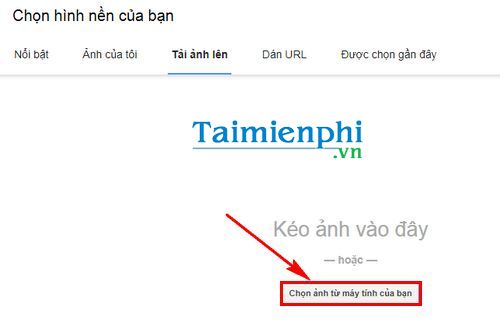
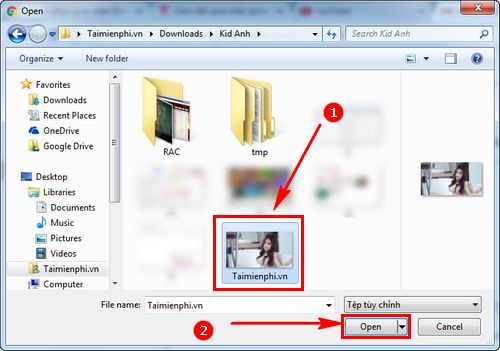
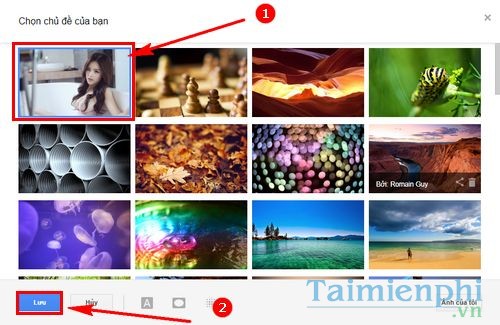
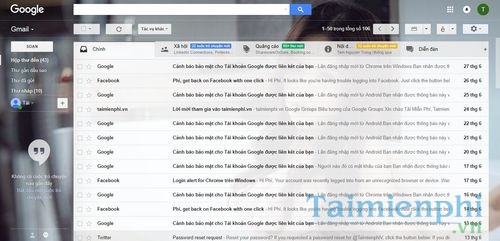
The screenshots show an older Gmail image-upload workflow. In the current interface, personal backgrounds are selected through My photos and Google Photos. Google's current steps are documented in Gmail Help's background guide.
Choose an image that keeps Gmail readable
- Use a large image so it does not become blurry on a high-resolution display.
- Avoid busy patterns behind the message list and navigation labels.
- Leave important faces or text away from areas covered by Gmail panels.
- Use Gmail's text-background control when inbox text blends into the photo.
- Add a slight blur or vignette when available rather than editing the original image repeatedly.
- Test the theme on the screen you use most often.
A dark or low-contrast photo can look attractive but make unread message indicators harder to distinguish. Appearance should support scanning and reading, not only decoration.
Change Gmail between light and dark mode on Android
- Open the Gmail app.
- Open the main menu and choose Settings.
- Select General settings.
- Choose Theme.
- Select Light, Dark, or System default.
Theme availability depends on the device and operating system. System default follows the phone's appearance setting. The mobile app does not offer the same personal-photo background workflow as desktop Gmail.
Change Gmail appearance on iPhone or iPad
On supported versions, Gmail follows the device's light or dark appearance. Open iOS or iPadOS display settings and change the system appearance. Personal photo themes are available when using Gmail on a computer, not as a full inbox background in the iPhone Gmail app.
Why My photos may be empty
The Gmail theme picker uses photos associated with the same Google Account. Check that you are signed in to the intended Gmail account and that the image exists in Google Photos. If you just added it, allow time for the account to update, then reopen the theme window.
Also confirm that the image is a normal supported photo rather than a restricted shared item or an inaccessible file from another account.
Why the Gmail theme option may be missing
- The account is managed by a workplace or school with restricted appearance settings.
- You are using a simplified or mobile browser interface.
- The browser page has not fully loaded.
- An extension or strict browser setting interferes with the theme dialog.
- You are signed in to a different Google Account than expected.
Reload Gmail, test a current browser, and try a private window. If the control appears there, review extensions or cached site data in the normal browser session.
Return Gmail to its default appearance
Open Settings > Theme > View all and select Default. This removes the custom inbox background without deleting the source photo from Google Photos.
Appearance and language are separate settings. To translate Gmail menus and labels, use this guide to change the Gmail interface language. To speed up inbox work after customizing it, see how to enable Gmail keyboard shortcuts.
Related Articles
 How to Change Gmail Wallpaper to Your Liking: Change Default Wallpaper3 minutes read
 Gmail Allows You to Change Your Wallpaper Freely4 minutes read
 Sorry Photo: Synthesis Image Sorry3 minutes read
 What Gifts Do You Give Your Lover on Your Birthday6 minutes read
 How to Change the Gmail Background Image on a Computer3 minutes read
 How to Change the Background of an Image in Canva: Step-by-Step Guide4 minutes read
Reader Comments 0
Sign in with email or Google to join the discussion.