Table of Contents
Gmail's desktop theme controls let you use a built-in design or a personal photo, then improve readability with text-background, vignette, and blur adjustments when those controls are available. Open Settings > Theme > View all to reach the theme picker.
Open Gmail's desktop theme settings
- Open Gmail on a computer and sign in to the account you want to change.
- Select the gear icon in the upper-right corner.
- Find the Theme section in Quick settings.
- Choose View all to open the full theme window.
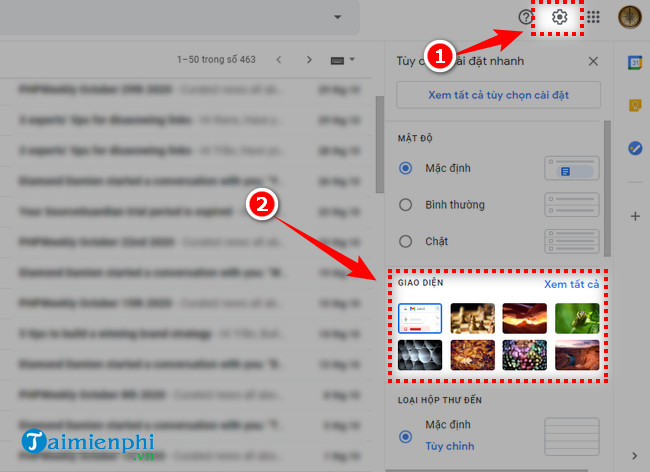
The appearance is associated with the Gmail account's web interface. It does not modify the computer wallpaper, the Google profile image, or how recipients see your email messages.
Choose a built-in Gmail theme
The theme window can include default, dark, solid-color, illustrated, and photographic choices. Select a theme to preview it behind the inbox. Check the navigation panel, unread-message labels, timestamps, and search bar before keeping it.
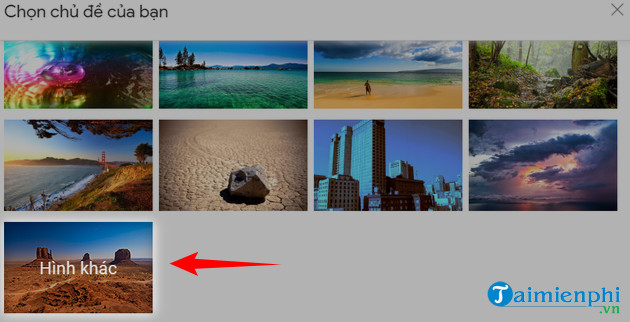
A visually striking image is not always a practical inbox background. High contrast, bright detail, or a subject positioned behind message text can make Gmail harder to scan for long periods.
Select a personal photo from Google Photos
- In the theme window, choose My photos.
- Browse the Featured or Photos view available to the current Google Account.
- Open the album or image collection that contains the background.
- Select the photo and choose Insert or the equivalent confirmation control.
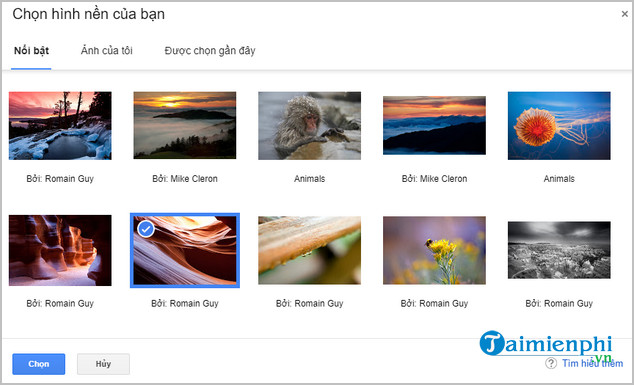
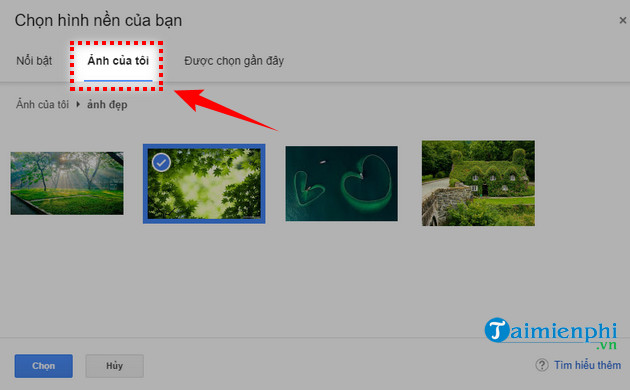
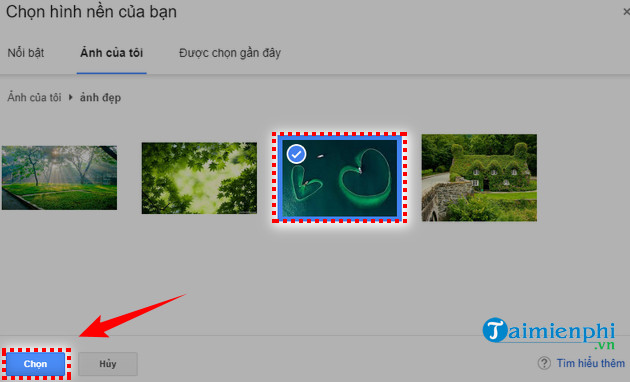
Use a large, sharp image with room for Gmail's panels. If the photo does not appear, verify that it is stored in Google Photos under the same account that is currently open in Gmail.
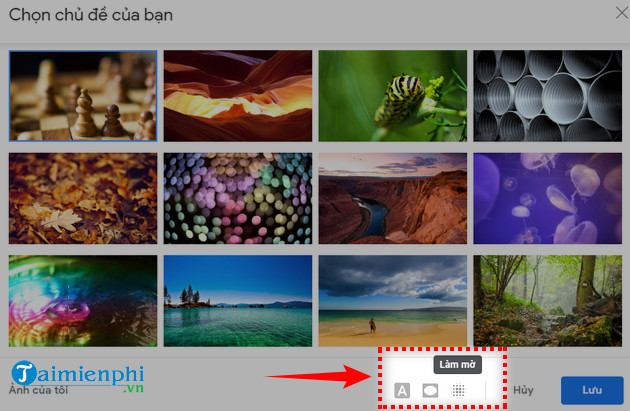
Use the text-background control
The text-background option changes the area behind Gmail's message list and navigation text. A light text background generally works with darker photos; a dark text background can reduce glare and improve labels over a bright image.
Switch between the available modes and inspect:
- read versus unread conversations;
- message sender names and subject lines;
- labels in the left navigation;
- timestamps and attachment indicators;
- selected and hovered rows.
Add a vignette when the edges are distracting
A vignette darkens the outer part of the background image while leaving the center more visible. It can help when navigation labels overlap bright detail near the edges. Increase it gradually; an aggressive vignette can make the photo look muddy and may not solve contrast problems in the message list.
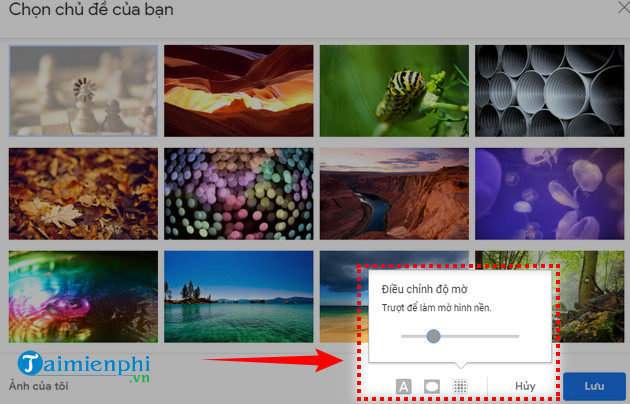
Use blur to reduce visual clutter
Blur softens fine detail in the photo so message rows and controls stand out. It is useful for portraits, city scenes, patterned images, or photos with text. Apply only as much blur as needed to make the interface comfortable.
Blurring the Gmail background does not modify the original photo in Google Photos. It changes only how the image appears in the Gmail theme.
Apply and inspect the finished theme
After choosing the photo and adjustments, close or save the theme window as the interface requires. Review several inbox areas, open a message, compose an email, and check search results. If buttons or text are hard to see, return to the theme controls and reduce detail, change the text background, or choose another image.
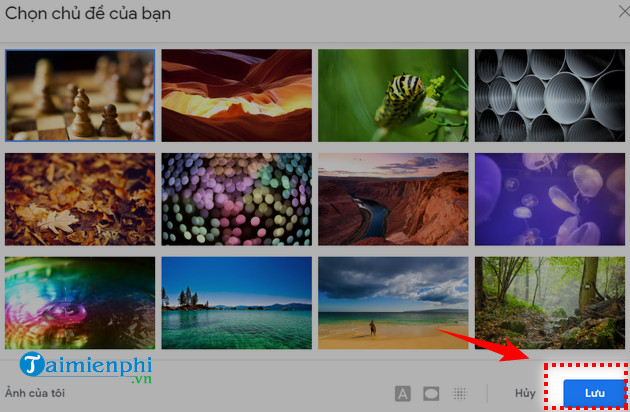
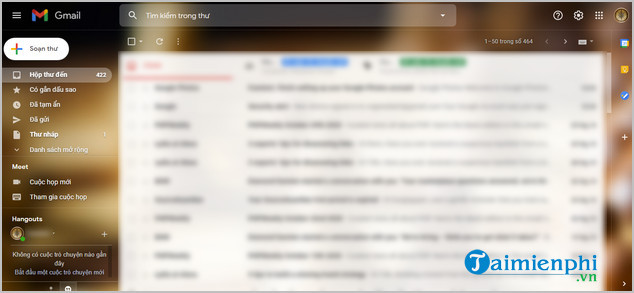
Photo choice and privacy
- Do not use sensitive family, client, workplace, medical, financial, or identity information as a background on a shared screen.
- Avoid photos that reveal addresses, documents, school details, access badges, or private messages.
- Remember that screen sharing and screenshots can capture the theme.
- Use a neutral theme on a public, classroom, or presentation computer.
- Choose an image you own or have permission to use.
Troubleshooting Gmail theme changes
My photos is empty
Confirm the image is in Google Photos for the active account. Reopen Gmail after the photo finishes uploading, and check whether the account is managed by an organization that limits customization.
The image looks blurry
Choose a higher-resolution source photo. Gmail may crop or scale the background to fit the browser window, so a small image can look soft on a large or high-density display.
The theme does not appear on the phone
Desktop photo themes and mobile appearance settings are different. The Gmail mobile app typically offers Light, Dark, or System default rather than a full personal-photo background.
The interface is difficult to read
Change the text-background mode, increase blur, add a subtle vignette, or return to a simpler theme. Readability should take priority over preserving every detail in the photo.
Restore the default Gmail theme
Open Settings > Theme > View all and select Default. This removes the custom background from Gmail without deleting the source image from Google Photos.
Google documents the current controls in its Gmail background instructions. For a broader guide covering desktop and mobile appearance, see how to change the Gmail background or theme. If the labels are in an unfamiliar language, follow the steps to change Gmail's interface language.
Related Articles
 How to Change Gmail Wallpaper to Your Liking: Change Default Wallpaper3 minutes read
 Gmail Allows You to Change Your Wallpaper Freely4 minutes read
 How to Change Your Gmail Background Image to Your Wife3 minutes read
 How to Change the Background of an Image in Canva: Step-by-Step Guide4 minutes read
 Instructions for Changing AI Photo Background Online4 minutes read
 Guide to Change Background Beautiful, Detailed and Easy to Learn3 minutes read
Reader Comments 0
Sign in with email or Google to join the discussion.