Table of Contents
Keeping CCleaner updated provides current compatibility and security fixes. Use the update control inside the app or download the installer from CCleaner's official website; avoid third-party download mirrors.
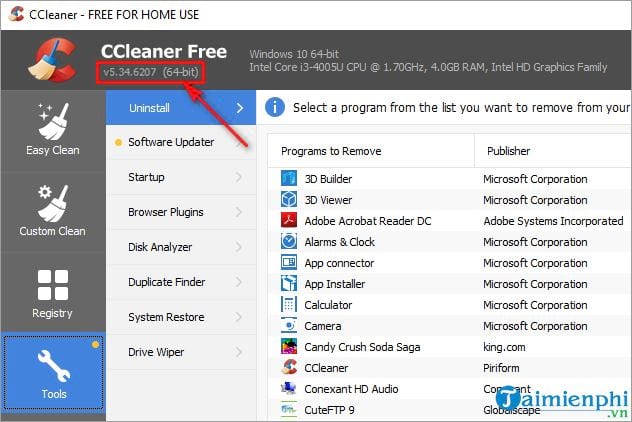
Check the installed version
Open CCleaner and look for the version number in the interface or About screen. Menu names and layout vary between major releases, so an older screenshot may not match the current app exactly.
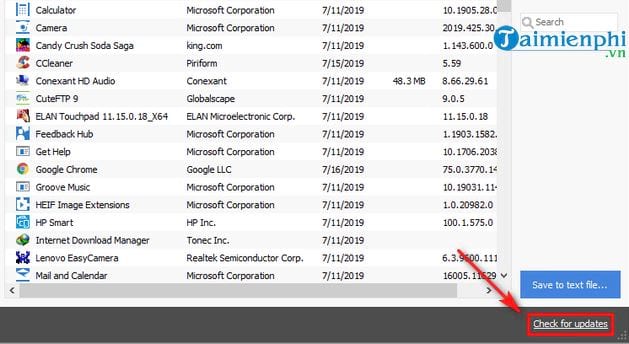
Use Check for updates
In CCleaner, select Check for updates. Some releases place this under Options > Updates.
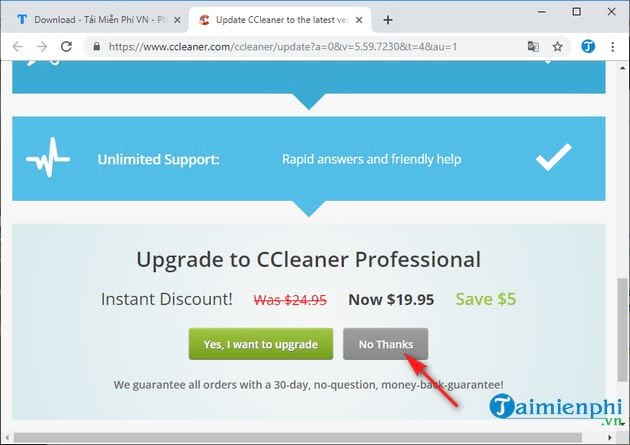
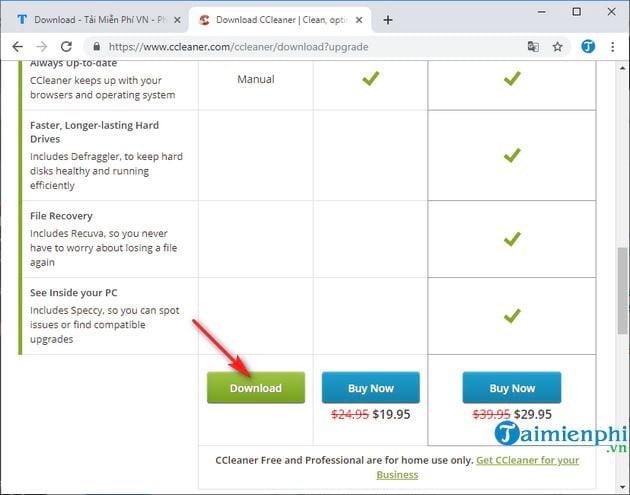
If a browser page opens, distinguish a paid-edition offer from the free product update. You do not need to buy Pro merely to install a current free release.
Choose the official download for the edition you already use.
Install the update
- Close CCleaner and save other work.
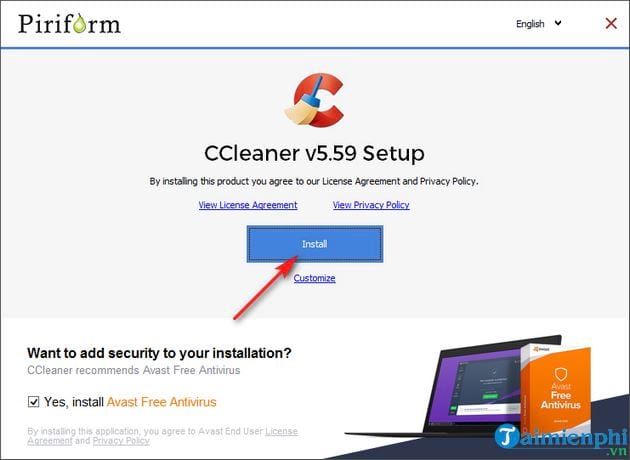
- Open the downloaded installer. In the Windows security prompt, confirm that the publisher is the expected CCleaner/Piriform publisher before approving it.
Review optional offers and installation settings, then select Install.
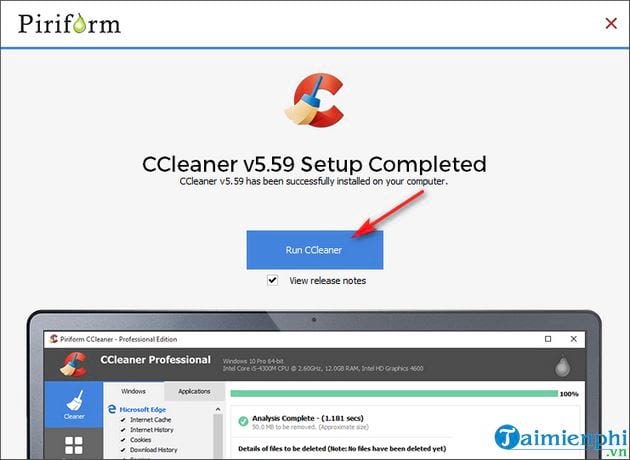
When setup finishes, launch CCleaner and check the version again.
Configure automatic updates
Open Options > Updates and review the product-update choices. If Keep CCleaner updated automatically is available and enabled, the app can install product updates without a manual check. Managed computers should follow the organization's update policy.
If the update fails
- Restart Windows and try the in-app check again.
- Confirm that the PC has enough free space and that security software is not blocking the signed installer.
- Download a fresh installer from the official site instead of reusing an old setup file.
- Do not uninstall the current copy until you have a verified installer and any paid-license information you need.
Updating the app does not replace careful cleanup choices. Before removing files, review the categories described in the Windows 10 junk-file cleanup guide. Windows' built-in alternatives are also covered in useful older Windows tools.
Related Articles
 How to Update Itunes to the Latest Version6 minutes read
 How to Update Your iPhone to the Latest iOS Version5 minutes read
 How to Restoring Original Settings for Ccleaner3 minutes read
 CCleaner Has Been Hacked, Attached Malware, Things to Know and How to Fix It4 minutes read
 Change Language on Ccleaner: Change Ccleaner Language to Vietnamese3 minutes read
 CCleaner 5.45 Is Wiped Out by Collecting User Data, If You Are Using It, Remove It Immediately3 minutes read
Reader Comments 0
Sign in with email or Google to join the discussion.