Table of Contents
For Evernote on Ubuntu, start with Evernote Web in a supported desktop browser. Tusk is an unofficial third-party client, not the official Evernote Linux application. Its package installing successfully does not prove that current Evernote sign-in, editing, and synchronization will work.

Use the web version first
Open Evernote's official website in an updated supported browser and sign in through the official service. Check that your existing notebooks and recent notes appear before evaluating another client.
Evernote's system requirements list supported desktop browsers. Those requirements are a better guide than an old promise of an upcoming Linux beta.
What Tusk provides
The Tusk project describes itself as an unofficial, open-source Evernote app. Its advertised desktop features include themes, keyboard shortcuts, display modes, and export options. Check the release you intend to use rather than assuming every feature in an old screenshot remains compatible.
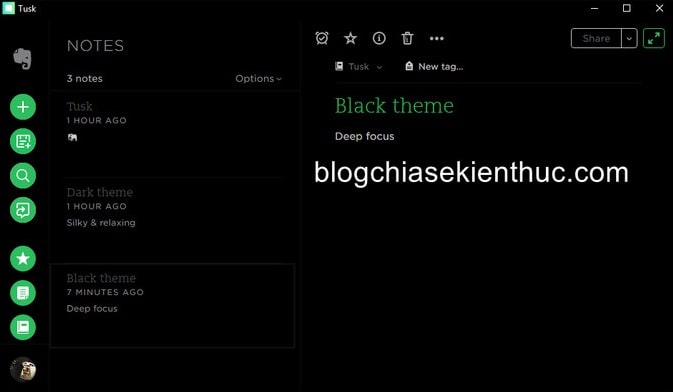
Tusk is not the same as Joplin or another independent note-taking system. Switching to a separate service may require an export/import migration rather than signing into an Evernote account.
Before installing a Tusk package
- Check the official project, release history, known issues, and supported architecture.
- Verify the package publisher and source. Avoid a similarly named application from an unrelated developer.
- Keep a backup or export of important notes and confirm that they are visible in Evernote Web.
- Check whether you are comfortable allowing an unofficial client to handle access to your notes.
Option 1: Check the Snap package
If you use Snap on Ubuntu, inspect the package information first:
snap info tuskReview the publisher, channels, update information, and confinement requirements. Install only if that listing matches the project you intend to use and its maintenance and compatibility are acceptable. Do not add --classic blindly: classic confinement grants broader system access than a strictly confined package.
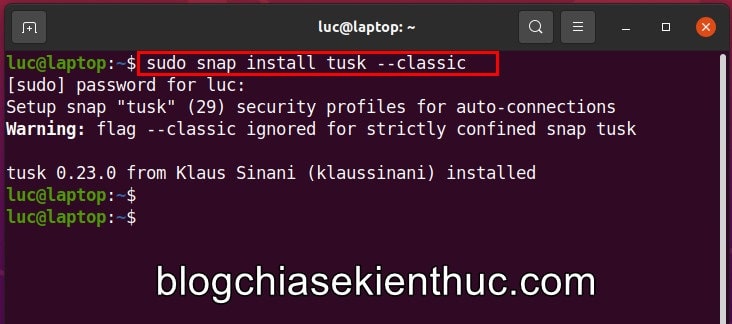
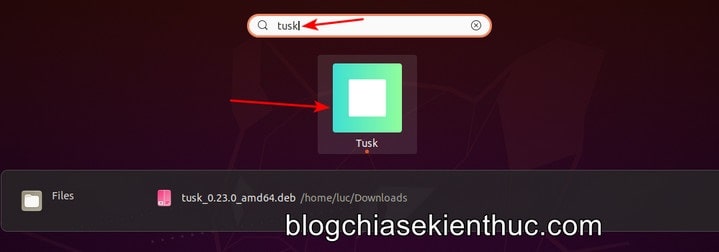
The original tutorial installed Tusk 0.23.0. This historical screenshot is not evidence of a current working client.
Option 2: Use a project release package
From the official project's Releases area, choose a package matching your Ubuntu architecture. The old amd64.deb filename describes a particular build, not every available architecture or a universal Linux installer.
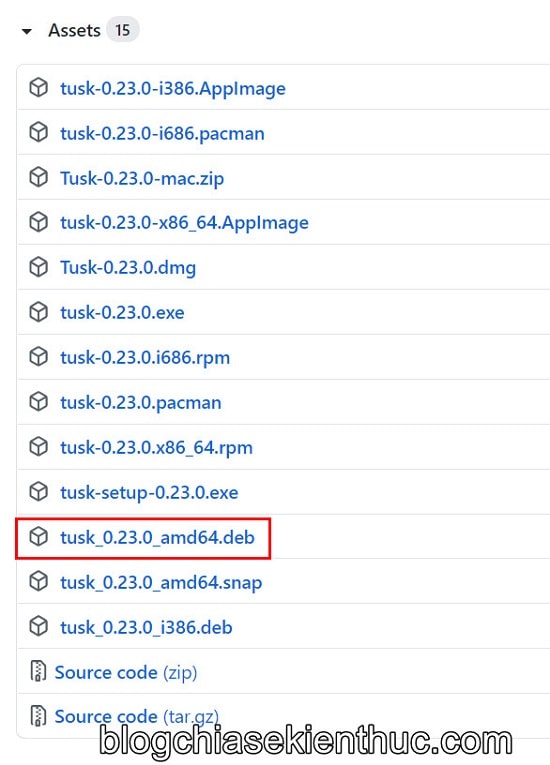
If a suitable package is available, open it with your system's compatible package installer, review dependencies and proposed changes, and authenticate when required. Do not bypass missing-library errors by installing arbitrary packages from other Ubuntu releases.
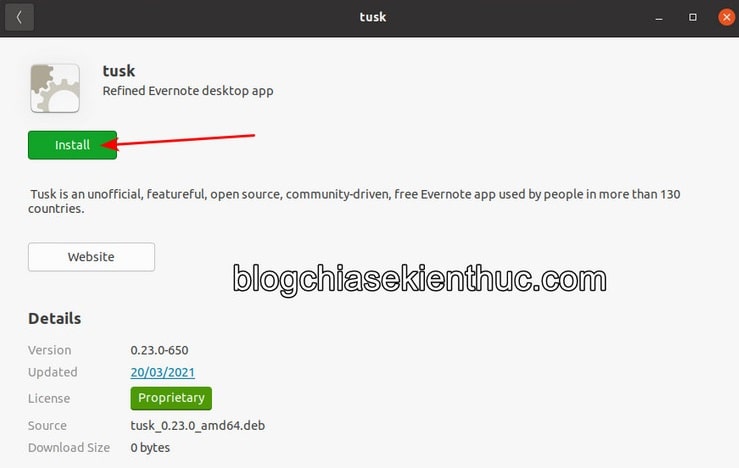
Verify sign-in and synchronization
Launch Tusk from Ubuntu's application search. Treat any old sign-in screenshot as illustrative; use the current authentication flow and stop if it cannot establish a normal connection.
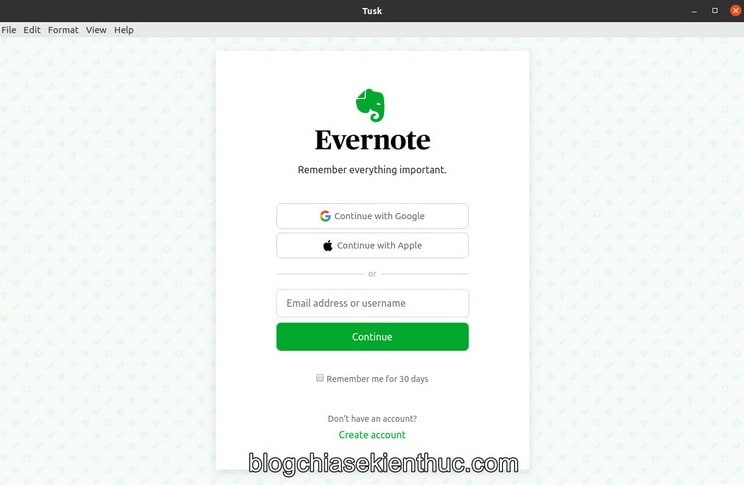
Create a disposable test note, then check it in Evernote Web. Edit it in the browser and verify the change in the client. Test an attachment you commonly use before trusting the client with important work.
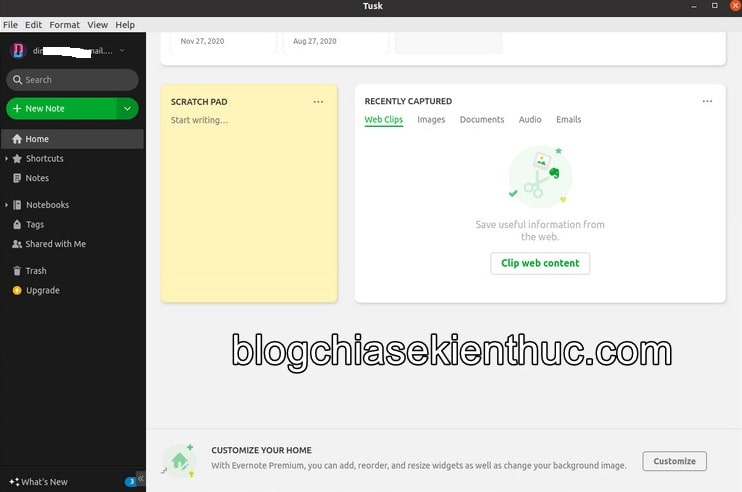
If sign-in or synchronization fails, return to Evernote Web and inspect the project's reported issues. Do not delete local data or repeatedly reinstall until you know your notes are safely synchronized.
Organize or migrate notes deliberately
Once access works, use clear notebooks and Evernote tags to make notes easier to find. If you prefer a supported Linux-first alternative, compare Evernote alternatives and test the migration with copies before moving your whole archive.






Reader Comments 0
Sign in with email or Google to join the discussion.